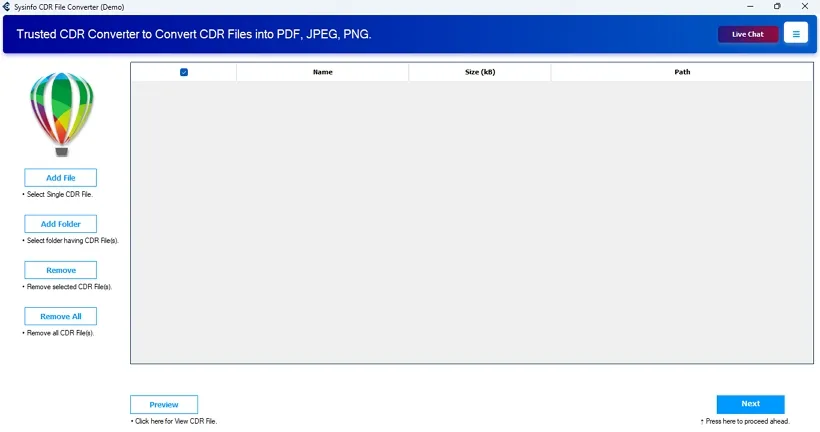
Step 1: Run CDR Converter
Download, install, and launch the CDR File Converter Tool on your OS as an administrator.
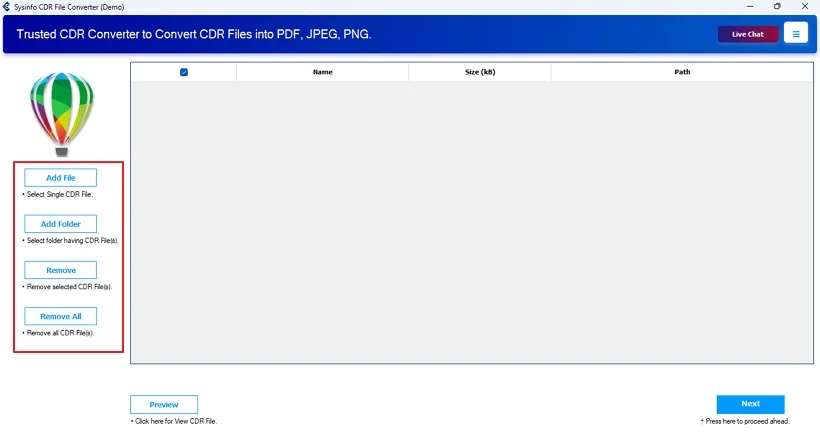
Step 2: Manage CDR Files
Once the tool launches, you get four different options to manage files as follows:
- Add File: Load one or more files individually from the PC.
- Add Folder: Upload a folder containing multiple CDR files from the PC.
- Remove: Eliminate any CDR files from those uploaded to the software.
- Remove All: Clear all the CorelDRAW files uploaded to the software.
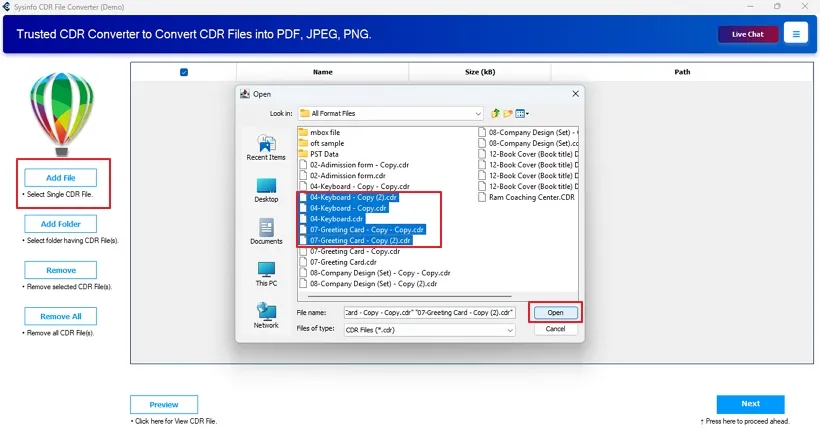
Step 3: Import CDR Files
Click Add File or Add Folder and choose the CDR files from the PC that you want to insert. Click Open.
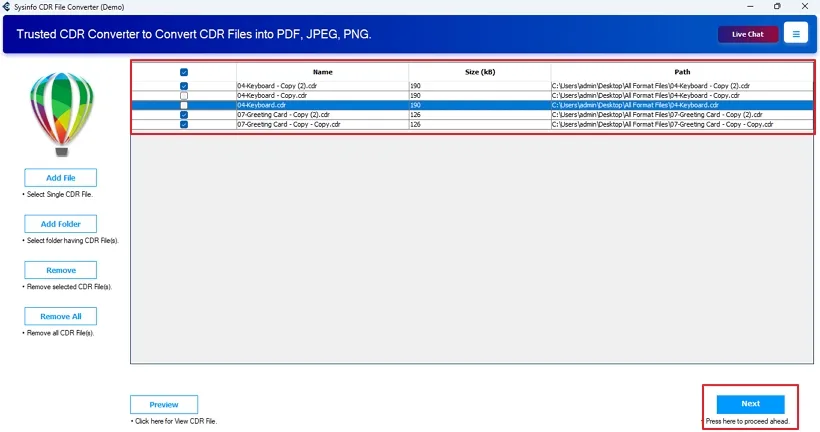
Step 4: View Uploaded CDR Files
Once all the files are opened in the software, you can check their Name, Size, and Path, and select those to convert. Click Next.
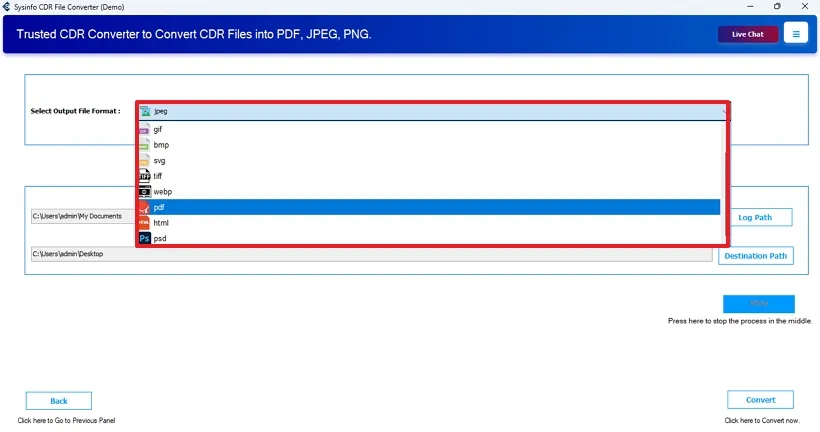
Step 5: Choose Saving Format
Further, select the desired file format from the output list in which you want to save the CDR data. Let’s say we choose PDF.
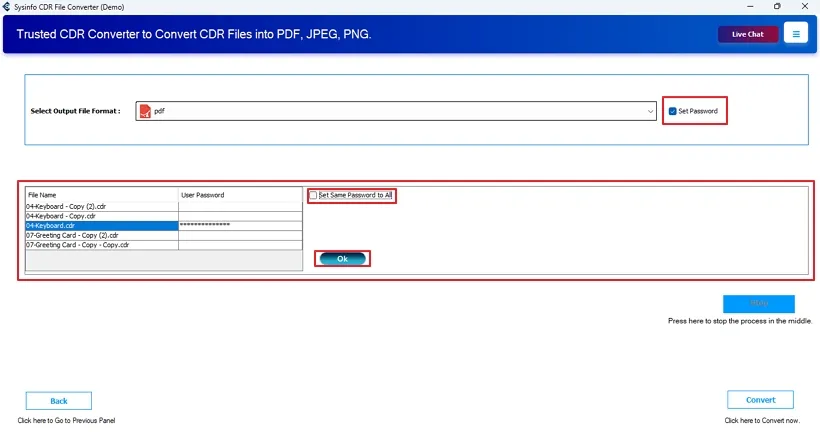
Step 6: Apply Password Filter
With PDF, you get a filter option as Set Password. Once you select it, you can apply separate passwords to all files or the same passwords to all CDR files. Click OK to apply.
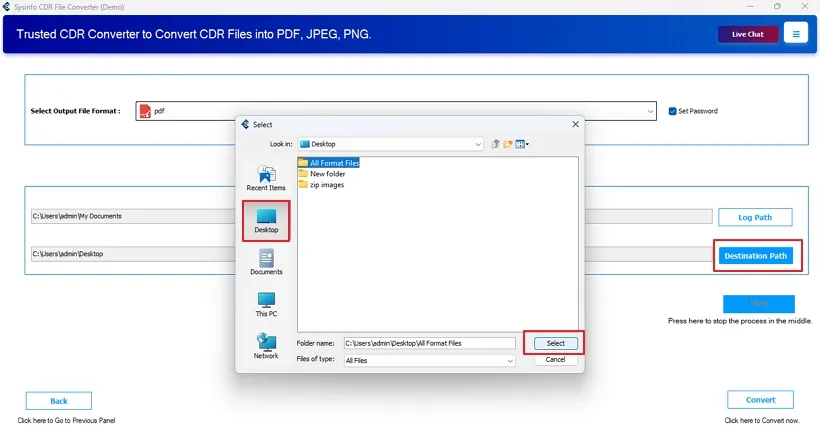
Step 7: Select Saving Location
Afterward, click Destination Path to select a location where you want to save the resultant file on your OS.
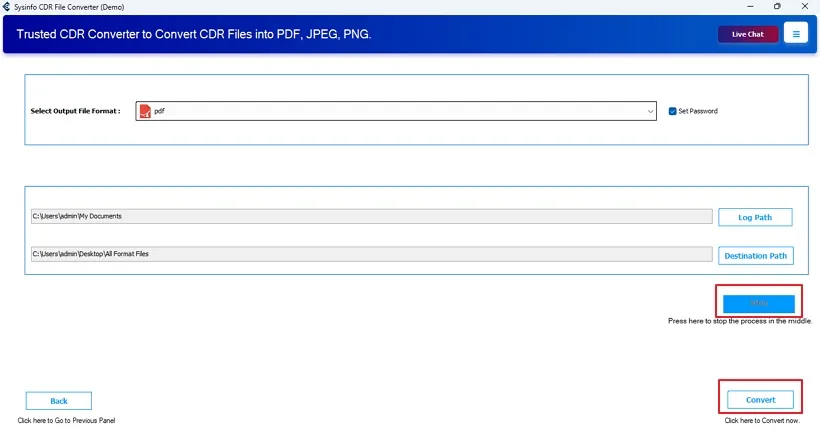
Step 8: Convert CorelDRAW File
Finally, click Convert to start the conversion process of your CDR files. Use the Stop button to halt the process in between, if needed.
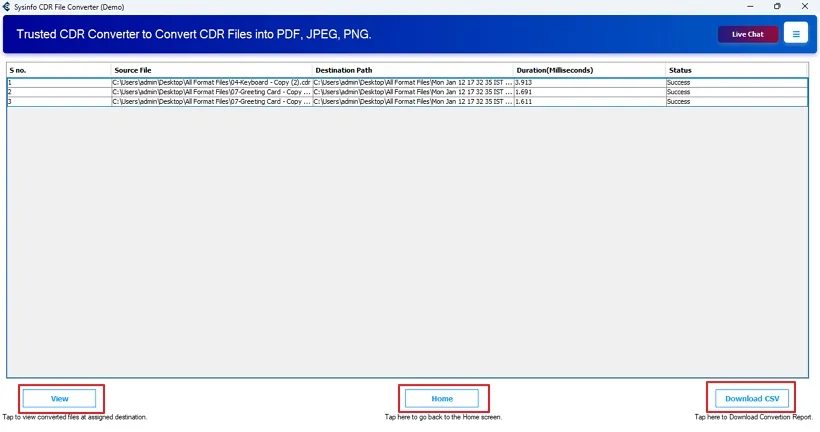
Step 9: Conversion Successful
Once the conversion process completes, you can check its status. Further, you can use any of these options as desired:
- View: To directly move to the location where the resultant converted file is saved on your PC.
- Home: Move back to the first pane of the software window to restart conversion.
- Download CSV: To check the CSV report of the CDR file conversion.

Step 10: Check Downloaded Report
A CSV file for the conversion is downloaded and saved on your system, which may show details as presented in the image below.