-
Written By Amit Chandel
-
Updated on January 27th, 2026
Best Ways to Convert CDR to PNG on Windows and Mac
Darrel’s Query: “I have some CDR files that I tried to open in other device, but the file didn’t open. To open it in other device, I am planning to convert CDR files to PNG. This will help me to share them without compatibility issues?”
CorelDRAW is powerful and flexible for creating visuals and is preferred by most of the designers. The main problem starts when the users find difficulties in sharing those designs. CDR files don’t open easily on all devices or platforms, which can be frustrating. That’s why many users look for a simple way to convert CDR to PNG format, so the images can be viewed anywhere without trouble. This blog walks through how to do that using the MailConverterTools CDR Converter Tool.
Why User Preferred to Convert CDR File to PNG?
- PNG files open on almost any phone or computer.
- CDR files need CorelDRAW, which many people don’t have.
- PNG is easy to share by email or chat apps.
- You can upload PNG images to websites without issues.
- The image still looks clear after converting.
- PNG works well for logos and simple designs.
- It keeps transparent backgrounds.
- Anyone can view a PNG file without extra software.
2 Manual Ways to Convert CDR to PNG File Format
In this section of the manual methods we covered two approaches that are sufficient for the CDR to PNG Conversion. But these methods have some limitations, which are mentioned as well in the section. Correct implementation of these methods will help you to get the correct results.
Method 1: Convert CorelDRAW CDR to PNG Using CorelDRAW
- First, open CorelDRAW on your computer.
- Then, open the CDR file you want to convert.
- Go to the File option at the top.
- From the menu, choose Export or Export for Web.
- Thereafter, select PNG as the output format.
- If needed, adjust settings like image quality or transparency.
- Finally, click Export to save the file as PNG.
Method 2: Convert CorelDRAW to PNG Using Photopea
- Finally, open the Photopea website in your browser.
- Then, click on File and select Open.
- After that, upload the CDR file you want to convert.
- Once the file opens, check the preview on the screen.
- Further, click File again and choose Export as.
- Afterwards, select PNG from the list.
- At last, make small changes if needed, then save the PNG file.
Limitations
- Beginners may find the export settings confusing.
- Large or complex files can take a considerable amount of time to process.
- Big or detailed CDR files may not open properly.
- Advanced design elements may not convert perfectly.
- Uploading files online is not ideal for sensitive data.
Effortless Way to Convert CDR to PNG on Windows and Mac
This MailConverterTools CDR Converter helps you change CDR files into PNG images. The utility lets you convert more than one CDR file at a time and reduces manual efforts. It also works if a CDR file has multiple pages. After conversion, the design looks the same, and no important detail is lost. The file content remains unchanged. At last, CorelDRAW is not required on your computer while using the tool.
CDR File Convert to PNG: Step-by-Step Guide
- Firstly, download the CDR Converter Software.
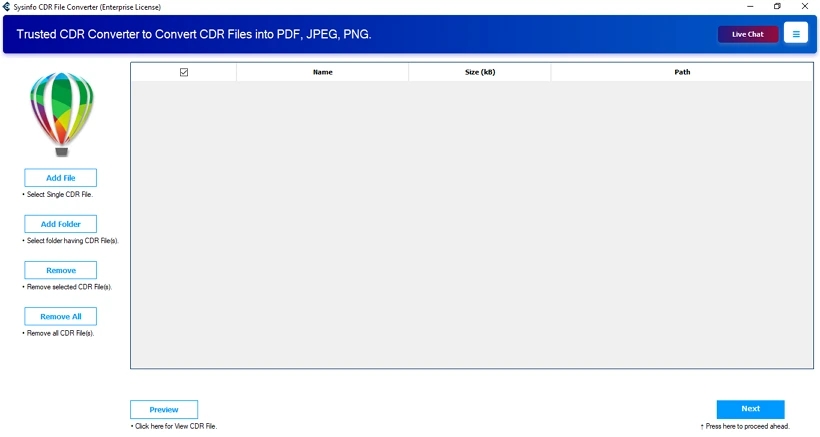
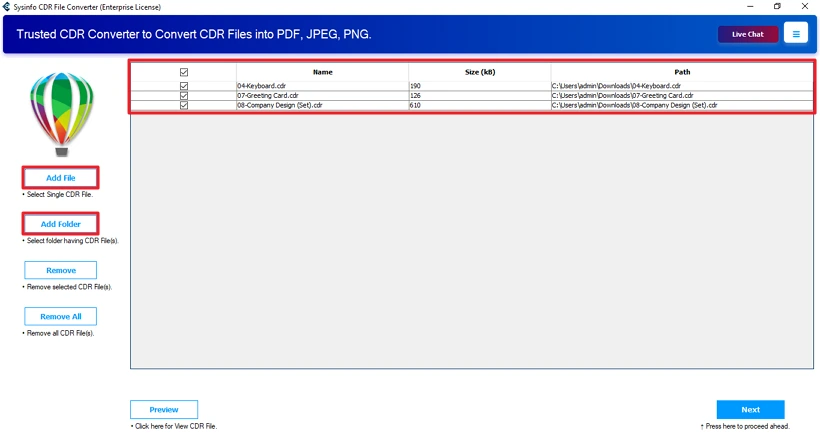
- Then, add CDR files and click Next.
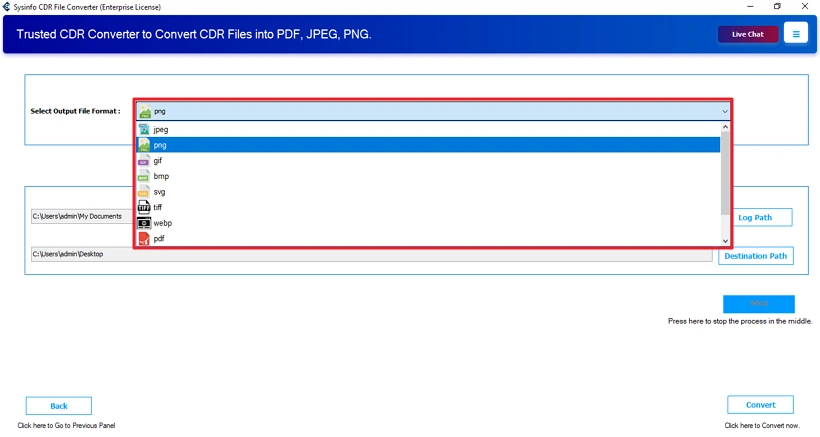
- Further, choose the PNG format.
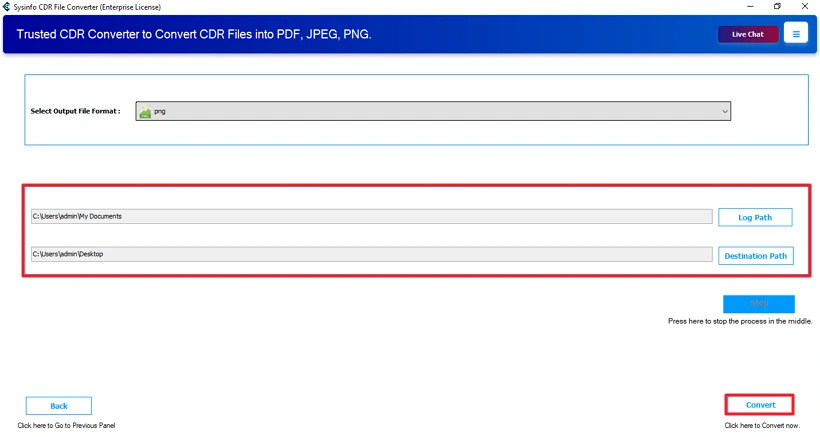
- Finally, set the path to save files and click Convert.
Successful User Case :
Mike had a bunch of design files made in CorelDRAW. On his own system, everything was fine. The issue came up when he tried to open those same files on other devices or share them with people. But most people didn’t have CorelDRAW. Because of that, sharing the designs became a problem. To fix this, he decided to convert the CDR files into PNG so they could be opened anywhere.
He first tried doing the conversion manually, but that didn’t work well for him. Converting files one by one took too long, and a few designs had multiple pages, which made things slower. Later, he used the MailConverterTools CDR Converter. It allowed him to add all the CDR files together and convert them in one go. After conversion, the PNG files opened fine on different devices and were easy to share through email and cloud storage. The designs stayed the same, and Mike didn’t face any compatibility issues after that.
Conclusion
Changing CDR files to PNG makes the work easier. You can share your designs and open them on different devices. This can be done with CorelDRAW, online tools, or a CDR Converter Tool. The images keep their quality after the change and still look clear. Knowing how to convert CDR to PNG helps you share your work and use it without trouble.
Frequently Asked Questions
Q1: Can I convert CDR to PNG without losing image quality?
Ans: Yes, the MailConverterTools CDR Converter Tool efficiently converts a CDR file to PNG without losing image quality. Additionally, it offers more file formats to convert the CDR file.
Q2: Can I convert multiple CDR files to PNG in bulk?
Ans: Using the professional MailConverterTools CDR Converter, you can process your bulk CDR files easily. It provides accurate results without any formatting or quality loss.
Q3: What resolution should I use when converting CDR to PNG?
Ans: If it’s for web or screen use, 72 to 150 DPI is usually enough. For printing, go for 300 DPI or higher to keep the image sharp.
About The Author:

Meet Amit, an experienced SEO expert and content planner. He uses his creativity and strategy to create content that grabs attention and helps brands reach their goals. With solid skills in digital marketing and content planning, Amit helps businesses succeed online.
Related Post