-
Written By Amit Chandel
-
Updated on January 29th, 2026
Convert CDR to TIFF and Maintain Original Design Quality
“I have a few CorelDRAW files that I want in the TIFF file format to use the logos and illustrations within them on my website. However, I cannot find any easy solution to bulk convert CorelDRAW to TIFF without formatting loss or any major disruptions. Can you help me out?”
-Bianca Benjimin
Recently, we received this user query from a design team of an IT firm in the USA. They asked for help for an easy, effective, and direct solution to convert CDR to TIFF at a large scale accurately. Considering their needs, we prepared this guide to explain how some free solutions and an advanced MailConverterTools CDR Converter Tool can ensure a flawless and effortless CDR conversion in minimal time. Let’s find out.
How CDR and TIFF Formats Differ?
CDR files are native vector-based files for CorelDRAW, which are platform-dependent and created with mathematical paths, curves, text objects, and layers. These are ideal for creating and editing logos, designs, illustrations, and designers or painters often use them for tweaking shapes, adjusting typography, and other layers. The only challenge is that these aren’t portable.
TIFF (Tagged Image File Format), on the other hand, are independent raster-based images created by pixels at a fixed resolution. If you save the image in TIFF format, it’s no longer editable and ensures high-quality preservation. It is useful in many workflows and is portable. Therefore, many users choose to convert CDR file to TIFF.
Some other popular reasons for CDR to TIFF conversion are:
- TIFF files are lossless, support high DPI, and handle color well.
- You can easily share TIFF across platforms and to non-CorelDRAW users.
- Useful for printing, sharing, medical imaging, archiving, and publishing.
- Unlike CDR, TIFF behaves consistently and keeps the design quality intact.
- With TIFF, you get transparency to handle confidential designs offline.
How to Convert CDR to TIFF with Original Design Quality?
Whether you are a print service provider, creative agency, publishing house, or large enterprise handling archived design assets. This section describes both free solutions and a professional converter tool for CDR file conversion without degradation or loss in a simplified manner. Go through the methods below to ensure smooth CDR conversion.
Conventional Approach to Convert CorelDRAW CDR to TIFF
A few simple manual tricks can help with the manual conversion. But you must have CorelDRAW to use them. These are:
1) Using the CorelDRAW Application
- Initially, open your CDR file in CorelDRAW and then click File.
- Next, choose Export and select TIFF as the saving format.
- Further, set the following settings as required:
- 300 DPI or higher resolution
- Match original (RGB/CMYK) color code
- None or LZW compression with enabled anti-aliasing
- Finally, click Export and OK to convert and verify the output.
Note: Using the CorelDRAW app, you can also convert CDR to BMP.
2) Through Corel Photo-Paint Feature
- Once you open CDR in CorelDRAW, right-click the artwork.
- Further, click Edit Bitmap and then Photo-Paint opens.
- Lastly, go to File, click Save As, and choose TIFF (.tif). Hit Save.
3) Screenshot to Export CDR File in TIFF
- Open your CDR in CorelDRAW and press PrtScr to take a screenshot.
- Next, open the Screenshot with Paint/Photoshop.
- Further, go to File, choose Save As, and select Other Formats.
- In the end, opt for TIFF (*.tif, *.tiff), give the file a name, and click Save.
Smart Approach to Convert CDR to TIFF Image
Users who don’t have CorelDRAW or do not wish to get it can download the MailConverterTools CDR Converter. It is an excellent, dependable solution for all new and experienced users to streamline CDR batch conversions in a single go. This software ensures the files are converted with 100% accuracy and retained design quality. Additionally, available for both Windows and Mac OS, the software ensures smooth functionality with no storage and offline processing. Moreover, it has a Demo Version which converts your CDR to TIFF and many other file formats for free with a watermark.
Steps to Follow to Convert CDR File to TIFF
- Launch the CDR Conversion Tool and click the Add File/Folder button.
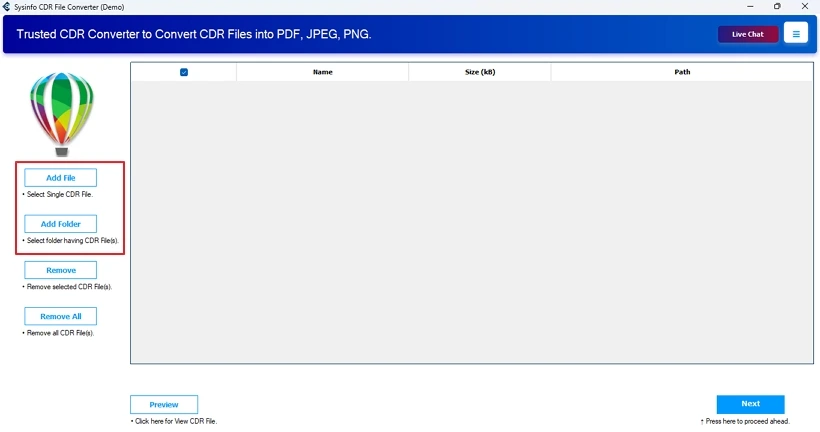
- Then, select the CorelDRAW files from the PC and tap Open.
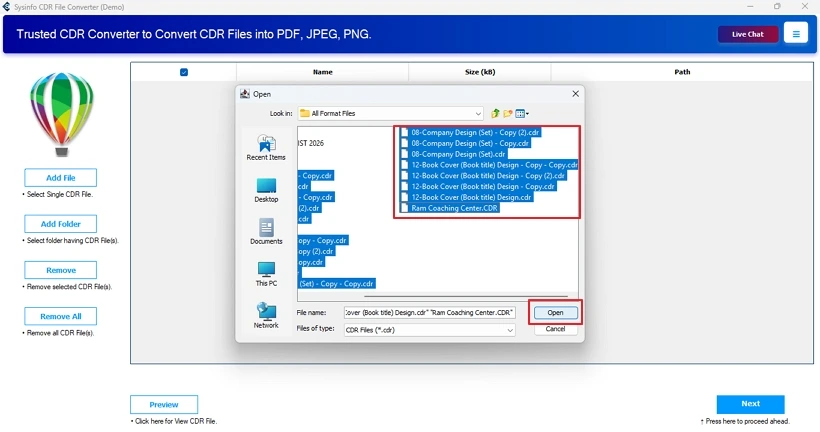
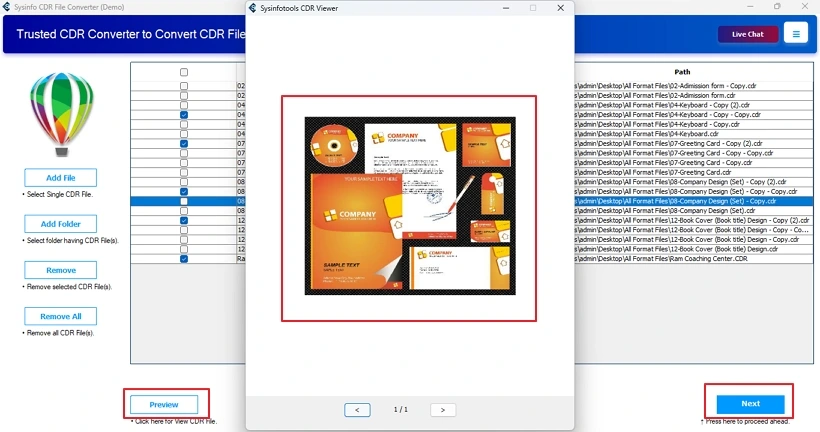
- Further, choose any file and click Preview to check. Select and hit Next.
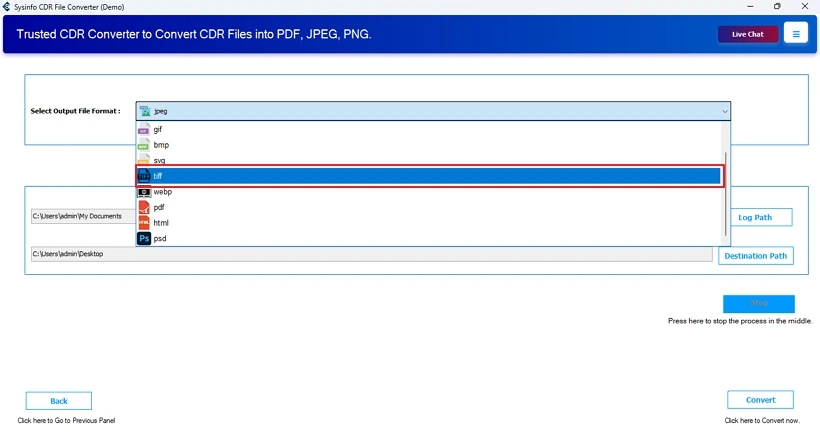
- Afterward, opt for the TIFF file format from the outputs.
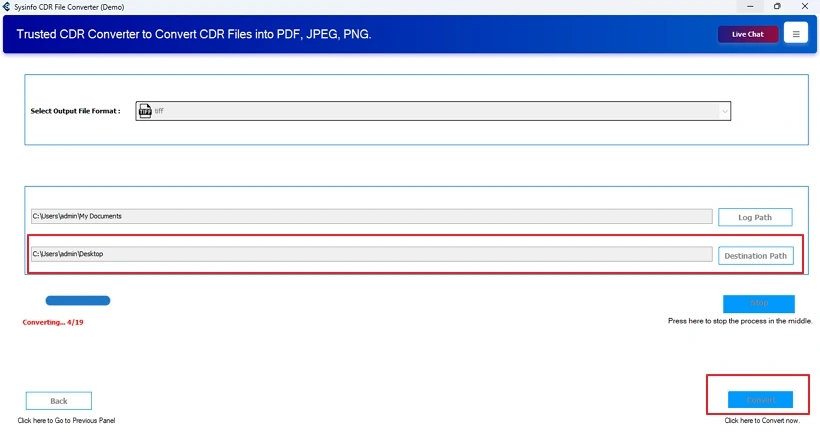
- Finally, select a Destination Path and click Convert to change the formats.
Best Method to Convert CorelDRAW CDR to TIFF
After following both manual and professional methods, let’s take an overview analysis of which method is optimal for conversion. While the manual method is free, it:
- Is not suitable for batch conversion of multiple CDR files.
- Unsuitable for corrupted or legacy CDR files.
- Convert CDR to TIFF poorly at low DPI and rasterized design.
- Strip the layers and metadata, resulting in alterations.
- Fails with complex designs and flattens transparency.
- Moreover, contains an unnecessary risk of data loss.
Whereas the automated converter tool,
- Ensures that all your brand assets, product blueprints, legal, and regulated visuals, or other crucial data remains secure.
- Are compliant with data retention and internal security policies.
- Keeps the designs preserved with original quality and supports batch processing.
- Convert CDR File to JPG and many other file formats for global access.
You can understand it more appropriately with the real-world example below.
Real Case Scenario
Our client Jamie’s organization needed to immediately secure more than 250 legacy CDR files in TIFF format for archival. Archiving so many CorelDRAW files manually was impractical, and they didn’t have much time. With MailConverterTools CDR to TIFF Converter, they were able to instantly export a CDR file in TIFF format easily and with precision. The data quality remained, and no loss occurred.
Conclusion
The decision to change CDR format to TIFF is all about design preservation and long-term archiving for continued access. We discussed all the feasible solution to convert CDR to TIFF format in this guide and also explored their benefits and limitations. When you have CorelDRAW, the manual method works for you. But when scale, security, consistency, and accuracy are in question, the CDR File Converter is the only choice. TIFF format is all about design and image fidelity, and the dedicated tool matches that strength absolutely fine.
Frequently Asked Questions
Q1. How to convert CorelDRAW CDR files to TIFF without losing quality?
Ans. To convert CDR files without losing quality, use the MailConverterTools CDR Conversion Software.
Q2. Can I convert CDR to TIFF without installing CorelDRAW?
Ans. Yes. Absolutely, the CDR File to TIFF Converter Tool works without CorelDRAW installation. You only need to import your CDR files and tap Convert.
Q3. Is batch conversion of CDR files to TIFF possible?
Ans. Of course, yes. The CDR Converter Software allows adding single and multiple files simultaneously with no size or count restrictions for batch conversion to TIFF format.
Q4. Is CDR to TIFF conversion suitable for Mac and Windows?
Ans. Whether you work on macOS or Windows OS, with the amazing CorelDRAW Converter Tool, ensure a flawless and straightforward CDR to TIFF file conversion.
Q5. Is CDR to TIFF conversion secure for confidential designs?
Ans. To ensure you perform a secure CDR conversion, especially for confidential designs, use CDR CorelDRAW Converter by MailConverterTools. It works offline, has no database, and is highly secure.
About The Author:

Meet Amit, an experienced SEO expert and content planner. He uses his creativity and strategy to create content that grabs attention and helps brands reach their goals. With solid skills in digital marketing and content planning, Amit helps businesses succeed online.
Related Post