-
Written By Vikas Bajpai
-
Updated on July 28th, 2026
How to Convert Google Takeout to PDF for Easy Printing
Google Takeout lets you download your Gmail data, but it does not offer a direct PDF export. Many users want to convert Google Takeout to PDF for easy sharing or offline reading. Manual methods using Thunderbird or other clients are slow and fragile. The MailConverterTools MBOX Converter gives a clean, one‑tool path to convert Google Takeout MBOX to PDF with full attachments and metadata intact. Both manual approaches and the automated tool solution are covered in this guide.
User Query: I recently downloaded emails from Gmail using Google Takeout and tried to export to PDF. I need a simple, non-manual way to convert my MBOX files into a clean PDF document with zero data loss.
How Do You Export Google Takeout to PDF?
Google Takeout exports your selected data in a .zip format. Once you extract it, you get .mbox files for your Gmail mailbox. In practice, that means to export Google Takeout data to PDF, you first need to convert MBOX to PDF.
This section covers both a manual method and a professional tool‑based approach. Before you start, know how to open and navigate Google Takeout files, or the process will feel confusing. Also, keep in mind that the manual method has clear limits and can be time‑consuming for large exports.
Steps to Extract Google Takeout
- Open Google Takeout and click Deselect all to remove all services.
- Then tick only the Google services you really need to export.
- Click Next step and set the export type to Once only, with a suitable file size.
- Choose ZIP as the archive format and pick Send download link via email as the delivery method.
- Click Create export and wait for Google to prepare the files.
- Once done, you will get a link in your Gmail; click it and download the ZIP file.
- Finally, extract the ZIP contents on your PC; this will show the MBOX files you need.
How to Manually Save Google Takeout Emails to PDF?
To export Google Takeout data to PDF, you first need to open the MBOX file in an MBOX‑compatible client. Thunderbird is one of the easiest tools for this, especially on Windows. Follow these clear steps.
- Download and install Mozilla Thunderbird, then launch it on your PC. Skip account setup if you only need to import MBOX files.
- Click the menu button (three horizontal lines) → Add‑ons and Themes. Search for ImportExportTools NG and click Add to Thunderbird. And then, restart Thunderbird if prompted.
- In the left‑side folder pane, right‑click Local Folders → choose ImportExportTools NG → Import MBOX file.
- Browse to your extracted Google Takeout folder, select the MBOX file, and click Open. Wait a moment while Thunderbird loads the emails into a new folder.
- In the folder pane, right‑click the imported MBOX folder. Then, choose ImportExportTools NG → Export all messages in the folder.
- In the new window, pick PDF as the output format. Select With messages and index using subfolders, then press OK.
- In the next dialog, choose a destination folder on your drive. Then, click Select Folder to start the export.
Once done, Thunderbird will save each email (or group) as a separate PDF file in the folder you picked. This method works, but can be slow and fragile for large Takeout exports.
What Are the Main Drawbacks of the Manual Method?
- Converting Google Takeout MBOX to PDF step by step takes a lot of time, especially for large archives.
- Users need to know how Thunderbird and add‑ons work, which is not easy for non‑technical staff.
- The process does not support bulk MBOX files; you must repeat the same steps for each folder.
- Re‑opening and re‑saving every email increases the risk of missing or duplicating messages.
- PDFs may lose original formatting, fonts, or embedded images during manual export.
- Without a clear backup rule, the original Takeout data can be overwritten or misplaced.
What Works Best to Convert Google Takeout to PDF?
Large Google Takeout files are not easy to handle with manual methods. Things often slow down once multiple folders and emails are involved. A better option is to use MailConverterTools MBOX Converter, which simplifies the whole process. It lets you open Takeout MBOX files and save them directly as PDF without using email clients. The tool also keeps the email layout and attachments unchanged during the process. Teams that need to import Google Takeout emails to Office 365 can use the same software for a direct and complete migration.
Steps to Convert Google Takeout Emails to PDF:
- To begin, download and open the MailConverterTools MBOX converter on your system.
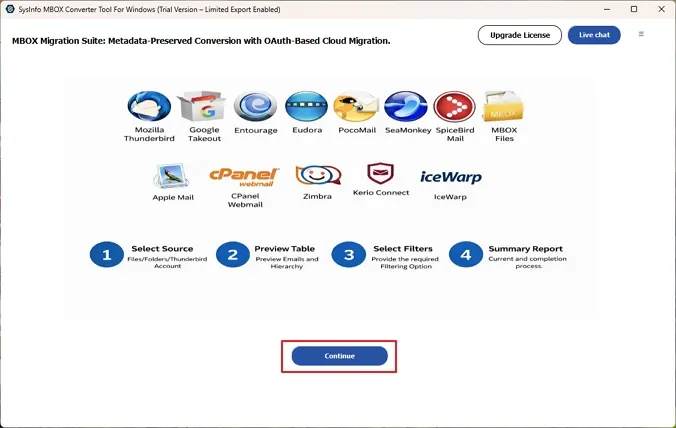
- After that, choose from Select Files or Select Folder and browse your files to add to the utility.
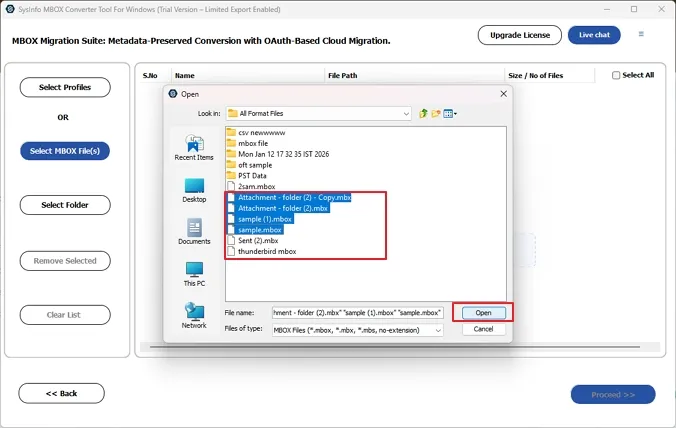
- Further, you can see all the files and folders in the tree structure in the left panel, so select the files to import.
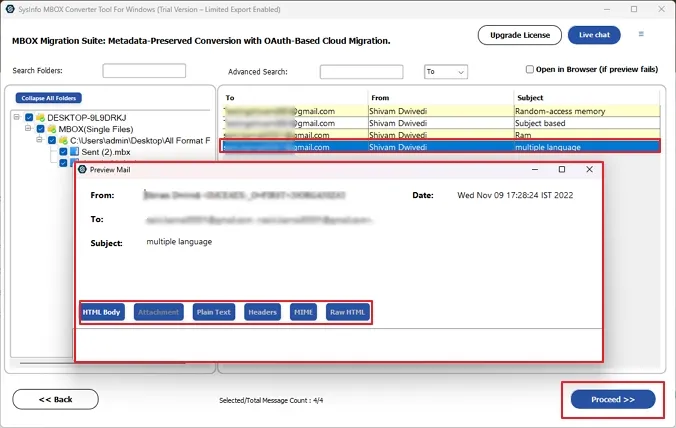
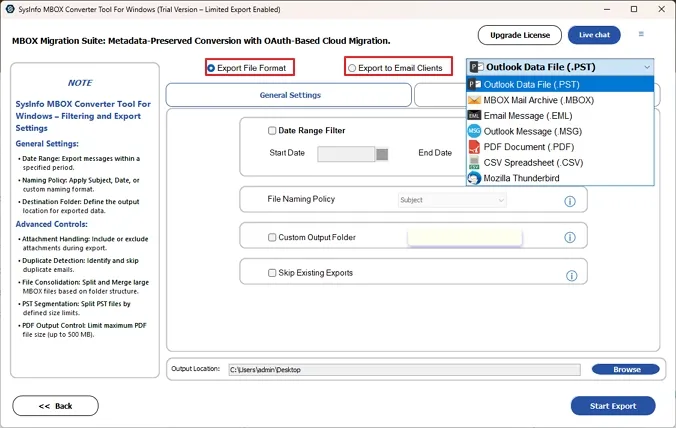
- Moving ahead, in the file format option, choose PDF as the desired saving option.
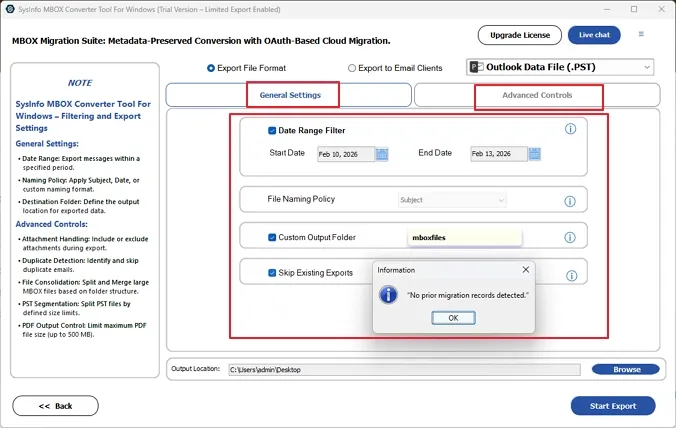
- In the end, pick from the available filters to apply and click on the Start Export option.
Why Do Users Pick MBOX Converter for This Job?
- Google Takeout MBOX files convert directly to PDF in one run without any manual steps.
- Batch processing makes it practical for enterprise teams dealing with large Google Takeout exports.
- Full email preview available before conversion, so nothing unexpected lands in the PDF output.
- Date filter narrows the PDF output to only the emails that actually need printing or archiving.
- Folder hierarchy from the MBOX source stays intact throughout the entire PDF conversion process.
- Demo version converts 50 emails per folder for free, and no purchase is needed to evaluate the output.
- Users who need to convert Google Takeout to PST can rely on the same tool for risk-free conversion.
When Google Takeout Archives Needed to Reach PDF Fast
“Downloaded our Google Takeout archive and had no idea how to get thousands of emails into a PDF for a legal review. Manual methods broke formatting, and attachments disappeared completely.”
A legal firm in Chicago needed five years of Gmail correspondence converted to PDF before a compliance audit. Manual conversion broke email formatting and stripped attachments on every attempt. MailConverterTools MBOX Converter Tool processed the entire Google Takeout archive in one session. The tool also helped to convert Google Takeout emails to PDF with attachments fully preserved throughout.
To Wrap Up
Google Takeout hands you an MBOX file and leaves the rest to you. Manual PDF conversion breaks formatting, strips attachments, and falls apart on anything beyond a handful of emails. Business-critical Gmail archives deserve better than a workaround that produces unusable output. MailConverterTools MBOX Converter Tool removes every one of those friction points. To convert Google Takeout to PDF cleanly and completely, this tool processes the full archive in one accurate session every single time.
Frequently Asked Questions
Q1. How to convert Google Takeout data to PDF?
Ans. You can use the MBOX Converter Tool by MailConverterTools to load Google Takeout MBOX files and directly export emails into PDF format without using any email client or manual steps.
Q2. Can I convert all Google Takeout data to PDF in one go?
Ans. Yes, the MailConverterTools MBOX Conversion Utility supports bulk processing, so you can convert multiple Takeout emails into PDF format in a single operation without repeating steps.
Q3. How to Export Google Takeout to PDF Safely?
Ans. The safest method is using a dedicated MBOX to PDF tool like MailConverterTools MBOX Converter. It helps preserve email structure, attachments, and reduces the risk of data loss during conversion.
Q4. Is There a Simple Way to Export Google Takeout to PDF Without Technical Skills?
Ans. Yes, the MBOX File Converter by MailConverterTools offers a simple interface. You just load the Takeout file, select PDF format, and complete the export without technical knowledge.
About The Author:

Vikas Bajpai is a results-driven SEO expert and content strategist with a strong passion for building impactful digital experiences. He specializes in crafting data-backed content plans that boost visibility, engage audiences, and drive measurable growth. With deep expertise in search engine optimization, keyword strategy, and content marketing, Vikas helps brands strengthen their online presence and achieve long-term success.
Related Post