-
Written By Amit Chandel
-
Updated on March 3rd, 2026
Convert MSG to OFT Files Easily (Manual & Automatic Methods)
User Query: My HR teams send the same emails again and again — offer letters, joining instructions, policy updates, and more. Most of the time, these emails are saved as MSG files. The problem is, every time to reuse them, they end up editing the whole email from scratch. It takes time and feels repetitive.
A better way is to turn those MSG files into OFT templates. Once saved as an OFT, you can reuse the email anytime and just change the name, date, or a few details without touching the main content. In this blog, I’ll share a few simple ways to convert MSG to OFT. I’ll also mention an easy method using the MailConverterTools MSG Converter Tool, which makes the whole process quick and less confusing.
Why Change Files from MSG to OFT?
- Using the same email over and over can start to feel annoying.
- MSG files are fine for storing one email, but they’re not very helpful when you need it again and again.
- Whenever you reuse an MSG file, you often end up changing the whole message by hand.
- OFT files make things a bit simpler.
- An OFT file works like a pre-saved template in Outlook.
- Once you convert the MSG file to OFT, you can open it, tweak small things like the name or date, and send it.
- The main message stays the way it is.
Manual Method to Convert MSG to OFT File Format
If you only have a few MSG files and don’t want to use any extra tool, you can do it directly in Outlook. It’s pretty simple and works fine for small tasks.
Steps to Convert MSG File to OFT
- Open Outlook on your computer.
- Find the MSG file you want to turn into a template.
- Double-click the file so it opens in Outlook.
- Once it’s open, click on the File tab.
- Choose Save As from the options.
- In Save as type, choose Outlook Template (.oft).
- Pick the location/folder where you want to save it.
- Click Save to convert Outlook MSG to OFT.
Limitations
- Works fine for a few MSG files, not large batches.
- No bulk conversion, so you repeat the steps each time.
- Requires Microsoft Outlook to be installed.
- Feels slow if you have many emails.
- Easy to make mistakes while selecting the Save as type.
- No advanced options or filters available.
Automatic Method to Convert MSG to OFT File Easily
The MailConverterTools MSG Converter can change multiple MSG files into OFT in one go. You just add the files and start the process. It converts them automatically. The tool keeps the email data as it is and allows you to convert MSG to PST. The folder structure also stays the same after conversion. It also gives a few extra options. You can export files into different formats if needed. There’s a feature to remove duplicate emails. It’s mainly useful when you have many MSG files and don’t want to handle them manually. Also, read this to convert MSG to EML.
Steps to Convert Multiple MSG Files to OFT
- Firstly, download the MSG Converter Tool.
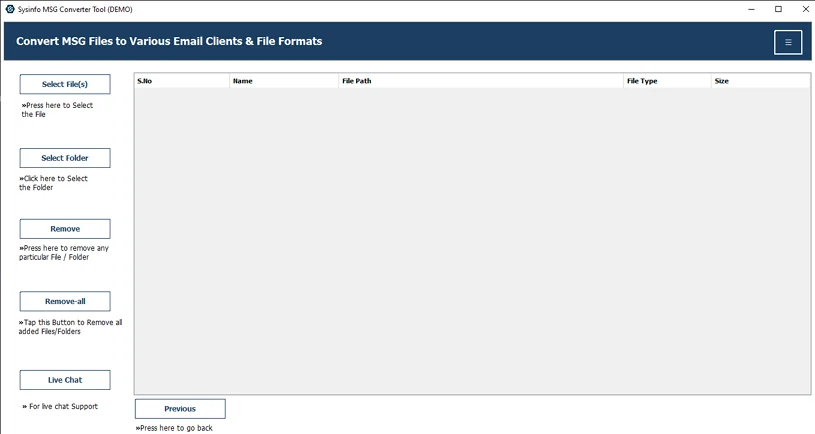
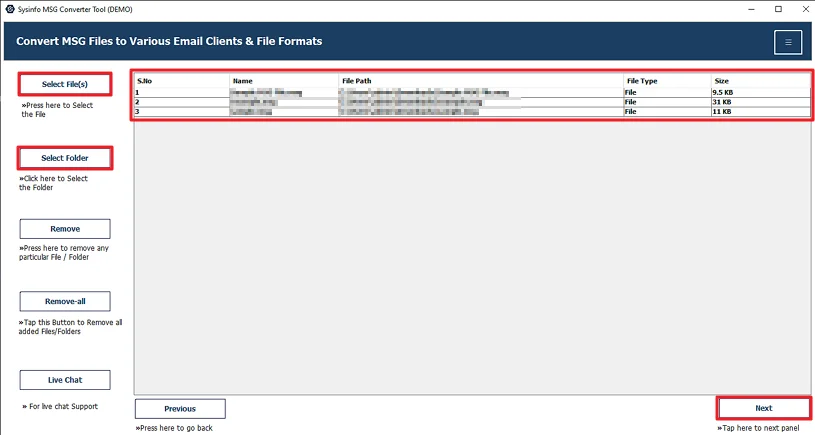
- Add the MSG files and click Next.
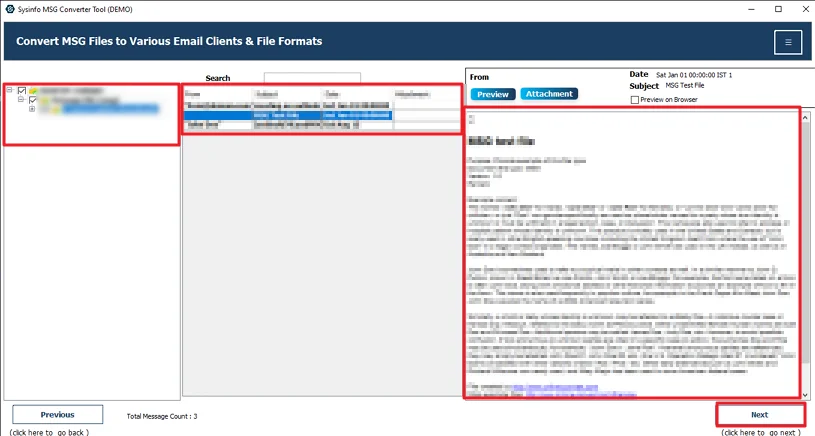
- Further, preview and select files and hit Next.
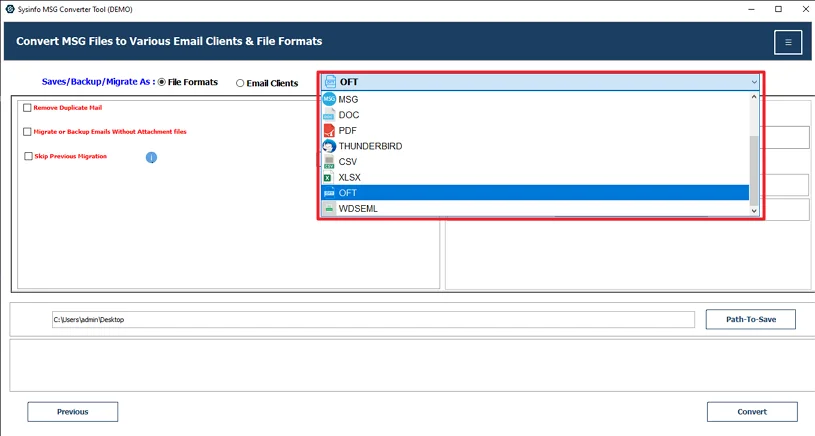
- Thereafter, choose the MSG file format.
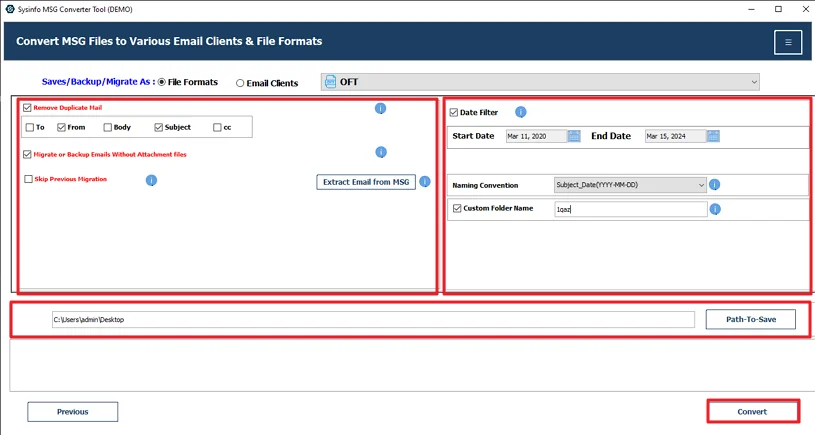
- Finally, use the filter, set the file path, and click the Convert button.
Successful User Case:-
Emily Carter works in the HR department of a small tech company in Texas. Part of her daily work is sending offer letters, welcome emails, and policy updates. Most of these were saved as MSG files on her computer.
At first, she tried converting a few MSG files into OFT templates using Outlook’s Save As option. It worked, but she had a large folder full of old emails. Doing them one by one started to feel like a chore.
So she switched to the MailConverterTools MSG Converter and added all the remaining MSG files together. The tool converted them to OFT in one process. After that, she could simply open the template, change the candidate’s name or date, and send it.
Now she keeps all her standard emails saved as OFT files. It’s simpler, and she doesn’t have to keep editing the same message from scratch every time.
Conclusion
Converting MSG to OFT is mostly done to save time when sending the same kind of emails again and again. It just makes things easier. In this blog, we went through both ways to convert MSG to OFT. The manual method is fine if you only have a few files. Using the professional tool makes things simple for bulk data. It handles everything in one go and reduces manual work. You can also try the demo version first and see how it works before using it fully.
Frequently Asked Questions
Q.1 How to convert MSG to OFT?
Ans: You can do it manually using Outlook. Open the MSG file, click on File, choose Save As, and select Outlook Template (.oft) as the file type. If you have many files, you can use the MailConverterTools MSG Converter to convert them in fewer steps.
Q.2 Is there a way to batch convert multiple MSG files to OFT format?
Ans: The MailConverterTools MSG Converter allows you to add several MSG files together and convert them to OFT in one go.
Q.3 Is it safe to convert MSG files to OFT?
Ans: Yes, the conversion is safe if done properly. The manual method keeps the email content as it is. The tool also maintains the email data and original folder structure during the process.
Q.4 What is the difference between the free and paid versions to Convert Outlook MSG to OFT?
Ans: The demo version lets you test the tool and check how it works. The paid version allows full conversion of MSG files to OFT without restrictions and gives access to all available features.
About The Author:

Meet Amit, an experienced SEO expert and content planner. He uses his creativity and strategy to create content that grabs attention and helps brands reach their goals. With solid skills in digital marketing and content planning, Amit helps businesses succeed online.
Related Post