-
Written By Amit Chandel
-
Updated on February 23rd, 2026
Delete Duplicate Events in Apple Calendar (iPhone/iPad/Mac)
User Query: I recently restored my iPhone from a backup, and now my Apple Calendar is a mess. I want duplicate events without losing my actual meetings. What is the safest way I should use?
Apple Calendar is great for keeping track, but sometimes things go weird. After restoring a backup, syncing multiple accounts, or connecting another calendar app, you might suddenly see the same event repeated again and again. It makes the whole calendar look confusing. In this blog, we’ll talk about why these duplicate events show up in the first place. Then we’ll go over a simple manual way to delete duplicate events in Apple Calendar. And if that feels too risky or time-consuming, we’ll also mention an easy way using the MailConverterTools ICS File Converter Tool
Why Remove Duplicate Events in Apple Calendar?
- Your calendar starts looking messy and unorganized.
- The same meeting shows up two or three times, which gets confusing.
- You may not know which event is the original one.
- There’s a risk of deleting the wrong meeting by mistake.
- You might edit one event but forget to update its duplicate.
- Notifications can come twice for the same event, which is annoying.
- It becomes harder to trust your schedule.
- A clean calendar helps you see everything clearly and avoid missing important meetings.
Delete Duplicate Events in Apple Calendar Manually
These fixes usually help when there aren’t too many duplicate events. If your calendar is completely flooded, manual cleaning can feel tiring. Still, here are a few simple things you can try.
Method 1: Delete Events from Apple Calendar (Mac)
- Firstly, open the Calendar app on your Mac.
- Select the calendar where duplicate events are appearing.
- Switch to Day, Week, or Month view for better visibility.
- Locate the repeated event.
- Then, press the Delete key to remove it.
- Finally, right-click the event and choose Delete.
Limitations
- Recurring events can be confusing.
- Not practical for large or fully duplicated calendars.
Method 2: Turn Calendar Sync Off and On
- Open the Calendar app.
- Click Calendar from the top menu.
- Select Accounts.
- Choose the connected account.
- Uncheck the Calendar option.
- Close the Calendar app completely.
- Reopen it and enable the Calendar option again under Accounts.
Limitations
- Does not work if duplicates are already stored in the main account (like iCloud or Google).
- Won’t fix problems caused by damaged or corrupted calendar data.
- Refreshes the entire account, not individual calendars.
- May temporarily remove events until the sync finishes.
Method 3: Delete Duplicate Events on My Apple Calendar
- Firstly, open the Calendar app on your iPhone.
- Then, tap Calendars at the bottom.
- Find duplicate or extra Holiday Calendars.
- Finally, uncheck the calendars you don’t need.
To permanently delete a holiday calendar:
- Open Settings on your iPhone.
- Tap Calendar > Accounts.
- Select the active account.
- Tap Subscribed Calendars.
- Choose the unwanted calendar and tap Delete Account.
Limitations
- Only solves duplicates caused by multiple holiday subscriptions.
- Does not fix duplicated personal or work events.
Advanced Way to Delete Duplicate Events in Apple Calendar
Before you delete any important data, it is important to have a secure backup for security from unexpected errors. The MailConverterTools ICS File Converter is the best tool that converts ICS files easily in bulk with accurate results. You can convert ICS to JPG and many other file formats. You can use this tool to convert ICS to EML to save the file in a popular format, and this format you can use in many email clients.
Steps to Take a Backup Using the Tool
- Firstly, download the ICS File Converter Tool.
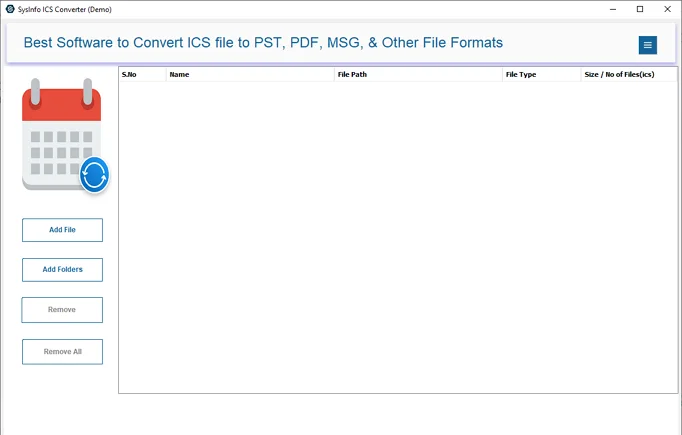
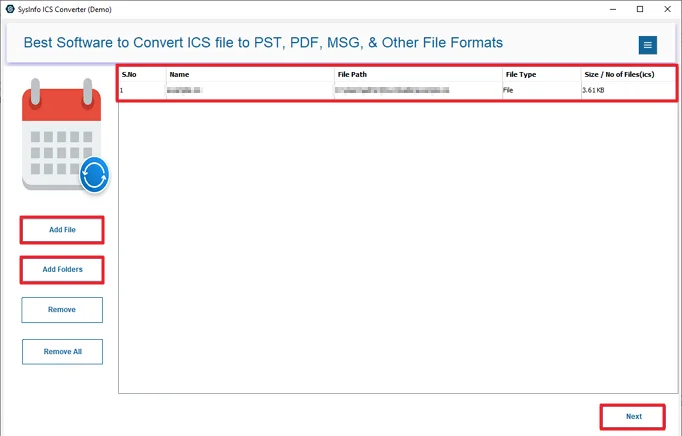
- Then, add your ICS files and click Next.
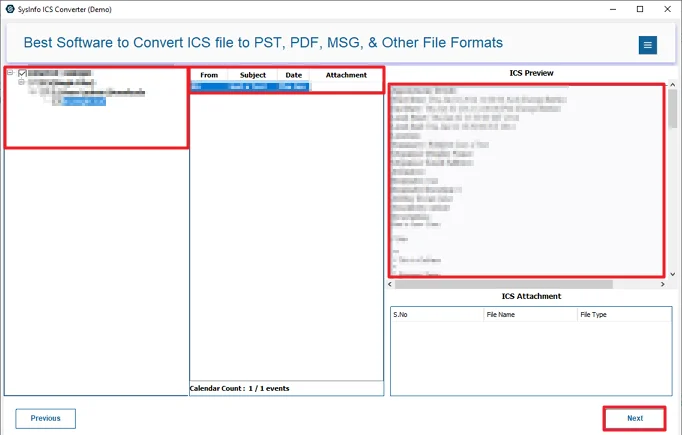
- Preview and select your files and hit Next.
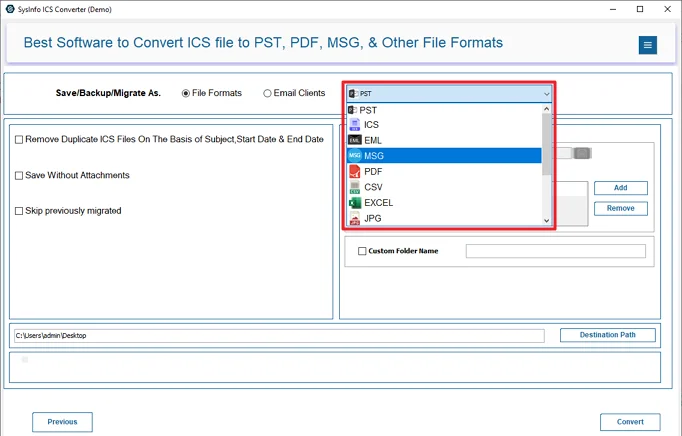
- Choose the desired format to convert.
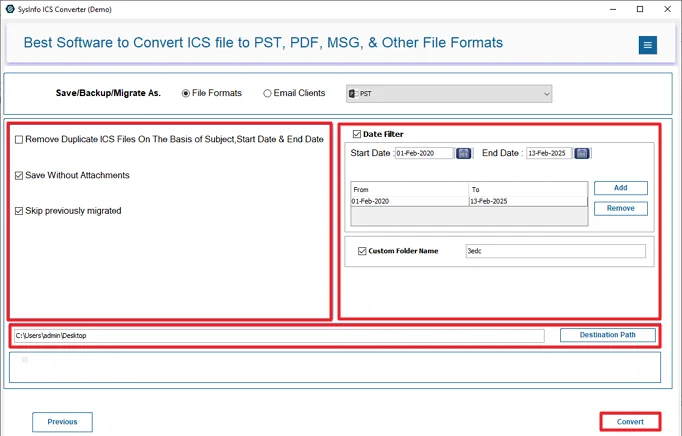
- At last, use filters, set the destination, and click Convert.
Successful User Case
Michael Rivera, a project coordinator, noticed that his Apple Calendar was cluttered with repeated appointments. Many of the events, saved in ICS format, were showing up multiple times. To resolve the problem, he used the MailConverterTools ICS Converter Tool to back up and organize his calendar. Once the conversion was complete, all duplicate events were removed, and his Apple Calendar was restored with accurate schedules and timely reminders.
Conclusion
We’ve examined numerous options to delete duplicate events in Apple Calendar. The first option is to delete all duplicates manually. This option is free and does work; however, you must delete one at a time, which is feasible when only a few duplicates exist. Therefore, a smart tool to remove duplicate events will make the process quicker by allowing you to combine multiple files at once.
Frequently Asked Questions
Q.1 Can I Safely Delete Duplicate Events in Apple Calendar?
Ans: Yes, you can. If there are only a few duplicates, you can remove them manually from the Calendar app on your Mac or iPhone. If you’re unsure, taking a backup first is always a safer step.
Q.2 What is the best tool to back up my ICS files?
Ans: The best tool for backing up and working with your Apple Calendar ICS files is the MailConverterTools ICS File Converter. It lets you back up your calendar data safely before making changes
Q.3 How Can I Delete Events from Apple Calendar Without Any Technical Skills?
Ans: The easiest way is to use the manual method. Open the Calendar app, find the duplicate event, and delete it. It doesn’t require any technical knowledge.
About The Author:

Meet Amit, an experienced SEO expert and content planner. He uses his creativity and strategy to create content that grabs attention and helps brands reach their goals. With solid skills in digital marketing and content planning, Amit helps businesses succeed online.
Related Post