-
Written By Amit Chandel
-
Updated on December 26th, 2025
Delete Duplicate Files in OneDrive Securely and Efficiently
Merry’s Query:Duplicate files in OneDrive are creating confusion and also reducing my productivity and creativity. That’s why I want to find and remove the duplicate files from my OneDrive Account. Is there any feasible and flawless way for this that I can rely on?
If you have duplicate files in OneDrive, then it can slow down work, take up extra storage, and make file management difficult. It is difficult to find the correct file among mixed and duplicate files. This issue is faced by both personal users and enterprise users. In this blog, we will cover manual methods and professional methods to delete duplicate files in OneDrive. Additionally, we will introduce the advanced OneDrive Duplicate Remover Tool for better performance and results.
What are the Needs to Remove Duplicate Files from OneDrive?
- Copies of similar files can create confusion in identifying which file is correct or updated.
- It becomes difficult to find the required file if similar files are stored in a single place.
- In a clean and organized account, it is easy to search quickly and save time.
- A clean OneDrive account helps to improve work speed and productivity.
- Moreover, duplicate files can cause version conflicts in shared or team folders.
Methods to Delete Duplicate Files in OneDrive Manually
Removing duplicate files from OneDrive is no longer a difficult task. Users can either follow manual methods or choose a professional tool for quicker and easier results. Below are two simple manual ways to find and remove duplicate files from a OneDrive account.
Method 1: Find Duplicates in OneDrive Using Sort Options
This method allows users to view and compare files before deleting them, which helps avoid accidental data loss.
- Firstly, visit onedrive.live.com and sign in to your OneDrive account.
- Then, open the folder where you suspect duplicate files are stored.
- After that, right-click on an empty area inside the folder and select Sort by.
- Choose sorting options such as Name or Size based on your preference.
- At last, manually identify duplicate files, select them, and delete the unnecessary copies.
Method 2: Clean duplicate files in OneDrive: Manage Storage
This approach works well when only a few duplicate files need to be deleted, and no third-party tool is required.
- To begin with, log in to your OneDrive account through a web browser.
- Then, click on Settings and open OneDrive settings.
- After that, select Manage Storage to view the storage overview.
- Go to Files and sort them by Name, Size, or Modified Date.
- Finally, manually review and delete the duplicate files.
Limitations:
- These methods are not suitable for large folders or business accounts with heavy data.
- File sorting works only within a single folder and does not scan the entire OneDrive account.
- In addition, managing duplicates manually becomes difficult in shared or team environments.
Efficient Way to Delete Duplicate Files in OneDrive
The MailConverterTools OneDrive Duplicate File Finder and Remover Tool is a direct, fast, and reliable way to clear the clutter. The tool provides effective and accurate results and is tested and verified by experts for safe usage. The tool helps you to find duplicate files on OneDrive and quickly delete them in bulk. Also, it has an intuitive GUI and does not require any technical knowledge. Moreover, it offers a free demo version, which helps you to delete a specific number of duplicates.
Steps to Find and Remove Duplicate Files from OneDrive
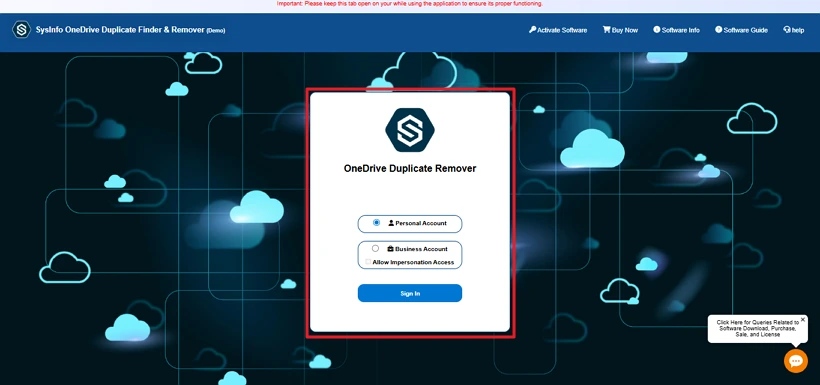
- Firstly, open the OneDrive Duplicate File Remover Tool on your device.
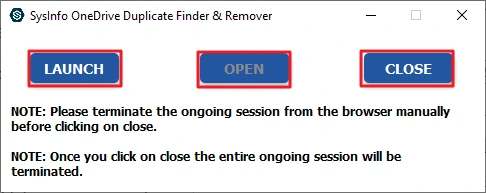
- Then, select your account type and log in using your OneDrive credentials.
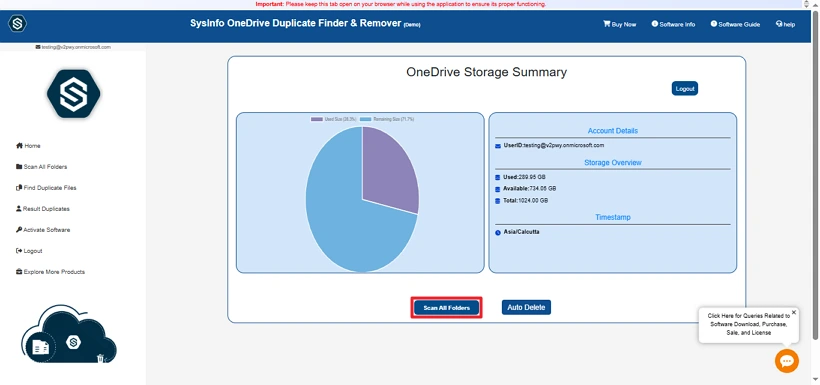
- After that, click on Scan All Folders to start scanning all the data stored in your OneDrive.
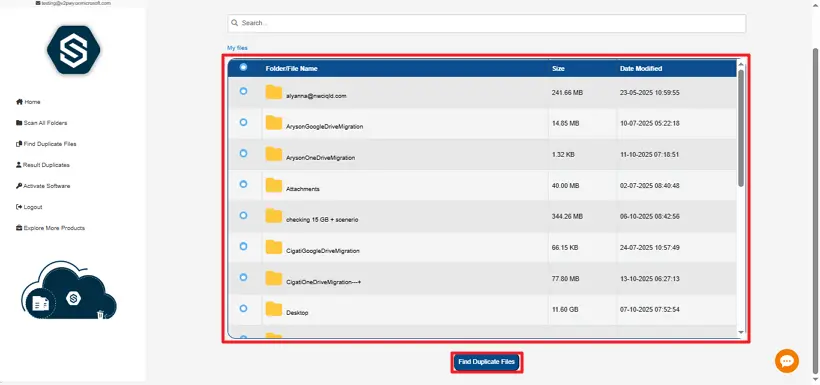
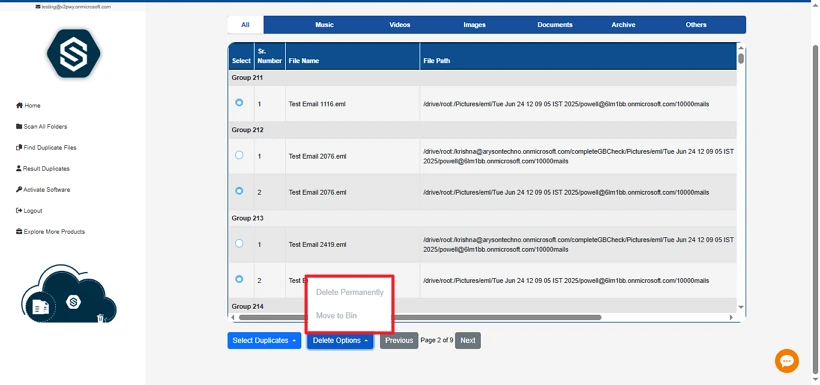
- Press Find Duplicate Files to search for duplicate items; the tool will display a list of duplicates found.
- Thereafter, select the duplicate files or folders you want to delete.
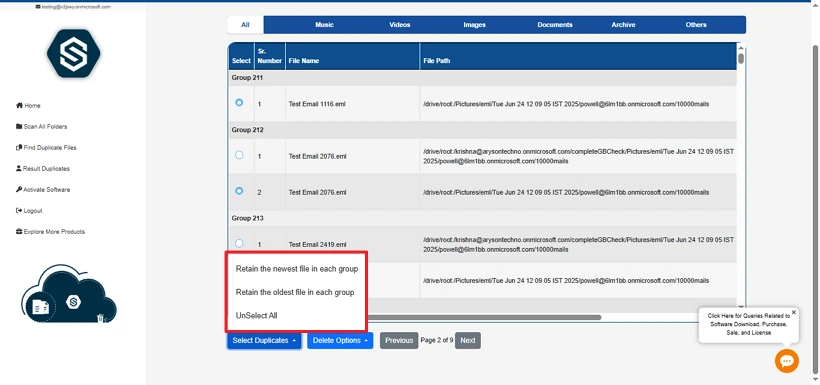
- At last, confirm the deletion by clicking on the desired delete option.
Successful User Case:
A small business owner named John had many duplicate files in OneDrive. Those files were confusing and were responsible for the slow workflow. Manual methods were too slow and impractical for his large amount of data. John used the OneDrive Duplicate File Remover Tool to quickly scan and find duplicates. The tool allowed him to delete duplicates in bulk with no technical skills needed.
Conclusion
To conclude, we discussed the reliable ways to find and delete duplicate files in OneDrive. Continuously, removing duplicate and unwanted files helps you to keep your storage optimized. There are two categorised methods; choose the right solution for better and faster results. While using the tool, if you find any difficulties, you can ask for help from our technical support team, available 24*7.
Frequently Asked Questions
Q1: Can I remove duplicate files from OneDrive in bulk?
Ans: Yes, it is possible to delete duplicate files from OneDrive with batch processing by using the MailConverterTools OneDrive Duplicate File Remover. This tool allows you to scan multiple files in a single go by saving your time and effort.
Q2: Can I delete duplicate files in OneDrive without downloading them?
Ans: The advanced MailConverterTools OneDrive Duplicate File Remover tool works along with your cloud storage. That means you don’t have any requirement to download your files to your computer. It make sures that the process will be secure, fast, and accurate.
Q3: Will deleting duplicate files affect shared OneDrive folders?
Ans: Yes, it can affect other users who have access to shared OneDrive folders. It is recommended to contact your team before performing deletions to avoid errors.
Q4: Can I selectively remove duplicate files from OneDrive?
Ans: Yes, you can remove selective files from your OneDrive. The MailConverterTools OneDrive Duplicate Remover Tools allow you to choose selective files. This will help you to keep control of your important files.
About The Author:

Meet Amit, an experienced SEO expert and content planner. He uses his creativity and strategy to create content that grabs attention and helps brands reach their goals. With solid skills in digital marketing and content planning, Amit helps businesses succeed online.
Related Post