-
Written By Amit Chandel
-
Updated on March 22nd, 2026
Export Gmail to Text in Bulk: Save All Emails as TXT Files
User Query: I am looking for solutions to save my stored Gmail emails as simple text format files on my computer. I don’t want to lose any details. What’s the easiest way to export Gmail emails to TXT format?
Saving emails in the .txt format is actually very useful. It helps to keep things simple and doesn’t take much space. Plus, if you export Gmail to Text, it allows you to open those files anytime without the internet. A lot of people use this for backups or just to keep records safe. In this blog, we’ll go through a couple of easy ways to do it. There’s also a tool called MailConverterTools Gmail Backup Tool that can help if you don’t want to do everything manually.
Save Gmail Emails to Text – Quick Answer
You can save Gmail emails as text files in a couple of ways. The manual way is to open the email, click Print, save it as a PDF, then open it in Word and save it as a .txt file.
If you’ve got a lot of emails, doing this again and again can take time. In that case, using the MailconverterTools Gmail Backup Tool makes things easier since you can export multiple emails to text at once.
Why Do Users Export Gmail Messages to Plain Text?
- You can open text files anywhere; there’s no need to install anything extra.
- They don’t take up much space, which helps if you’re saving a lot of emails.
- Finding something inside a text file is usually quick and not confusing.
- Sometimes you just want the email content, not all the formatting stuff.
- It works well if you’re trying to keep a simple backup for future use.
- You can still read everything even when you’re offline, which is handy.
- Sending text files is easier since they’re small and don’t cause issues.
- It’s just a cleaner way to keep records without things looking messy.
Manual Method to Export Gmail to Text Format
You can try this manual way to save your Gmail emails as text files. Just keep in mind, it takes a few steps and can feel slow if you have a lot of emails.
Steps to Export Gmail Emails to Text
- First, log in to your Gmail account and open the email you want.
- Then, click on the Print icon at the top right side.
- In the settings, choose Destination -> Save as PDF, then click Save.
- Find the saved file, right-click, and open it with Microsoft Word.
- In Word, go to File -> Save As -> Browse to pick a location.
- Under Save as type, choose Plain Text (*.txt).
- Finally, click Save to export your email as a text file.
Limitations
- It takes quite a bit of time since you have to go through the same steps for each email.
- Not really a good option if you’re dealing with a lot of emails at once.
- Some formatting may not look the same after saving it as Plain Text (.txt).
- You end up using both PDF and Microsoft Word, which makes things a bit longer.
- Small details can sometimes get missed during the process.
- Doing this again and again for many emails can get a little frustrating.
Professional Method to Export Gmail to Text in Bulk
The MailconverterTools Gmail Backup Tool is used to save Gmail emails in different formats, including text files. You can export emails with or without attachments, depending on what you need. It also lets you move your Gmail data to other email services, so you can use this to migrate Gmail to Zoho Mail. Additionally, we are adding this reference to migrate Gmail to IMAP.
Steps to Convert Gmail to Plain Text
- Download the Gmail backup Tool.
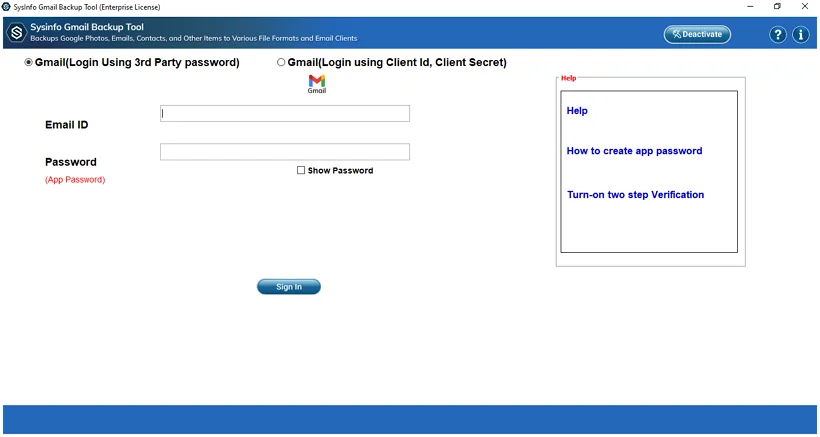
- Then, log in with its credentials.
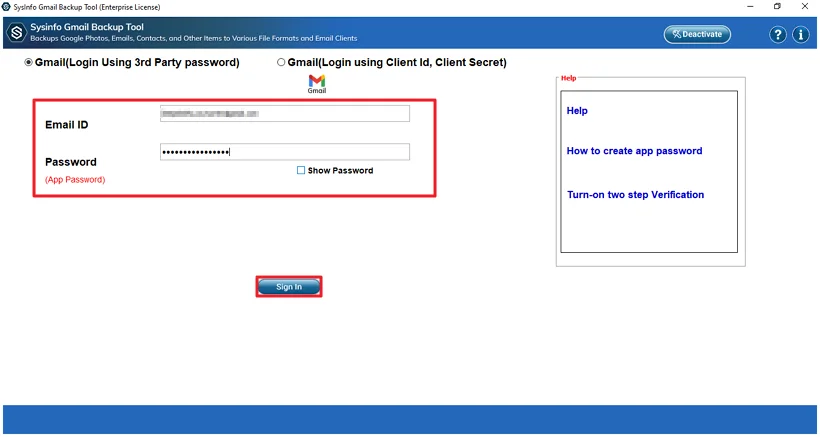
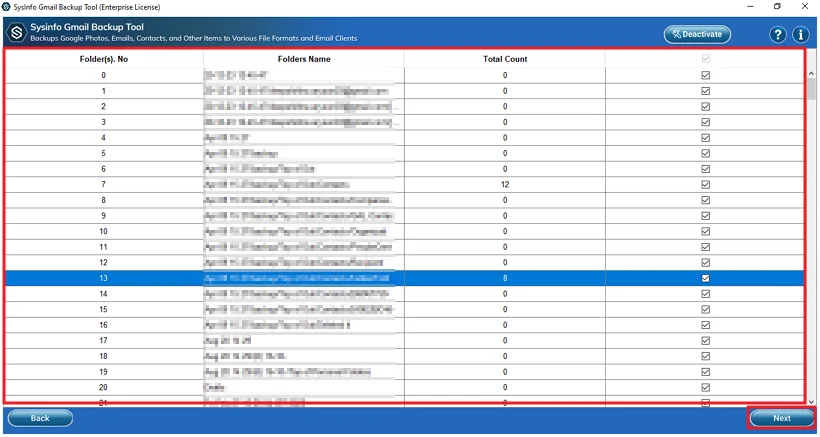
- Select the files to convert and click Next.
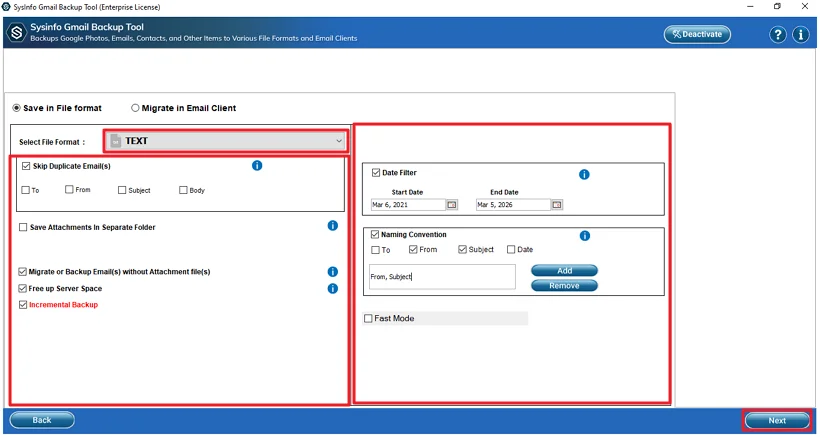
- Further, choose the Text format and apply the filters.
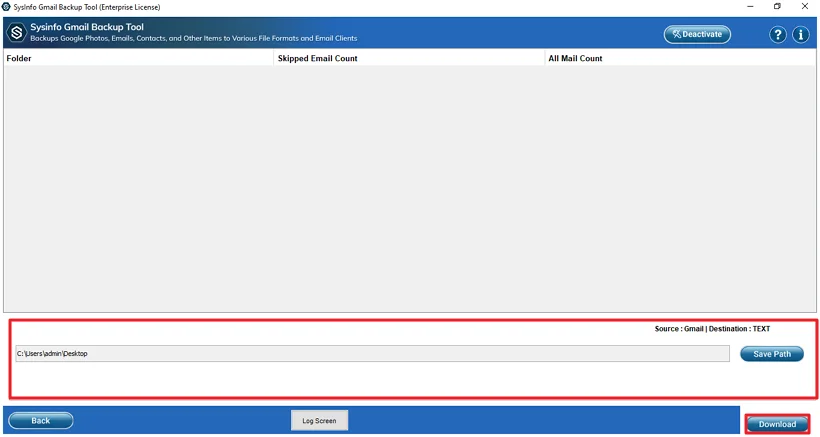
- At last, set the path and click the Download button.
Successful User Case
Daniel had a bunch of old Gmail emails saved over the years, mostly work stuff he didn’t want to lose. He just needed a simple way to keep a copy on his computer so he could check them anytime, even without internet.
He first tried doing it manually for a few emails, but it quickly got annoying. Too many steps, and repeating them again and again didn’t make sense. After that, he went with the MailconverterTools Gmail Backup Tool. He selected everything at once and exported it to text files.
It worked out better for him. All his emails were saved in one place, and he didn’t have to spend hours doing the same thing repeatedly.
Conclusion
In simple terms, a lot of people export Gmail to text files so they can keep a backup and open them anytime without internet. You can go with the manual method, but it takes time and effort. Using a tool is easier if you have a lot of emails. At the end, it really depends on what works better for you and how many emails you need to handle.
Frequently Asked Questions
Q.1 How can I bulk export Gmail emails to text format?
Ans: For bulk export, using the MailconverterTools Gmail Backup Tool is the easier option. It lets you select multiple emails and convert them to text in one go.
Q.2 What is the safest way to export Gmail to text?
Ans: Using the MailconverterTools Gmail Backup Tool is a safer choice since it keeps the email data and details intact during the process.
Q.3 How can I export Gmail to text if I’m not a technical person?
Ans: You can use the MailconverterTools Gmail Backup Tool. It’s simple to use and doesn’t require much technical knowledge; just follow the steps.
Q.4 Can I export Gmail emails to text for free?
Ans: Yes, you can use the manual method for free, but it takes time. For easier and faster work, many users prefer the Gmail Backup Tool.
About The Author:

Meet Amit, an experienced SEO expert and content planner. He uses his creativity and strategy to create content that grabs attention and helps brands reach their goals. With solid skills in digital marketing and content planning, Amit helps businesses succeed online.
Related Post