-
Written By Amit Chandel
-
Updated on January 7th, 2026
Export iCloud Emails to Outlook: Quick & Secure Methods
User Search Query
I am migrating to Outlook, and I have over 10k emails archived in my iCloud email. I’m trying to export/download all of them at once, but I’m not seeing any way to do it on my iPhone or on iCloud.com.
How do I do this?
~ Derek, New York
Users always look for the alternate ways to export iCloud emails to Outlook. iCloud has no built-in feature to move emails to Outlook PST directly. This blog focuses on practical solutions to export iCloud emails and import them into Outlook without missing important messages. It also highlights a reliable iCloud Backup Tool that simplifies bulk email migration and saves time when manual options fall short.
Real World Needs for iCloud Mail to Outlook PST Conversion
People often need to convert their iCloud Mail for use in Outlook for several practical reasons. One major reason is moving to a work environment where Microsoft Outlook is the standard email client. Professionals may need their complete email history available within the company’s preferred system.
Another key reason is simply wanting a dependable backup. You can create a copy of files by converting them to Outlook PST. Because sometimes emails can be deleted accidentally. This makes sure that your legal documents or family memories are preserved permanently.
Difference between iCloud (Apple Mail) & Outlook
While both are powerhouses in the digital world, iCloud and Outlook serve different philosophies. iCloud is designed for seamless, quiet integration within the Apple ecosystem, while Outlook is a “Personal Information Manager” built for professional productivity and cross-platform flexibility.
|
Feature |
iCloud (Apple Mail) |
Microsoft Outlook |
|
Primary Focus |
Simplicity and privacy. |
Professionalism and organization. |
|
Ecosystem |
Best on iPhone, Mac, and iPad. |
Best on Windows, but works everywhere. |
|
App Style |
Lightweight and minimalist. |
Feature-rich (Email, Calendar, Tasks in one). |
|
Pricing |
Free (5GB); paid tiers for more space. |
Free (web/mobile); paid for desktop apps. |
|
Key Advantage |
Hide My Email & Private Relay. |
Focused Inbox & deep Office 365 integration. |
Manual Method to Export iCloud Emails to Outlook
In this method, we will configure iCloud to MS Outlook, which helps Outlook to sync emails easily. The manual methods can leads error if you do not execute them properly.
Steps to Export iCloud Mail to Outlook PST
- Firstly, open Microsoft Outlook on your computer.
- Then, go to File > Account Settings > Add Account.
- After that, select Manual setup or additional server types and click Next.
- Thereafter, choose POP or IMAP as the account type.
- Further, enter your iCloud email address and password.
- For incoming mail, set IMAP server to imap.mail.me.com, port 993, with SSL.
- For outgoing mail, set the SMTP server to smtp.mail.me.com, port 587, with STARTTLS.
- Then, click More Settings > Advanced tab, and confirm the port numbers.
- Afterwards, save the settings and finish the setup to transfer iCloud Emails to Outlook.
- Finally, Outlook will start syncing, and your iCloud emails will appear in your mailbox.
Limitations:
- Folder structure may change after the transfer.
- Some attachments may be missing in the manual method.
Expert Approach to Export iCloud Emails to Outlook
The iCloud Backup Tool offers an easy and reliable way to export your iCloud emails to Outlook PST. It helps users save their iCloud Mail locally and also supports backups to other cloud platforms. The tool maintains the folder structure and does not affect or change the data during the process. In addition, both technical or non technical can use this tool without hassle.
Steps to Migrate iCloud to Outlook
- Firstly, download the iCloud Backup Tool.
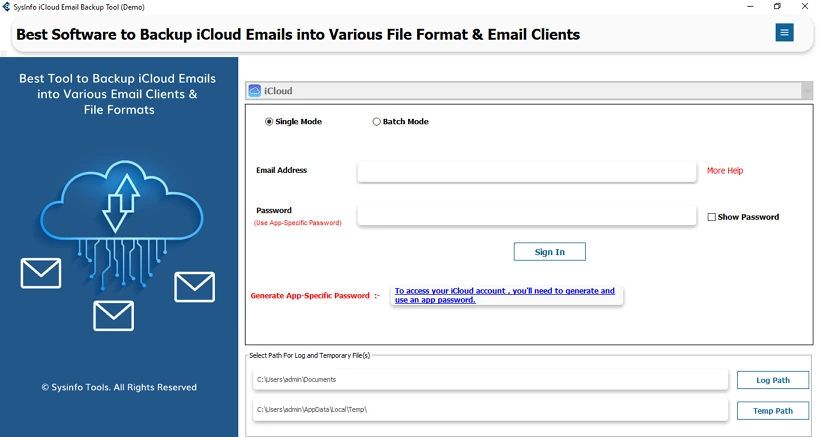
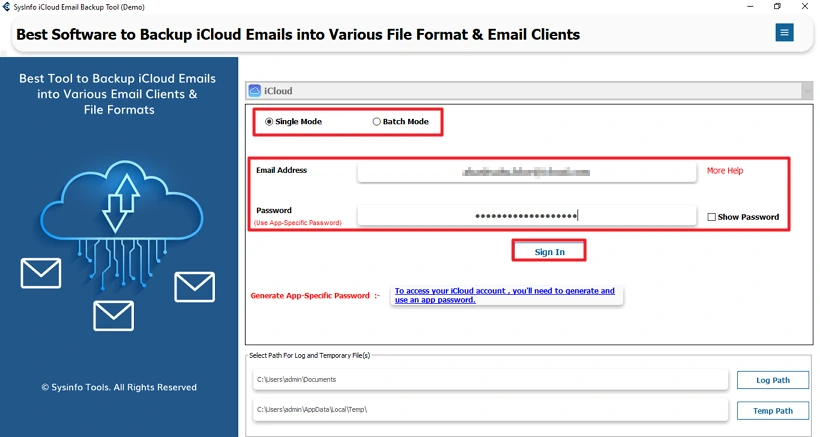
- Then choose Mode and log in with the credentials.
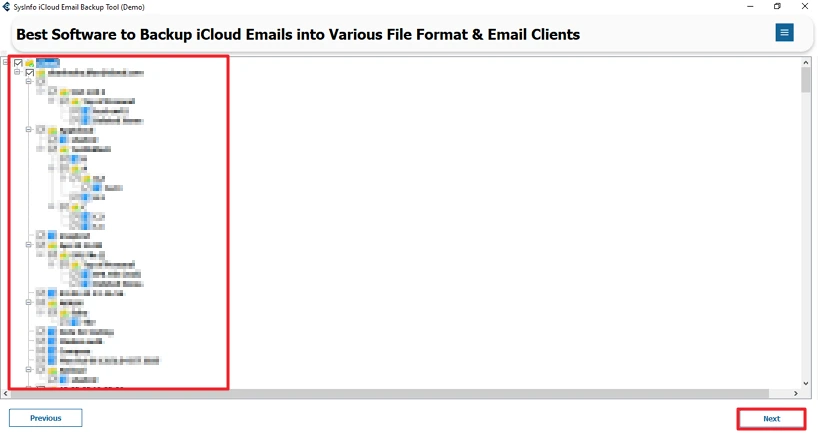
- After that, select the files from the folder structure.
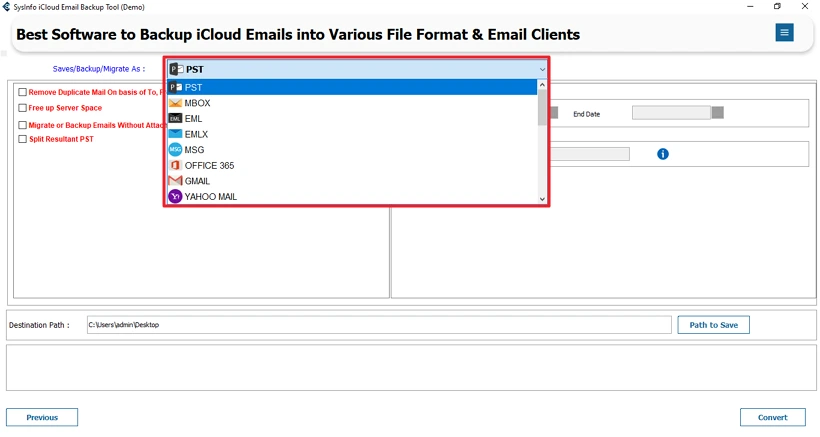
- Thereafter, choose the PST as the output format.
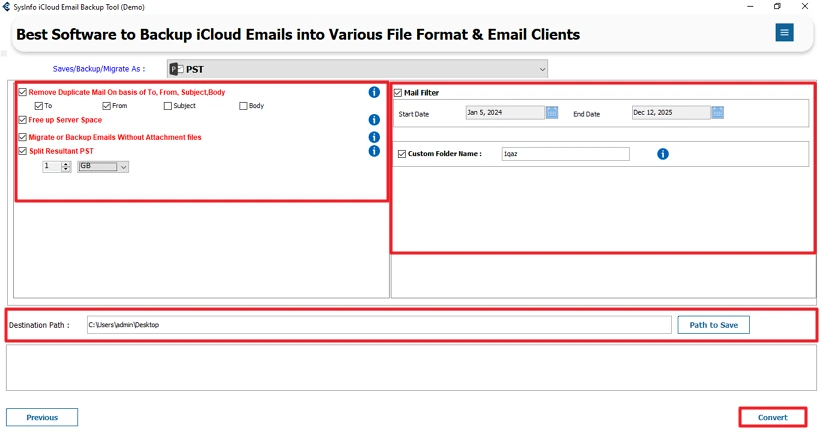
- Finally, apply filters > set path > and click Convert.
Successful User Case
Emily from New York needed to move over 10,000 archived iCloud emails to Outlook for work. He first tried exporting emails from his iPhone and iCloud.com, but found no bulk download option. The manual IMAP setup was slow, missed attachments, and depended on internet access. To solve this, he used the iCloud Backup Tool, which helped him export selected folders into PST format. All emails and attachments were migrated safely, and he could access them offline in Outlook.
Conclusion
To conclude, we saw the best and most secure ways that will help you to export iCloud emails to Outlook. Also, we cover the need for this conversion in real life. You can use any way to export your email from iClout to the Outlook PST. In the manual method, you need to configure iCloud to Outlook, but in advance too,l you don’t ned to configure each other.
Frequently Asked Questions
Q1: Which is the best tool to export iCloud Emails to Outlook?
Ans: The iCloud Backup Tool is the best tool to export emails from iCloud to Outlook. It ensures accurate results and provides many filters to apply.
Q2: What is the easiest method to export iCloud Mail to Outlook PST?
Ans: Using the advanced tool is the easiest method because it can manage bulk files with negligible time. Also, it takes care of your folder structure and formatting.
Q3: Is it safe to migrate iCloud to Outlook using these tools?
Ans: Yes, the iCloud Backup Software is completely safe to export emails. This tool follows strict guidelines and a zero data storage policy.
Q4: Can I export iCloud emails to Outlook without losing attachments?
Ans: Wih manual method, you can export only emails; you may lose the attachments. But with a professional tool, you can export your attachments with your emails.
Q5: How to export selected iCloud emails instead of the whole mailbox?
Ans: You can use iCloud Backup Tool to export only selected emails. Its smart preview option allows you to migrate selective emails without hassle.
About The Author:

Meet Amit, an experienced SEO expert and content planner. He uses his creativity and strategy to create content that grabs attention and helps brands reach their goals. With solid skills in digital marketing and content planning, Amit helps businesses succeed online.
Related Post