-
Written By Amit Chandel
-
Updated on December 29th, 2025
Best Way to Export iPhone Contacts to Excel Sheet
We always use contacts to call, message, and stay connected with people in our daily lives. If you have organized contacts, then it makes your communication more professional and smoother. Sometimes, users need to export iPhone contacts to Excel to view, edit, and manage contacts. This blog will explain the manual method and the professional VCF to CSV Converter Tool for effective contact export to Excel. Follow the blog step by step and use the method that best fits for you.
Major Needs to Export Contacts from iPhone to Excel
- Contact saved in Excel works as a backup in case the iPhone is lost, damaged, or stops working.
- Mostly user prefer to use Excel for work and collaboration with teams because it is simple and easy to share with colleagues.
- Excel allows you to edit, sort, and clean multiple contacts at the same time without any interruption or error.
- An XLSX file is easy to import into many devices, apps, and email clients without any hassle.
- MS Excel allows you group, filter, and search contacts for easier management.
Ideal Solution For Bulk Contact Conversion
Manual Methods are useful for small or limited files, but for large files, it’s time-consuming and repetitive. Therefore, we are going to introduce a professional VCF Converter Tool to overcome limitations with manual methods. The tools provide accurate, secure, and fast results, even with large files.
Manual Approaches to Export iPhone Contacts to Excel
In this section of this blog, we will cover the manual methods to convert your iPhone contacts into an Excel file. For these methods, you don’t need to pay for any software. But these methods will take up your time and efforts.
Method 1: Convert iPhone Contacts to Excel Using iCloud
- Firstly, open your iPhone and check that the contact syncing is turned on.
- Then, go to Settings > [Your Name] > iCloud > Contacts and enable it.
- After that, open a web browser and visit iCloud.com.
- Thereafter, sign in using your Apple ID.
- Thereafter, click on Contacts to view all synced contacts.
- Select the contacts you want to export.
- To select all contacts, press Ctrl + A (Windows) or Cmd + A (Mac).
- Afterwards, click the gear icon in the bottom-left corner and choose Export vCard.
- At last, after downloading the .vcf file, convert it into CSV or Excel format.
Method 2: Email iPhone Contacts and Convert to Excel
- To begin with, you need to open the Contacts app on your iPhone.
- Then, you have to manually select the contact you want to export.
- Scroll down and tap Share Contact, then choose Mail.
- After that, send the contact to your email address.
- Thereafter, open the email on your computer and download the attached .vcf file.
- Finally, convert the VCF file into Excel format using Excel or an online converter.
Limitations:
- Firstly, manual methods take too much time to export a large number of contacts
- iPhone and iCloud do not provide a direct option to save contacts in Excel format. You must convert VCF files separately.
- Lastly, during conversion, contact details such as phone numbers, addresses, or notes may not appear correctly in Excel.
Expert Solution to Export iPhone Contacts to Excel
Earlier, we covered manual methods and understood their limitations. To overcome those limitation we have the ultimate VCF Converter Tool. This tool allows bulk conversion of VCF files in multiple formats. The tool has easy to use interface, which requires no technical knowledge. It ensures data integrity and security, and follows a zero data storage policy.
Steps to Export iPhone Contacts into Excel
- Download the VCF Converter Tool.
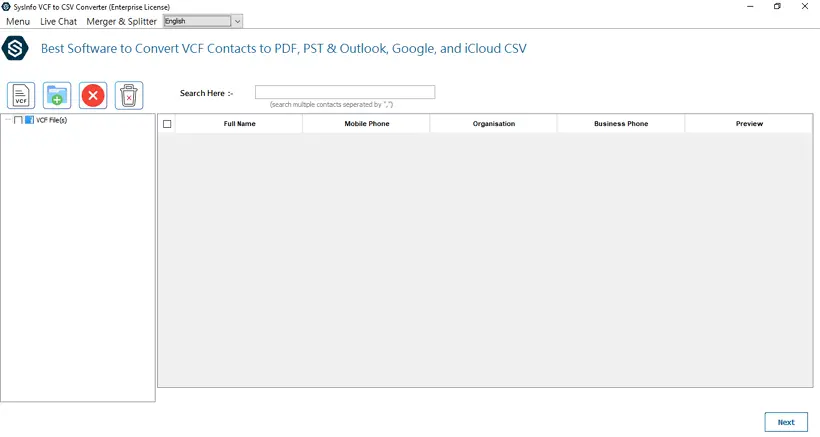
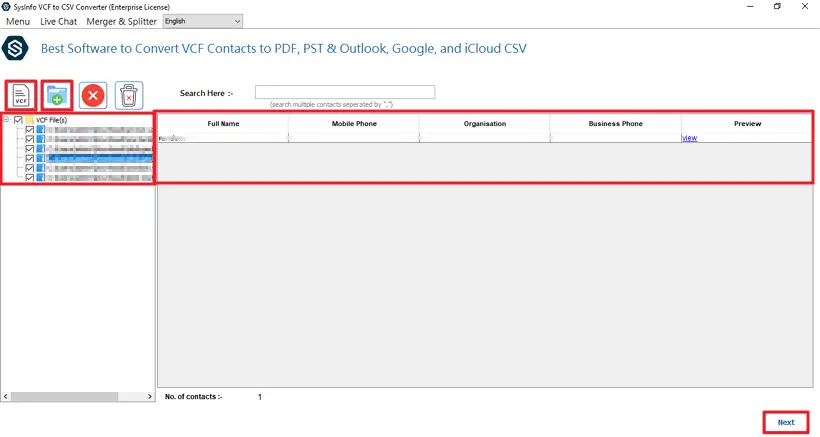
- Then, add and preview the VCF contact file and click Next.
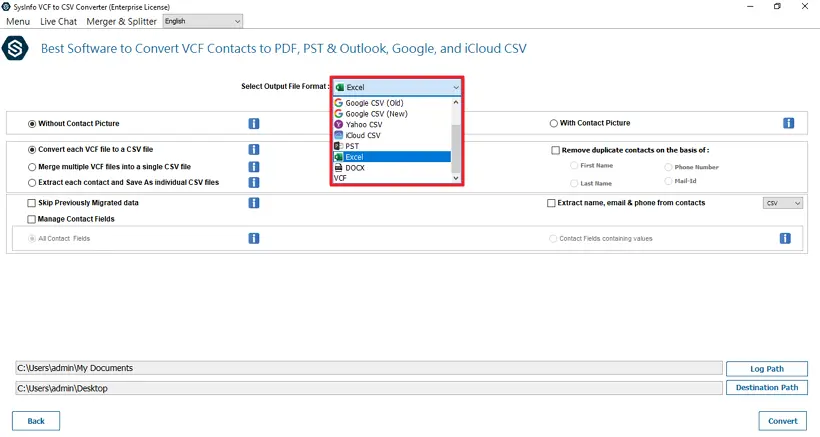
- After that, select Excel as the output file format.
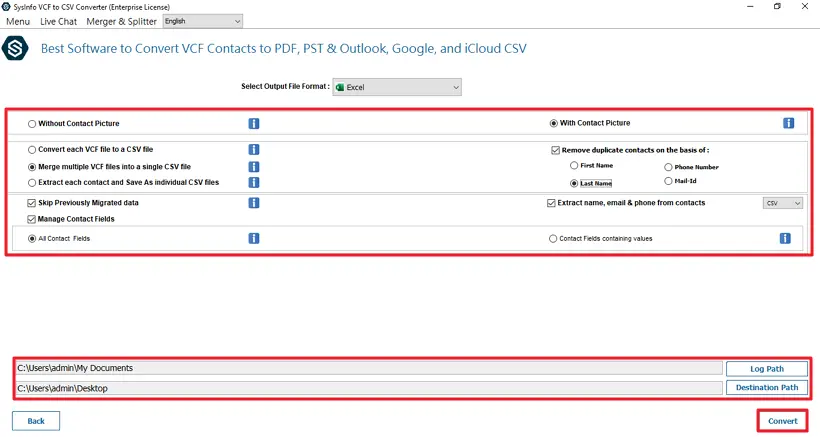
- Finally, apply filters fit for you, set the path, and click Convert.
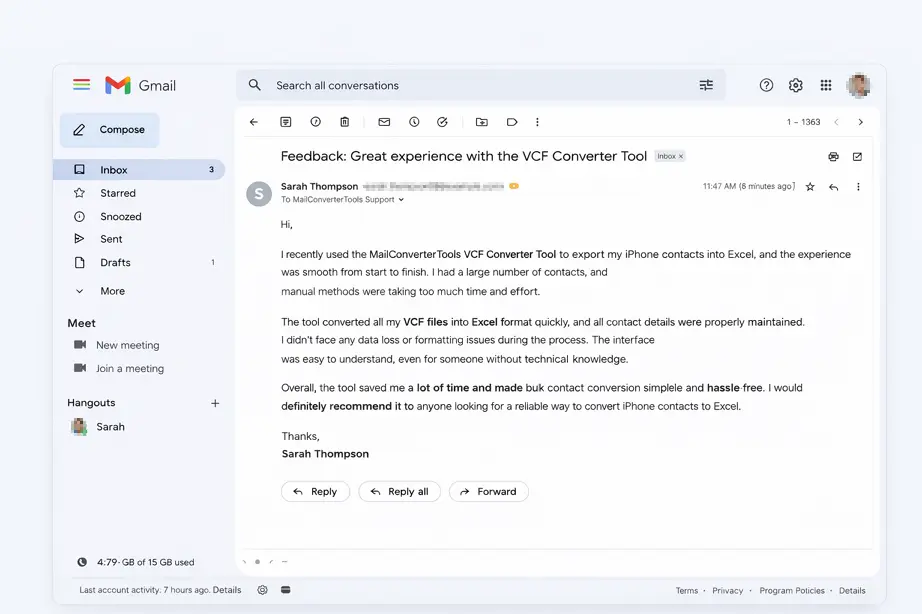
Feedback From Our User
Conclusion
To conclude, here we learned multiple ways to export iPhone contacts to Excel Sheet. Both the manual method and professional methods are covered in detail with each step. Manual methods are a good choice, but it owns some limitations. The VCF Converter Tool is the best and expert-recommended solution and helps users to overcome manual limitations. To get help with any issue while using our tool, you can contact our tech support.
Frequently Asked Questions
Q1: How can I export my iPhone contacts to Excel easily?
Ans: You can export your contacts from your iPhone to Excel with the manual methods and with the VCF Converter Tool. The tool helps you to convert your contacts directly to Excel.
Q2: Can I export iPhone contacts to Excel without iCloud?
Ans: Yes, the professional VCF Converter can export contacts to Excel without iCloud. This tool is an independent utility to export contacts quickly and in bulk.
Q3: Can I export only selected contacts from my iPhone?
Ans: The advanced tools allow you to export selective contacts from your iPhone. This tool provides more advanced features and filters to optimize the final result.
Q4: How long does it take to export contacts from iPhone to Excel?
Ans: It totally depends on the number of contacts and the method chosen by the users. The manual method is good for a few files, but a professional is more effective if you have thousands of contacts to export.
Q5: Which is the best tool to convert iPhone contacts to Excel?
Ans: The MailConverterTools VCF to CSV Converter is the best tool which offering fast, secure, and accurate bulk conversion for both personal and professional needs.
About The Author:

Meet Amit, an experienced SEO expert and content planner. He uses his creativity and strategy to create content that grabs attention and helps brands reach their goals. With solid skills in digital marketing and content planning, Amit helps businesses succeed online.
Related Post