-
Written By Amit Chandel
-
Updated on January 13th, 2026
Simple Steps to Export Outlook Calendar to PDF Format
User Query:
“I have been a dedicated Outlook user for years and have been dealing with multiple projects. However, this time, one of my clients demanded the schedules and appointment details in a PDF format. Now, I am stuck on a tight schedule and don’t know how to bulk print Outlook Calendar to PDF without losses. Suggest to me any flawless solution that satisfies my client with the resultant PDF.”
Outlook calendars are great and useful until you are using them within the application. Once you move out and require them for audit, export, or compliance documentation, they turn out to be stuck. Clients, stakeholders, and other professionals don’t want a PST file or some calendar permissions during immediate access. Instead, they require a structured, easily accessible, and widely accepted universal PDF format that can be used everywhere. Therefore, this blog explains multiple ways to export Outlook calendar to PDF securely. Furthermore, the PST to PDF Converter ensures your data isn’t lost or missed during the conversion.
What Brings Users to Convert Outlook Calendar to PDF?
Some significant situations and factors demand the Outlook Calendar to PDF conversion. These are:
- Though limited in interactivity, PDFs are best suited to preserve formatting.
- Universally readable and easy to stre, share, or print without edits.
- Preserves document integrity and can be viewed across platforms.
- Compact in size and supports hyperlinks and much more.
- Store and archive emails securely with password protection and encryption.
- If needed, it can be used to do some basic edits like add a signature, etc.
- Platform independent and swiftly accessible without Outlook or Internet.
|
What is Actually Exported from Calendars? Now, before we discuss the solutions, it must be understood which calendar data is exactly saved in the PDF file. Generally, it includes:
Among these, attachments and advanced metadata are often difficult to export. However, with the right solutions, this can be easily managed. |
How to Export Outlook Calendar to PDF Format?
There are two simple, quick, and straightforward ways for Outlook calendar conversion. In this section, we will first go through the free method, which provides full control but has several limitations. Next, we will learn about a specialized tool that automatically helps with bulk conversion in minimal time, safely and accurately.
Conventional Method to Save Outlook Calendar as PDF
One of the most common methods to secure Outlook calendars as a PDF document is using MS Outlook. The steps to follow are:
- Open MS Outlook and move to the Calendar.
- Then, pick a desired view of your Outlook Calendar (Days/Weeks/Months).
- Next, select the specific calendar that you want to print and go to File.
- Further, choose Print and opt for Microsoft Print to PDF as the Printer.
- After that, adjust the layout and other settings and click Print.
- A new dialog appears; you may choose the location here, and finally, click Save.
|
Note: To view this saved PDF file, you may require Adobe Acrobat DC or any other PDF viewer application on your system. |
This is how you can export Outlook Calendar to PDF without spending a penny. However, as mentioned, there are some cons.
Loopholes of the Manual Method
- No Direct “Save as PDF” feature: You cannot directly save calendars in a PDF, as no option exists.
- Limited Formatting: In this process, you don’t get many formatting options other than layout and page settings at the maximum.
- Bulk Exports: Transferring calendars in large volumes seems like a big, hectic, and complex task manually.
- Attachments: Saving calendars from Outlook as PDF for free only transfers the general details and not the embedded attachments.
- Manual Updates: `Since the saved data is just a snapshot of your calendar, any changes made afterwards won’t reflect in it.
- Repetition: Every time you make a change in your calendar data, you need to re-export it to make sure all details are saved properly.
Thus, this method to export Calendar from Outlook to PDF is limited and suitable only for small-scale use. For larger scales, we must find a better alternative and move ahead to a professional solution.
Ingenious Method to Export Outlook Calendar to PDF
If you are an individual, a professional, a business, or an enterprise handling a large volume of calendars. Then, MailConverterTools PST to PDF Converter Tool is an optimal choice for you to securely convert your Outlook calendars. This prominent and versatile software enables you to bulk convert calendar data along with attachments securely without any loss.
It preserves the formatting, folder structure, and layout of the calendar records. Additionally, the software has a simple GUI and works across all major operating systems. Moreover, it has a Demo Version that allows a few free conversions and a streamlined evaluation of the software and its functionalities.
|
Pro Tip: For users who want to avoid software installation and also require some more customizations, they can avail One-Time Service to export Outlook Calendar to PDF with the best outcomes. |
Simplified Steps to Quickly Convert Outlook Calendar to PDF
- Launch the PST File to PDF Converter and click Next.
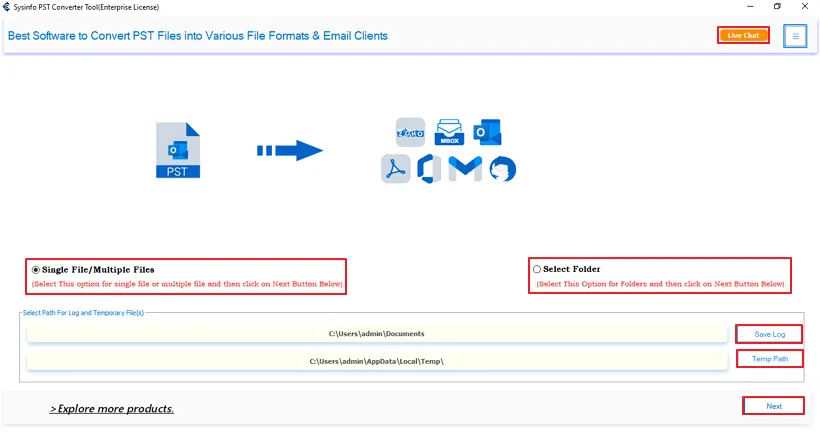
- Then, with the Select File and Select Folder buttons, upload PSTs. Tap Next.

- After that, expand the tree structure to preview the calendar data and select it. Click Next.
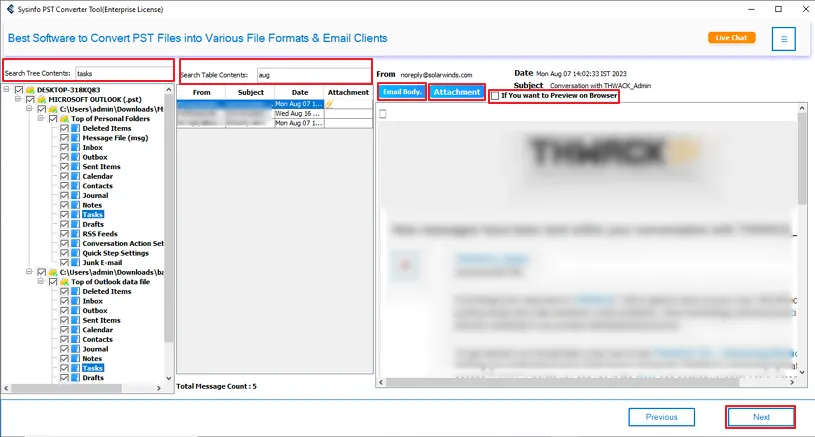
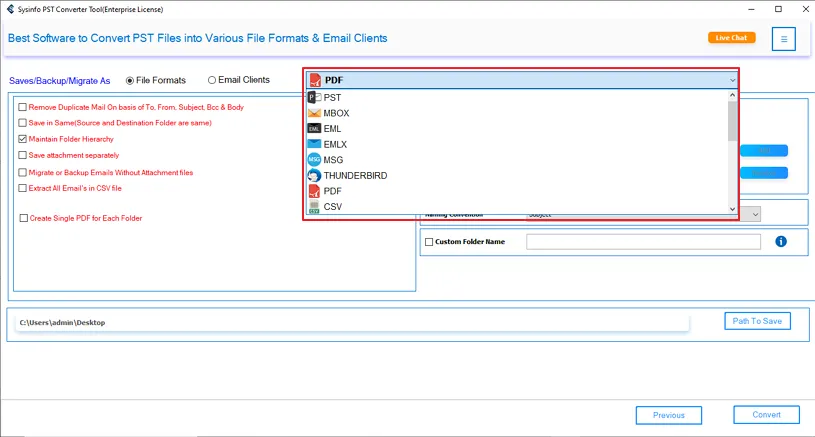
- Furthermore, choose PDF from the output formats list and click Next.
- At last, apply the filters, pick a Path to Save it, and tap Convert to export.
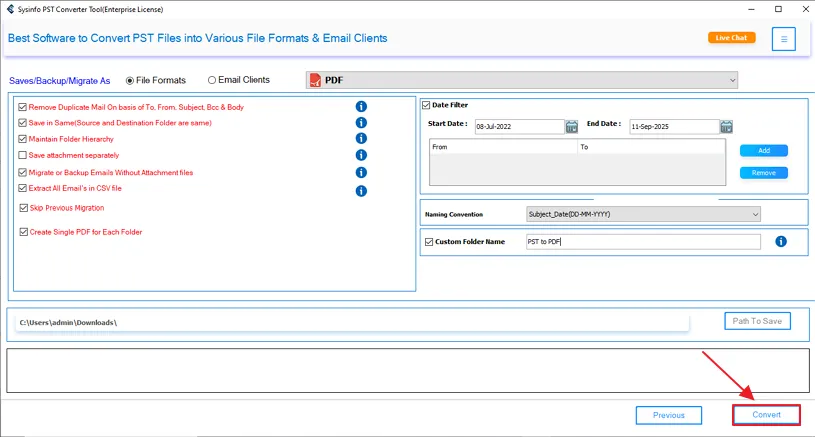
That’s how easy the Outlook calendar to PDF conversion becomes with automated software.
Real World Case:
I am Paul Gelario from a US-based marketing firm. Our organization needed to save Outlook Calendar as PDF for easy sharing with some non-Outlook user clients. Using this PST File to PDF Converter, we were able to achieve consistent and ready-to-forward output PDFs. All the data was retained as in the original calendar, and our clients were satisfied and happy. We broke a good deal with them thanks to MailConverterTools!
The Verdict
Export Outlook Calendar to PDF is not about convenience or format change, but about control over your data in the near future as well. PDF files represent schedules in a clean, scalable, portable, review-ready, and Outlook-independent format.
Manual methods for this conversion are fine for one-time use and at a small scale. But when you are exporting Outlook calendars at a large scale and need no hassle, risk, or error, then the smart approach is to use a dedicated PST to PDF Converter Tool. It saves both time and effort and gives results as desired by you.
Frequently Asked Questions
Q1. How can I export Outlook calendar to PDF file?
Ans. You can do this either using Microsoft Outlook’s “Print” option or with the advanced “PST to PDF File Converter”.
Q2. Can I export only selected calendar events to PDF?
Ans. To export only selective calendar events to PDF at once, use the Outlook to PDF Converter Tool.
Q3. Is it possible to export Outlook calendar with attachments to PDF?
Ans. Yes, you can export Calendar from Outlook to PDF with attachments by using an exporter software that handles attachments without restrictions.
Q4. Can I convert Outlook calendar to PDF on Mac?
Ans. For Outlook calendar conversion on Mac:
1. Use the Mac Outlook Save As PDF option
2. Try the Outlook Calendar File to PDF Exporter
Q5. Is there any best tool that export Outlook Calendar to PDF easily?
Ans. The best tool to print Outlook Calendar to PDF is the MailConverterTools PST to PDF Converter Software. It has batch processing capabilities, filters for selective conversion, duplicate removal, attachment handling, and works on all OS easily and securely. Thus, providing 100% precise outcomes.
About The Author:

Meet Amit, an experienced SEO expert and content planner. He uses his creativity and strategy to create content that grabs attention and helps brands reach their goals. With solid skills in digital marketing and content planning, Amit helps businesses succeed online.
Related Post