-
Written By Amit Chandel
-
Updated on December 8th, 2025
Quick Guide to Export PowerMail to Outlook PST
Michael Query: “How can I transfer all my emails from PowerMail to Outlook without losing any data? Is there a simple method to convert the files into PST?”
If you’re planning to export PowerMail to Outlook PST, the process is not as difficult as it may seem. This guide provides a clear step-by-step process for safely transferring your emails and converting them into a PST file that works with Outlook. You can try the basic manual steps or use a good MBOX Converter if you want the job done quickly and without any errors. With the right method, you can transfer all your emails, attachments, and folders to Outlook without losing any data.
Why Export PowerMail Emails to Outlook PST?
- Outlook provides a more reliable and secure environment and offers better features.
- A PST file keeps all your emails, attachments, and folders arranged properly, making your mailbox easier to manage.
- Most offices use Outlook, so exporting to PST helps you connect easily with work accounts and other tools.
- A PST file also works as a handy backup, so you always have a safe copy of your emails.
- Using the PST format ensures your emails open smoothly on Windows systems without any compatibility problems.
Manual Methods to Export PowerMail to Outlook PST
You can shift your PowerMail emails to Outlook by first loading them into Thunderbird and then syncing them through an IMAP account. This method takes some time, but it works if you follow each step carefully. Here’s how you can do it:
Part 1: Import PowerMail into Mozilla Thunderbird
- Firstly, open PowerMail and choose the folder that contains the emails you want to export.
- Then, click Export and save the files in MBOX format inside a local folder on your system.
- Now open Mozilla Thunderbird and install the ImportExportTools NG add-on.
- Right-click on Local Folders -> go to ImportExportTools -> select Import MBOX File.
- At last, pick the MBOX files you exported from PowerMail and click Open to add them to Thunderbird.
Part 2: Convert PowerMail to Outlook PST
- Firstly, in Thunderbird, go to Tools -> Account Settings -> Add Mail.
- Then, add a Gmail account that supports IMAP and complete the setup.
- Drag the imported MBOX folders into your Gmail account inside Thunderbird.
- Once the syncing is done, configure the same Gmail IMAP account in Microsoft Outlook.
- After that, open Outlook and navigate to File -> Open & Export -> Import/Export.
- Then, select Export to a File -> Outlook Data File (.pst).
- Afterwards, pick the Gmail folders (where your PowerMail mails were synced).
- Finally, click Finish to save everything into a PST file.
Quick Way to Export PowerMail to Outlook PST
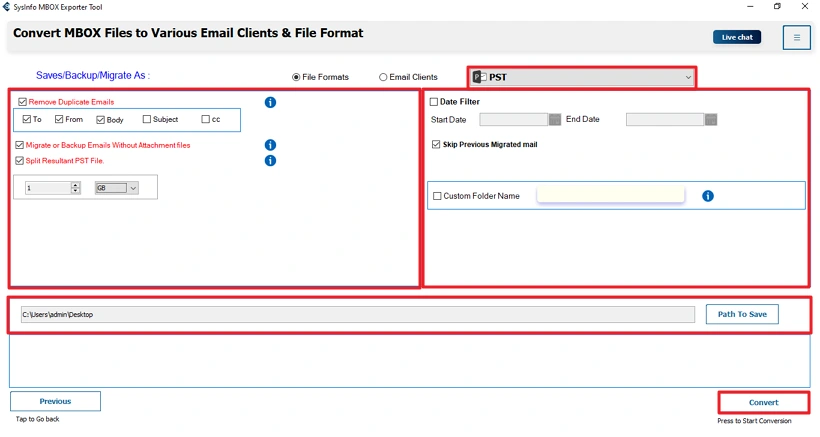
The MailConverterTools MBOX File Converter is quite handy when you need to move your MBOX files into another format. It also works well for shifting PowerMail emails into Outlook or any other mail platform you use. If you have many MBOX files, the tool can process all of them together, which saves a lot of time. You also get a few practical options like removing repeated emails, choosing emails from a particular date range, and checking the content before you convert it.
Steps to Transfer PowerMail emails to Outlook
- Download and run the MBOX Converter Tool.
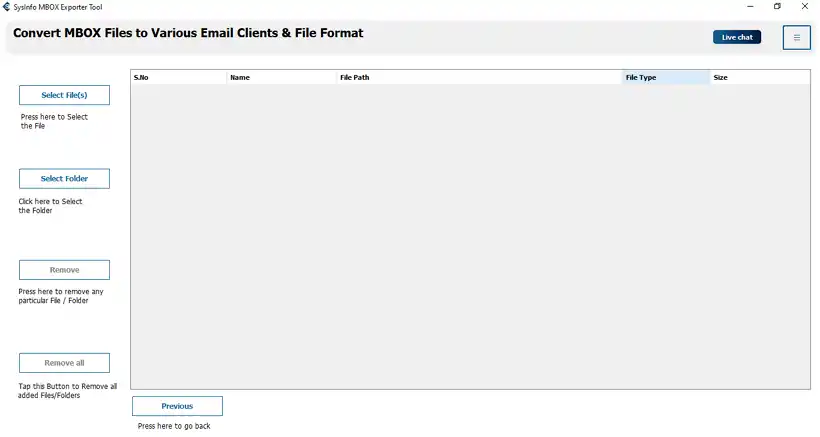
- Then, select the MBOX file and folders and click Next.
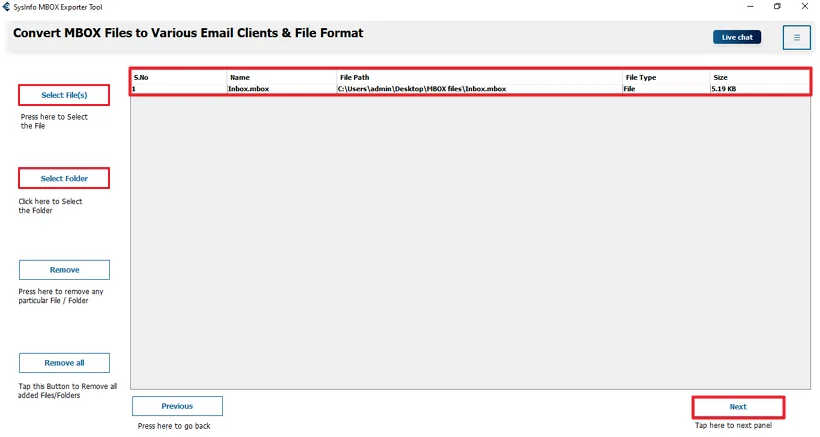
- After that, preview the MBOX files and select the files, and click Next.
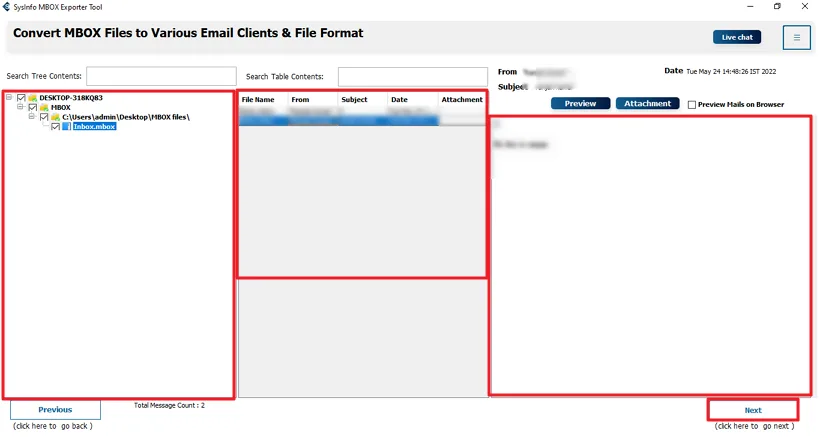
- Finally, choose PST, apply important filters, and click Convert.
Successful User Case:
William has 8 GB of PowerMail Emails data and is required to transfer their information from PowerMail to Outlook. Although he could have moved the information manually, this was not a viable option for him. He decided to use MBOX File Converter; they converted everything into a PST (Personal Storage Table) within an hour. Also, the folders were all arranged correctly, allowing him to begin working within Outlook very quickly without much difficulty.
Conclusion
Users often export PowerMail to Outlook PST because it makes it easier to access and provides them with better compatibility. In this blog, the manual way to export from PowerMail to Outlook consists of two main parts or steps. However, you can use a third-party tool called MBOX Converter to automate the entire procedure. A demo version of MBOX Converter is also available for download to allow you to try all its features.
Frequently Asked Questions
Q: Can I manually export PowerMail Emails to Outlook PST?
Ans: Yes, you can, but the manual method is quite long. You must first export PowerMail emails as MBOX, import them into Thunderbird, and then sync them with an IMAP account before saving them as a PST file in Outlook. It works, but it takes time and needs multiple apps.
Q: Will my emails maintain formatting and folder structure during conversion?
Ans: If you use a reliable MailConverterTools MBOX File Converter Tool, your emails, folders, attachments, and formatting are usually preserved. Manual methods may not always keep the exact structure, especially when dealing with large mailboxes.
Q: Can I export multiple PowerMail mailboxes to PST at once?
Ans: Yes. Most professional MBOX conversion tools support bulk conversion, allowing you to export several PowerMail mailboxes to one or more PST files in a single process.
Q: Can I convert PowerMail to Outlook PST on Mac?
Ans: You can export the MBOX files from PowerMail on Mac, but creating the PST file must be done on Windows because Outlook for Mac does not support PST creation. So, you’ll need a Windows system or a tool that supports PST output.
Q: Is there any best tool to export PowerMail to Outlook PST?
Ans: Yes, tools like the MailConverterTools MBOX Converter are widely used because they offer smooth MBOX-to-PST conversion, maintain folder structure, support bulk emails, and provide filters for faster and cleaner migration.
About The Author:

Meet Amit, an experienced SEO expert and content planner. He uses his creativity and strategy to create content that grabs attention and helps brands reach their goals. With solid skills in digital marketing and content planning, Amit helps businesses succeed online.
Related Post