-
Written By Amit Chandel
-
Updated on March 18th, 2026
Fix Outlook for Mac Error Code 17193 – Step-by-Step Guide
User Query: I’ve been using Outlook on my Mac for a while, but I’ve suddenly started getting Error Code 17193. Because of it, I can’t open my emails properly or even send new ones. Not really sure what went wrong or how to fix it. Has anyone dealt with this before? What actually works to solve it?
If you’re stuck with Outlook for Mac Error 17193, don’t worry, it’s more common than it seems. The main cause of this error is a messed-up profile, sync problems, or some settings not working properly. In this blog, we’ll go through a few simple ways that will help you to fix Outlook for Mac Error Code 17193. We’ll also mention an easier method using the MailConverterTools OLM Converter Tool in case the manual fixes don’t help much.
Need to Troubleshoot Outlook for Mac Error 17193
- Error 17193 can suddenly stop Outlook from sending or receiving emails on your Mac.
- Sometimes it blocks access to your email, which can disrupt your regular work.
- The issue can turn into bigger Outlook problems later if you ignore it for too long.
- This error indicates that there is something wrong with the profile or sync settings.
Manual Method to Fix Outlook for Mac Error Code 17193
Let’s go through a few simple ways that you can try to fix this error using these approaches. Start with these basic checks first for the Outlook for Mac Error 17193 Solution.
#1: Update Outlook on Your Mac
This problem can occur with you if you don’t have the latest version of Outlook for Mac. A quick update to the latest Outlook version can fix small bugs like this.
- Open Outlook on your Mac and sign in.
- Go to Help, and after that, click on Check for Updates.
- If there’s an update available, install it.
- Once done, close Outlook and open it again.
- Try sending an email and see if it works.
#2: Check SMTP and Mail Settings
Wrong email settings can easily cause this error, so it’s worth checking once to resolve Outlook Error Code 17193 Mac.
- Open Outlook and go to Preferences, then click on Accounts.
- Select your email account from the list.
- Check details like SMTP server, port, username, and password.
- Also, you have to review incoming mail settings.
- At last, you have to save the changes, restart Outlook, and test by sending an email.
#3: Fix Authentication Issues
If you’re trying with your login details and your login details aren’t accepted, Outlook may throw this error.
- If you’re using two-step verification, you might need an app password.
- Log in to your email account from a browser.
- Go to settings and find the option for app passwords.
- Generate a new one and copy it.
- Lastly, open Outlook > account settings.
- Replace the password with this one.
#4: Check Your Internet Connection
A weak or unstable internet connection can also be the reason behind this issue.
- Make sure your internet is working fine.
- Try opening a website to double-check the connection.
- If it feels slow, restart your Wi-Fi or switch networks.
- Once the connection is stable, open Outlook and try again.
Limitations
- May not work if the Outlook profile is already corrupted.
- Updates won’t fix deeper issues.
- Network fixes help only in specific cases.
- Takes time with no guaranteed result.
- An error may still appear after all steps.
- Doesn’t recover lost or damaged emails.
Smart Solution to Fix Outlook for Mac Error Code 17193
You can use the MailConverterTools OLM Converter if you want to take a backup before trying fixes. It lets you convert OLM files into multiple other file formats without changing your original data. You can add multiple files and process them together. It’s easy to use, and you don’t need to perform much setup. The data stays as it is during the process.
Steps to Back Up Outlook Data
- Download the OLM Converter Tool.
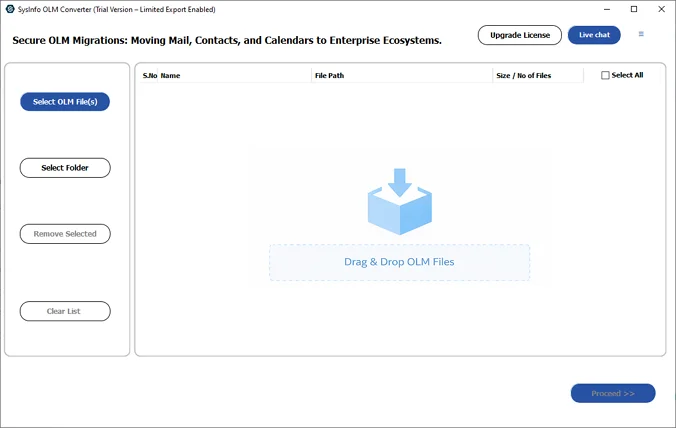
- Add the OLM files and click Next.
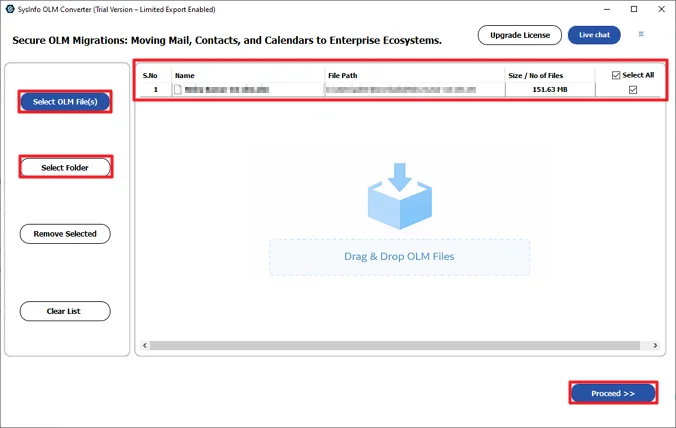
- After that, preview and select the OLM files and hit the Next button.
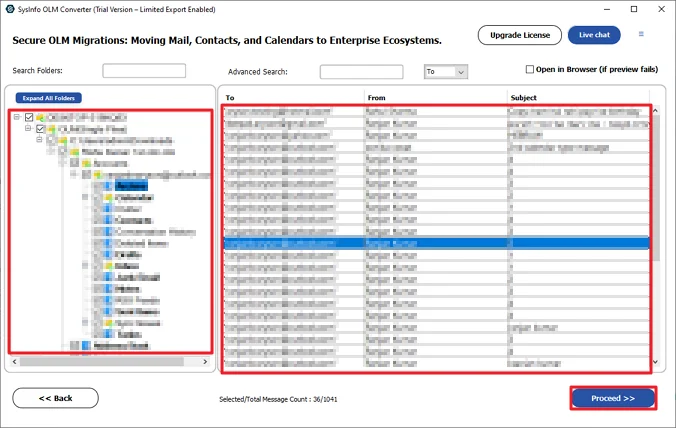
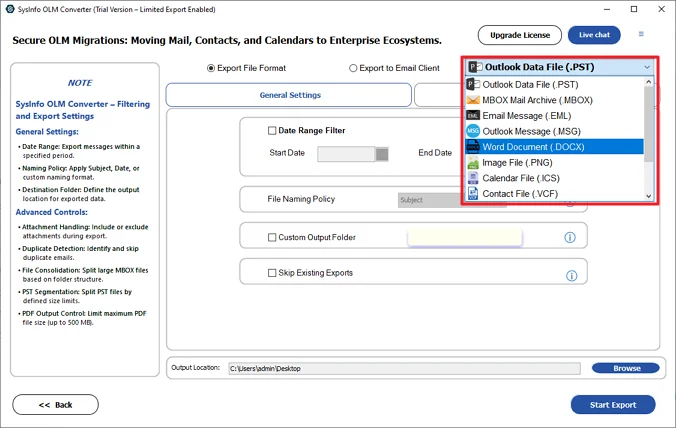
- Choose a file format to back up your data safely.
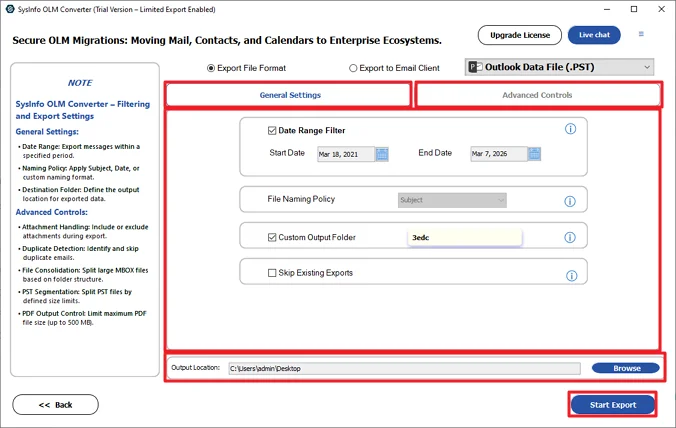
- Lastly, you have to apply filters > choose the path > Start Export button.
Real-Life Scenario:
An organization faced Error Code 17193 in Outlook for Mac while syncing their mailbox, which raised concerns about possible data loss. Before trying any fixes to repair Outlook Error 17193 on Mac, they used the MailConverterTools OLM Converter to create a secure backup of their emails. This helped them go ahead with troubleshooting without worrying about losing important data.
Conclusion
To conclude, we looked at many ways that will help you to fix Outlook for Mac error code 17193. If you want, you can try the manual steps to solve the error and see what works best. But before that, it’s better to take a backup of your OLM files so your data stays safe from any errors. Using an OLM converter is the best choice, and it can help you save your files in many other file formats. This will help you to keep your data with you even if something goes wrong.
Frequently Asked Questions
Q.1 What is Outlook for Mac Error Code 17193?
Ans: It’s an error that usually shows up when Outlook has issues with your profile, sync, or mail settings. Because of this, you may not be able to send, receive, or open emails properly on your Mac.
Q.2 How Can I Backup My Data to Prevent Loss from Outlook Error Code 17193?
Ans: You can take a backup using the MailConverterTools OLM Converter. It allows you to save your OLM files into other formats without changing the data.
Q.3 What Are the Steps to Fix Outlook Error 17193 on Mac?
Ans: You can try a few basic fixes like updating Outlook, checking your SMTP and mail settings, fixing login or authentication issues, and making sure your internet connection is stable.
Q.4 How to Repair Outlook Error 17193 on Mac Without Technical Skills?
Ans: If manual steps feel difficult, you can first take a backup using the OLM Converter tool. It’s simple to use and doesn’t need much technical knowledge.
About The Author:

Meet Amit, an experienced SEO expert and content planner. He uses his creativity and strategy to create content that grabs attention and helps brands reach their goals. With solid skills in digital marketing and content planning, Amit helps businesses succeed online.
Related Post