-
Written By Amit Chandel
-
Updated on January 5th, 2026
Simple Solution to Import Contacts from Excel to Android
User Search Query:
Hi! New Android user here. My work phone is a Samsung Galaxy A11, and I’d like to import work contacts into it; however, they’re in an Excel Spreadsheet. Is there an easy way to mass-import all the contacts at once?
Contacts saved in an Excel spreadsheet are easy to manage, but it is difficult and confusing to import contacts from Excel to Android. Many users want a simple and safe way to import contacts in bulk without any data loss. In this blog, we explain the complete process to import contacts to Android. First, we cover the manual method to help you understand how the process works step by step. After that, we discuss a professional solution tool called Excel to vCard Converter for quicker and more reliable results.
Need to Transfer Contacts from Excel to Android
- Important details like phone numbers, email IDs, and addresses remain organized.
- Contacts become instantly available on your Android phone for calls, messages, and apps.
- The risk of manual entry mistakes is reduced.
- Excel files can be edited anytime before transfer, which gives better control over data.
- Once imported, contacts can sync with Google, making future access simple and secure.
How to Add Contacts from Excel to Android Phone Manually?
Here, we are going to discuss some manual methods that help you to import your contacts in Android from Excel. These methods are free to use; you don’t need to pay for any application.
#1: Import Excel Contacts to Phone Using Google Contacts
Android phones do not support the Excel file directly. Therefore, we will convert them into CSV format to import the contacts.
- Firstly, open Microsoft Excel and load the required Excel sheet.
- Then, arrange the contact details properly, such as name, phone number, and email.
- After that, click File > Save As and choose CSV as the file format.
- Thereafter, open contacts.google.com in a web browser and sign in to your Google account.
- Finally, click Import, select the CSV file, and complete the process.
#2: Use vCard to Import Contacts from Excel to Android
Here we are going to do some extra work by converting Excel to CSV and then CSV to vCard. It helps us to import contacts easily because vCard is supported by Android.
- Firstly, convert the Excel file to CSV by following the first three steps from the above method.
- After that, open Windows Contacts and select Import > CSV to load the CSV file.
- Then, click Export and choose vCard (.vcf) as the format.
- Thereafter, transfer the generated .vcf file to your Android phone using a USB cable.
- Finally, on the Android phone, open Contacts > Settings > Import/Export and import the .vcf file.
Limitations:
- These methods will take time for a large number of files.
- Every step needs attention, because a small mistake can stop the import.
- Excel data must be formatted correctly; otherwise, contacts may not upload properly.
- The duplicate entries and missing fields create issues and errors.
- Manual methods are not ideal if you need to import contacts frequently or in bulk.
Secure Way to Import Contacts from Excel to Android
The Excel to vCard Converter is the best choice if you want a fast and smooth import. It makes sure the accuracy of data during the conversion of contacts from Excel to vCard is maintained. It follows the zero data storage policy and avoids data manipulations. Additionally, it is a reliable solution for bulk conversion of files with no data loss.
Steps to Save Contacts from Excel to Android
- Firstly, download and run the Excel Converter Tool.
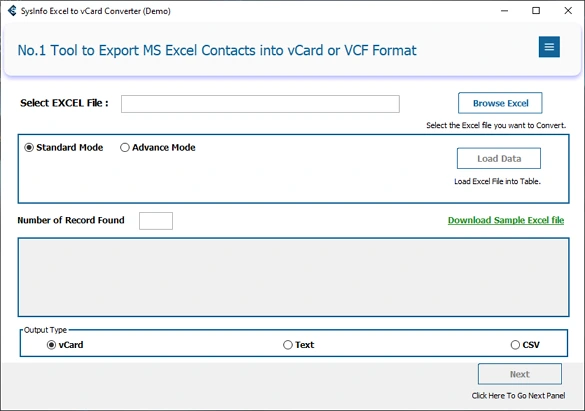
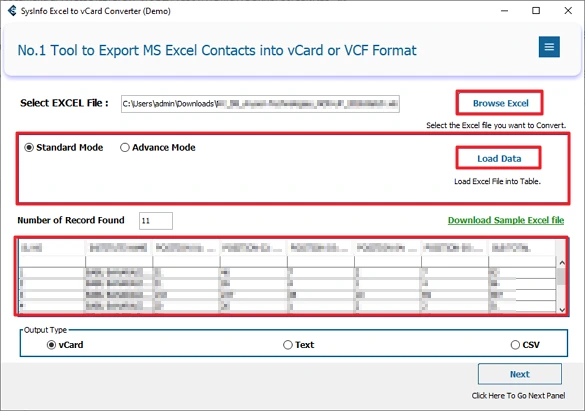
- Then, browse the Excel file and choose Standard or Advanced Mode and click Load Data.
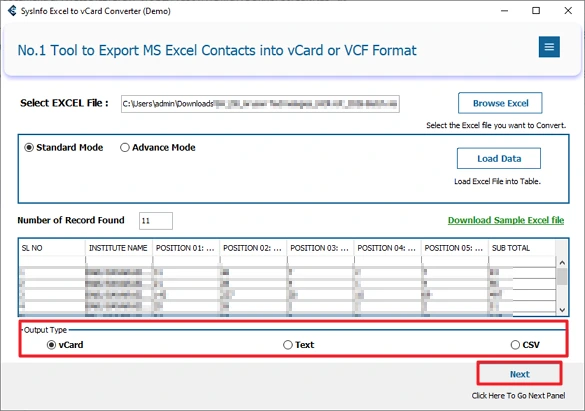
- After that, choose output type as vCard and click Next.
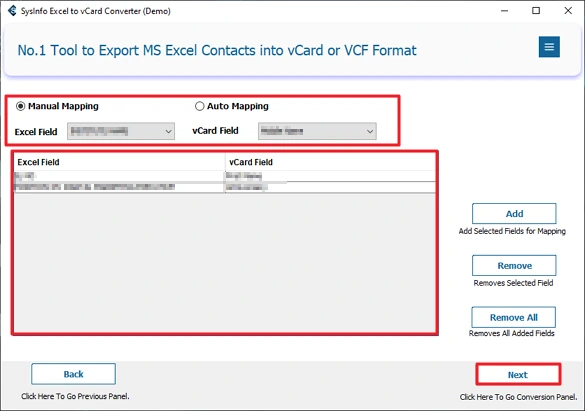
- Thereafter, choose manual or auto mapping and add the fields, and click Next.
- Furthermore, apply the necessary filters and features.
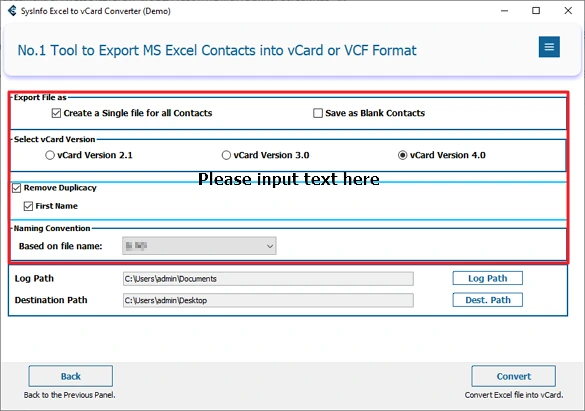
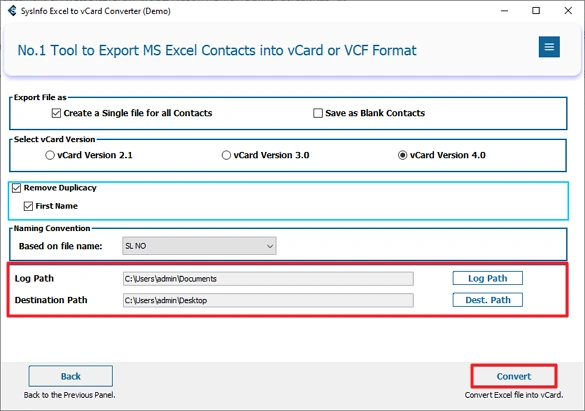
- Finally, set the destination path and click Convert.
Successful User Case
Ethan had stored 2000 client contacts in multiple Excel files. He wants to store them in his Android phone so his sales team can access those contacts easily. Manually converting them to vCard format was taking too much time. Thereafter, he finds our Excel to vCard Converter, which helps him to import his multiple Excel files into a vCard file in very minimal time. The tool helps him to save a lot of time and effort.
Conclusion
Here, we learn about various ways to import Contacts from Excel to Android. With the manual methods, we converted an Excel file to the Android phone-supported format, such as CSV and vCard. But manual methods are not efficient for bulk and fast results. Using the professional Excel to vCard Converter, you can convert your files in bulk and get the fastest and most accurate results.
Frequently Asked Questions
Q1: How do I import contacts from Excel to Android phone?
Ans: You need to convert your Excel file to vCard or CSV format to access it on Android. For which you can use the manual method or the professional Excel to vCard Converter.
Q2: What is the easiest way to import Excel contacts to Android?
Ans: The Excel to vCard Converter is the easiest way to import your Excel Contact file in Anroid phones. It supports bulk import and provides multiple helpful features and filters.
Q3: Do I need a Google account to save Contacts from Excel to Android?
Ans: If you are using manual ways to save files from Excel to Android, then you need a Google Account. But our advanced tool does not require a Google Account to import Excel to vCard.
Q4: Is there any best tool to import Excel Contacts to Phone?
Ans: Yes, the Excel to vCard Converter Tool is the best and recommended tool by many data recovery experts. It helps you to get accurate, fast, and safe results.
About The Author:

Meet Amit, an experienced SEO expert and content planner. He uses his creativity and strategy to create content that grabs attention and helps brands reach their goals. With solid skills in digital marketing and content planning, Amit helps businesses succeed online.
Related Post