-
Written By Amit Chandel
-
Updated on January 12th, 2026
Best Way to Import ICS to Apple Calendar in Simple Steps
Mark’s Query: Someone sent me an ICS file for an event, but I’m unsure how to open it. How do I add that shared ICS file to Apple Calendar?
Sharing ICS files is an easy way to send calendars to your team and keep everyone on the same page. Apple Calendar lets you add these files without any trouble. This helps you save from using extra apps. In this guide, we’ll go through the manual steps to import ICS to Apple Calendar. We’ll also talk about a MailConverterTools ICS File Converter that can help you bring in multiple ICS files at once.
Why Import ICS File to Apple Calendar?
Here are some common reasons people import ICS files into Apple Calendar:
- It allows you to view all your events in one place without jumping between different apps.
- Importing an ICS file to the iCloud makes it easier to follow meeting schedules.
- People moving to a new device can restore their old calendar data by importing ICS files from a backup.
- It helps users to manage recurring events and meetings more smoothly.
Manual Method to Import ICS to Apple Calendar
There are a few simple ways to bring ICS files into Apple Calendar. You can do it manually; here’s a clear look at both methods.
Method 1: Import iCalendar to Apple Calendar on Mac
This method is straightforward and helps you quickly add ICS events to your Calendar app.
- To begin with, open the Calendar app on your Mac.
- Then, go to the File menu and select Import.
- Browse and choose the ICS file you want to add, then click Open.
- Select the calendar where you want the events to be added.
- Finally, click OK to finish.
Method 2: Import ICS Files Through iCloud (Web Method)
Many users prefer this option because it syncs the imported events across all their Apple devices automatically.
- Firstly, open a browser and visit iCloud.com.
- Thereafter, sign in using your Apple ID and password.
- Click on the Calendar icon to view your existing events.
- After that, select the gear icon (Settings) and choose Import.
- Locate the ICS file you want to upload and click Open.
- At last, choose the calendar, existing or new, where you want the events to be imported.
Limitations:
- Adding multiple ICS files one by one can be slow and tiring.
- Large files may make the Calendar app unresponsive during import.
- You don’t get much control, there’s no filtering or an easy way to organise many files.
Best Way to Import ICS to Apple Calendar
The ICS File Converter makes it very easy for you to import many ICS files into the Apple Calendar at once. It includes many features, such as the ability to remove duplicate files, as well as keeping your data safe in a single ICS file while being transferred. Overall, the converter tool is the best way to get your files transferred seamlessly and accurately, making the entire migration process easy, accurate, and stress-free.
One-Time File Conversion Service: “For faster results and custom setup, you can also choose our One-Time Service. Our team handles the whole import for you and makes sure everything is completed quickly and with full accuracy.”
Steps to Convert ICS to Apple Calendar
- To begin with, download the ICS File Converter Tool.
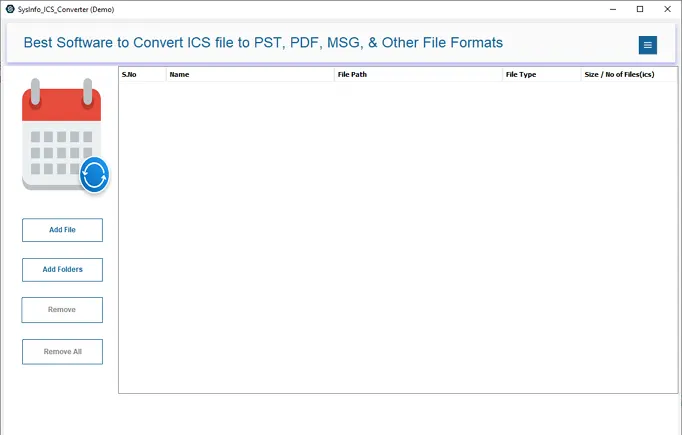
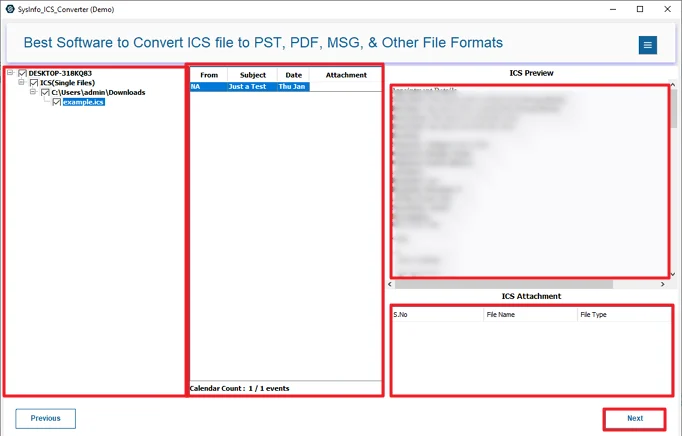
- Then, add your ICS files to the tool and click Next.

- After that, preview your files and select the files to import, and click Next.
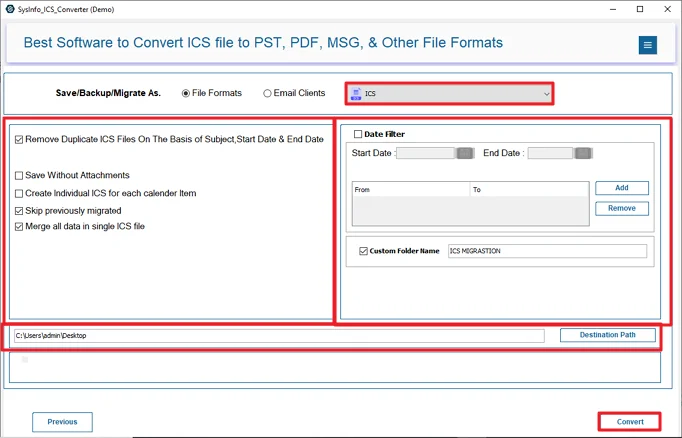
- Finally, choose ICS and apply the important features, and click Convert.
Successful User Case:
One of our clients in the US told me he was stuck with a bunch of ICS files collected over the past few months. He was trying to add them to Apple Calendar one by one and got fed up. He used our ICS File Converter, imported everything together, cleared duplicates, and his whole calendar finally synced properly.
Conclusion
The manual methods work well for a few files, but it becomes difficult when you have many ICS files to import ICS to Apple Calendar. In such cases, the ICS File Converter is a far better choice. It imports everything at once, clears duplicates, and keeps your data organised without any hassle. Overall, it’s the simplest and most reliable way to bring your ICS files into Apple Calendar and keep your schedule in order.
Frequently Asked Questions
Q1: Is it safe to import an ICS file into Apple Calendar?
Ans: Yes, importing an ICS file into Apple Calendar is completely safe as long as the file comes from a trusted source. Apple Calendar only reads event details and does not harm your data or device.
Q2: How do I import multiple ICS files into Apple Calendar at once?
Ans: Apple Calendar doesn’t support bulk importing manually. To add multiple ICS files together, you can use a dedicated tool like the ICS File Converter, which lets you import all your files in one go.
Q3: Which is the best tool to import ICS to Apple Calendar?
Ans: The MailConverterTools ICS File Converter is one of the most reliable tools for importing ICS files into Apple Calendar. It supports bulk imports, removes duplicates, and keeps your data intact during the process.
Q4: What should I do if Apple Calendar doesn’t recognize my ICS file?
Ans: If Apple Calendar won’t open your ICS file, make sure the file isn’t damaged and follows the standard iCalendar format. If the issue continues, converting the file using an MailConverterTools ICS Converter Tool usually fixes the problem.
About The Author:

Meet Amit, an experienced SEO expert and content planner. He uses his creativity and strategy to create content that grabs attention and helps brands reach their goals. With solid skills in digital marketing and content planning, Amit helps businesses succeed online.
Related Post