-
Written By Amit Chandel
-
Updated on January 13th, 2026
Best Ways to Import MBOX to Hotmail/Outlook.com Account
Adom’s Query: I was using Thunderbird before and have all my emails in MBOX files. Now, I use Hotmail and want to move those emails there. How can I do this easily?
Many users look for an easy and safe way to import MBOX to Hotmail. This blog explains how you can import MBOX files into your Hotmail account using practical methods. Additionally, this blog introduces a reliable MBOX Converter Tool that will help you to speed up the process without any data loss. This smart utility lets you easily manage, search, and organize your old Thunderbird messages in Hotmail.
What are the Benefits to Migrate MBOX Email to Hotmail?
- You can open your emails on any device, whether it’s a laptop or phone.
- Once your MBOX emails are moved, you don’t have to keep Thunderbird or any similar software just to read old messages.
- Hotmail makes handling lots of emails easier with simple folders and a better inbox layout.
- Finding old or important emails becomes quicker thanks to Hotmail’s search and filter options.
- The interface is straightforward, and basic security features like spam filtering are already built in.
Manual Solution to Import MBOX to Hotmail
This manual method is an effective and cost-free solution, but it comes with some limitations. For this user need to have some technical knowledge of email clients and IMAP configuration.
Stage 1: Import MBOX Files into Thunderbird
- Firstly, open the Mozilla Thunderbird application.
- Then, add the Hotmail (Outlook.com) account to Thunderbird using IMAP settings.
- After that, wait until Thunderbird fully syncs all Hotmail folders.
- Thereafter, open the Tools menu > Add-ons and Themes.
- Further, search for and install the ImportExportTools NG add-on.
- Restart Thunderbird to activate the add-on.
- Afterwards, right-click on Local Folders > ImportExportTools NG > Import MBOX file.
- Finally, choose the MBOX file and import in Thunderbird.
Stage 2: Upload MBOX Emails to Hotmail
- Firstly, open the folder of imported MBOX emails.
- Then, select the emails or the entire folder.
- After that, drag and drop them into the desired Hotmail folder.
- Finally, keep Thunderbird open while it syncs to migrate MBOX to Hotmail.
Limitations
- This will slow down the process for large files.
- It needs Thunderbird to stay open during the sync.
- There is no progress indicator for large transfers.
- Errors may occur if the internet connection is unstable.
Automated Way to Import MBOX to Hotmail Quickly
MailConverterTools MBOX Converter Tool is the best utility to migrate your files to email clients. The tool keeps your emails, attachments, folder layout, and other details unchanged during the process. It also includes simple filter options, which make uploading MBOX files to Hotmail easier and more controlled. Along with Hotmail, the tool supports converting MBOX files into other formats.
Steps to Import MBOX Files to Hotmail
- Firstly, download the MBOX Converter Tool.
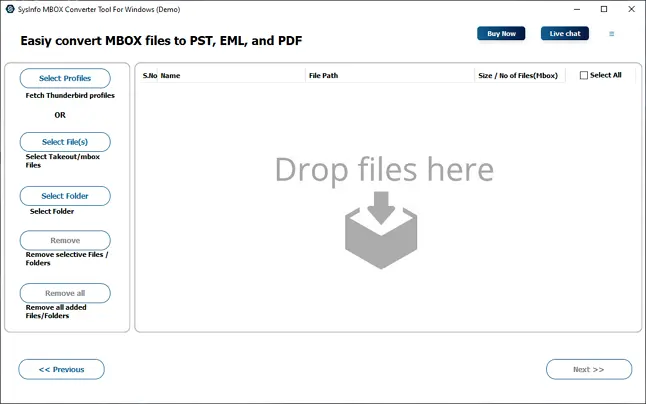
- Then, add MBOX files or load your Thunderbird profile.
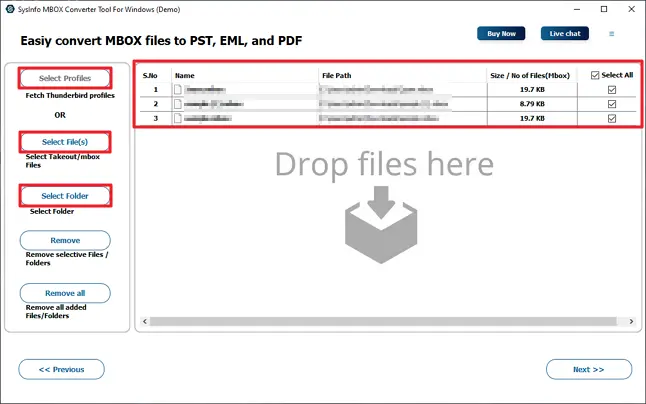
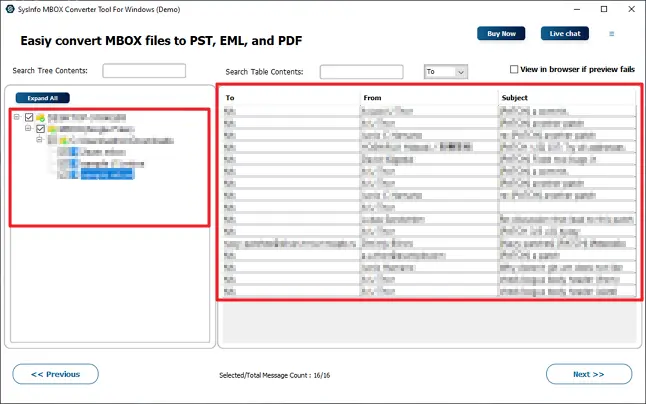
- After that, select and preview the file and click Next.
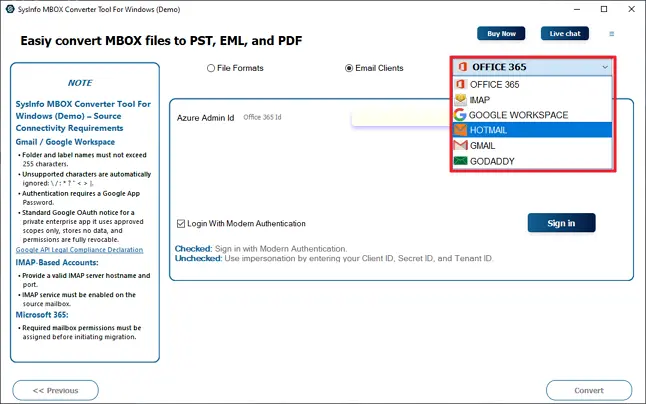
- Afterward, choose Hotmail from the list of email clients.
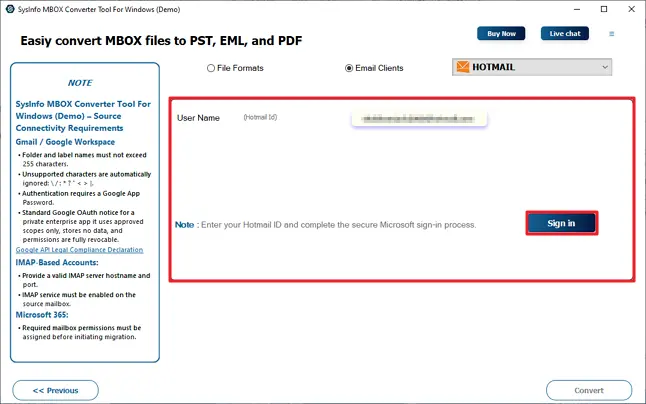
- Thereafter, sign in with your Hotmail credentials.
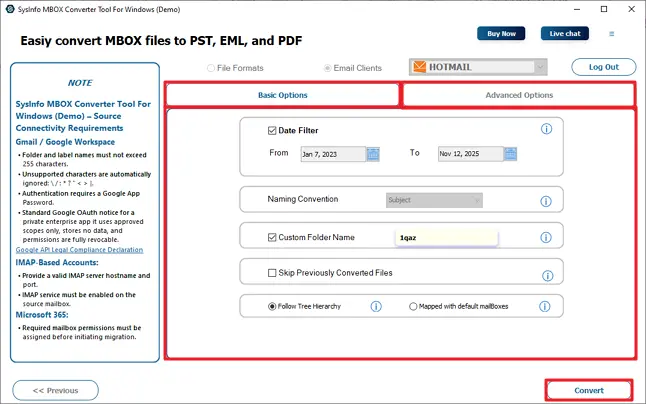
- At last, apply filters and click Convert.
Successful User Case
I was worried about losing emails when switching from Thunderbird to Hotmail. Manual methods were confusing and slow. Using MailConverterTools MBOX Converter made it easy to move all my emails and attachments without any problems. It saved me time and worked smoothly. I highly recommend it for anyone moving MBOX files to Hotmail.
Conclusion
In conclusion, moving your MBOX emails to Hotmail keeps everything backed up and easy to reach in Microsoft’s cloud. You can try manual methods to import MBOX to Hotmail, but there are some limitations, and it doesn’t work for business. If you want something smoother and more secure, the MBOX Converter Tool is the better option. It gets all your emails, attachments, and all into Hotmail without the headaches. Saves you time and trouble.
Frequently Asked Questions
Q1: How can I import MBOX to Hotmail (Outlook.com) account?
Ans: There are two ways to migrate MBOX files to your Hotmail account. You can use the manual methods as a cost-free solution. Or you can use MailConverterTools MBOX Converter to get fast, accurate, and secure results in a few steps.
Q2: How to migrate MBOX to Hotmail without using Thunderbird?
Ans: Using a professional tool like MailConverterTools MBOX Converter Tool, you can migrate an MBOX file without Thunderbird. It has easy to use interface that can be easily used by even a beginner.
Q3: Can I import MBOX to Hotmail for business or enterprise use?
Ans: Yes, you can import MBOX files to Hotmail for business accounts as well. The process is similar to personal accounts, but if you have a large number of emails, using a professional tool is recommended to make the migration smooth and secure.
Q4: Can I migrate MBOX to Hotmail from macOS or Windows?
Ans: Yes, the MailConverterTools MBOX Converter supports both Windows and macOS. You can use this tool on any OS with the same steps.
About The Author:

Meet Amit, an experienced SEO expert and content planner. He uses his creativity and strategy to create content that grabs attention and helps brands reach their goals. With solid skills in digital marketing and content planning, Amit helps businesses succeed online.
Related Post