-
Written By Amit Chandel
-
Updated on February 23rd, 2026
How to Import MBOX to Thunderbird Step-by-Step (2026)
User Query: I am working with the MBOX files, and nowadays, it is getting too difficult to manage thousands of files. Now, I decided to import them into Thunderbird. What will be the best way to import files easily with no errors?
A lot of people use Thunderbird because it’s free and pretty easy to manage. Many users work with many email apps that save data in MBOX format. It keeps all emails in one single file. Maybe you switched email apps. Maybe you just found an old backup. Or maybe you simply want all your emails in one place. In this blog, we’ll walk you through the free ways to import MBOX to Thunderbird. We’ll also mention the MailConverterTools MBOX Converter Tool
Why Import MBOX Files in Thunderbird?
- Moving from another email app that saves data in MBOX format, and wanting everything inside Mozilla Thunderbird.
- Found an old MBOX backup file and need a way to open and read those emails again.
- Shifting to a new computer and trying to restore previous emails without starting over.
- Reinstalling the system and using the MBOX file to bring back important conversations.
- Wanting all old and new emails in one single place for easier management.
- Preferring Thunderbird because it’s free and simple, so importing MBOX feels like the easiest option.
Manual Method to Import MBOX to Thunderbird
You can use two manual ways to bring your MBOX files into Thunderbird. Just follow the steps properly to avoid issues.
Method 1: Convert MBOX File to Thunderbird via Thunderbird
- Firstly, open Mozilla Thunderbird.
- Thereafter, click More > Tools > Import.
- Afterwards, choose Import from a File and continue.
- Further, select the option to import from a backed-up profile.
- Then, browse and choose an MBOX (or ZIP) file.
- After that, click Continue, select the items you want, and start the import.
- Lastly, wait until the process finishes.
Method 2: Open MBOX File in Thunderbird via Gmail
- Firstly, open Thunderbird and add your Gmail account.
- Then, go to More > New Account > Email (or Account Settings > Add Mail Account).
- Thereafter, enter your Gmail login details and continue.
- After that, select IMAP and complete the setup.
- Afterwards, upload your MBOX emails to Gmail first.
- Finally, let Thunderbird sync the account so the emails appear automatically.
Limitations
- Manual import in Mozilla Thunderbird may fail with large MBOX files.
- Folder structure can change after import.
- ImportExportTools NG may not work with every Thunderbird update.
- Damaged MBOX files often don’t import properly.
- The Gmail (IMAP) method takes extra time to upload and sync.
- Gmail storage limits can block large files.
- Steps can feel confusing for beginners.
- Some emails may not import if something goes wrong.
Advanced Method to Import MBOX to Thunderbird Easily
If the manual ways feel confusing or keep failing, you can try the MailConverterTools MBOX Converter Tool. It’s made to open and move MBOX files into Thunderbird without too many steps. The tool keeps the same folder structure, so your emails don’t get mixed up. It also keeps the email data as it is during the process. You can use it even to import MBOX to Google Workspace. You can read this if you want to import MBOX files to Gmail without any hassle.
Steps to Upload MBOX to Thunderbird
- Firstly, download the MBOX Converter Tool.
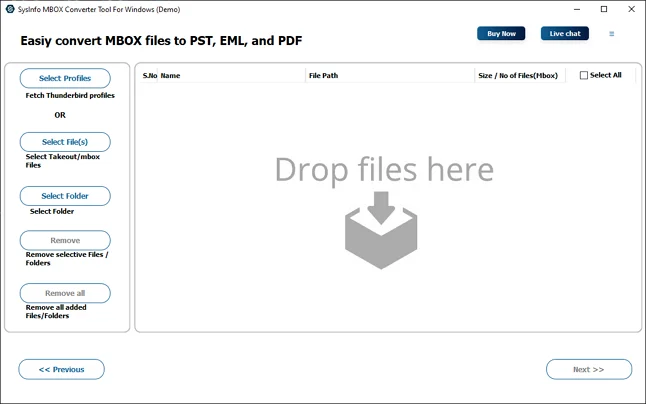
- Then, add your MBOX file or load your profile.
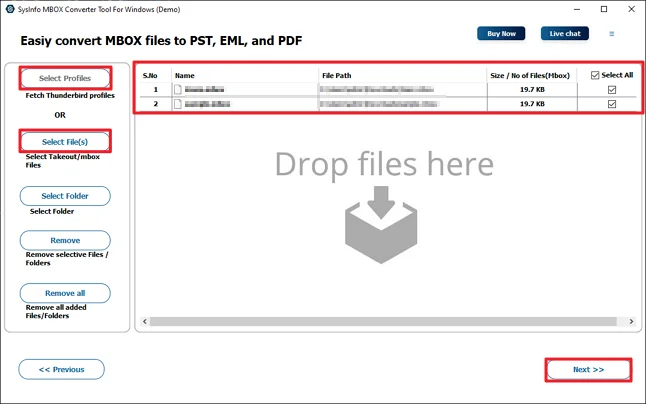
- Open the tree structure, select files, and click Next.
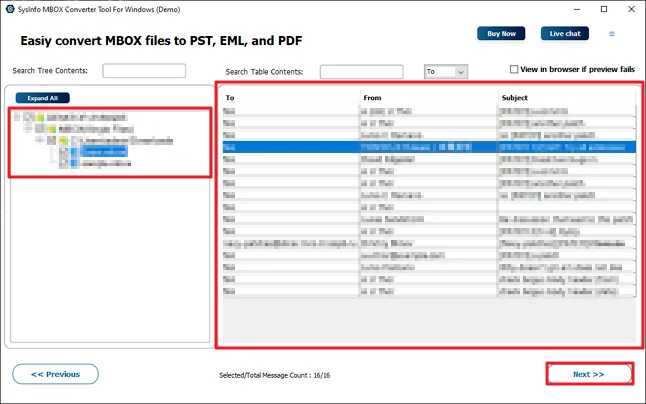
- After that, choose Thunderbird as the saving option.
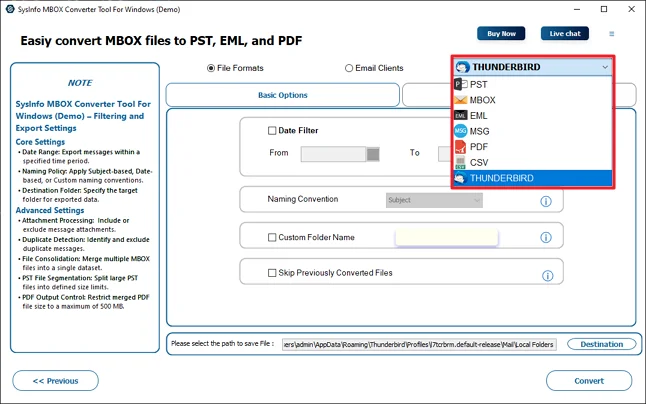
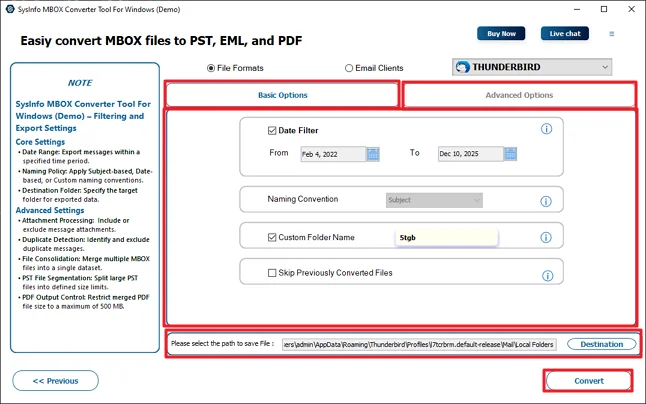
- Finally, apply the given options, set the path, and click Convert.
Successful User Case
Daniel runs a small repair shop in Spain. He has saved as MBOX files from different email apps, which he decided to move everything into Mozilla Thunderbird to keep it in one place. He tried the manual way, but large files caused problems, and some folders didn’t show properly.
Then he used the MailConverterTools MBOX Converter Tool. He loaded all his MBOX files together and chose Thunderbird as the option. The emails were imported without issues, and the folders stayed the same.
Now Daniel checks all his old and new emails directly in Thunderbird without jumping between files. It made his daily work simpler.
Related Post: Export PowerMail to Outlook PST
Conclusion
We went through a few ways to import MBOX to Thunderbird. You can use the manual method for the import, but it is not suitable or comfortable all the time. To avoid manual errors, you can use the professional tool. It usually cuts down the effort and reduces small mistakes. Use any method that feels more comfortable and manageable.
Frequently Asked Questions
Q.1 Which is the best tool to import MBOX to Thunderbird?
Ans: The MailConverterTools MBOX Converter Tool is a simple option. It helps move MBOX files into Mozilla Thunderbird without going through long manual steps. It also keeps the folder structure the same during the process
Q.2 Can I bulk import multiple MBOX files into Thunderbird?
Ans: Yes, the MailConverterTools MBOX Converter Tool allows you to add multiple MBOX files at once. You can load the files, select Thunderbird as the saving option, and convert them together instead of importing one by one.
Q.3 How can I migrate MBOX emails to Thunderbird with attachments?
Ans: The tool transfers complete emails along with their attachments. You just need to add the MBOX file, choose Thunderbird as the output, and start the process.
Q.4 Is there a size limit to convert MBOX File to Thunderbird?
Ans: Manual methods may struggle with large MBOX files. However, the MailConverterTools MBOX Converter Tool is designed to handle large files more smoothly, without splitting or changing the data structure.
About The Author:

Meet Amit, an experienced SEO expert and content planner. He uses his creativity and strategy to create content that grabs attention and helps brands reach their goals. With solid skills in digital marketing and content planning, Amit helps businesses succeed online.
Related Post