-
Written By Vikas Bajpai
-
Updated on April 13th, 2026
Import MSG to HostGator Easily: Complete Walkthrough
Lucas from Europe asked this query:- “I’ve got a lot of MSG files from MS Outlook that I need to import into my HostGator email. Not sure what the easiest way is. Just want to make sure nothing gets lost along the way.”
Importing MSG files into HostGator mail is helpful when you want to access old Outlook emails in your webmail. MSG files store individual messages, but HostGator webmail, especially Roundcube, doesn’t support them directly. So, you’ll need an alternative method. This blog discusses the best methods to import MSG to HostGator Mail. In addition, you can directly use the MailConverterTools MSG Converter for bulk conversion. It’s easy, secure, and suitable for all user levels.
Why You Might Need to Move MSG Files to HostGator?
If you’ve used Outlook, you’ve probably seen MSG files. That’s the format Outlook uses to save emails. These files can include the message, formatting, and even attachments.
The problem is, you can’t open MSG files directly in HostGator webmail. So, you need to convert and move them to your inbox. Here’s why people do this:
- Leaving Outlook and shifting to HostGator.
- Want everything in one inbox.
- Need to check old emails anytime.
- Don’t want to lose important emails or files.
- Handling emails for your website.
- Trying to keep things clean and organized.
- Want a backup in your webmail account.
What Are The Requirements to Import MSG to HostGator?
- Active HostGator email account.
- Login details (email and password).
- Stable internet connection.
- MSG files ready on your system.
- Outlook or a converter tool (if needed).
- IMAP is enabled for your HostGator email.
How to Open MSG File in HostGator?
The user can import their MSG files to HostGator in two ways:
- Using the manual method
- Or by using the automated Solution
Approach 01: Manual Method to Import MSG to HostGator
This method works fine if you only have a few MSG files. But with lots of files, it quickly becomes slow and annoying. If Outlook or IMAP isn’t set up right, the process can fail.
Steps to Import MSG Files to HostGator:
- Firstly, open MS Outlook on your computer.
- Drag your MSG files into any folder in Microsoft Outlook.
- Go to File > Add Account and add your HostGator email.
- Enter your email details and set it up using IMAP.
- Wait for Outlook to sync your mailbox.
- Lastly, move the emails to your HostGator IMAP folder.
Loopholes:
- You end up doing the same steps again and again.
- You need Outlook installed and set up correctly.
- Sometimes emails don’t sync properly.
- A few emails or attachments can go missing.
- Your folders might not stay organized.
- It doesn’t work well if you have lots of files.
- It can feel confusing if you’re not very technical.
Approach 02: Top-Notch Solution to Import MSG to HostGator
If you’re working with a lot of MSG files, doing things manually can take time and get confusing. It’s easy to miss emails or lose track of attachments. That’s where using the MailConverterTools MSG Converter makes things easier. A tool like this lets you convert MSG files into formats like PST, PDF, MBOX, MSG, or even HTML, depending on what you need. It keeps your email layout, attachments, and details just the way they are. You can also convert multiple files at once, which saves a lot of time. Using this tool, you can import MSG to Yandex Mail and other email clients.
Quick Steps to Import MSG to HostGator Mail on Mac:
- To begin, install and open the MSG Converter on your PC. Press Next.
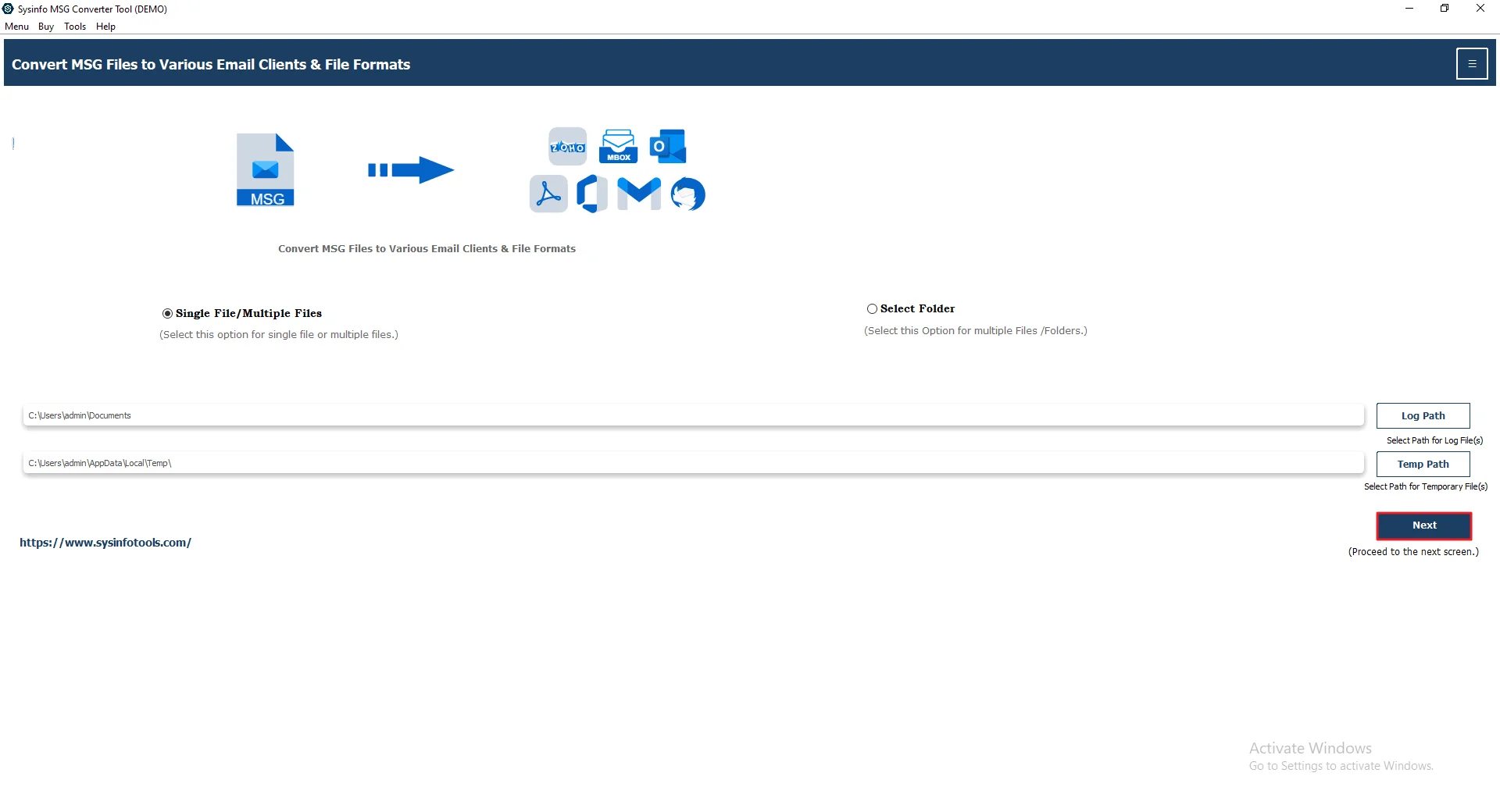
- Afterwards, click Select File(s) or Select Folder to add the MSG files. Press Next.

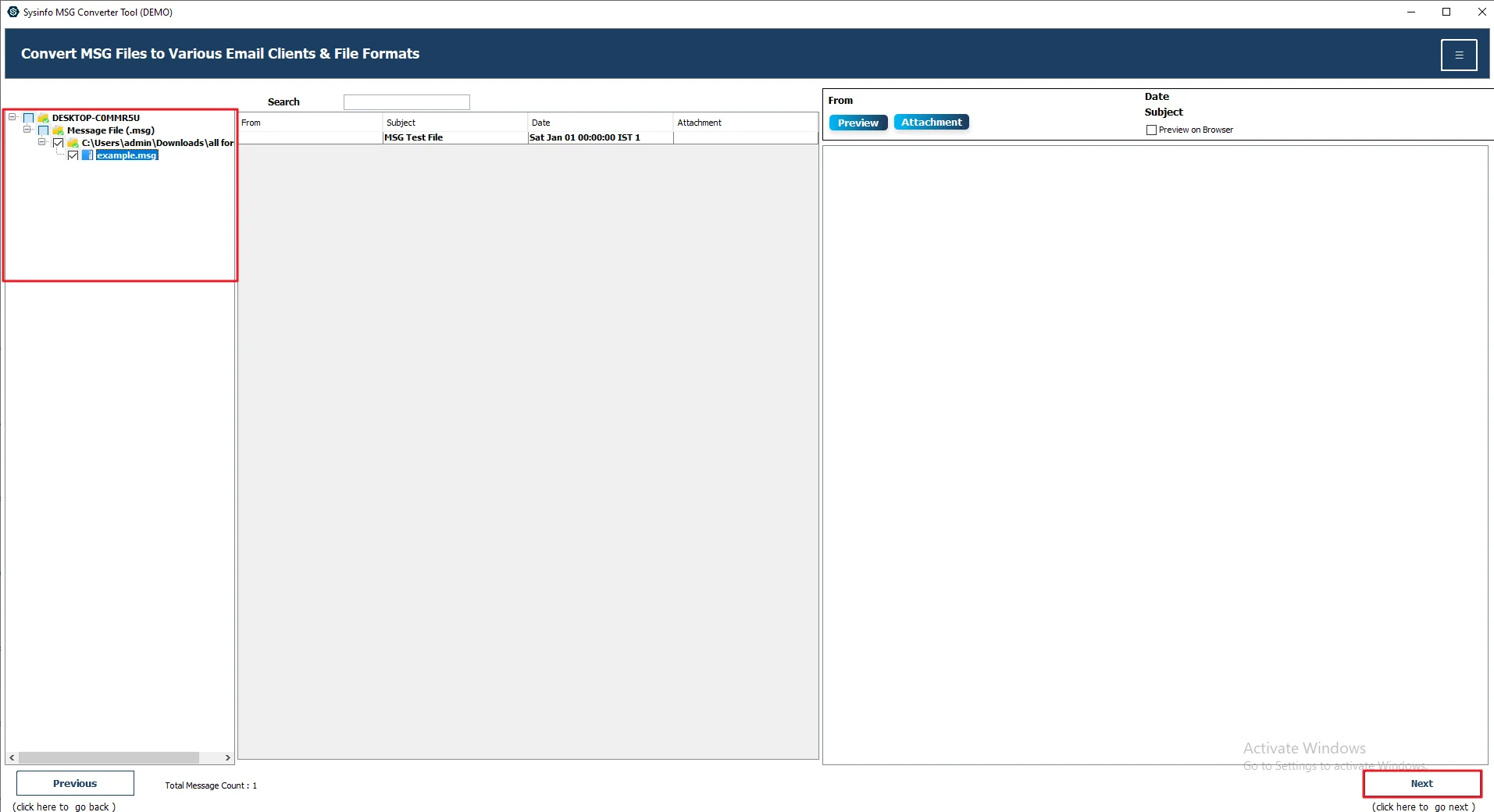
- Thereafter, preview and select your files or folder. Click Next.
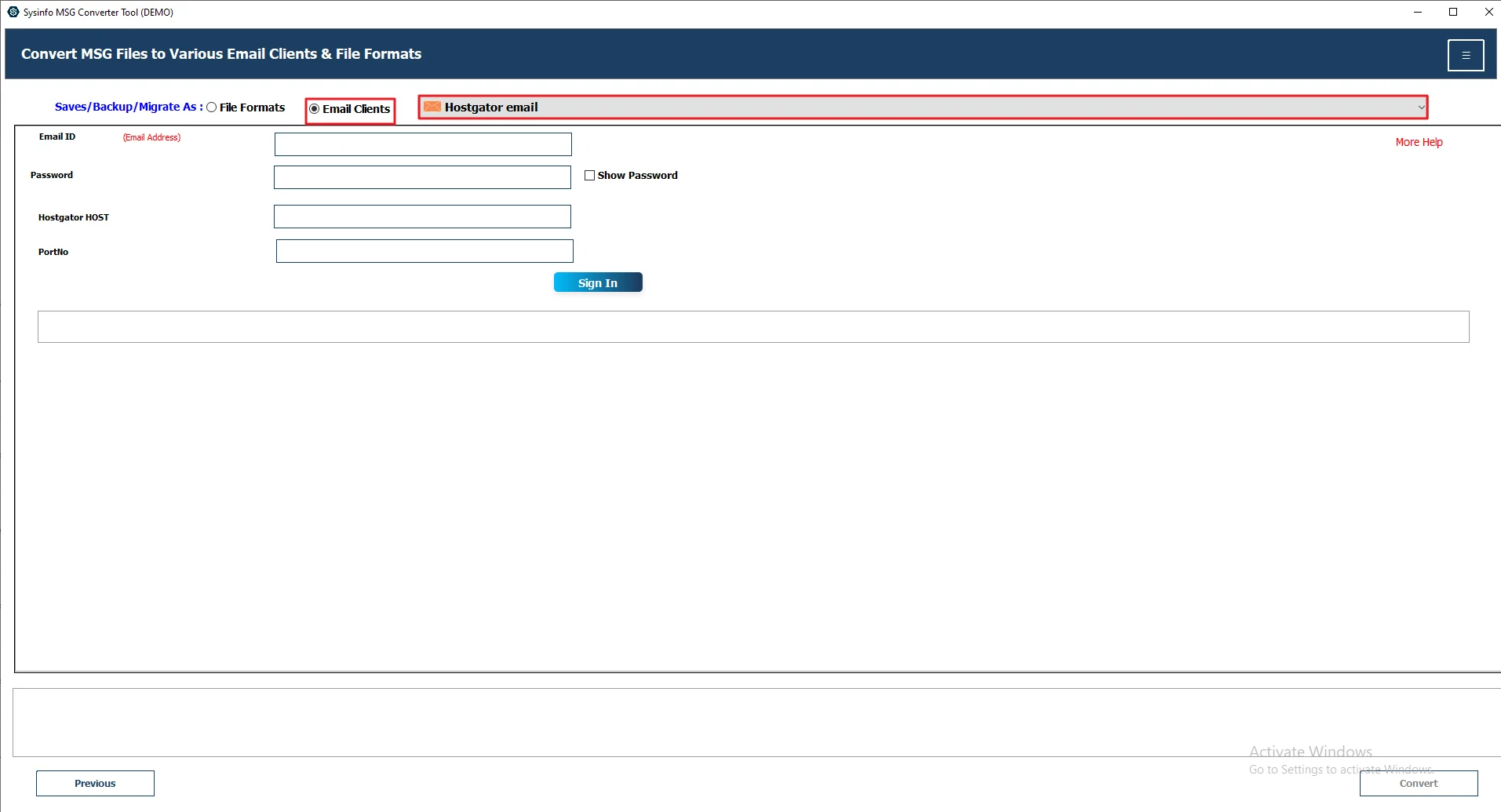
- Then, select HostGator email as the email client.
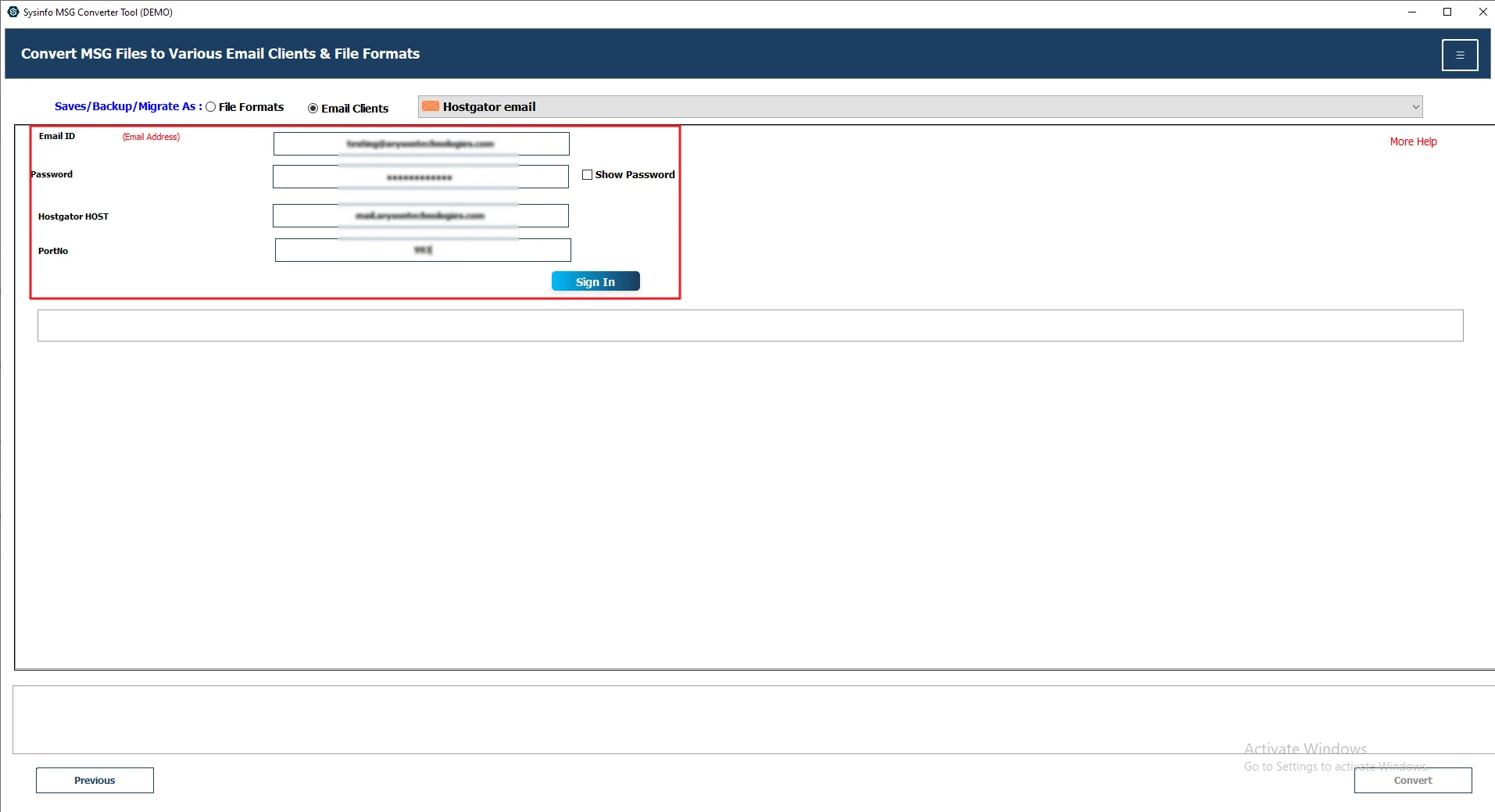
- Now, provide HostGator credentials to sign in and click Sign In.
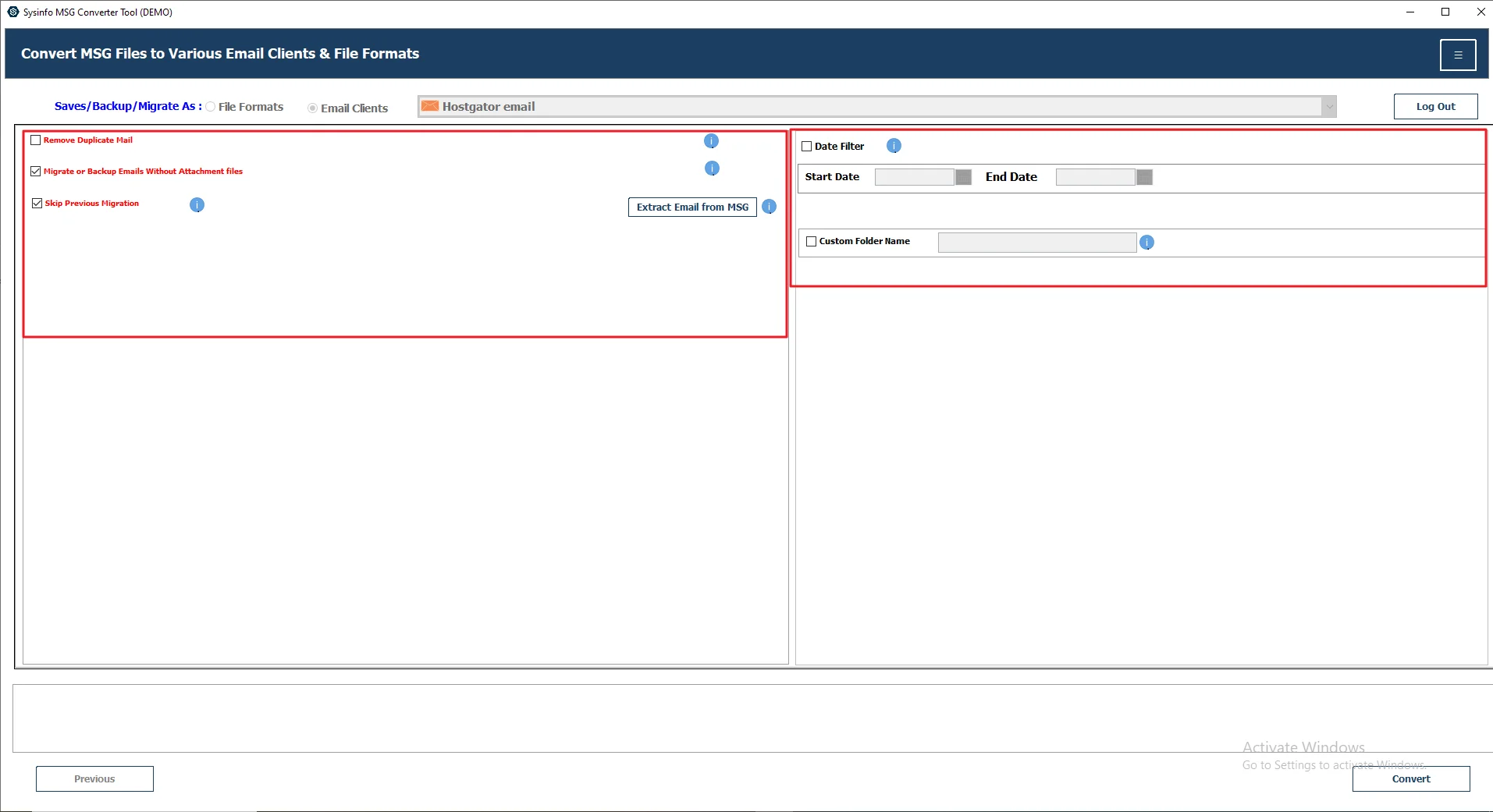
- Furthermore, apply filters or features of your choice.
- Lastly, click on the Convert button.

Successful User Case
Robert runs a small business and recently moved his email setup to HostGator. He had a lot of old emails saved as MSG files from Outlook, but couldn’t open them in HostGator webmail.
At first, he tried the manual method using Outlook and IMAP. It worked for a few emails, but doing the same steps again and again took too much time.
Later, he used the MailConverterTools MSG Converter to transfer MSG emails to HostGator in one go. It saved time, and all his emails showed up properly without any issues.
Why Users Choose the Professional Method?
- Users can convert MSG files into formats like PST, PDF, MBOX, or HTML easily.
- Your emails keep their formatting, attachments, and details.
- It can import MSG to IMAP and other email clients.
- It works with MSG files from different email apps.
- The interface is simple and easy to understand.
- You can remove duplicate emails and filter by date.
Ending Note
To wrap up, there are a few ways to import MSG to HostGator. If you just have a few emails, the manual method using Outlook can work. But it can be slow, and things don’t always go as expected. If you’re dealing with more files, it makes sense to use the MailConverterTools MSG Converter. It saves time and keeps your emails safe during the process. You can also handle bulk files without much hassle, which makes the whole thing a lot easier.
Frequently Asked Questions
Q1. How can I easily import MSG files into HostGator?
Ans. You can do it manually using Outlook and IMAP, but that works best for a few files. For an easier way, you can use the MailConverterTools MSG Converter. It helps move MSG files to your HostGator account without much effort.
Q2. Is it necessary to install Outlook before importing MSG files?
Ans. Not always. Outlook is needed for the manual method. But if you use a tool like MailConverterTools MSG Converter, you can skip Outlook completely and still import your emails.
Q3. Are there any risks in importing MSG files into HostGator?
Ans. There can be small issues like missing emails or attachments if something goes wrong during manual transfer. Using a reliable tool such as MailConverterTools MSG Converter reduces these risks and keeps your data safe.
About The Author:

Vikas Bajpai is a results-driven SEO expert and content strategist with a strong passion for building impactful digital experiences. He specializes in crafting data-backed content plans that boost visibility, engage audiences, and drive measurable growth. With deep expertise in search engine optimization, keyword strategy, and content marketing, Vikas helps brands strengthen their online presence and achieve long-term success.
Related Post