-
Written By Vikas Bajpai
-
Updated on April 8th, 2026
Import MSG to Titan Mail: Safe & Simple Migration Techniques
User Query: I’ve saved many emails as MSG files in Outlook, and now I need them in Titan Mail. Titan Mail doesn’t support the MSG format, and I am not sure how to import them. What’s the simplest way to transfer them safely?
MSG files are basically created by Microsoft Outlook when you save a single email on your system. They include everything: the message, attachments, sender details, and all that. The problem is, Titan Mail doesn’t really support MSG files. So you can’t just drag and drop them there like normal emails, which can get a bit frustrating. To make it work, you first need to import MSG to Titan Mail. In this guide, we’ll go through a simple manual method and a quicker option using the MailConverterTools MSG Converter, so you can pick whichever works best for you.
Quick Answer: Import MSG File into Titan Mail
MSG files don’t work directly in Titan Mail. So you can’t just upload them as they are. First, you’ll need to convert them into a compatible format. One simple way is to open each file in Microsoft Outlook and save it. This manual method works, but honestly, it gets annoying if you have a lot of files.
If you’re dealing with many emails, using a tool like MailConverterTools MSG Converter is a lot easier. It handles multiple files at once, so you don’t have to sit there doing everything one by one.
Why Import MSG to Titan Mail?
- So you can see your old Outlook emails directly in Titan Mail.
- To keep everything in one place instead of checking multiple apps.
- For ensuring your attachments and email details stay the same.
- Avoid switching between different email accounts again and again.
- Just to make things simpler and less messy.
Way 01: Manual Method to Open MSG File in Titan Mail
Right now, Titan Mail doesn’t have a direct way to import MSG files. So you can’t just upload them and be done. However, you can use Microsoft Outlook along with IMAP settings to move those emails over.
Step 01. Configure Titan Mail in MS Outlook
- Firstly, open MS Outlook → go to File → Add Account.
- Now, log in using Titan Mail Account credentials.
- After that, use Titan Mail’s IMAP configuration details.
Step 02. Import MSG Files into Outlook
- Furthermore, drag and drop MSG files into a local folder in Microsoft Outlook.
- Next, ensure all files appear correctly with attachments and metadata intact.
Step 03. Sync Outlook with Titan Mail
- Now, Outlook will automatically sync the MSG emails to your Titan Mail account.
Lastly, check your Titan Mail folders to confirm the transfer process was done successfully.
Limitations of using the manual approach:
- Takes a lot of time if you have too many MSG files.
- Needs a good internet connection the whole time.
- It is possible that some emails or attachments might not come through properly.
- You can’t really pick and choose what to move.
- Overall, it feels a bit slow and limited.
Top-Notch Approach to Import MSG to Titan Mail
The MailConverterTools MSG Converter is a reliable solution for quick and hassle-free conversion. Using this tool, you can import multiple or large MSG files into Titan Mail at once with no data loss. Additionally, this tool can preserve original data formatting, structure, and metadata during the entire process. Furthermore, with its simple and user-friendly interface, every user can easily use it without needing technical skills. Apart from that, this tool is capable to import MSG to IMAP Server and other email clients.
Simple steps to upload MSG file in Titan Mail using the tool:
- Firstly, install, download, and launch the MSG Converter -> Next.
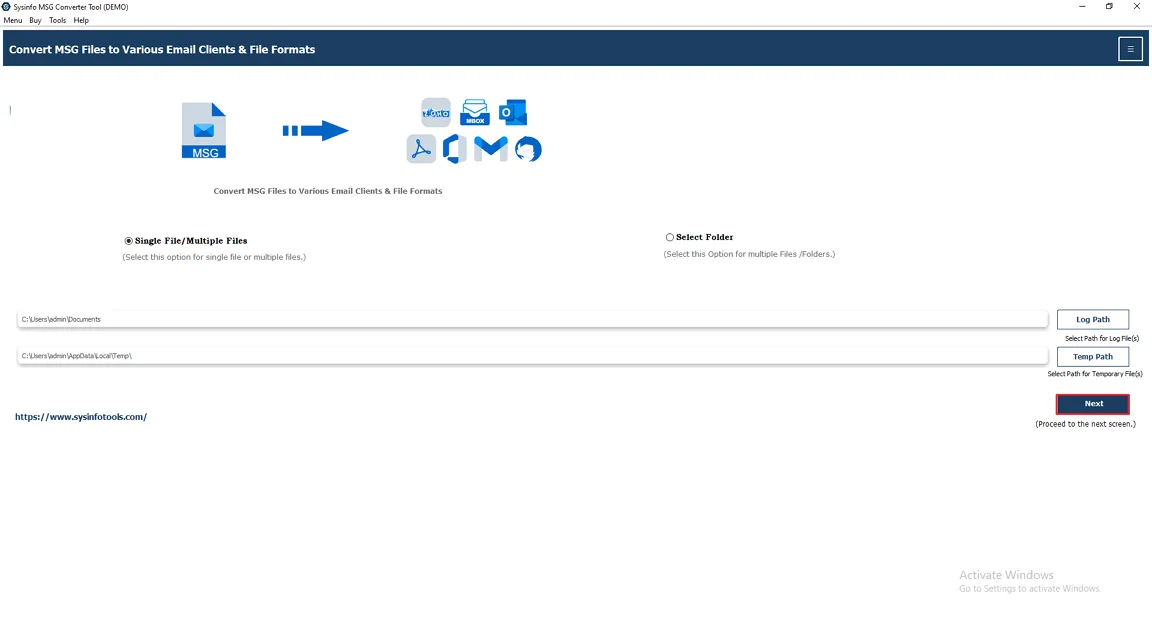
- After that, click Select File(s)/Select Folder to add MSG files and hit Next.
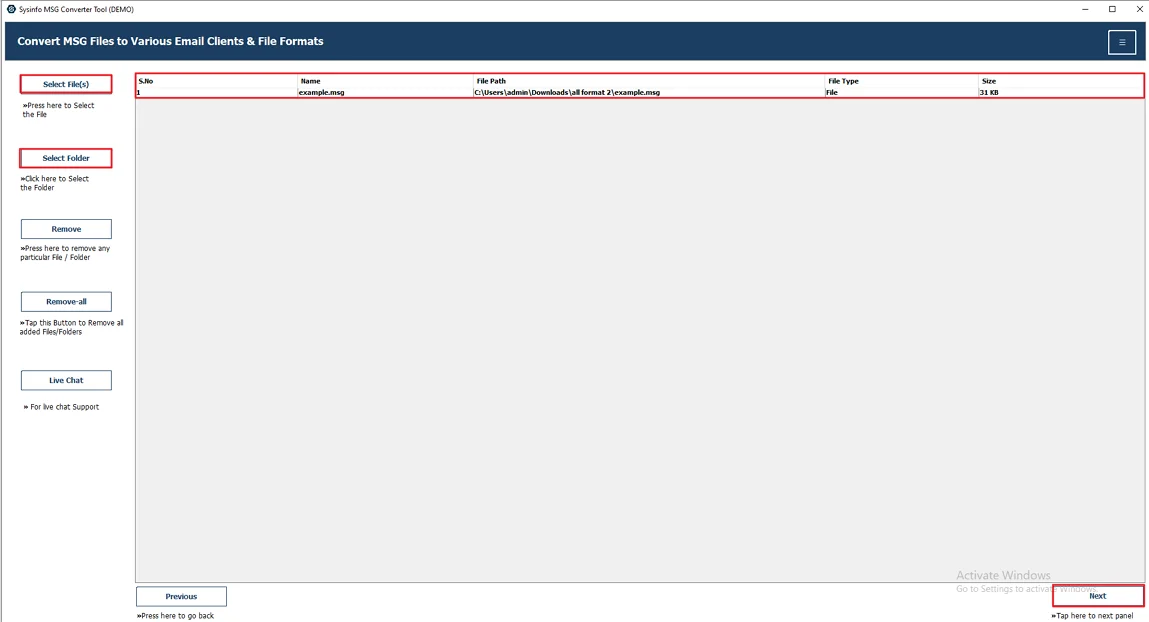
- Afterwards, expand the tree structure → Preview & Select the data. Press Next.
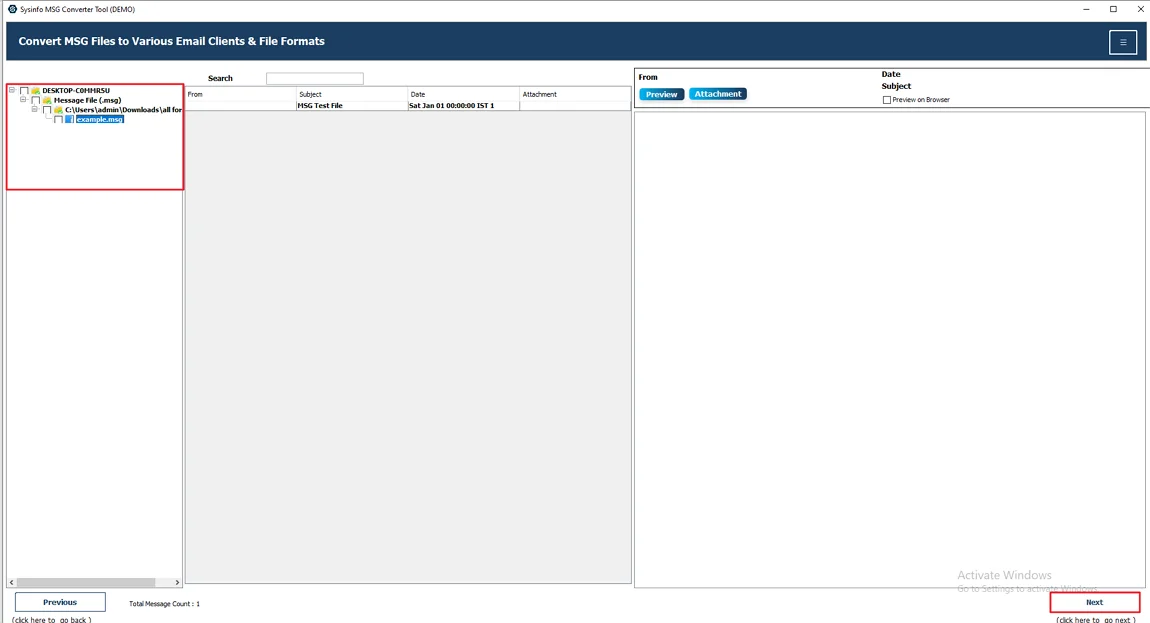
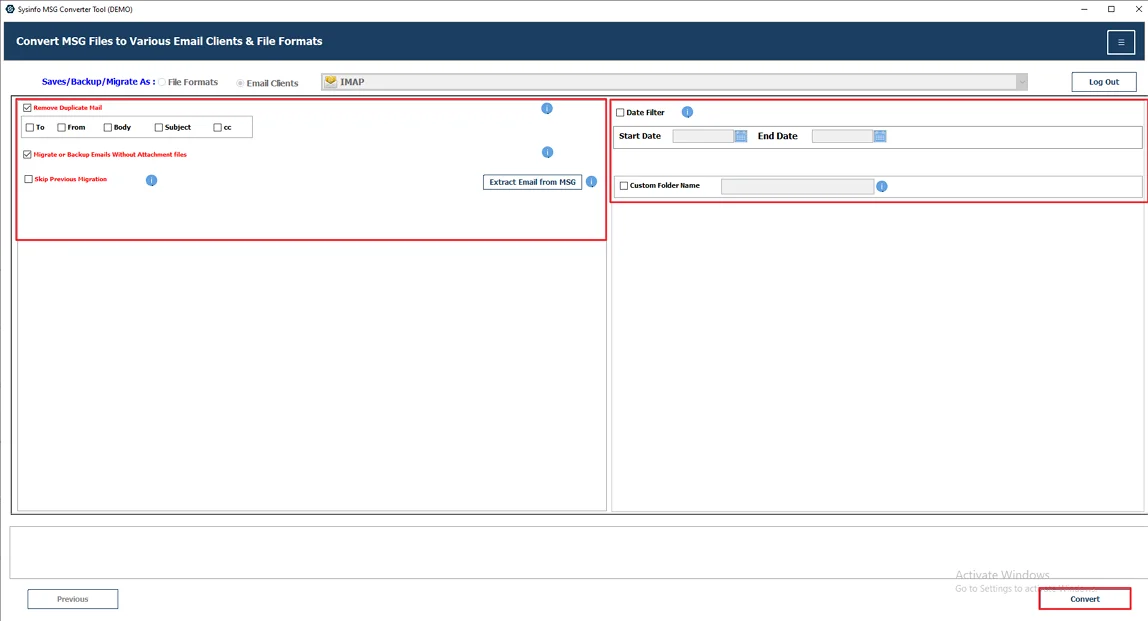
- Thereafter, select IMAP as the email client.
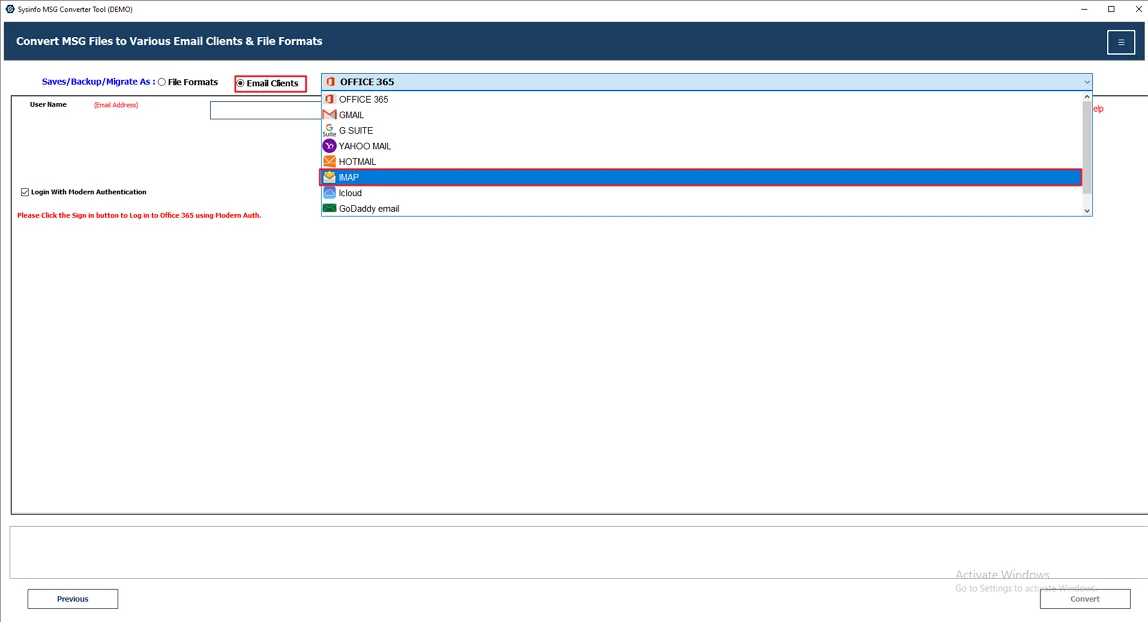
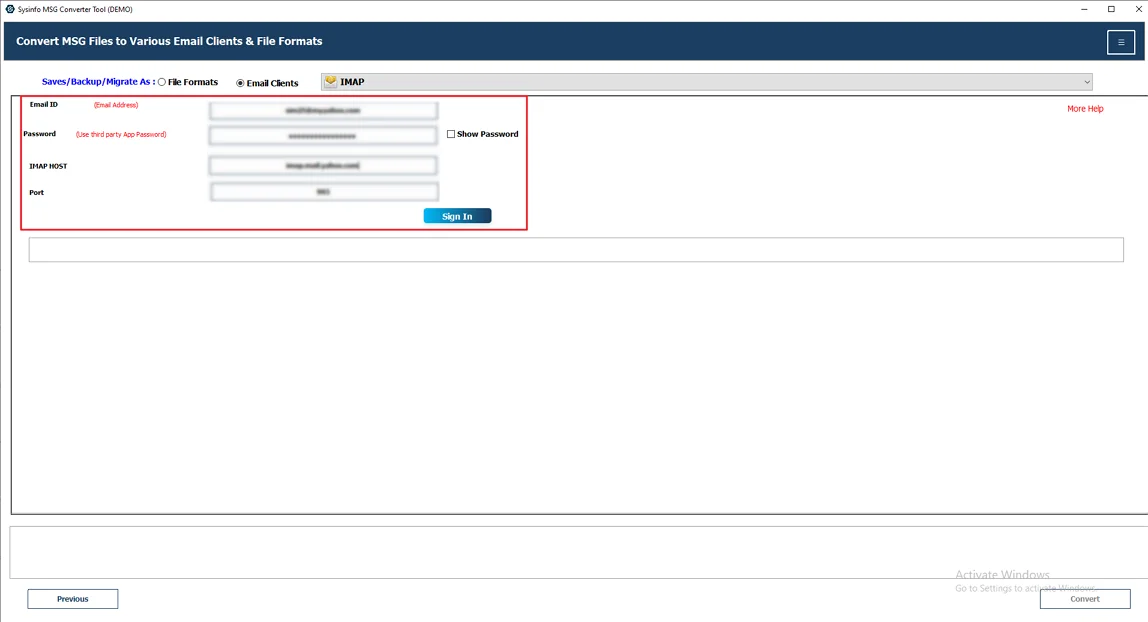
- Then, sign in using your Titan Mail credentials.
- At the end, apply filters if needed and click the Convert button.
Why Choose the Professional Method?
- Emails stay safe during the process; nothing really gets lost.
- Your data isn’t stored or shared anywhere.
- You can import multiple MSG files at the same time.
- It also import MSG to Yandex Mail and a few other email clients.
- Folder structure mostly stays the same after import.
Successful User Case:
Robert works at a small marketing firm in the USA. They used Microsoft Outlook before, so a lot of emails were saved as MSG files. Later, they moved to Titan Mail. That’s when the issue came up. MSG files don’t open there.
At first, he tried the manual way. He opened MSG files in Outlook and saved them as EML. Then he moved them to Titan Mail. But it was a slow process and can be confusing to handle.
Then he tried MailConverterTools MSG Converter to import Outlook MSG to Titan Mail. He added all the MSG files together and converted them in one go. After that, he uploaded them to Titan Mail. It took less time and required fewer steps.
Conclusion
In this guide, we looked at both manual and tool-based ways to import MSG to Titan Mail. Since Titan Mail doesn’t support MSG files directly, converting them first is necessary. You can do it yourself step by step, or use a tool if you have a lot of emails. Either way, it’s possible to move your MSG files to Titan Mail without losing your data.
Frequently Asked Questions
Q1. What are the differences between the free and paid options to import MSG files into Titan Mail?
Ans. The free method usually means opening files one by one in Microsoft Outlook and converting them manually. It works, but it’s slow and not great for bulk emails. Paid options like MailConverterTools MSG Converter save time, handle multiple files together, and keep data intact.
Q2. Is there a secure and easy method to import MSG files into Titan Mail?
Ans. Yes, using a tool like MailConverterTools MSG Converter is both simple and safe. It reduces the chances of missing emails or attachments and doesn’t require too many manual steps.
Q3. Is there an easy way to open MSG files in Titan Mail without technical expertise?
Ans. Not directly. Titan Mail doesn’t support MSG files. But with MailConverterTools MSG Converter, you can convert and import them easily without any hassle or much technical knowledge.
Q4. What is the most efficient software for importing MSG files into Titan Mail?
Ans. MailConverterTools MSG Converter is a good option. It lets you convert and import multiple MSG files at once, which makes the whole process faster and easier compared to manual methods.
About The Author:

Vikas Bajpai is a results-driven SEO expert and content strategist with a strong passion for building impactful digital experiences. He specializes in crafting data-backed content plans that boost visibility, engage audiences, and drive measurable growth. With deep expertise in search engine optimization, keyword strategy, and content marketing, Vikas helps brands strengthen their online presence and achieve long-term success.
Related Post