-
Written By Amit Chandel
-
Updated on January 14th, 2026
Complete Guide to Import OST to Google Workspace Securely
Jenna Query: I have many OST files that I want to import into G Suite. Can anyone help me out to find the solution to this import? I want a quick and efficient way for it.
Outlook stores emails in OST format, but more people are choosing Google Workspace because it offers better tools. Also, users want to access their OST file in G Suite and are looking for the best way to import OST to Google Workspace. This blog is for those users who want to import their file into Gmail securely. We are going to discuss the manual method and the professional MailConverterTools OST to PST Converter Tool.
Upload OST File to Google Workspace: Benefits
- You can access your emails from any device and from anywhere with the help of the internet.
- It will help you to improve teamwork with Google Workspace collaboration tools.
- The automatic cloud backup feature in Google Workspace reduces data loss risk.
- G Suite provides strong security features to protect your data.
- It allows you to easily scale users and storage as needed.
- G Suite effectively integrates smoothly with many other third-party apps.
- Moreover, it saves costs on local servers and IT upkeep.
DIY Solution to Import OST to Google Workspace
This manual method converts your OST file to PST first. And then it migrates PST to G Suite using the GWMMO tool.
Step 1: Convert OST to PST
- Firstly, locate your Outlook OST and open it with Outlook.
- Go to the File > Open & Export > Import/Export > Export to a file.
- Then, hit Next and choose the Outlook Data File (.pst).
- Afterward, browse to find the OST file and click Next.
- Finally, choose a destination folder to save the new PST file and click Finish.
Step 2: Import Outlook OST to Google Workspace Using GWMMO
- Firstly, download and install Google Workspace Migration for Microsoft Outlook.
- Open it, sign in with your Google account, and allow permissions.
- At last, select migrate from PST files, choose your PST file, and click Migrate to import OST to G Suite.
Limitations
- Orphan OST files cannot be converted using this method.
- There is a higher chance of errors or data loss during export and migration.
- Requires technical knowledge to configure Outlook and GWMMO correctly.
- GWMMO may fail if there are network issues or Google account restrictions.
- Not suitable for bulk or multiple OST file migrations.
Pro Method to Import OST to Google Workspace Securely
The MailConverterTools OST to PST Converter is a reliable tool for handling OST files with ease. It lets you move data from multiple OST files into Google Workspace without restrictions. This software provides many features and filters during the migration process. It ensures smooth and secure migration with no interruption. Also, keep your data safe and unchanged.
Steps to Import OST Emails to Google Workspace
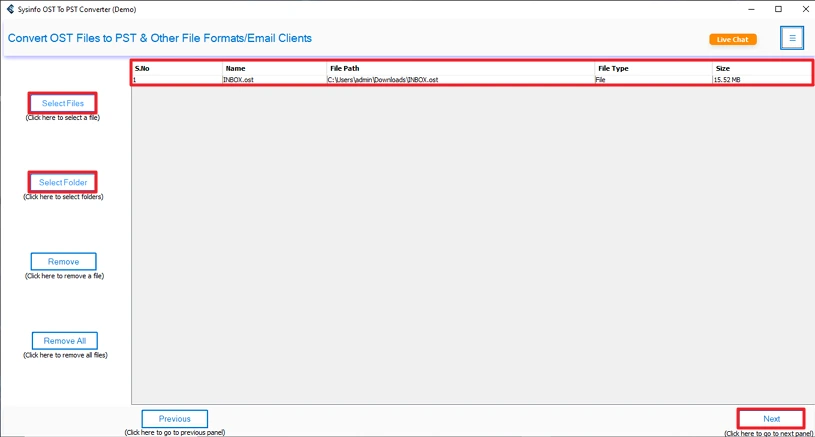
- Firstly, download the tool, add the OST files, and click Next.
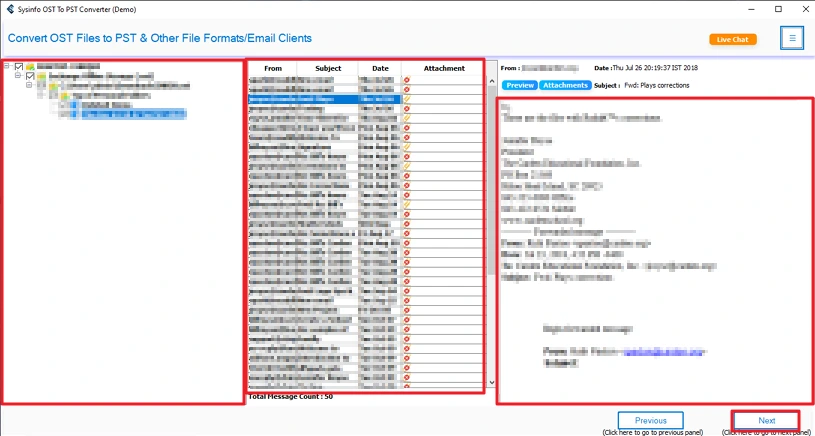
- Then, select and preview files and click Next.
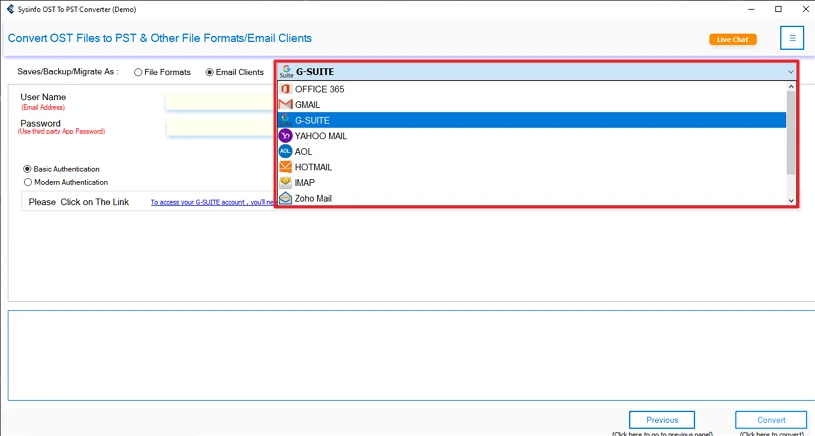
- After that, choose G Suite as an email client.
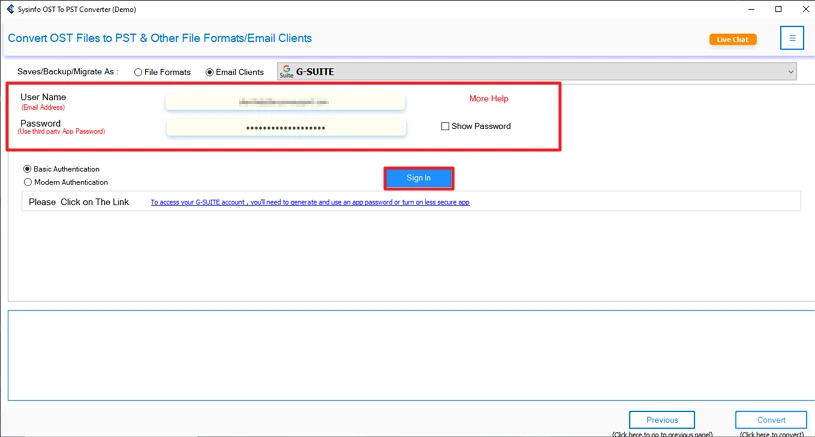
- Thereafter, log in with your G Suite credentials.
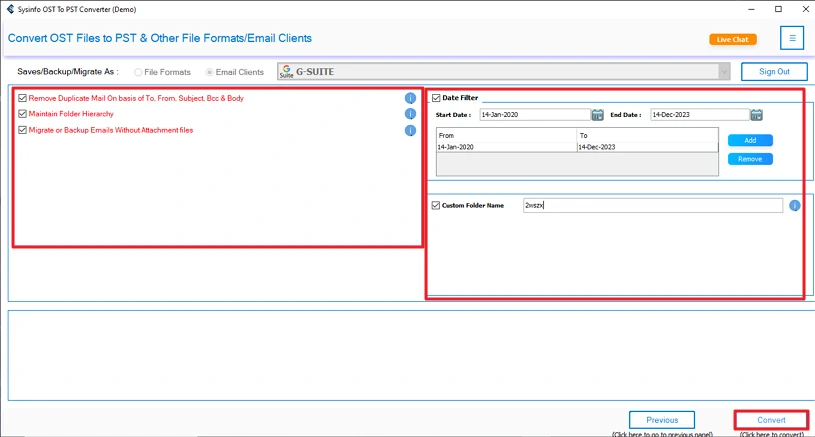
- Finally, apply filters and click Convert.
Successful User Case
Emma had several OST files from old Outlook profiles and needed to move all her emails into Google Workspace. The manual methods are very technical, and there is a high chance of error with those steps. Then she uses our advanced OST Converter Tool for a fast and smooth experience. This helped her finish the migration quickly and continue her work without downtime.
Manual vs Pro Method
|
Feature |
Manual Method |
Pro Method |
|
Ease of Use |
Complex and time-consuming |
Simple and user-friendly |
|
Technical Skills |
Requires Outlook and GWMMO knowledge |
No technical expertise needed |
|
Time Taken |
Very slow for large mailboxes |
Faster even with large data |
|
Risk of Data Loss |
Higher risk during export and migration |
Minimal risk, data remains intact |
Conclusion
To conclude, in this blog, we covered the manual methods and the professional method by using the OST Converter Tool. You can use any method to import OST to Google Workspace. If you are a beginner, then using the professional way will be a better choice to avoid errors. Otherwise, you can even use the manual steps for limited files.
Frequently Asked Questions
Q1: How to import Outlook OST to Google Workspace without Outlook installed?
Ans: Use MailConverterTools OST Converter Tool to import OST files in G Suite without Outlook. This utility requires no additional software to migrate files and provides quick results.
Q2: Can I import OST emails to Google Workspace from an orphaned OST file?
Ans: yes with the pro OST to PST Converter, you can import an orphaned OST file easily. This tool also gives many features and filters that help you to customize the output.
Q3: Is Automatic tool safe to import OST to Google Workspace?
Ans: The MailConverterTools OST Converter Tool is totally safe to import the OST file into any email client. This tool does not store any data or results without any data loss.
Q4: Does importing OST to Google Workspace affect my existing Gmail data?
Ans: Manual methods may affect your file structure or formatting, but a professional tool will not affect your existing data. It keeps your data as it was earlier.
About The Author:

Meet Amit, an experienced SEO expert and content planner. He uses his creativity and strategy to create content that grabs attention and helps brands reach their goals. With solid skills in digital marketing and content planning, Amit helps businesses succeed online.
Related Post