-
Written By Vikas Bajpai
-
Updated on April 6th, 2026
Migrate IMAP to iCloud: The Fastest Way to Transfer Email
User Query: I’m in the middle of moving my domain over to iCloud+, and now I’m stuck on one thing. I still have all my old emails sitting in my IMAP email account. I want to move all my old emails to iCloud, but I’m not really sure what the best way is. There seem to be a few options, and it’s a bit confusing. Has anyone done this before? What worked for you?
Many users switch to iCloud when they start using Apple devices more. It just works better across iPhone, iPad, and Mac. But moving emails from an IMAP account to iCloud isn’t always smooth. Sometimes services like Gmail, Yahoo, or Outlook don’t sync properly across devices. Emails go missing, folders don’t match, and it gets frustrating. In this guide, I’ll walk you through some simple ways to migrate IMAP to iCloud without breaking anything. You can also use the MailConverterTools IMAP Migration Tool if you want a more straightforward option. It helps move everything and keeps folders, attachments, and structure intact, without much hassle.
Quick Answer: Transfer Emails from IMAP to iCloud
You can move your IMAP emails to iCloud using apps like Outlook or Apple Mail. Just add both accounts and copy emails from one to the other. It’s free, but can be slow. Sometimes, a few emails or folders don’t come through properly either. If you don’t want to deal with all that, you can try the IMAP Migration Tool. It makes things a bit easier and usually moves everything, emails, folders, attachments, without much trouble.
Why Migrate IMAP to iCloud?
- Works smoothly with iPhone, iPad, and Mac.
- Keeps your emails safe and easy to access.
- Syncs your inbox across all Apple devices without effort.
- Simple layout, so it’s easy to use every day.
Manual Methods for Migrating IMAP to iCloud
You can also move your emails manually using apps like Outlook or Apple Mail. Just add both accounts and shift the emails across. It works fine for smaller emails.
Use the following verified steps to begin:
- First, add your IMAP account to the email client
- Then, configure your iCloud Mail account for the same client.
- Later, sync both accounts.
- Afterwards, choose the email from the IMAP mailbox folder.
- After that, drag and drop emails from IMAP folders to iCloud folders.
- At the end, wait for synchronization to complete.
Drawbacks of using the native method:
- Moving lots of emails at once can feel really slow.
- If the internet cuts out, things can stop in between.
- You might have to fix folders yourself later.
- The same emails can show up more than once.
- Not a good option if your mailbox is very big.
Professional Method to Migrate IMAP to iCloud
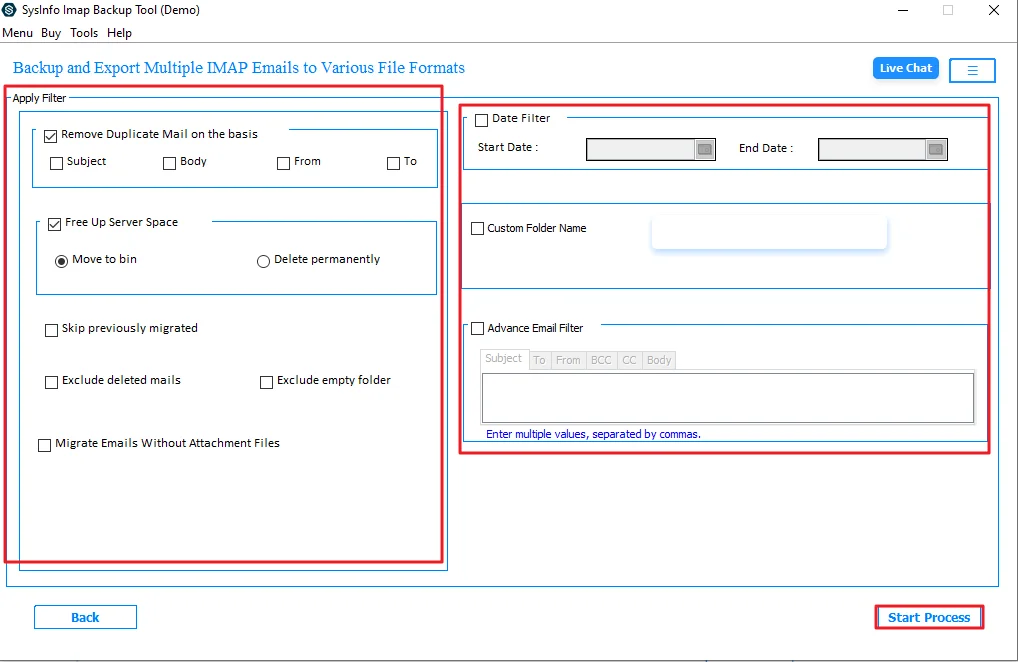
If you don’t want to deal with manual issues, you can use the MailConverterTools IMAP Migration Tool. It helps to migrate IMAP to Yahoo Mail, Gmail, iCloud, and other email clients. Using this tool, you can also save emails in formats like PST, PDF, or MBOX. It shows your mailbox before moving data. There are options to filter emails, remove duplicates, and set a schedule. You can skip already moved emails and choose where to save files. The free version lets you back up 50 emails per folder.
Steps to Import IMAP emails into iCloud account:
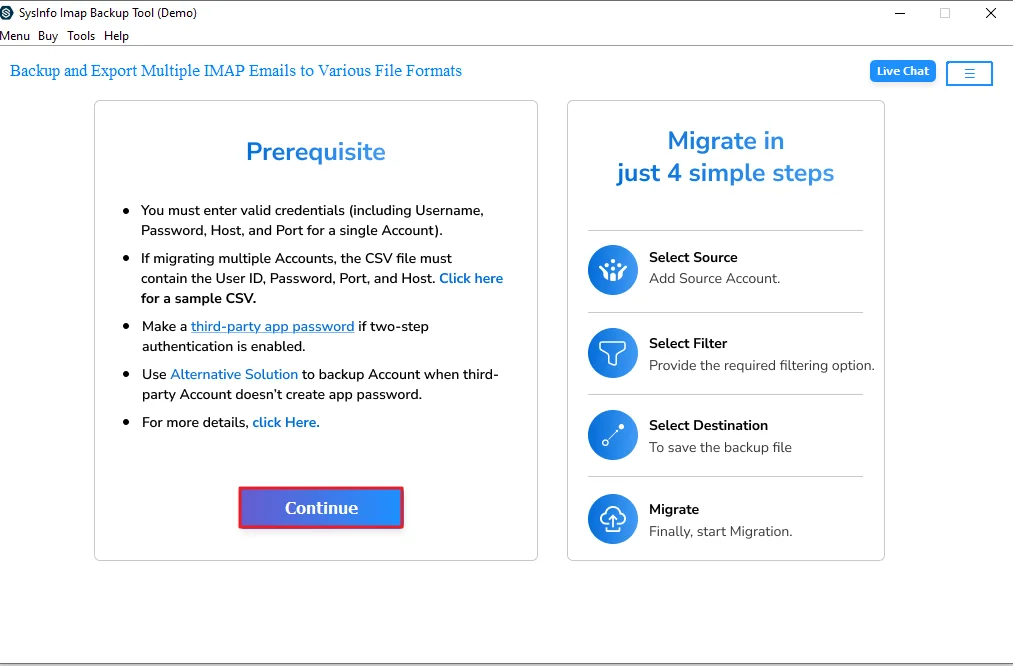
- First, install the IMAP Migration Tool, then open it and click Continue.
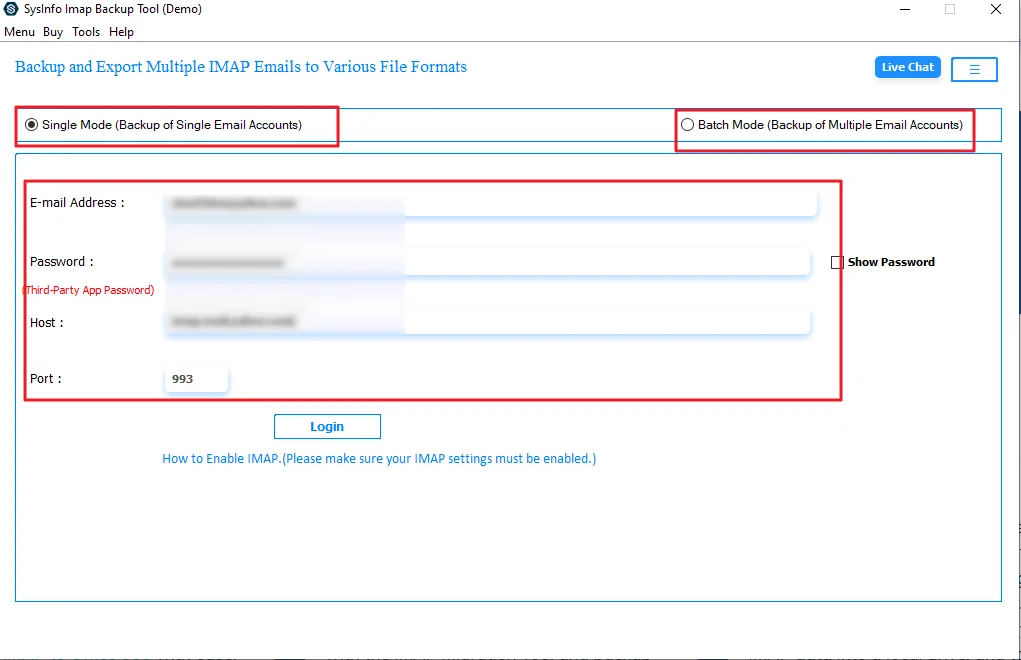
- After that, click Single Mode/ Batch Mode and enter your IMAP credentials.
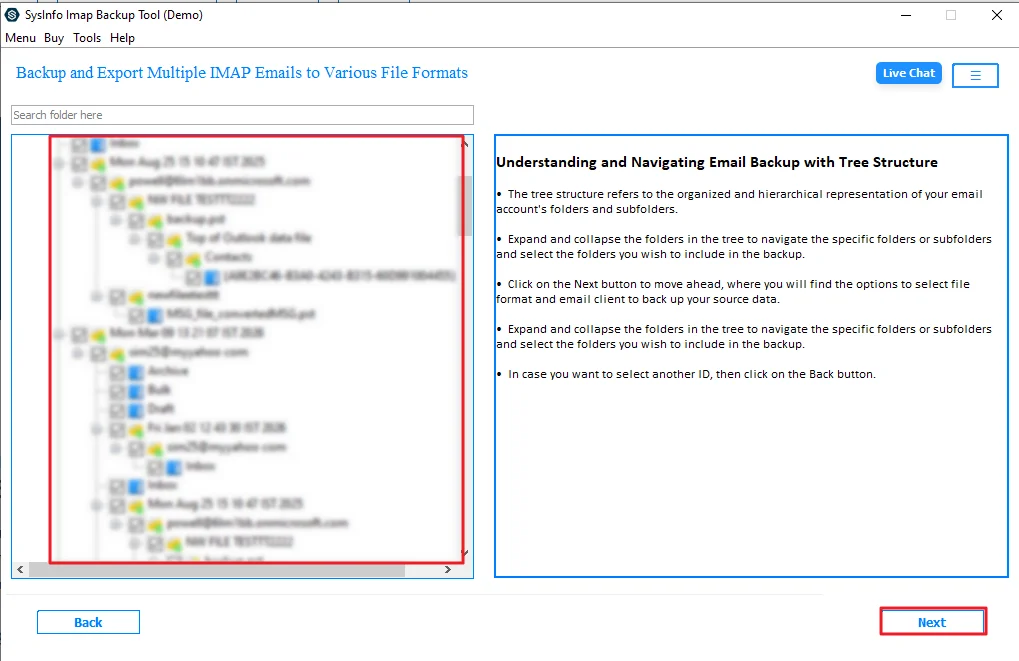
- Afterwards, go through the folders to see your full mailbox, then click Next.
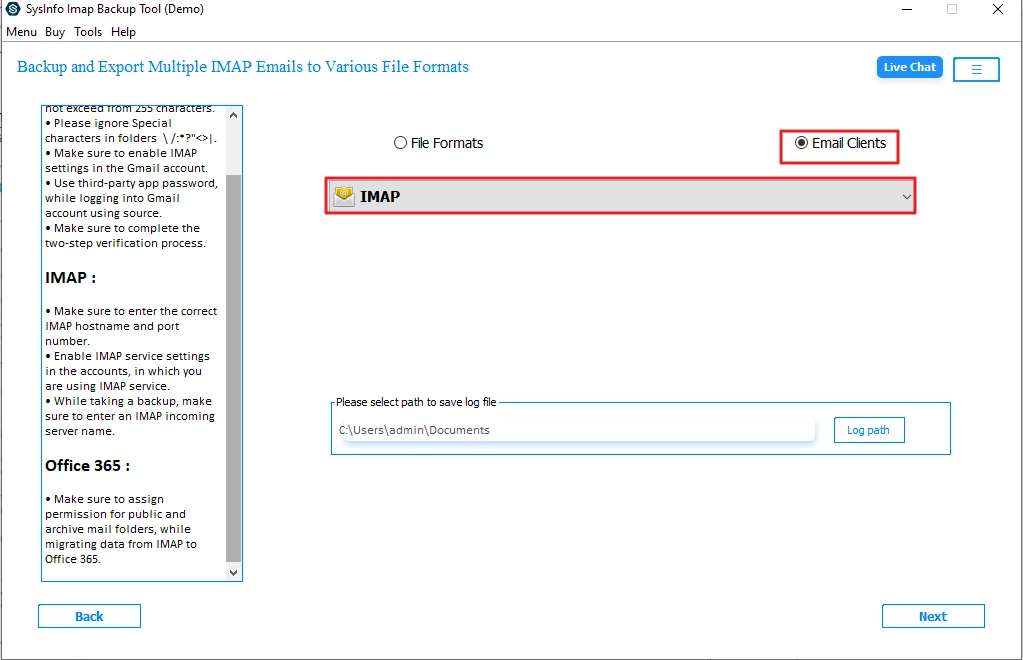
- Thereafter, choose IMAP from the email client option and hit Next.
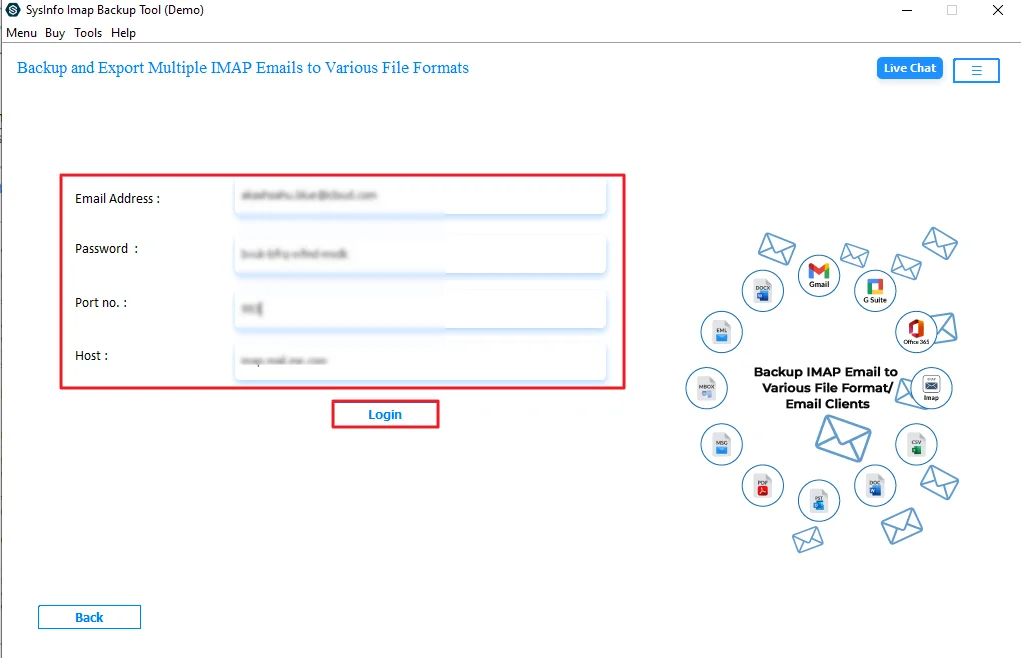
- Next, provide your iCloud credentials and press Login.
- Lastly, apply optional filters/features as needed, and click on the Start Process.
Successful User Case
Robert switched to an iPhone and wanted all his old emails in iCloud. His emails were still in an IMAP account. He tried to move your emails from IMAP to iCloud using Apple Mail. It didn’t go well. Some emails didn’t show up, and a few folders were missing. It also took way more time than he expected.
Then he tried the MailConverterTools IMAP Migration Tool. He signed in, picked the folders, and started it. That’s it. This time, everything moved properly. No missing emails. Now he just uses iCloud, and it works fine on all his Apple devices.
Using the same tool, he also tried to migrate IMAP to Google Workspace, just to keep a backup. That worked fine, too.
End Note
In the end, moving emails from an IMAP account to iCloud is pretty common, especially if you’re using Apple devices. The manual way can work, but only if your mailbox is small. With a lot of emails, it gets slow and a bit messy. That’s why many people go with an IMAP Migration tool to migrate IMAP to iCloud. It helps move everything properly without missing data. Once it’s done, you can just use iCloud normally without any issues.
Frequently Asked Questions
Q1. What is the easiest way to transfer IMAP emails to iCloud Mail?
Ans. The easiest way is to use the MailConverterTools IMAP Migration Tool. It moves all emails directly to iCloud without manual steps and saves a lot of time.
Q2. What causes duplicate emails after IMAP to iCloud migration?
Ans. Duplicates usually happen when emails are copied more than once or the sync process repeats. Using the MailConverterTools IMAP Migration Tool helps avoid this issue.
Q3. Can I transfer multiple IMAP accounts to iCloud at once?
Ans. Yes, the MailConverterTools IMAP Migration Tool allows you to add and migrate multiple accounts in one go.
Q4. Will attachments be included when transferring IMAP emails to iCloud?
Ans. Yes, the MailConverterTools IMAP Migration Tool transfers emails along with attachments without missing any data.
About The Author:

Vikas Bajpai is a results-driven SEO expert and content strategist with a strong passion for building impactful digital experiences. He specializes in crafting data-backed content plans that boost visibility, engage audiences, and drive measurable growth. With deep expertise in search engine optimization, keyword strategy, and content marketing, Vikas helps brands strengthen their online presence and achieve long-term success.
Related Post