-
Written By Amit Chandel
-
Updated on January 5th, 2026
Complete Guide to Migrate Kerio Connect to New Server
David Thompson:
“I need to migrate our Kerio Connect server to new hardware within a limited window. What is the safest way to transfer all emails, user accounts, calendars, contacts, and server settings without manual reconfiguration or data loss?”
Many businesses need to migrate Kerio Connect to New Server when upgrading hardware or improving server performance. It’s important to move all emails, calendars, and server settings carefully to avoid any data issues. IMAP Migration Tool is a reliable tool that makes the process smooth and efficient. It allows administrators to transfer the entire Kerio Connect environment without manually setting up each account. This blog will help you to move your server safely and smoothly and keep all your data secure.
Reasons for Kerio Connect Transfer to New Server
Updating and maintaining your email system is made easier by moving Kerio Connect to a new server. Here are a few common reasons why a lot of businesses choose to make the shift.
- Hardware Upgrade: New servers work faster and handle data more efficiently.
- Better Speed: A new server improves email sending, receiving, and access time.
- Stronger Security: Updated systems support the latest security updates and fixes.
- More Storage Space: Managing expanding mail data is made easier by new servers.
- Long-Term Stability: Replacing outdated systems minimizes maintenance problems in the future.
Proven Strategies to Migrate Kerio Connect to New Server
Here, we cover trusted approaches, which are the manual method and the professional method. It helps administrators transfer Kerio Connect emails and user data to a new server in a safe and organized way.
Manual Method to Move Kerio Connect to New Server
There are two ways to move Kerio Connect to a new server. Although both methods give the administrators control over the process, they must be done carefully to prevent data loss.
1. Using Kerio Connect to New Server with Backup & Restore
In this method, you use Kerio Connect’s built-in backup and restore feature to copy mailboxes, user accounts, and server settings to the new server. It is a secure way to migrate the complete Kerio Connect environment when both servers are running compatible versions.
- First, log in to your existing Kerio Connect server.
- Then, go to Server > Backup to create a full backup.
- Use the same Kerio Connect version on the new server for compatibility.
- On the new server, open the Kerio Connect Administration Console.
- Next, navigate to Server > Restore and select your backup.
- Finish the restoration process by following the on-screen prompts.
|
Pro Tip: Therefore, always verify the backup before restoring to ensure that no data is missing and the migration runs smoothly. |
2. Migrate Hosted Kerio Mail Server to Another Server by IMAP
This method uses the IMAP protocol to copy emails from the hosted Kerio server to another server. It is suitable when direct backup access is not available, but it mainly transfers mailbox data and not server settings.
- Activate IMAP on both Kerio Connect servers for secure access.
- Select an email client like Outlook or Thunderbird to connect to both servers.
- Additionally, link the old and new servers to the email client via IMAP.
- Access each user’s mailbox on the new and current servers.
- Seamlessly migrate emails and folders from the old server to the new server.
|
Pro Tip: Consequently, verify folder structures and attachments post-transfer, and test email for each user before going live. |
Drawbacks of Using Manual Migration Methods:
- Time-consuming for large mailboxes or multiple users
- Higher risk of errors when copying mail folders or configuration files
- Requires technical expertise to handle server settings and permissions
- Potential for data loss if backups are incomplete or corrupted
- IMAP method can be slow and cumbersome for bulk transfers
- Folder structures or attachments may not always transfer perfectly
- No built-in option to filter or selectively migrate emails
Professional Method to Migrate Kerio Connect to New Server
Choosing a professional migration method is advisable if your company is facing unexpected email outages. It is also useful when moving Kerio Connect between different operating systems, such as from Windows to Linux.
Using the MailConverterTools IMAP Migration Tool reduces uncertainty in the process. It serves as a dependable channel for transferring your data without the messy risks associated with manual file copying. This tool removes mailbox transfer issues, ensuring no worries about file paths or server outages. You control what gets transferred, while the program handles data maintenance via IMAP.
Steps To Migrate A Hosted Kerio Mail Server To Another Server:
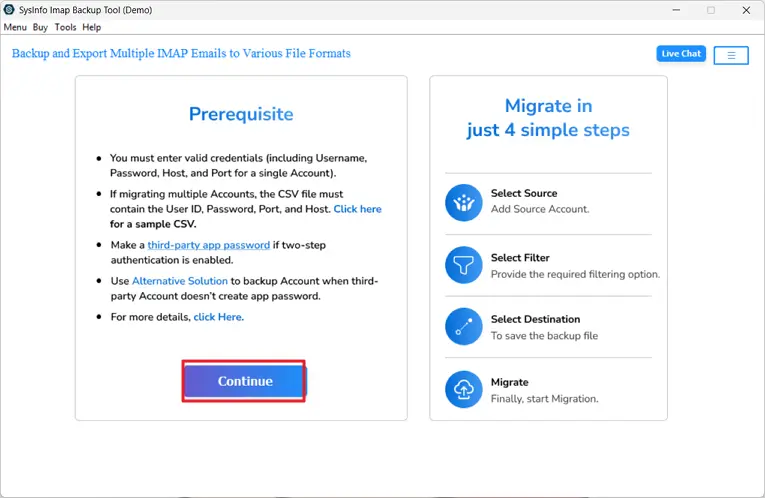
- First, install the IMAP Backup Tool and click on the continue button.
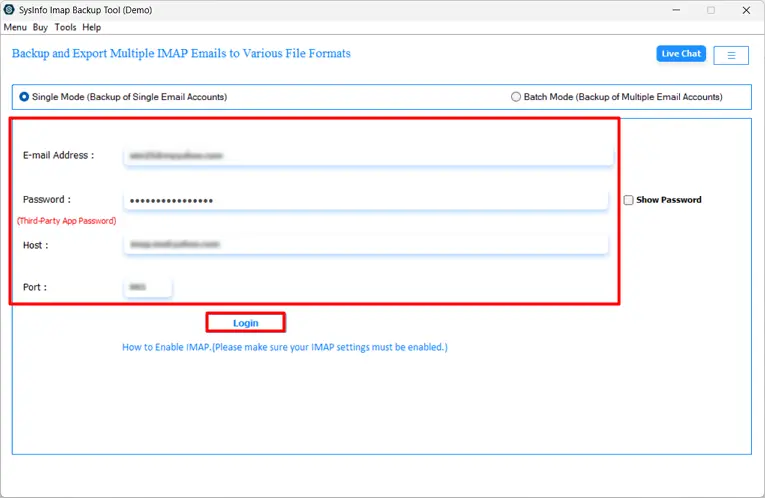
- Next, enter the Kerio Connect credentials to log in.
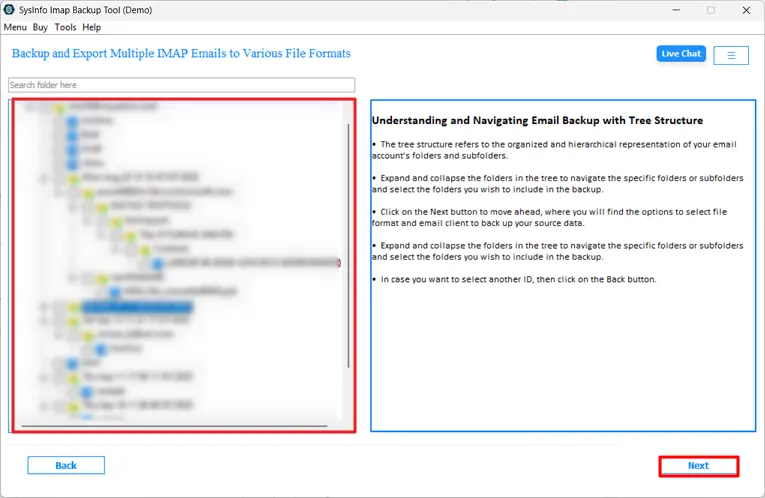
- After that, select the mailboxes or folders that need to be moved, then click Next.
- After selecting IMAP as the email client of choice, click Next.

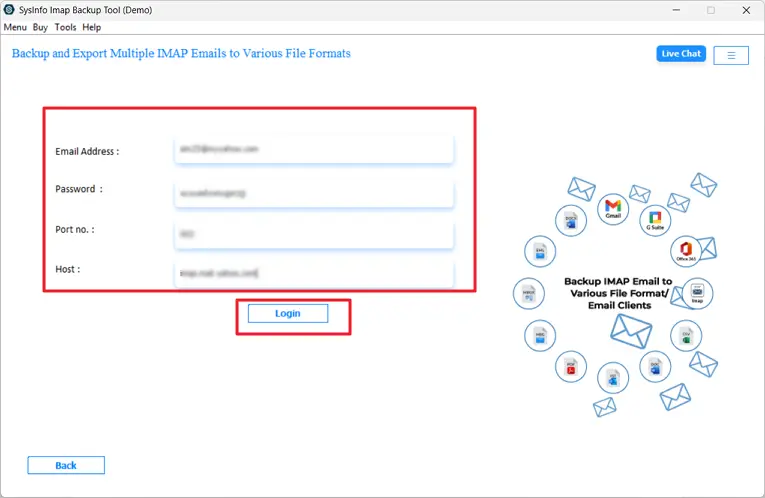
- Next, enter your new server login information and click Next.
- Additionally, click Start Process after applying filters if required.

Key Features of the IMAP Migration Tool
Moreover, this software provides an efficient method to migrate Kerio Connect mailboxes to a new server while reducing manual effort and minimizing errors.
- Connects directly to source and destination servers using IMAP.
- Transfers complete mailboxes, including folders, attachments, and metadata
- Additionally, it maintains the folder structure and mailbox hierarchy.
- Furthermore, it enables the selective migration of users, folders, or emails.
- Additionally, it filters emails by date range for targeted transfers.
- Removes duplicate messages during migration
- Supports multiple IMAP-compatible platforms
- Choosing the destination path for data that has been moved
|
Pro Tip: Additionally, before transferring all mailboxes to the new server, always test the migration on a small mailbox to ensure that settings and folder structures are maintained. |
Conclusion
Wrapping things up, we’ve walked through the most reliable ways to migrate Kerio Connect to a new server, starting from manual backups to high-speed professional tools. First, we explored how to handle files yourself for total control. Then, we looked at how automation can simplify the process. Consequently, you can now skip common issues like broken paths or missing attachments. Ultimately, when you move folders manually or use a dedicated tool, you have a solid plan to get your team back online with their inboxes perfectly intact.
Frequently Asked Questions
Q1. How do I move Kerio Connect to new server?
Ans. You can move Kerio Connect using the backup and restore method, IMAP-based migration, or by using the MailConverterTools IMAP Migration Tool for faster and safer transfers.
Q2. Will users lose emails or settings during migration?
Ans. No, if the migration is performed correctly, emails, folders, and settings remain intact. Using a reliable solution such as the MailConverterTools IMAP Migration Tool further reduces the risk of data loss.
Q3: How long does the Kerio Connect migration process take?
Ans. The time depends on mailbox size, number of users, and the chosen method. Small setups may take a few hours, while larger environments can take longer.
Q4. Which is the best tool to migrate Kerio Connect to New Server?
Ans. The MailConverterTools IMAP Migration Tool is a reliable choice, as it supports direct IMAP migration, preserves folder structure, and allows selective data transfer.
About The Author:

Meet Amit, an experienced SEO expert and content planner. He uses his creativity and strategy to create content that grabs attention and helps brands reach their goals. With solid skills in digital marketing and content planning, Amit helps businesses succeed online.
Related Post