-
Written By Amit Chandel
-
Updated on December 24th, 2025
How to Split Large PST file Outlook? Complete Guide
If you have large Outlook PST files, then it can slow down your Outlook and cause errors. The most effective and simple way to fix this problem is to split PST file into smaller parts. As a result, small PST files will take up less space and be easy to open and manage. In this blog, we will see the manual approach and use a PST Split Tool to break down your large file into small parts.
What are the Needs to Break PST into Smaller Files?
- Large PST files slow down Outlook. Smaller PST files help Outlook work faster.
- Big PST files have a higher chance of getting damaged. Breaking them into smaller files keeps data safer.
- Smaller PST files are easier to open, organize, and manage than one large file.
- Oversized PST files often cause errors while sending, receiving, or opening emails.
- Backing up smaller PST files takes less time and reduces the risk of backup failure.
- Splitting PST files by date, size, or folders helps keep emails well organized.
Split PST File into Smaller Parts With Manual Methods
Outlook provides two free options to divide an oversized PST file: the Import/Export feature and the Archive option. Both methods help reduce PST size, but they require careful execution. Let’s begin with the manual methods.
Method 1: Split Oversized PST File Using the Import/Export
Outlook’s Import/Export wizard allows users to create a new PST file and move selected data into it. Follow the steps below:
- First, launch Microsoft Outlook and select the File option from the top menu.
- Then, choose Account Settings, then click Account Settings again from the dropdown.
- Then, in the Account Settings window, switch to the Data Files section.
- After that, click on Add to create a new PST file.
- Thereafter, enter a suitable name, save it with the .pst extension, and click OK.
- The new PST file will now appear in the Data Files list. Close the window.
- Afterwards, go back to the File menu and open Info.
- Furthermore, select Open & Export, then click Import/Export.
- In the wizard, choose Export to a file and click Next.
- Then, select Outlook Data File (.pst) and continue.
- Choose the folders you want to export and enable Include subfolders if needed.
- Thereafter, click Browse to select a location to save the new PST file.
- Choose how Outlook should handle duplicate emails.
- Finally, click Finish to complete the export process.
Method 2: UseOutlook Archive to Split Large PST File
Another built-in way to reduce PST file size is by using Outlook’s Archive feature. This option moves older emails into a separate PST file.
- To begin with, open Microsoft Outlook and go to the File menu.
- Then, click on Info, then select Tools.
- Choose the Clean Up Old Items option.
- After that, select the mailbox or folder you want to archive.
- Choose a date in the Archive items older than option to move older emails.
- Thereafter, click Browse to choose where the archived PST file will be saved.
- At last, click OK to start the archiving process.
Limitations:
- New or non-technical users may find the steps confusing and difficult to follow.
- Outlook does not allow you to split PST files based on a specific file size using manual methods.
- If the process is interrupted, emails, folders, or attachments may be lost.
- These methods are not efficient for managing multiple PST files or large mailboxes.
Professional Method to Split PST file into Smaller Parts
The PST Split Tool is an advanced tool designed to divide large PST files into smaller parts easily. This tool allows you to add and split multiple PST files, which saves the user time and effort. Its advanced features allow splitting PST files based on Size, Date, Sender, or Folder. The steps to use the tool are simple and do not require technical knowledge. Moreover, you can take reference to remove password from PST file.
Steps to Split an Outlook PST File into Smaller Parts
- To begin with, download and run PST Split Tool.
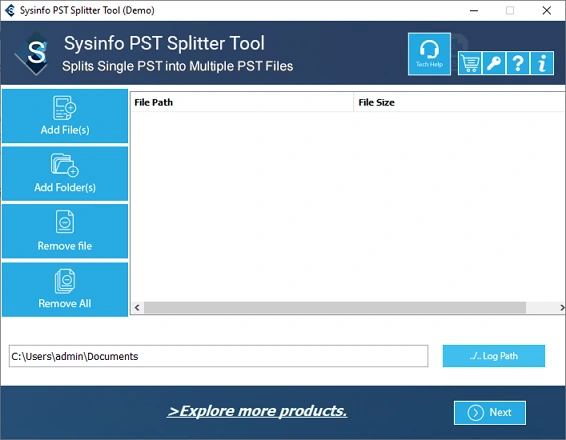
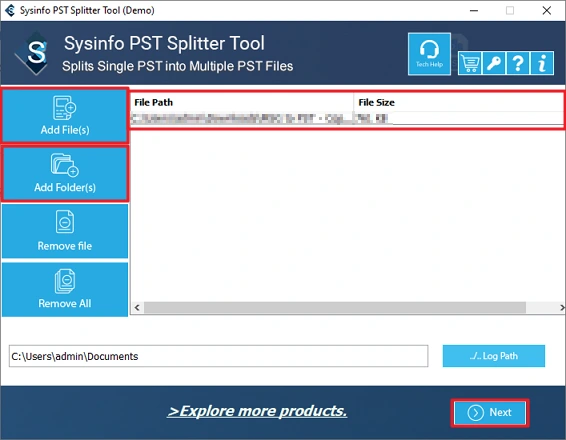
- Then, add PST files and click Next.
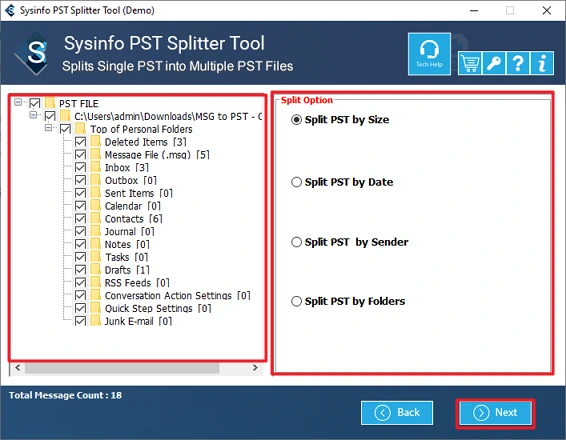
- After that, select the files and the Split Option and click Next.
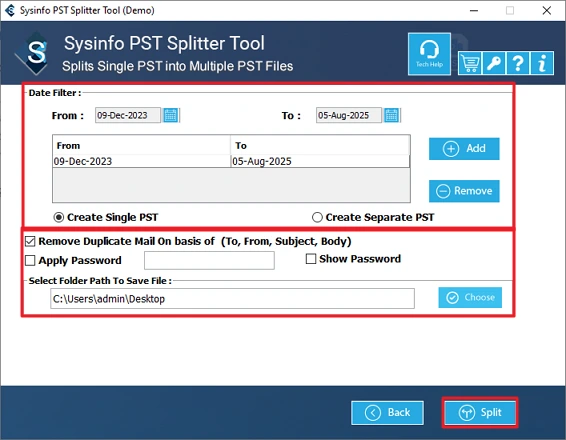
- Finally, apply the required filters and click Split.
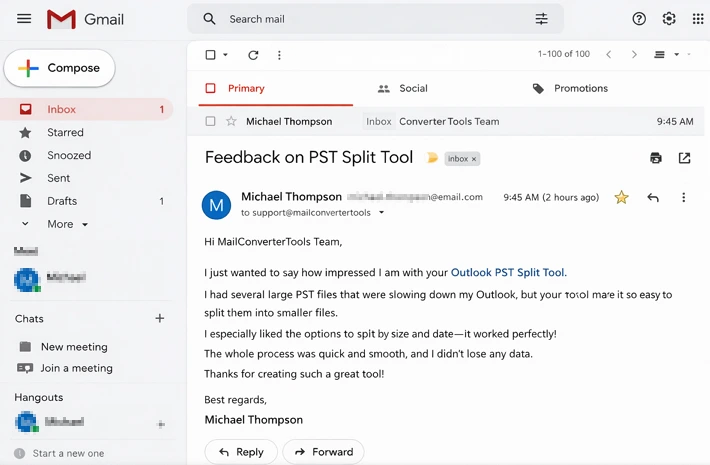
Successful User Case:
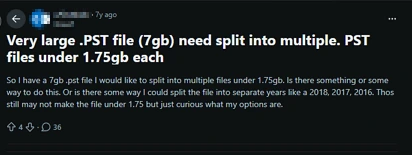
We would like to show you the feedback we received from one of our users who used our PST Split Tool.
Conclusion
Large Outlook PST files often create trouble over time. The option to Split PST File into Smaller Parts helps keep emails sorted, Outlook fast, and data safe. This blog explained manual ways and a professional solution so users can decide with ease. Manual steps suit light needs, but a trusted tool gives faster and safer results for big PST files. The right method brings better control, stability, and long-term comfort.
Frequently Asked Questions
Q1. Why should I break PST into Smaller Files?
Ans: Large PST files slow down Outlook and increase the risk of corruption. When you break PST into smaller files, Outlook runs faster, backups become easier, and email data stays safe anwell-organizeded.
Q2. How do I split a password-protected PST file?
Ans: Outlook does not support splitting password-protected PST files directly. First, remove the password using a reliable solution such as Remove Password From PST File, then split the PST using manual methods or a professional PST Split Tool.
Q3. What is the recommended size limit for PST files?
Ans: Microsoft recommends keeping PST files under 20 GB for older Outlook versions and 50 GB for newer versions. Staying below these limits helps avoid performance issues and file corruption.
Q4. Which is the best software that Split PST file into Smaller Parts?
Ans: The MailConverterTools PST Split Tool is one of the best options. It allows splitting PST files by size, date, sender, or folder and supports multiple PST files with a simple, user-friendly process.
Q5. Does splitting a PST file cause data loss?
Ans: No, splitting a PST file does not cause data loss when done correctly. Professional tools ensure complete data integrity, including emails, attachments, and folder structure.
About The Author:

Meet Amit, an experienced SEO expert and content planner. He uses his creativity and strategy to create content that grabs attention and helps brands reach their goals. With solid skills in digital marketing and content planning, Amit helps businesses succeed online.
Related Post