-
Written By Amit Chandel
-
Updated on February 28th, 2026
Thunderbird Not Working With Gmail? Complete Fix Guide
User Query: Our team commonly faces this issue with Thunderbird when we try to set up Gmail in it. All the things we used to solve this have failed again and again. How can we encounter this issue?
In this blog, we’ll look at a few basic things you can check to fix the problem “Thunderbird Not Working With Gmail”. And before you start changing settings again, it’s a good idea to back up your emails using the MailConverterTools Thunderbird Backup Tool, just to be on the safe side. We will see the step-by-step process to back up data and how we can resolve these issues.
Why Thunderbird Does Not Work with Gmail?
- You might have typed the server details wrong while setting up the account.
- IMAP could be turned off in your Gmail settings.
- The saved password in Thunderbird may be incorrect.
- Google may have blocked the login for security reasons.
- Your firewall or antivirus could be stopping the connection.
Manual Approaches to Fix Thunderbird Not Working With Gmail
Before doing anything advanced, go through the simple settings once. The issue is usually small.
Solution 1: Restart Thunderbird
- Firstly, close Thunderbird completely.
- Wait a few seconds.
- Open it again and let it reconnect.
Solution 2: Remove Old Saved Password
- To begin, open Thunderbird.
- Thereafter, go to Settings > Privacy & Security.
- Click on Saved Passwords.
- At last, remove the old Gmail password.
Solution 3: Remove and Add the Gmail Account Again
- To begin with, open Thunderbird.
- Then, go to Account Settings.
- After that, click Account Actions > Remove Account.
- Further, restart Thunderbird.
- After that, click New > Existing Mail Account.
- Enter your Gmail details and sign in.
Limitations
- If the problem is from Google’s side, these fixes won’t help.
- It’s mostly trial and error, which can take time.
- Re-adding the account can be slow if you have many emails.
- Emails may stop syncing properly while you’re troubleshooting.
- Security settings like OAuth2 can be confusing.
Smart Approach to Fix Thunderbird Not Working With Gmail
The MailConverterTools Thunderbird Backup Tool is used to save Thunderbird emails to your system. It helps create a backup so your data stays safe. There are some extra options, like you can export Thunderbird to PST and many other formats. You can filter emails by date. These features just make the backup process easier to manage. Also, read this Thunderbird Not Responding.
Steps to Fix Thunderbird Not Working With Gmail
- Firstly, download the Thunderbird Backup Tool.
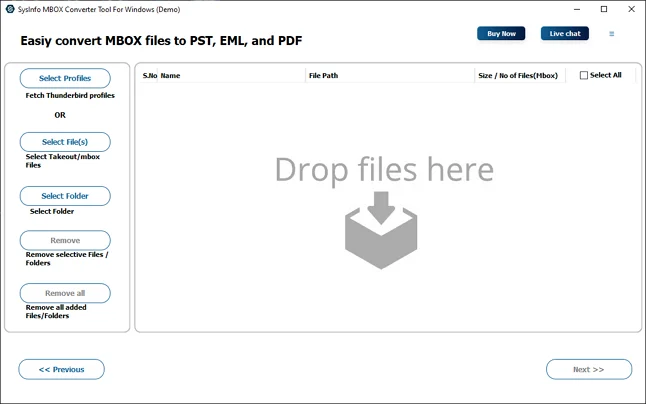
- Then, load your profile, or you can add the MBOX files.
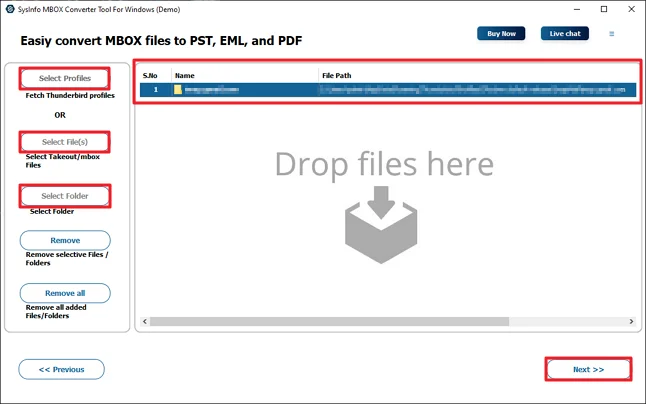
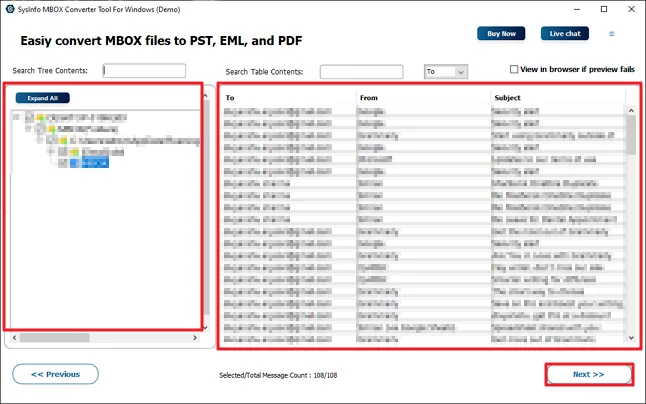
- After that, preview and select files and click Next.
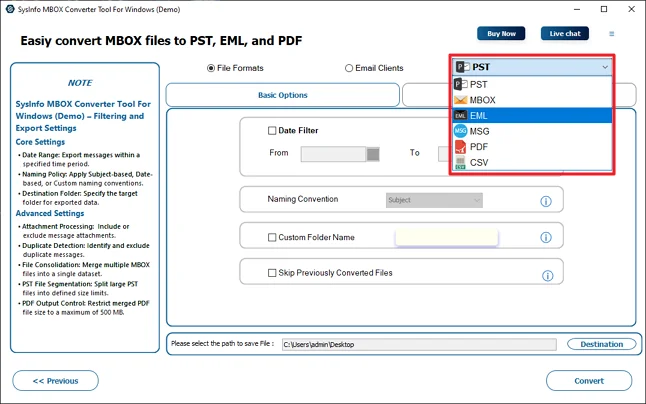
- Furthermore, choose any file format for backup.
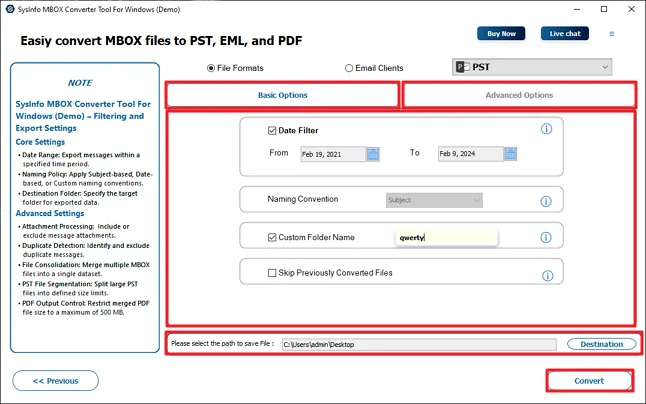
- Finally, use the filters and click Convert.
Successful User Case:-
One of our team members was facing the Thunderbird not connecting to Gmail issue again and again while setting up Gmail in Thunderbird. It kept showing login errors, and new emails were not syncing. We checked the IMAP settings and password, but the problem still came back after some time.
So before trying more changes, we used the MailConverterTools Thunderbird Backup Tool to save all important emails into PST format. After keeping the backup safe, we removed the Gmail account and added it again properly. This time it worked fine, and no data was lost during the process.
Conclusion
In this blog, we went through some common manual fixes to fix the Thunderbird not working with Gmail problem. In many cases, it’s just a small setting that causes all the trouble. We also talked about the MailConverterTools Thunderbird Backup Tool. It lets you save your Thunderbird emails in the format you need. Using a tool like this can save some effort and avoid mistakes.
Frequently Asked Questions
Q.1 How to Fix Thunderbird Not Working With Gmail Without Technical Knowledge?
Ans: You can start with the simple manual steps mentioned in this blog, like enabling IMAP, restarting Thunderbird, or removing the old saved password. You can use the MailConverterTools Thunderbird Backup Tool to back up your emails first.
Q.2 Which Is the Best Tool to Fix Thunderbird Not Working With Gmail?
Ans: As discussed above, the MailConverterTools Thunderbird Backup Tool is a practical option. It allows you to save Thunderbird emails into formats like PST and others.
Q.3 Why does Thunderbird keep asking for my Gmail password?
Ans: This usually happens when the saved password is incorrect or outdated. It can also happen if Gmail security settings block the login or if OAuth2 authentication is not set properly.
Q.4 Why is Thunderbird not receiving new emails from Gmail?
Ans: In most cases, IMAP is not enabled in Gmail, or the server settings are incorrect. Sometimes syncing stops due to password issues or security blocks from Google.
About The Author:

Meet Amit, an experienced SEO expert and content planner. He uses his creativity and strategy to create content that grabs attention and helps brands reach their goals. With solid skills in digital marketing and content planning, Amit helps businesses succeed online.
Related Post