-
Written By Amit Chandel
-
Updated on March 6th, 2026
How to Transfer EarthLink to Gmail Without Data Loss
User Query: “I want to stop using my EarthLink email and start using Gmail. What is the easiest way to transfer all my EarthLink emails to Gmail safely?”
EarthLink has been around for many years, but a lot of users eventually move to Gmail. In this blog, we will explain two ways to transfer EarthLink to Gmail. First, we will go through a manual method that can help move emails from EarthLink to Gmail. After that, we will introduce the MailConverterTools IMAP Backup Tool, which provides a simpler way to migrate emails while keeping the original data intact.
Common Reasons to Move EarthLink Webmail Mailbox to Gmail
- Running out of mailbox space on EarthLink. Gmail usually provides more room for emails and attachments.
- Too many spam emails. Gmail’s filtering system generally handles junk mail better.
- Need to check emails on different devices. Phones, laptops, tablets — Gmail works almost everywhere.
- A cleaner inbox layout. Some users simply find Gmail easier to navigate.
- Switching to a service that receives frequent updates and security improvements.
Difference Table Between EarthLink & Gmail
|
Feature |
EarthLink Webmail |
Gmail |
|
Storage Space |
Storage is somewhat limited for emails and attachments. |
Gmail usually offers much more storage, so keeping large emails is easier. |
|
Spam Filtering |
It has spam protection, but it’s fairly basic. |
Gmail is generally better at detecting spam automatically. |
|
Integration |
Mostly used just for sending and receiving emails. |
It works with other Google services like Drive and Calendar. |
|
Updates |
New changes or features don’t appear very often. |
Google updates Gmail regularly with improvements and new features. |
Manual Method to Transfer EarthLink to Gmail Easily
You can also move EarthLink emails to Gmail through the built-in mail fetching option. Gmail connects to the EarthLink account and downloads the messages to your mailbox.
Steps to Transfer EarthLink Email to Gmail
- Firstly, log in to Gmail and open Gear Icon -> See All Settings.
- Then, go to Accounts and Import.
- Under Check mail from other accounts, click Add a mail account.
- Enter your EarthLink email address and select Import emails from my other account (POP3).
- After that, fill in the details:
- Username: EarthLink email
- Password: EarthLink password
- POP Server: pop.earthlink.net
- Port: 110
- Further, click Add Account.
- Finally, Gmail will start importing emails from your EarthLink account automatically.
Limitations
- Works only through POP3, so email folders may not appear the same in Gmail.
- The process can be slow when the mailbox is large.
- Sometimes older emails are not fetched automatically.
- Requires correct server details; otherwise, the connection may fail.
- This method does not move contacts or calendars, only emails.
- Needs a stable internet connection during the import process.
Quickly Transfer EarthLink to Gmail Without Data Loss
The MailConverterTools IMAP Email Backup Tool provides an easy way to move emails from your EarthLink account to Gmail. It allows users to sign in directly and transfer their mailboxes without complicated steps. During the process, the tool keeps all the details unchanged and secure to avoid unwanted errors.
Steps to Transfer Emails from EarthLink to Gmail
- To begin with, download the IMAP backup Tool.
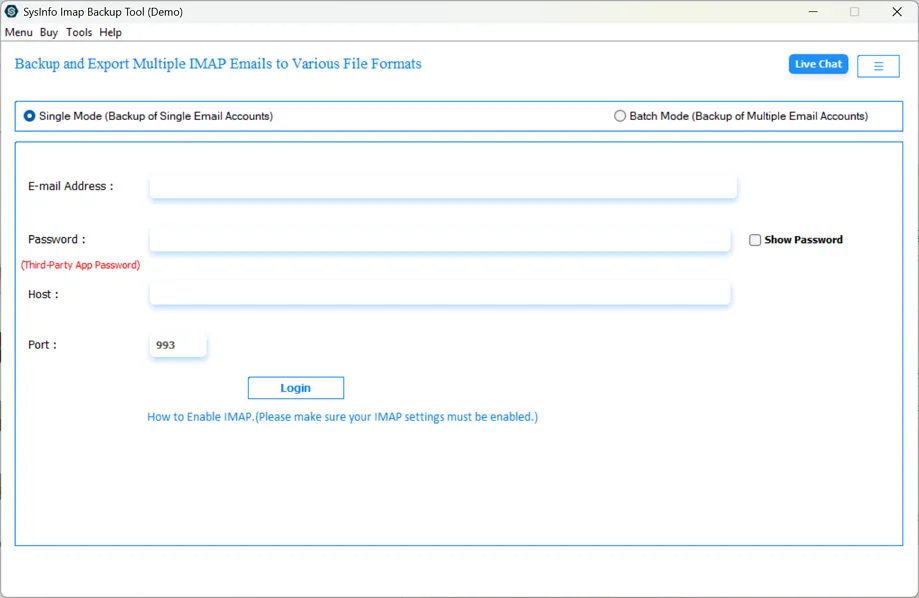
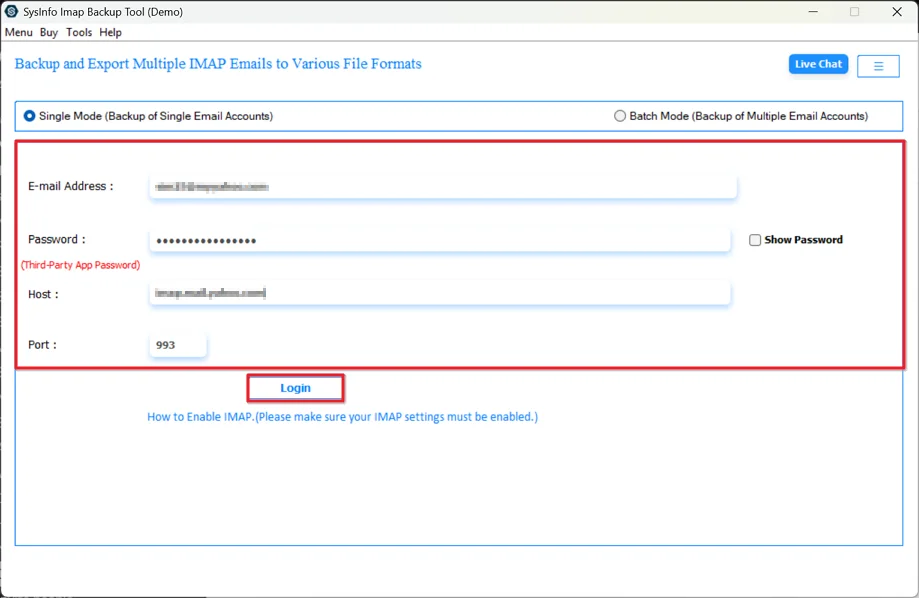
- Then, log in with Earthlink credentials.
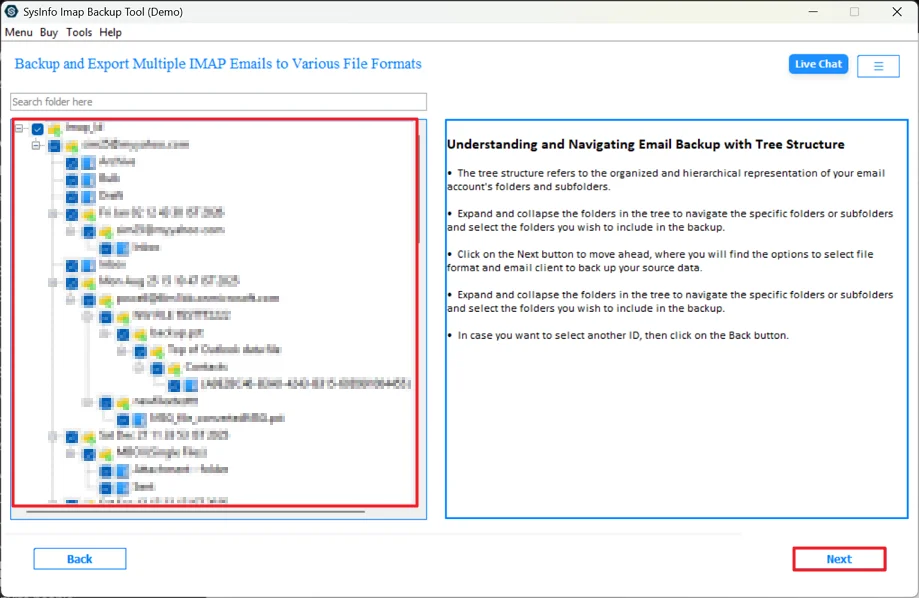
- Open and select files from the tree and click Next.
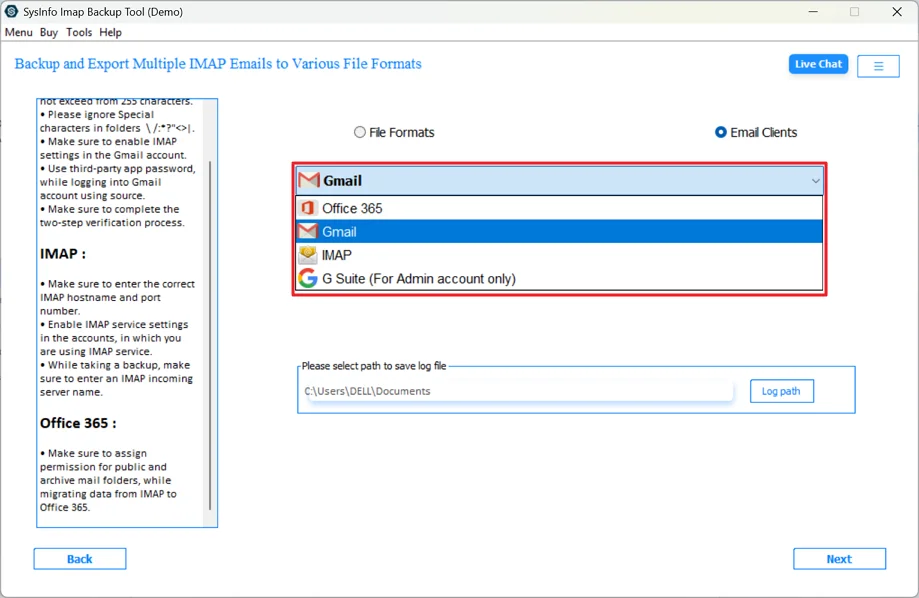
- Further, choose Gmail from the dropdown.
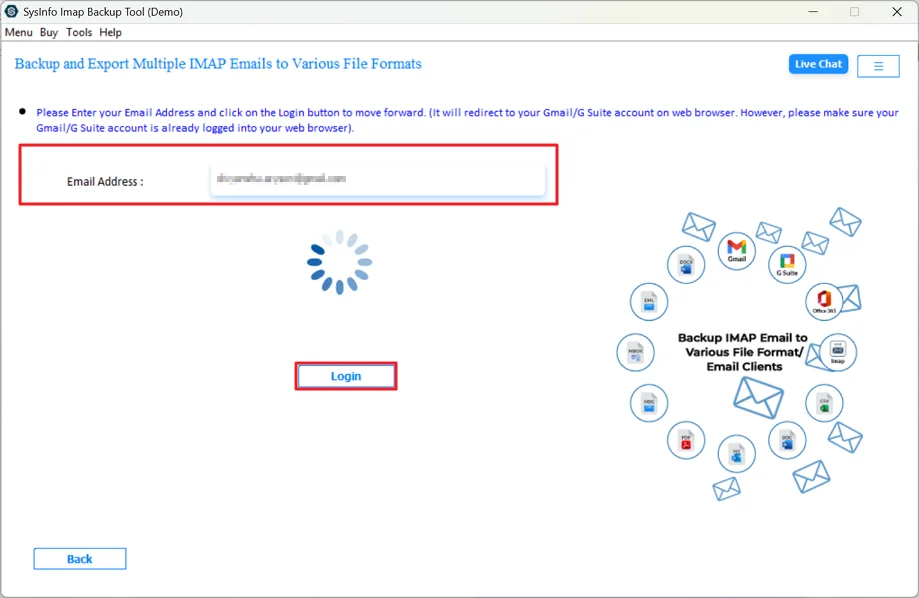
- Thereafter, use the Gmail credentials to log in.
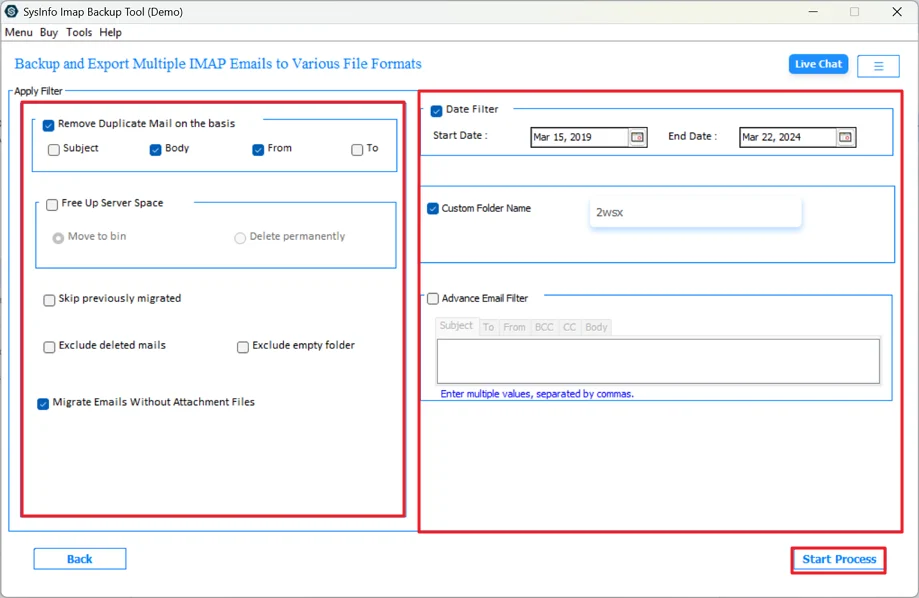
- Finally, use filters and click Start Process.
Successful User Case
Viviad had used his EarthLink email for many years. Over time, his mailbox collected almost 20,000 emails. He wanted to keep those emails in Gmail after the new job switch.
To do this, Viviad tried the MailConverterTools IMAP Backup Tool. He logged in with his account and started the migration. After a short time, his emails were moved to Gmail along with their folders and attachments.
Conclusion
In this blog, we looked at different ways to transfer EarthLink to Gmail. The manual method can help bring some emails into Gmail, but it is mostly useful for simple transfers and may not move the entire mailbox properly. The professional tool helps transfer the mailbox safely and keeps the email data organized during the process. This way, users can complete the migration more quickly and with fewer chances of missing emails.
Frequently Asked Questions
Q1: How can I transfer EarthLink to Gmail without losing emails?
Ans: You can use the MailConverterTools IMAP Backup Tool, which transfers emails directly from EarthLink to Gmail while keeping the mailbox data safe.
Q2: Will my attachments move when I transfer emails from EarthLink to Gmail?
Ans: Yes. When using the MailConverterTools IMAP Backup Tool, the tool transfers emails along with their attachments, so the original email content remains unchanged in Gmail.
Q3: Can I move the entire EarthLink webmail mailbox to Gmail?
Ans: Yes, it is possible. The manual method may only fetch some emails, but the MailConverterTools IMAP Backup Tool allows users to migrate the full mailbox, including folders and email data, directly to Gmail.
Q4: Can I transfer multiple EarthLink accounts to Gmail at once?
Ans: Yes, with the MailConverterTools IMAP Backup Tool, you can log in to the required accounts and transfer mailbox data to Gmail without performing the process manually for each email.
About The Author:

Meet Amit, an experienced SEO expert and content planner. He uses his creativity and strategy to create content that grabs attention and helps brands reach their goals. With solid skills in digital marketing and content planning, Amit helps businesses succeed online.
Related Post