-
Written By Amit Chandel
-
Updated on January 10th, 2026
How to Upload MBOX to IMAP Server | Step-by-Step Guide
Tamir’s Query: I downloaded multiple MBOX files, which I want to import in IMAP server. It will help me to get better security and remote access. How can I import files to the IMAP server? Any Idea?
You can open your MBOX files in many email programs. However, as email platforms continue to evolve, many users now prefer to keep their data secure on an IMAP mail server. If you plan to upload MBOX to IMAP server for enhanced security and accessibility, this blog outlines a straightforward and reliable method using a professional MBOX Converter Tool to simplify the process.
Benefits After You Import Emails from MBOX to IMAP Mail
- You can open your emails from any device since everything stays on the mail server instead of one system.
- Your data is safer because emails are not tied to a single computer that could crash or get damaged.
- Any action you take on emails, like deleting or moving them, shows the same changes everywhere you log in.
- There’s no need to keep MBOX files saved locally once the emails are moved to IMAP.
- Managing backups becomes easier because emails are already stored online.
- Folders and messages remain properly arranged and accessible across different email apps.
- IMAP works with most current email services, so it’s a practical option for long-term use.
How to Upload MBOX to IMAP Server Manually?
You can’t upload MBOX files directly using any simple feature. But if you use Mozilla Thunderbird, you can move your emails to an IMAP server with the given methods.
Steps to Import MBOX to IMAP
- Firstly, open Mozilla Thunderbird on your computer.
- Then, add your IMAP email account by entering your credentials.
- After that, wait until the IMAP account finishes syncing.
- (Optional) Create a new folder in Thunderbird to keep imported emails separate, to upload MBOX Files to IMAP Server.
- Thereafter, install the ImportExportTools NG add-on in Thunderbird.
- Further, right-click on the folder where you want to add the MBOX emails.
- Then, click ImportExportTools NG and choose Import MBOX files.
- Afterwards, select Individual MBOX files and pick the files from your computer.
- Finally, after the emails appear in Thunderbird, drag them into your IMAP account folders.
Limitations
- Folder arrangement may change after moving emails to the IMAP account.
- Big MBOX files can slow down Thunderbird or make it freeze sometimes.
- IMAP servers often have size or speed limits, which can delay the upload.
- There is no clear error message if something goes wrong during the process.
Fast & Secure Way to Upload MBOX to IMAP Server
Moving MBOX emails to an IMAP server doesn’t have to be complicated. With the MailConverterTools MBOX Exporter Tool, you can move all your emails directly into your IMAP account in one go. You can upload your files in a few steps or without any technical setup. If you are not a user of email tools, you can still use them without much effort. The tool transfers emails as they are. Folder structure stays the same.
Steps to Import Multiple MBOX files to IMAP
- Firstly, download the tool and load the profile or add a file/folder.
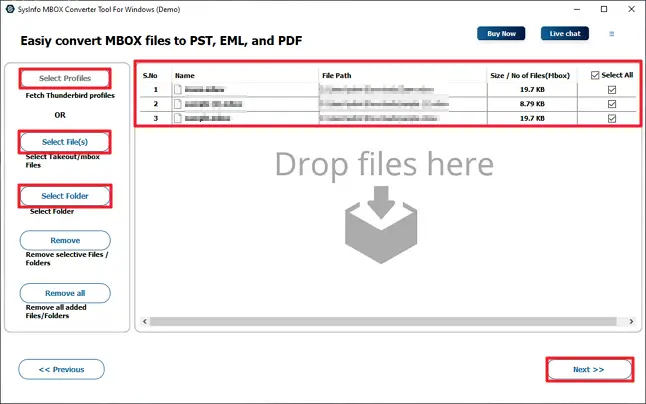
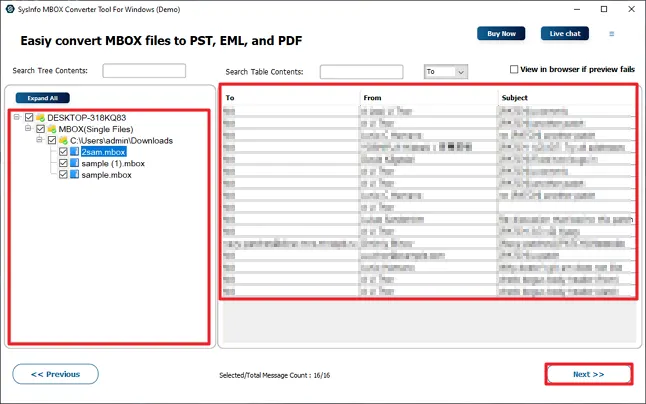
- Then, preview and select files and click Next.
- After that, choose IMAP as the saving option.
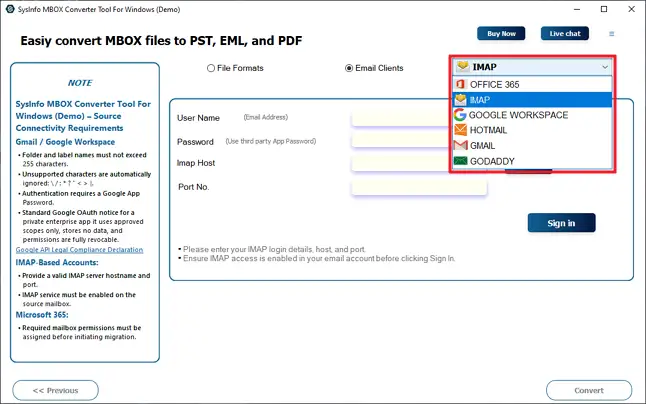
- Thereafter, log in with your IMAP credentials.

- Finally, apply the required filters and click Convert.
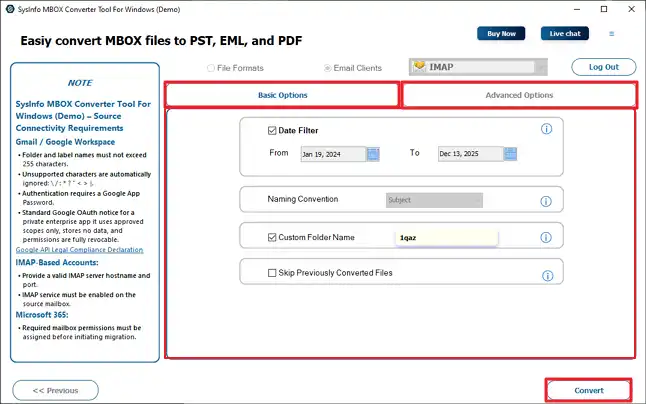
Successful User Case
Jake had years of important emails stored in multiple MBOX files from different email clients. She wanted to access them securely from any device using her IMAP email account. Using the manual method felt confusing and slow, so she tried the MBOX Exporter Tool. With just a few simple steps, she quickly transferred all her emails to the IMAP server. The tool preserved her folder structure perfectly, and her emails were accessible everywhere instantly.
Conclusion
In conclusion, MBOX files are not supported by every email client, mainly because email formats keep changing over time. This often makes it necessary to move email data using the right method. To upload MBOX to IMAP server, there is a manual method, but it’s not reliable and secure. So, using the professional MBOX Converter will be a good choice for export with accurate results and security.
Frequently Asked Questions
Q1: Can I import emails from MBOX to IMAP mail directly?
Ans: There is no manual method to directly import an MBOX file to an IMAP server. But you can use MailConverterTools MBOX Converter Tool to directly import within a negligible time and with proper accuracy.
Q2: Is it possible to upload multiple MBOX files to an IMAP server at once?
Ans: yes with the advanced tool, you can import multiple files at once. Additionally, the tool offers multiple advanced filters to optimize your results.
Q3: Are attachments retained while importing MBOX to IMAP?
Ans: The manual method does not retain attachments. If you want your attachments with email, the only option is to use a MBOX Exporter Tool. This tool provide feature to preserve or not to preserve the attachments.
Q4: Is it possible to migrate archived MBOX emails to IMAP?
Ans: Manual methods are not enough to migrate your archived MBOX emails. You can go with the professional tool to migrate your archived MBOX file to get secure results.
About The Author:

Meet Amit, an experienced SEO expert and content planner. He uses his creativity and strategy to create content that grabs attention and helps brands reach their goals. With solid skills in digital marketing and content planning, Amit helps businesses succeed online.
Related Post