-
Written By Amit Chandel
-
Updated on December 5th, 2025
Quick Methods to Import EML to cPanel Webmail Easily
Martin Query: “I have a bunch of important emails saved in .eml format. How can I quickly import EML files to cPanel? I’m looking for an easy method that works for bulk EML files too.”
This guide explains how you can smoothly import your EML files into a cPanel Webmail account. Many users keep their emails in .eml format because it works with clients like Thunderbird, Apple Mail, Outlook, and others. However, these files can only be viewed with supported apps, which becomes inconvenient when switching platforms. This blog guides you through manual and secure methods using the EML Converter Tool to transfer or upload EML files to your cPanel mailbox with ease.
Why Import EML Files to cPanel?
- Your emails stay safely stored on the server, removing the risk of losing data on local devices.
- You can access your mailbox from anywhere using just a web browser.
- Works smoothly on all platforms—Windows, macOS, Linux, Android, and iOS—without any compatibility issues.
- No need for email clients like Outlook or Thunderbird to open EML files.
- cPanel provides easy-to-use tools to sort, filter, and organize your emails better.
- Makes future migration to another hosting or email service much simpler.
Manual Method to Import EML to cPanel
Importing EML files into a cPanel Webmail account is completely possible using a simple manual workaround. If you have a collection of EML emails stored on your system and want to move them into your cPanel mailbox, Thunderbird offers a quick and free way to handle the migration.
Steps to Transfer EML Files to cPanel
- Firstly, open Thunderbird and add your cPanel email using IMAP, so it syncs with the server.
- Then, go to Add-ons & Themes, search for ImportExportTools NG, install it, and restart Thunderbird.
- After that, create a new folder or select an existing folder inside your cPanel mailbox.
- Right-click the folder -> ImportExportTools NG -> Import EML Messages -> choose Import all messages from a directory.
- Finally, select your EML folder, and Thunderbird will import and sync all emails to your cPanel Webmail.
Quick Method to Import EML to cPanel Easily
The MailConverterTools EML Converter is a reliable tool to safely upload EML emails to your cPanel account in one go. You can add files or entire folders and import everything without losing email formatting or data integrity. Along with cPanel, it also supports exporting EML to formats like PST, PDF, MBOX, and more. You can even move your emails to Gmail, Office 365, Yahoo, iCloud, and other services. The tool is simple enough for any user to operate with full accuracy.
Steps to Import EML Files into cPanel
- To begin with, download the EML Converter Tool.
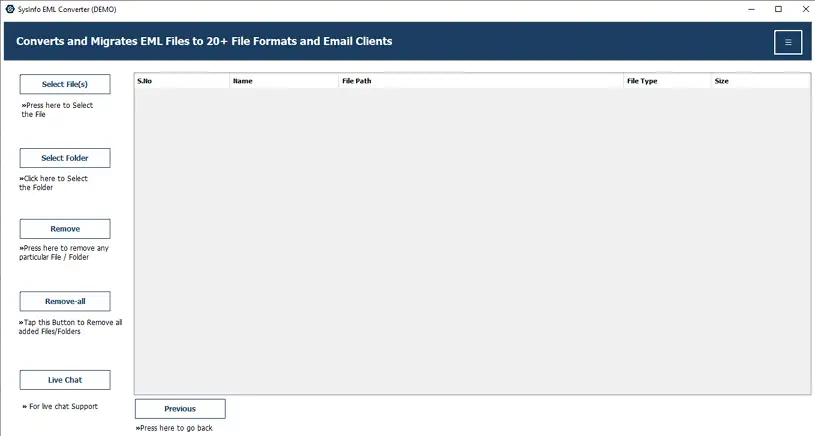
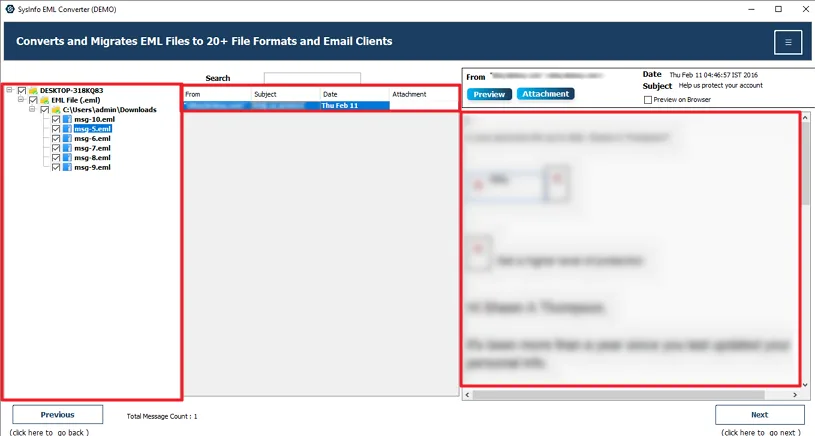
- Then, select the EML file and folder and click Next.
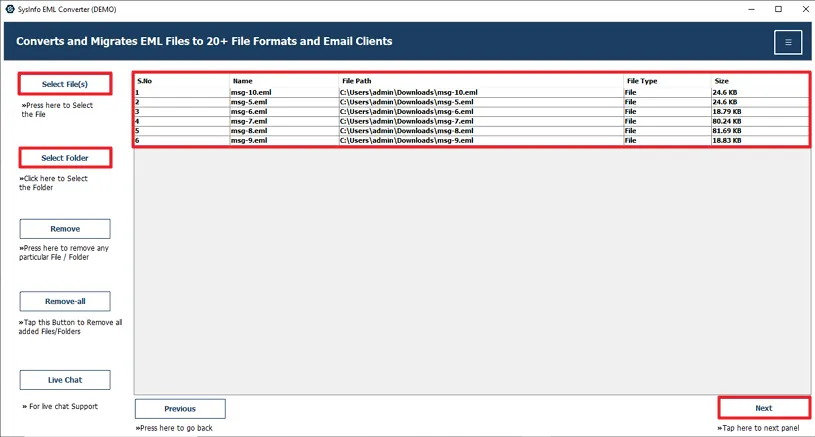
- After that, preview and select files to import and click Next.
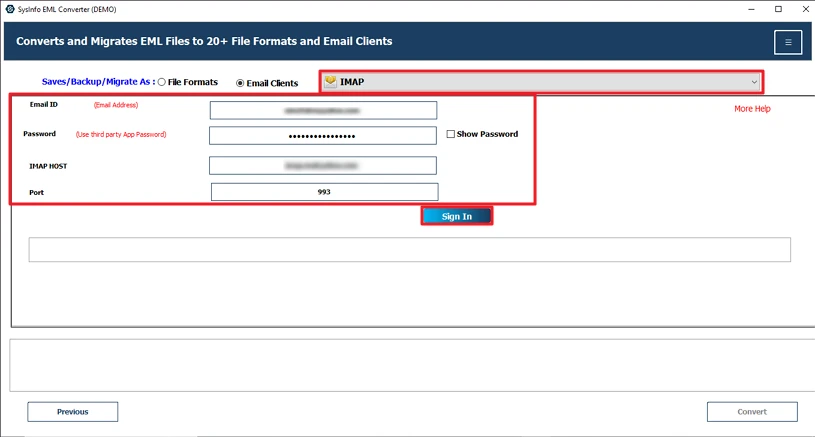
- Choose IMAP as the destination and log in with cPanel credentials.
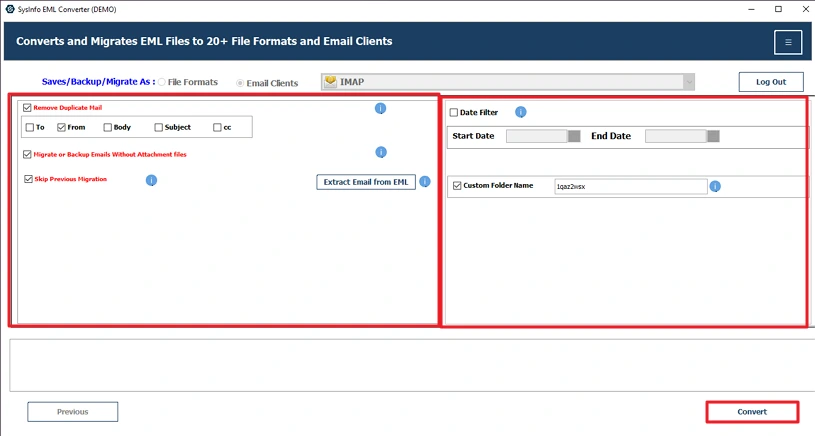
- Finally, apply filters and click on Convert.
Successful User Case:
Mike, who owns a small business, had saved hundreds of EML files on his computer from his previous email setup. Using the manual method of importing EML to cPanel was a slow process that was difficult to navigate because of the add-ons and syncing problems. Since then, he has switched to the EML Converter Tool, which allows him to import all of the EML folders directly into cPanel. This enabled him to save significant amounts of time while also decreasing his overall workload.
Conclusion
You can import EML to cPanel account manually or automatically, although the manual option is usually time-consuming and complicated. Users looking for an easier, faster way to do this may use the EML Converter Tool, which allows you to transfer your emails with total safety. The EML Converter Tool maintains all original formatting, structure, and attachments, so it is a straightforward way to upload EML files to your cPanel Webmail account.
Frequently Asked Questions
Q: How do I import EML files into Roundcube Webmail?
Ans: Roundcube doesn’t support direct EML import. You need to add your cPanel email to Thunderbird using IMAP, import the EML files there, and Thunderbird will sync them automatically to your Roundcube mailbox.
Q: Which is the best tool to import EML files to cPanel easily?
Ans: The MailConverterTools EML Converter Tool is the most reliable option. It uploads EML files directly to your cPanel account, keeps data intact, and supports bulk migration without any technical steps.
Q: Does importing EML to cPanel affect the original EML files?
Ans: No, importing EML files doesn’t modify or delete the original files. They remain safe on your system even after the migration.
Q: Are attachments preserved when importing EML to cPanel?
Ans: Yes, all attached files, images, and documents are preserved during the import. Both the manual and automated methods support attachment integrity.
Q: What to do if the Roundcube Import button is missing?
Ans: If the Import button is missing in Roundcube, your hosting provider has likely disabled it. In that case, use Thunderbird with IMAP or a dedicated EML Converter Tool to upload your emails to cPanel.
About The Author:

Meet Amit, an experienced SEO expert and content planner. He uses his creativity and strategy to create content that grabs attention and helps brands reach their goals. With solid skills in digital marketing and content planning, Amit helps businesses succeed online.
Related Post