-
Written By Vikas Bajpai
-
Updated on May 13th, 2026
How to Migrate Frontier Emails to Office 365 Safely in 2026
Nobody switches from Frontier Mail on a good day. It is usually a sync failure, a storage wall, or a business that has simply grown past what an ISP email can handle. Office 365 solves every one of those problems. Getting there without losing contacts, folders, and years of email history is the harder part. This blog covers one manual approach and the MailConverterTools IMAP Migration Tool to migrate Frontier emails to Office 365 safely in 2026.
User Query: Our team needs to move the Frontier mailbox to Office 365 before a system deadline. Manual IMAP sync dropped attachments and broke folder hierarchy on every attempt. Is there a direct and reliable migration path that actually preserves mailbox data integrity throughout?
What Do You Need Before Starting the Migration?
You must sort out the following checks before you start the process to transfer Frontier mail to Office 365.
- Switch IMAP on from inside your Frontier Mail account settings panel.
- Make sure Office 365 has enough room for everything coming across.
- Admin access and credentials for both accounts must be ready upfront.
- Keep these Frontier IMAP details handy — imap.frontier.com, port 993, SSL.
Why Is Frontier to Office 365 Transfer Harder Than It Looks?
Most users underestimate this migration until they are already stuck inside it. Here is what actually causes problems when you import Frontier email to Office 365:
- IMAP sync has no built-in error recovery, and even a dropped connection means starting over entirely.
- Office 365 modern authentication actively blocks older Frontier account login methods.
- Years of nested folder organization collapse into a flat structure during manual IMAP transfers.
- Frontier and Office 365 enforce different attachment size limits, and conflicts go unnoticed until later.
- Contacts, calendars, and tasks have no IMAP transfer path and stay behind in Frontier completely.
These gaps do not just slow the migration down; instead, they leave mailbox data integrity permanently compromised.
How to Migrate Frontier Emails to Office 365 Using Outlook?
This approach works best for single accounts with a manageable amount of data. It runs across three steps, so follow each one carefully before moving to the next:
Step 1: Configure Frontier Mail in Outlook
- At first, open Microsoft Outlook on your desktop and go to File > Add Account.
- Further, enter your Frontier email address and click Advanced Options to set up manually.
- After that, select IMAP as the account type and enter the server settings below:
- Incoming: imap.frontier.com — Port 993 — SSL enabled
- Outgoing: smtp.frontier.com — Port 465 — SSL enabled
- Further, enter your Frontier password and click Connect to finish the setup.
- Meanwhile, give Outlook a few minutes to sync and download all your Frontier emails fully.
Step 2: Save Frontier Emails as a PST File
- When syncing is done, head to File > Open and Export and click Import/Export.
- From the wizard, pick Export to a File and hit Next to keep going.
- After that, select Outlook Data File (.pst) as the desired format you want to export into.
- Further, choose the Frontier folders you need and tick Include Subfolders before continuing with the process.
- In the end, pick a folder on your system to save it and click Finish to complete the export.
Step 3: Import PST File into Office 365
- Make sure your Office 365 account is already sitting inside Outlook first.
- Go back to File > Open and Export and open Import/Export again.
- This time, pick Import from Another Program or File and click Next.
- Choose Outlook Data File (.pst) and find the PST file you just saved.
- Then, select your Office 365 mailbox as the destination folder for the imported data.
- As the last step, click on the Finish option and wait for Outlook to complete the import into Office 365.
Check your Office 365 mailbox directly after and verify all emails and folders landed correctly.
This completes the free manual method to export Frontier mail to Office 365 through Outlook. That said, this three-step process carries real limitations worth knowing before depending on it at scale.
Real Limitations Of This Approach
- Contacts and calendars never move across, as IMAP carries emails only and nothing else.
- Large Frontier mailboxes slow Outlook down and frequently cause mid-export crashes.
- One wrong step in the PST export breaks the file and forces the process to restart.
- Managing multiple Frontier accounts through this three-step process is completely impractical.
What Do Professionals Use for Frontier Email Migration?
Manual migration hands the job to Outlook and hopes nothing breaks between the three separate steps. The MailConverterTools IMAP Migration Tool connects directly to Frontier Mail and imports mailbox data into Office 365 in one session. To migrate Frontier emails to Office 365 at any scale, this tool ensures seamless migration with zero data loss.
However, the software has some additional advantages as we mentioned below:
- Direct IMAP connection to Frontier Mail means no PST export or Outlook dependency needed.
- Emails, contacts, calendars, and tasks all transfer into Office 365 in a single uninterrupted session.
- Multiple Frontier mailboxes process together without any file size cap or account count limit.
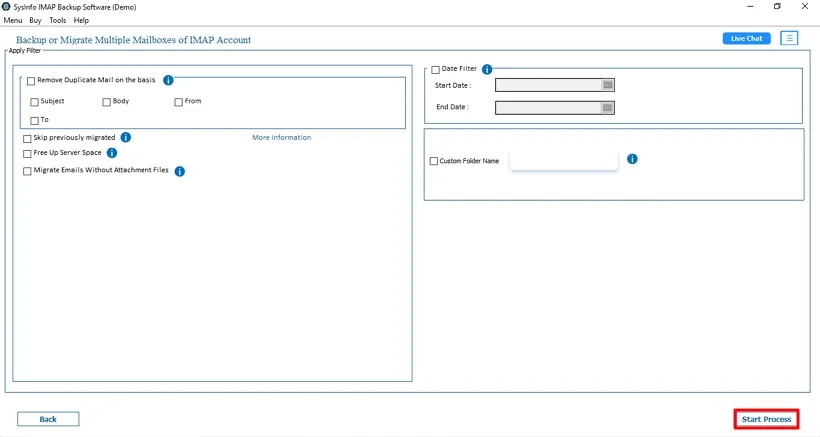
- The date range filter gives teams precise control over which mailbox periods actually migrate across.
- Incremental migration skips already migrated items and keeps the Office 365 mailbox clean throughout.
Procedure to Move Frontier Email to Office 365:
- To begin, install and run the IMAP Migration tool on your system and choose Mode.
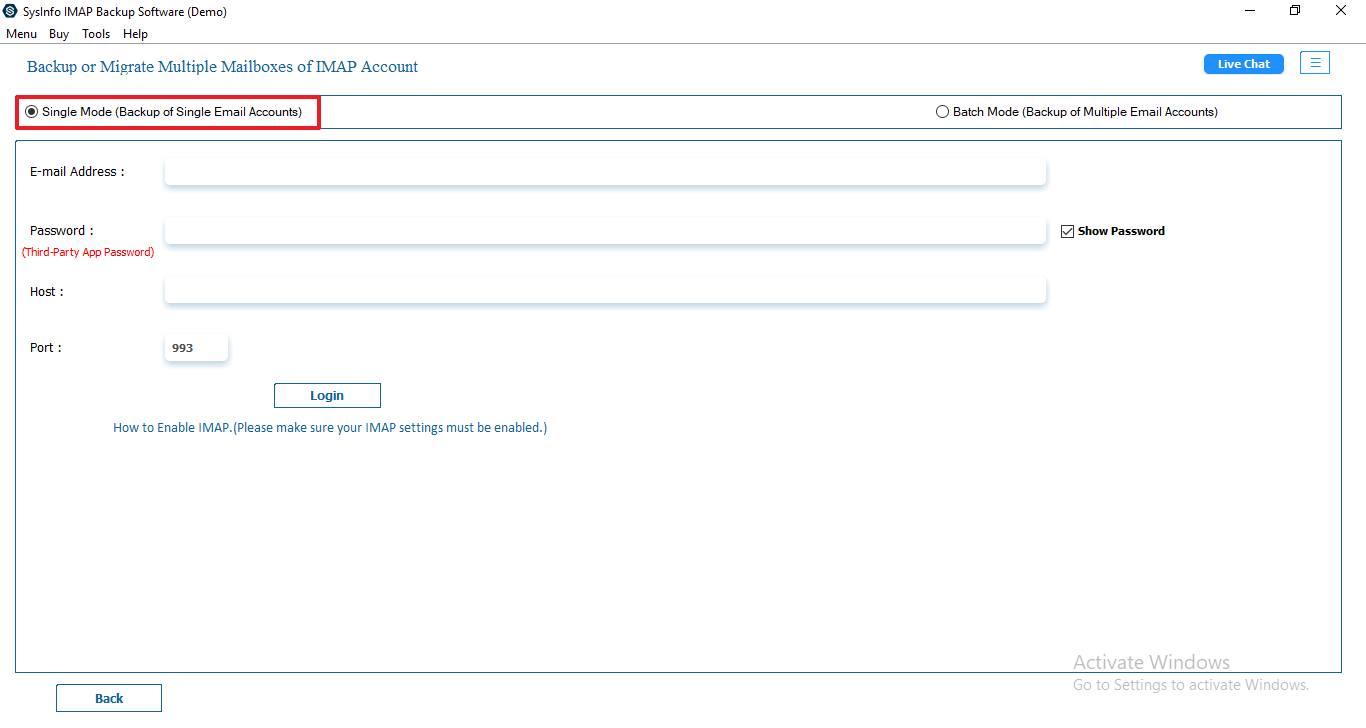
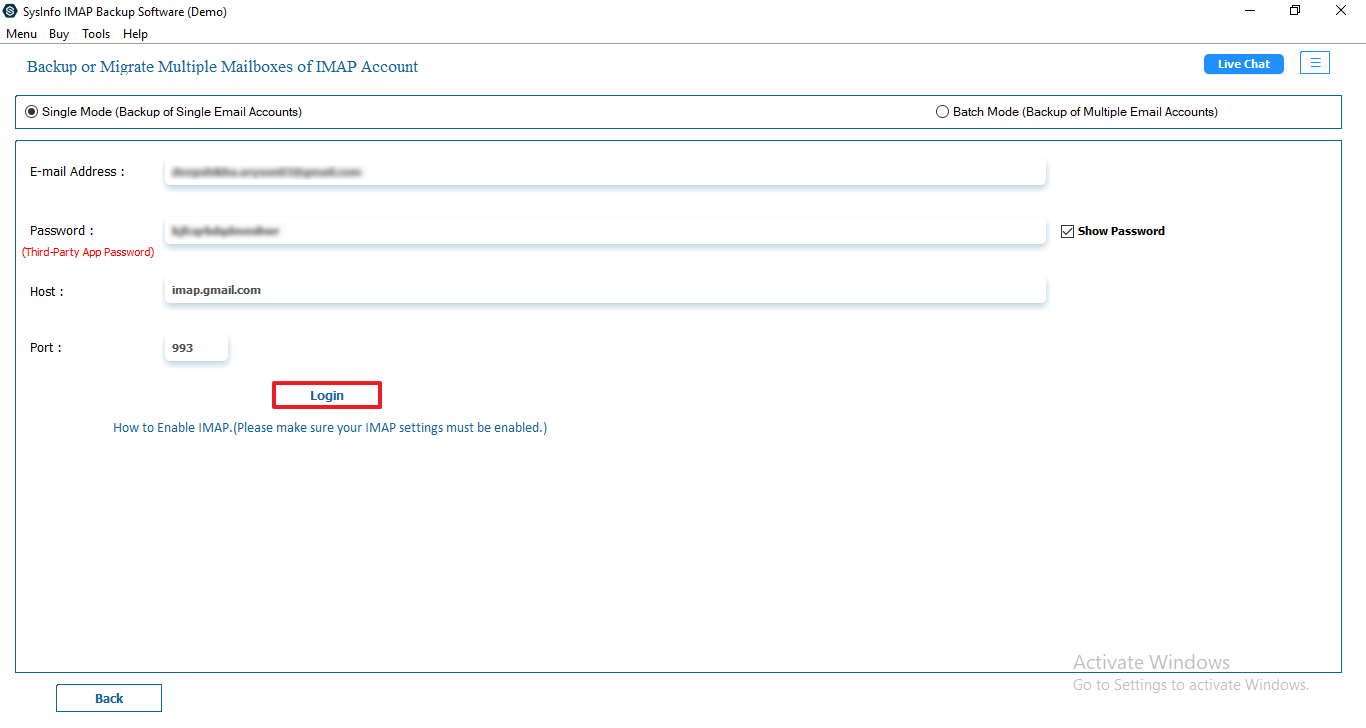
- After that, fill in your Frontier account details and log in to your account.
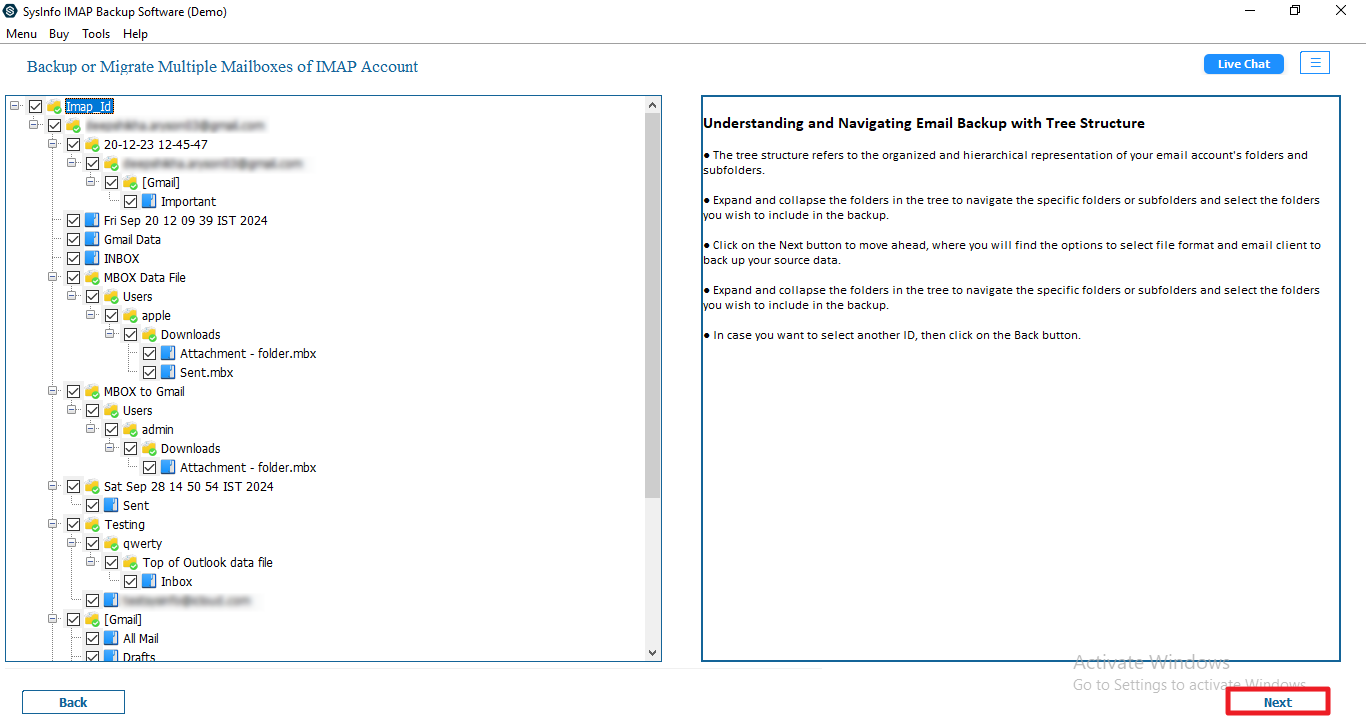
- Further, select the files and folders that you want to transfer from the tree structure in the left panel.
- Moving ahead, choose Office 365 from the drop-down menu and authenticate your account with the correct credentials.
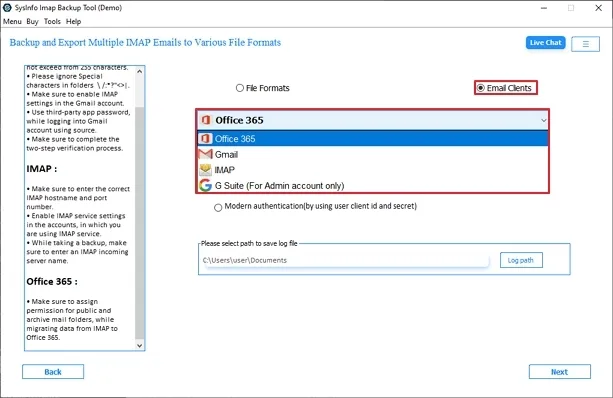
- In the end, pick from the filter to apply if needed, and then tap on Start Process.
When Frontier Mail Left a Business Stranded Mid-Migration
A retail firm in Texas had 25 Frontier Mail accounts to move to Office 365 before a system cutover. PST exports kept corrupting on larger mailboxes, and contacts never transferred across on any account. MailConverterTools IMAP Migration Tool processed all 25 accounts in one overnight session. Every email, contact, and calendar landed in Office 365 without a single gap.
To Wrap Up
Years of client correspondence sitting inside Frontier Mail deserve better than a PST export that corrupts halfway through. Manual migration drops contacts, stalls on larger mailboxes, and demands more technical precision. MailConverterTools IMAP Migration Tool removes every one of those variables entirely. To migrate Frontier emails to Office 365 accurately, this tool connects directly via IMAP. Complete mailbox data transfers in Office 365 in one clean and reliable session with no downtime.
Frequently Asked Questions
Q.1 How to migrate Frontier emails to Office 365 without losing data?
Ans. You can use the MailConverterTools IMAP Migration Tool, which securely transfers IMAP emails to Office 365 while maintaining data integrity, attachments, and folder structure during the migration process.
Q.2 Is it safe to migrate Frontier emails to Office 365?
Ans. Yes, the MailConverterTools IMAP Mail Backup Tool ensures secure migration by preserving email data without alteration and offering duplicate removal to avoid inconsistencies during the transfer process.
Q.3 What is the best tool to migrate Frontier emails to Office 365?
Ans. The MailConverterTools IMAP Migration Software is a reliable option, as it supports direct migration to Office 365, bulk processing, and advanced filters for selective email transfer.
Q.4 Can I migrate multiple Frontier email accounts to Office 365 at once?
Ans. Yes, the MailConverterTools IMAP Email Migration Tool supports bulk migration by allowing multiple mailbox selection and efficient transfer to Office 365 in a single process.
About The Author:

Vikas Bajpai is a results-driven SEO expert and content strategist with a strong passion for building impactful digital experiences. He specializes in crafting data-backed content plans that boost visibility, engage audiences, and drive measurable growth. With deep expertise in search engine optimization, keyword strategy, and content marketing, Vikas helps brands strengthen their online presence and achieve long-term success.
Related Post