-
Written By Amit Chandel
-
Updated on December 16th, 2025
Simple Steps to Import Android Contacts to Excel Spreadsheet
Jake’s Query:
I have a lot of VCF Contact files, which I want to convert into an Excel spreadsheet. All the methods I checked are tricky and unrecognizable. Is there a perfect solution for this transfer?
Many users who need the contact list for CRM systems, email campaigns, or sales tracking use it to import Android Contacts to Excel. It also helps to manage employee contact records in a structured format. In this blog, we will talk about the approaches, such as the manual approach and a professional VCF to CSV Converter Tool, to perform the task effectively and hassle-free.
Need to Transfer Contacts from Phone to Excel
- Sales and marketing teams are creating organized contact lists for follow-ups and campaigns
- Business owners maintain customer and vendor databases
- HR and admin staff managing employee contact records
- IT professionals performing data backup or device migration
- Individual users who want a safe backup or need to edit and share contacts easily in Excel
Manual Methods to Import Android Contacts to Excel
In this section, we will discuss two manual methods. First, we will transfer contacts from the phone to Excel, then transfer them using Google Sync. Read and apply these methods efficiently to get effective results.
Method 1: Transfer Contacts from Phone to Excel
You can move Android contacts to Excel manually by using Google Contacts as a bridge. The process is completed in three simple phases.
Phase 1: Export Android Contacts as a VCF File
- Open the Contacts application on your Android phone.
- Go to Settings or Manage Contacts, then select Export and choose .vcf format.
- Then, save the VCF file to your phone storage.
- Connect your phone to a computer and copy the VCF file to your system.
Phase 2: Import the VCF File into Google Contacts
- To begin with, open Google Contacts in a web browser.
- After that, sign in using the same Google account linked to your Android device.
- Click Import, upload the VCF file, and complete the import process.
Phase 3: Move Android Contacts (VCF Format) to Excel (CSV)
- To start with, open Google Contacts and select the contacts you want to export.
- Thereafter, click Export and choose Google CSV or Outlook CSV format.
- Download the CSV file to your computer.
- Finally, open the file in Microsoft Excel and save it in .xls or .xlsx format if required.
Method 2: Export Android Contacts to Excel Using Google Sync
Another manual option is to sync your phone contacts directly with your Google account.
Step 1: Sync Contacts with Google Account
- Firstly, on your Android phone, open Settings > Accounts > Google.
- Then, select your Google account and ensure Contacts sync is enabled.
- Once synced, sign in to Google Contacts using the same Gmail account.
Step 2: Export Contacts as CSV
- In Google Contacts, click Export.
- After that, choose all contacts or select specific entries.
- Furthermore, select Google CSV as the export format.
- Finally, click Export to download the file, which can be opened directly in Excel.
Limitations:
- The process involves multiple steps and takes time
- Not ideal for large contact lists
- High chances of duplicate or missing contact fields
- Requires an active Google account and internet connection
Quick Steps to Import Android Contacts to Excel Spreadsheet
If you want a fast and secure export, then MailConverterTools VCF to CSV Converter is the best utility. This tool allows you to export your VCF file in multiple file formats. Also, it has an easy-to-use interface, so that technical or non-technical users can use it with the help of an intuitive interface.
Steps to Export Android Contacts to Microsoft Excel
- Download and start the VCF Converter Tool.
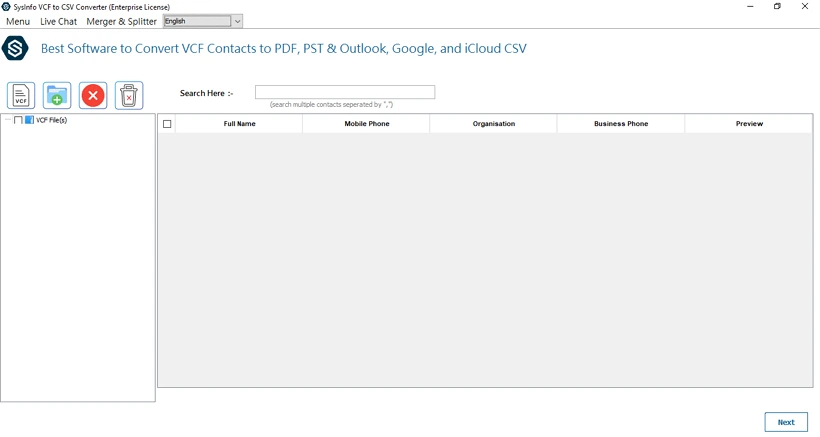
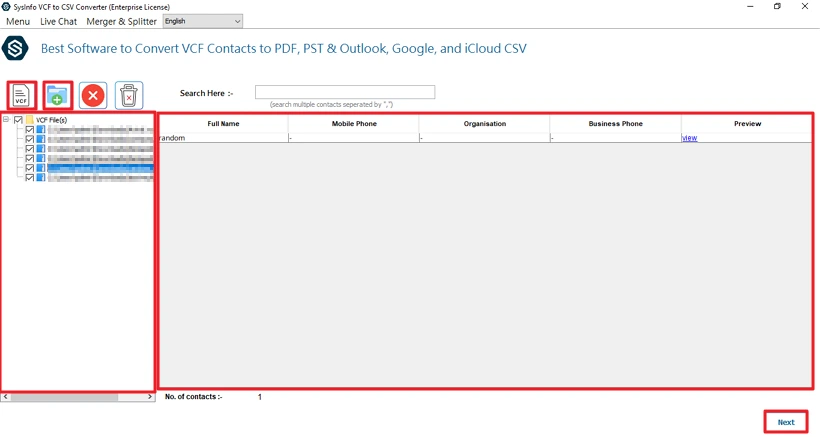
- Then, add and preview VCF files, and after selecting them, click Next.
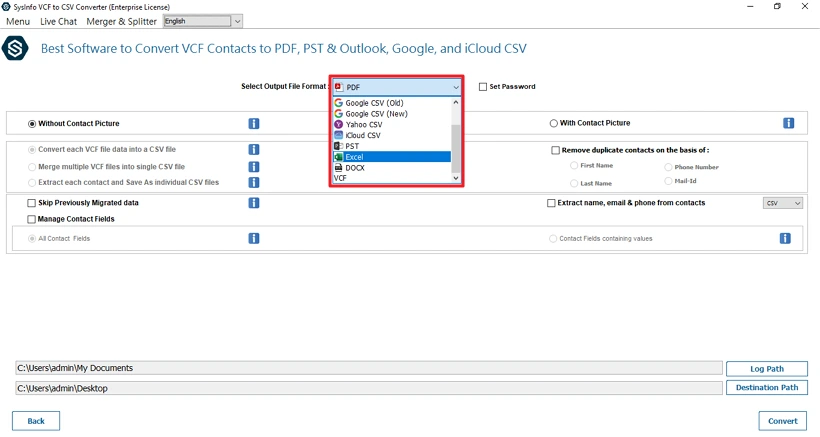
- After that, choose the file format to Excel.
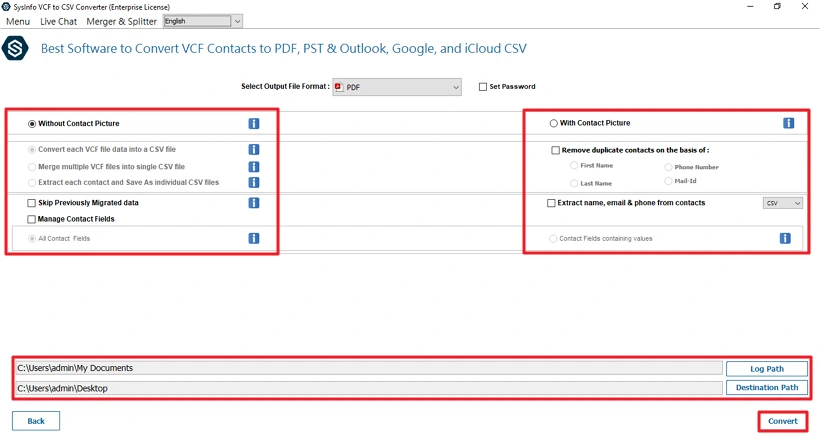
- Finally, apply the filter and set the path to save, and click Convert.
Successful User Case:
Cathalie from New York used our VCF Converter Tool to import her office contact files into an Excel spreadsheet. It allowed her to extract her files in a very minimal time. Before this, she tried a manual solution and encountered many problems, but our tool helped her to resolve the problem. Also, provided accurate and structured data without any errors.
Conclusion
To conclude, the process to import Android contacts to Excel spreadsheet is not a big deal if you have selected the right way. The manual methods are correct, but they are not recommended for a large volume of files. Using the professional tool allows you to convert files with complete accuracy and 0 errors. Moreover, the utility offers various important features that you can use to optimize your process.
Frequently Asked Questions
Q1: Is there any best tool to import Android Contacts to Excel?
Ans: Yes, the VCF Converter Tool is one of the most reliable options to import Android contacts into Excel. It converts VCF files into Excel-supported formats like CSV and XLS while preserving contact details such as names, phone numbers, emails, and addresses.
Q2: How do I Transfer Contacts from Samsung Phone to Excel?
Ans: Samsung users can export contacts as a VCF file from the Contacts app and then convert it to CSV using Google Contacts or a dedicated converter. Once converted, the CSV file can be opened directly in Microsoft Excel for editing or storage.
Q3: How can I import Android contacts to an Excel spreadsheet?
Ans: To import Android contacts into Excel, first export them as a VCF file from your phone. Then, use the VCF Converter Tool to convert the VCF file into CSV or XLS format, which can be easily opened and managed in Excel.
Q4: Can I convert only specific contacts instead of all?
Ans: Yes, the VCF Converter Tool allows you to select and convert only specific contacts. This is useful when you need to export filtered contact data instead of converting the entire contact list.
Q5: Can I sync the Excel contact list back to my phone later?
Ans: Yes, you can sync contacts back to your phone by importing the Excel file into Google Contacts after converting it to CSV. Once uploaded, the contacts will automatically sync with your Android device linked to the same Google account.
About The Author:

Meet Amit, an experienced SEO expert and content planner. He uses his creativity and strategy to create content that grabs attention and helps brands reach their goals. With solid skills in digital marketing and content planning, Amit helps businesses succeed online.
Related Post