-
Written By Amit Chandel
-
Updated on January 15th, 2026
Complete Guide to Import EML Files to GoDaddy Email
User Query: I switched from Windows Live Mail to GoDaddy email, and all my old emails are saved as EML files. Is there a safe way to move them without losing attachments or email layout?
The problem with EML files arises when users want to move these emails to GoDaddy Webmail. Because it does not offer a direct option to import EML to GoDaddy. In this blog, we’ll walk through the most effective ways to import EML files into GoDaddy email. For those looking for a faster and more hassle-free option, we’ll also cover how the MailConverterTools EML Converter Tool can help complete the task smoothly and reliably.
Necessity to Migrate EML to GoDaddy
- When emails stay only as EML files on a system, they’re easy to forget or misplace. Moving them to GoDaddy keeps everything—old and new—in one inbox.
- EML files can usually be opened only on the computer where they’re saved. Once they’re in GoDaddy, you can check them anytime, from anywhere.
- Searching through hundreds of EML files is frustrating. In GoDaddy, emails are easier to find, sort, and manage.
- For businesses switching to GoDaddy, old emails still matter. Migrating EML files helps keep past conversations available when needed.
- Local EML files can be lost if a system crashes or files are deleted by mistake. Storing emails in GoDaddy adds an extra layer of safety.
- Attachments stored with EML files may not always be easy to access later. Importing them into GoDaddy keeps everything properly attached and readable.
- Many businesses need old emails for records, audits, or future reference. Keeping them only as files isn’t always practical.
- After migration, there’s no need to keep using outdated email programs just to open old messages.
How to Import EML to GoDaddy Manually?
GoDaddy doesn’t give a direct option, so the manual way mostly depends on Thunderbird. But it does take a bit of patience when you’re handling a lot of emails.
Step 01: Install Thunderbird and Add GoDaddy Account
- Download and install Mozilla Thunderbird on your computer.
- Open Thunderbird and go to Account Settings.
- Click on Add Mail Account.
- Enter your GoDaddy email address and password.
- Use the following server details when asked:
- Incoming (IMAP): mail.secureserver.net, Port 993
- Outgoing (SMTP): smtpout.secureserver.net, Port 465
- Thunderbird will connect and sync with your GoDaddy mailbox.
Step 02: Import EML File to GoDaddy
- Install the ImportExportTools NG add-on in Thunderbird.
- Restart Thunderbird after installation.
- Right-click the folder under your GoDaddy account where you want the emails.
- Select ImportExportTools NG > Import EML files.
- Browse and choose the EML files from your system.
- The emails will be added to the folder and synced automatically, and then you can open EML File in GoDaddy.
Limitations
- The process can be pretty slow if you have lots of EML files to move.
- You have to install Thunderbird and an extra add-on.
- If the server details aren’t entered correctly, it can become a headache.
- Sometimes the email layout or formatting doesn’t look the same after import.
- A crash or freeze can stop the process midway.
Perfect Method to Efficiently Import EML to GoDaddy
If you’re looking for a simple way to move your EML files without any hassle, try the MailConverterTools EML Converter Tool. It can handle lots of EML files at once and won’t mess up your emails or lose any data. You can even pick emails from certain dates if you don’t want to move everything. The tool is pretty easy to use, whether you’re a tech expert or not, and it works well on all versions of Windows.
Steps to Transfer EML Files to GoDaddy
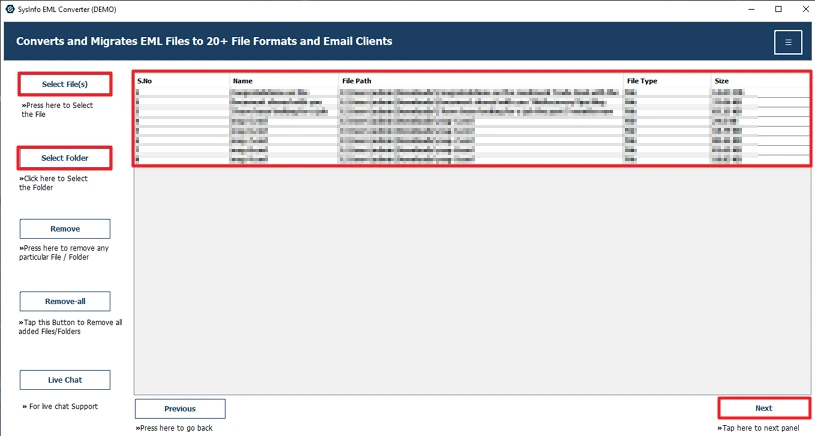
- Firstly, download the tool, add EML files, and click Next.
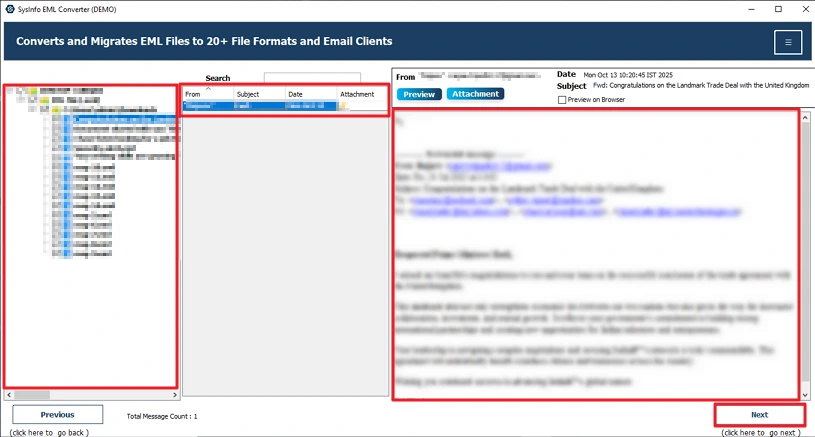
- After that, preview and select files and click Next.
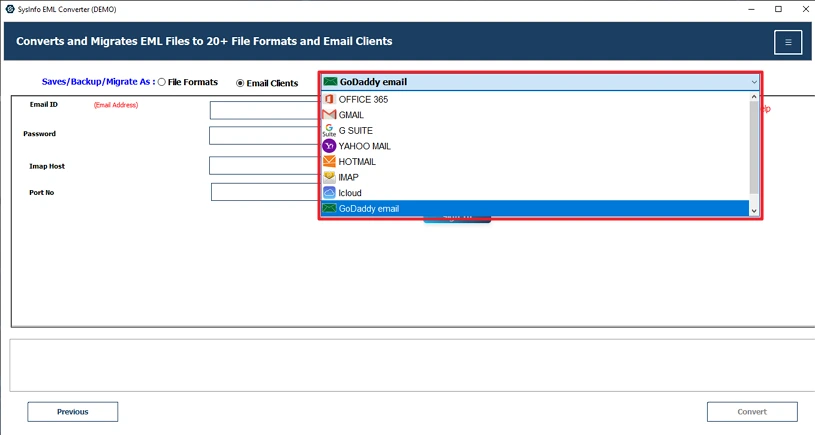
- Thereafter, choose GoDaddy Email from the list.
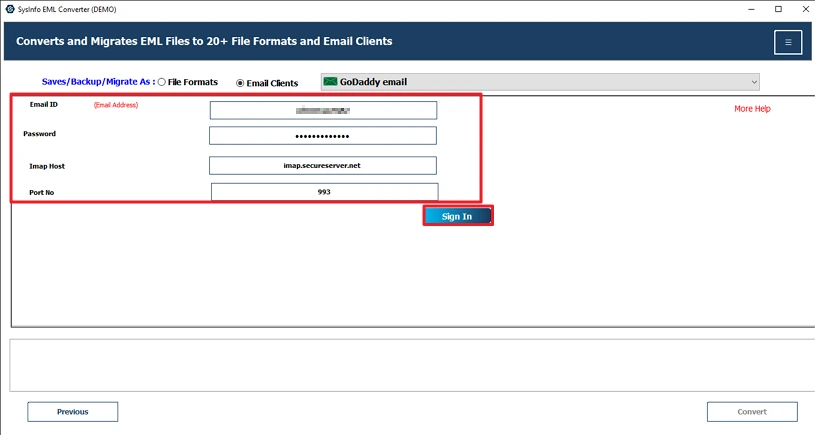
- Further, log in with its credentials.
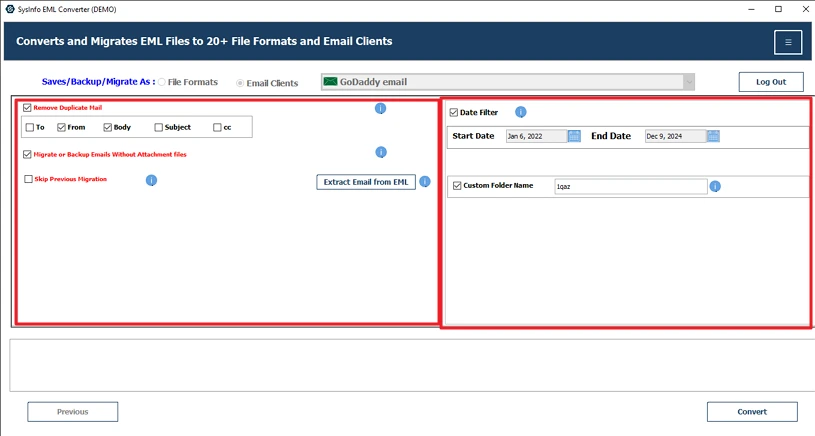
- Finally, apply filters and click Convert.
Successful User Case
Michael is the IT guy at a small tech firm. They had loads of old customer emails saved as EML files. When the company switched to GoDaddy for its email, Michael needed to bring those emails back. Instead of spending hours doing it manually with Thunderbird, he tried the MailConverterTools EML Converter Tool. It made the whole thing quick and easy—moved all the emails over in about an hour, keeping attachments and formatting just like before, with no problems at all.
Conclusion
Importing EML files to GoDaddy Email can feel tricky at first, but with the right approach, importing EML to GoDaddy is actually quite simple. For a few emails, the manual Thunderbird method works well. Using a professional tool is the best choice for bulk import, faster results, and complete safety. Whether you’re a business user, IT professional, or freelancer, these solutions help you securely import EML to GoDaddy.
Frequently Asked Questions
Q1: What is the easiest way to import EML files to GoDaddy Email?
Ans: The MailConverterTools EML Converter is the best and easiest way to import EML files into GoDaddy. It can handle your large files in terms of size and number without any hassle.
Q2: How to migrate multiple EML files to GoDaddy at once?
Ans: Using Professional MailConverterTools EML Converter, you can handle multiple files at once. Moreover, you can customize your output with its built-in filter and features.
Q3: Does importing EML files to GoDaddy keep all attachments intact?
Ans: Manual methods are not effective in keeping all attachments intact. To keep your attachment intact, you should use the professional utility called EML Converter Tool.
Q4: Is there a maximum mailbox size to consider when importing EML files into GoDaddy?
Ans: Using the professional EML Converter Tool by MailConverterTools, you don’t have to worry about the file size or number. This utility is proficient in managing large files.
About The Author:

Meet Amit, an experienced SEO expert and content planner. He uses his creativity and strategy to create content that grabs attention and helps brands reach their goals. With solid skills in digital marketing and content planning, Amit helps businesses succeed online.
Related Post