-
Written By Amit Chandel
-
Updated on January 17th, 2026
Step-by-Step Guide to Convert OLM File to DOC
“I am working on Windows OS and have a few legacy OLM files that I am unable to access since the Outlook profile is decommissioned. I want to convert them to DOC format to access them anytime without trouble. Is there any suitable way to convert OLM to Word, ensuring no data loss happens?”
-Clark Mathhews
OLM (Outlook for Mac) is the storage of crucial Outlook data on Mac, which stays locked in the Mac Outlook profile. A large proportion of Mac users work with OLM files, but they are unusable on Windows. Therefore, for wide accessibility, easy editing, and sharing, users prefer to convert OLM file to DOC format, ensuring continuity in smooth business operations. Check out the free method and a dedicated MailConverterTools OLM Converter Tool for simplified solutions.
Why Convert OLM Emails to Word DOC?
The substantial reasons to make the OLM to DOC file conversion are specified down here:
- Simplified sharing across both Mac and Windows operating systems.
- DOC files are easily editable for legal, compliance, forensic, and other uses.
- Word files ensure a long-term archive is created in a universally supported format.
- Data in DOC files can be used for cases, investigations, analysis, and other tasks.
- It is easy to handle a large volume of OLM to DOC files as they are lightweight.
- Attachments can be easily added to the files once saved as a DOC.
|
Quick Use Cases Where It Matters to Convert OLM to MS Word
|
Practical Methods to Convert OLM File to DOC
Though Mac Outlook doesn’t have a native export to DOC option, it is possible that you can save OLM files as DOC. Explore the manual solution and the professional tool provided in this section for effective conversion.
Easy Freeway to Convert OLM File to MS Word
Follow the steps below to perform the conversion on your Mac:
- First, get Microsoft Word on your macOS and then open Mac Outlook.
- Go to its Inbox and select the OLM emails to convert.
- Next, open any email of your choice and ensure all its content is visible.
- Further, copy the entire content by selecting it.
- Later, open Word and in a blank document, paste the copied content.
- Finally, click File, choose Save As, pick DOC format, and click Save.
Loopholes of the Method
- It is not feasible to open every email and copy-paste the content.
- This method doesn’t work with multiple large OLM files.
- A very time-consuming and hectic solution for all users.
- Risk of formatting inconsistencies and data loss.
|
Since this method isn’t very effective, you can export OLM files and use an automated tool to convert OLM to MS Word. The steps to extract OLM files are:
|
Professionals’ Way to Convert OLM File to DOC
For large-scale environments like businesses and enterprises, it is better to use the smart MailConverterTools OLM Converter. It easily handles bulk conversion and saves files securely with 100% accuracy, and retains formatting. Additionally, the software tool can handle attachments automatically and has advanced filter options for conversion. Moreover, its interface is very easy to use, and the tool works on all Windows and Mac OS. Download the Demo Version to test out for yourself and ensure a straightforward conversion in minimal time.
Stepwise Guide to Convert OLM Emails to Word DOC
- Launch the OLM File Converter Tool and click Continue to proceed.
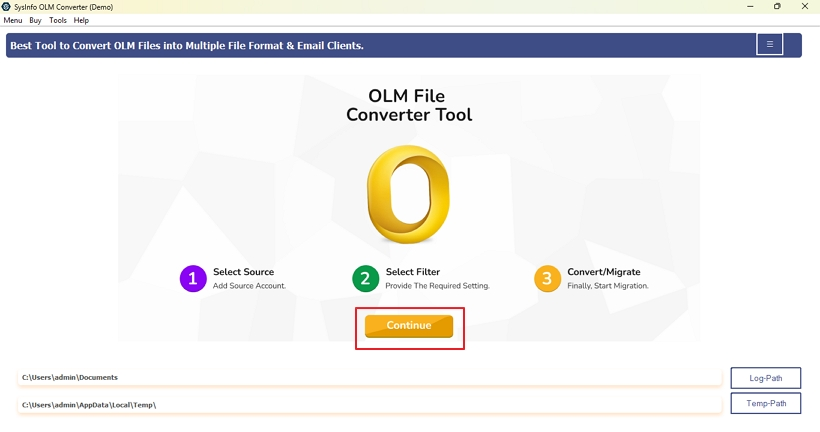
- Then, choose the OLM files to open, load them, and click Next.
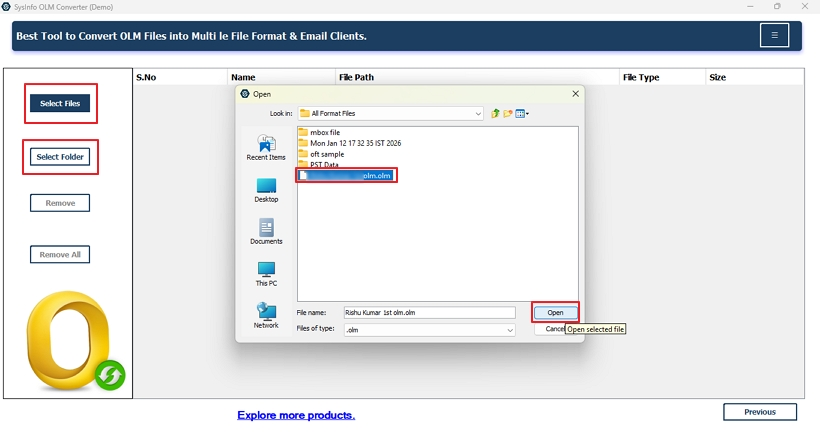
- Further, select the folders from the tree preview and click Next.
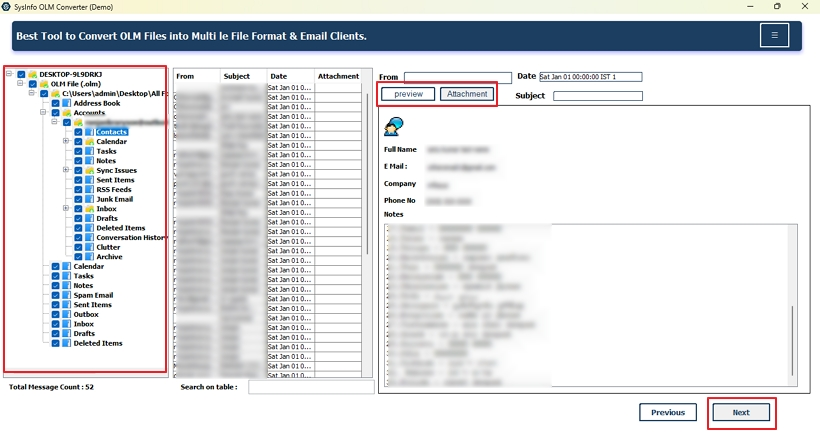
- After that, choose the DOC format from the list and use the filters.
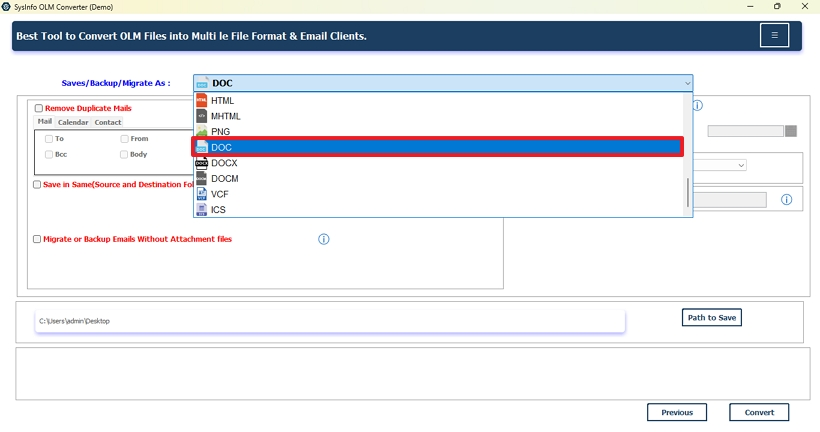
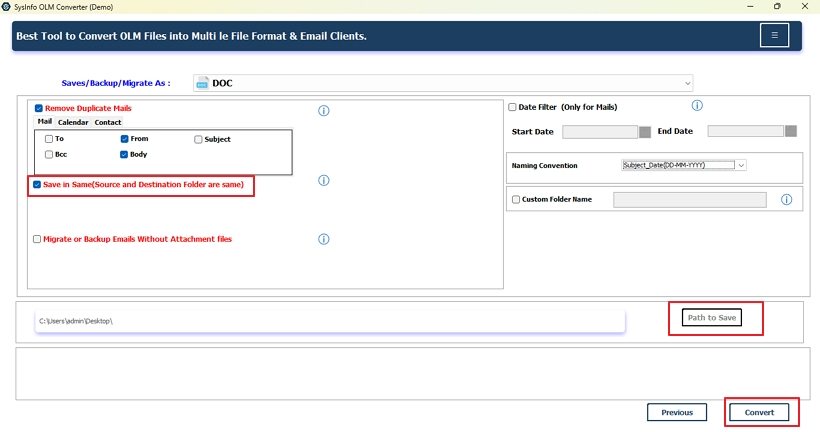
- Finally, select a Path to Save or Save in Same and click Convert to finish.
Real World Scenario:
An IT MNC struggled to access around 50 GB+ OLM data locked inside legacy Outlook for Mac profiles. An audit was soon to be conducted in the organization, and they needed the entire OLM data in DOC format. Manually copying and pasting such a large volume of data is impractical. Therefore, they used the MailConverterTools OLM to DOC Converter and secured all the emails in no time without hassle.
Conclusion
When accessibility, compliance, data security, and long-term archival are the primary factors, it becomes essential to convert OLM file to DOC. DOC by Word ensures that you can easily edit, share, and store your data for future use without risk of theft or loss offline. We discussed all the use cases and advantages of conversion alongwith two ideal solutions. The manual method ensures conversion, but only if you have 1 to 2 OLM files. When you need to go for bulk conversion without loss and in less time, OLM Conversion Software is the best choice.
Frequently Asked Questions
Q1. Can I convert OLM files to DOC directly in Outlook for Mac?
Ans. Yes, using the OLM to DOC Conversion Tool, directly convert OLM file to DOC on any version of Outlook for Mac without Outlook.
Q2. Does converting OLM to DOC include email attachments?
Ans. Manually, it is difficult to retain attachments, or you may need to save them separately. With the converter tool, attachments are naturally included during the conversion.
Q3. How to convert multiple OLM emails to DOC in bulk?
Ans. To convert multiple OLM files to DOC in bulk, use the proficient OLM Converter Software by MailConverterTools.
Q4. Does converting OLM to Word keep original email formatting?
Ans. Yes, if you are using an advanced converter like MailConverterTools OLM to DOC Exporter, then all original formatting remains intact.
About The Author:

Meet Amit, an experienced SEO expert and content planner. He uses his creativity and strategy to create content that grabs attention and helps brands reach their goals. With solid skills in digital marketing and content planning, Amit helps businesses succeed online.
Related Post