-
Written By Amit Chandel
-
Updated on February 14th, 2026
How to Import EML Files to Hotmail with Attachments Easily
Mike Thomson Query: “I’ve saved a lot of EML files from my previous email account. Now I’m on Hotmail (Outlook.com), and I’m honestly stuck. Is there any straightforward way to move them safely?”
EML files are basically single email messages saved as files. They work fine in some desktop email apps, but Hotmail (now Outlook.com) doesn’t give you a simple upload button for them. That’s why many people get confused at this stage. While trying to import EML Files to Hotmail, attachments may go missing, or the layout may change. It’s not always smooth. In this blog, we’ll look at a couple of manual ways you can try. And if those feel a bit tiring, there’s also a simpler method using MailConverterTools EML Converter Tool to handle the job more easily.
Why is It Important to Upload EML Emails to Hotmail Format?
- EML files just stay on your computer unless you move them somewhere useful.
- You can’t easily search or manage them like regular inbox emails.
- Uploading them to Hotmail (Outlook.com) keeps everything in one place.
- You can access your old emails from any device, not just one system.
- It helps if you’ve stopped using your old email program.
- Attachments stay connected to the emails inside your account.
- Your inbox feels more organized instead of having random EML files saved on your desktop.
How to Import EML Files to Hotmail Manually Using Outlook?
You can use Outlook Desktop to move EML files into your Hotmail (Outlook.com) account. It works, but it takes time, especially if you have many files.
Steps to Import EML Emails to Hotmail
- Firstly, open Outlook Desktop.
- Then, add your Hotmail account using IMAP settings.
- After that, create a New Folder inside your Hotmail mailbox.
- Thereafter, open the EML file in Outlook.
- Further, click Move and choose the folder you created in Hotmail.
(You can also try drag and drop, but it may not work properly for bulk files.) - Lastly, Outlook will start syncing, and your emails will be in your Hotmail account.
Limitations
- You have to open and move EML files one by one if you have many. It’s slow.
- Drag and drop doesn’t always work properly, especially for bulk emails.
- Attachments may not sync correctly in some cases.
- Formatting can change after moving the email.
- Syncing depends on your internet speed, so it can take time.
- You must have Outlook Desktop installed and properly configured.
- Not practical if you’re dealing with hundreds or thousands of emails.
Pro Method to Import EML Files to Hotmail with Attachments
If the manual way feels too long, then you can use the MailConverterTools EML Converter Tool instead. It lets you handle many EML files at once. The tool simply reads the EML files and converts them into another format you choose. For example, you can convert EML to PDF file format. Some tools also let you move emails directly into email accounts. So if you need to import EML Files to GoDaddy or another webmail service, it can help with that.
Steps to Upload EML File into Hotmail
- Firstly, download the EML Converter Tool.
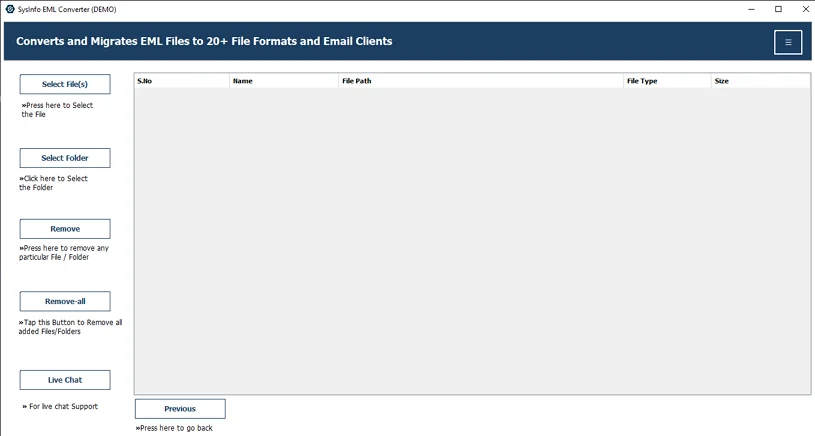
- Then, add the EML files and click Next.
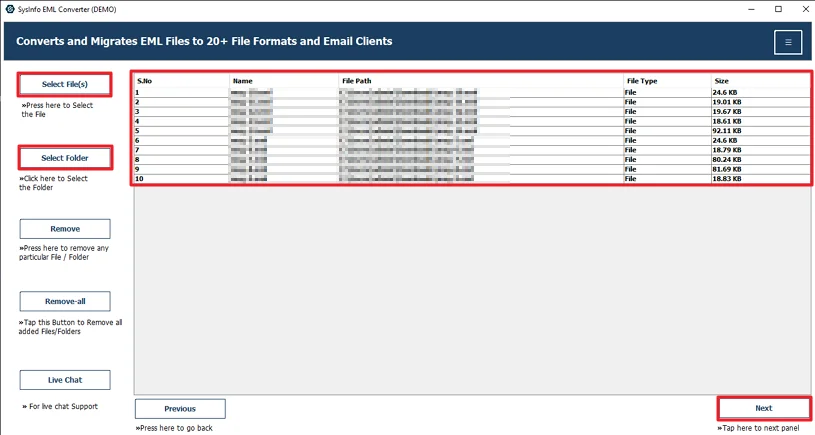
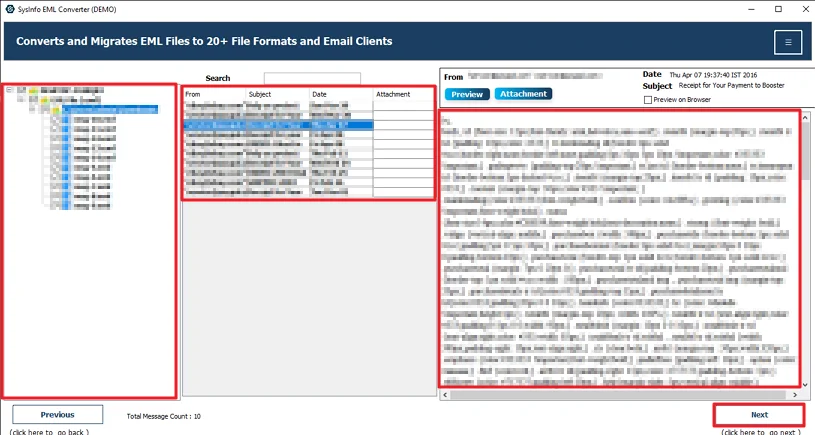
- After that, select and preview files and click Next.
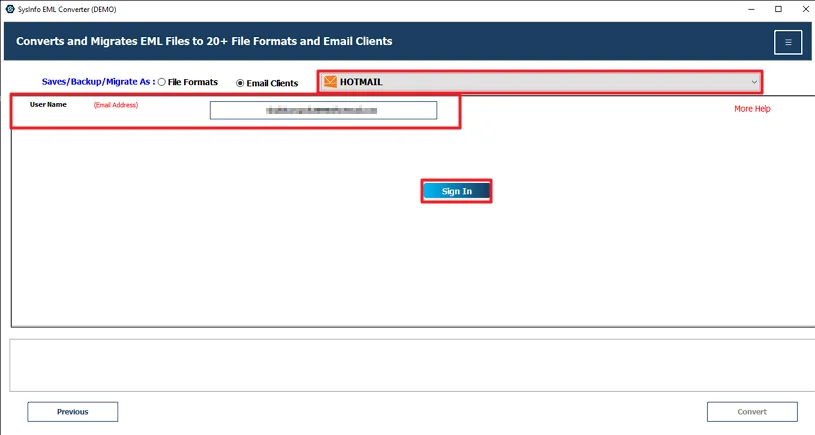
- Further, choose Hotmail and log in with your credentials.
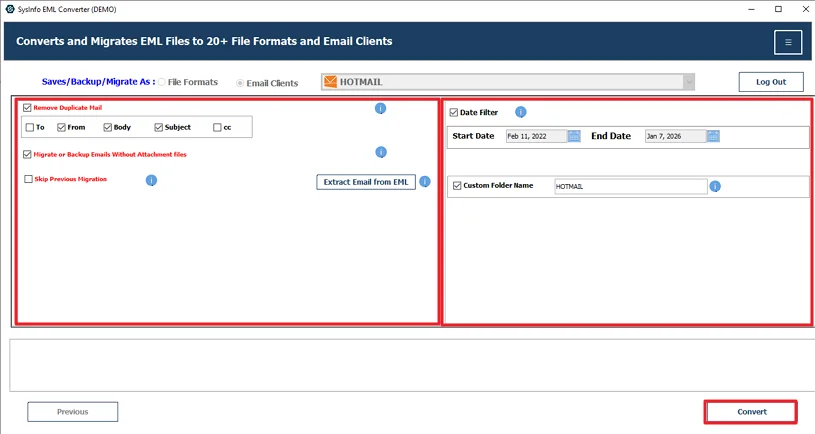
- At last, use the filters and click Convert.
Successful User Case
Last month, I had around 1,800 old EML files saved from my previous email client. They were just sitting in a folder on my desktop. I recently shifted fully to Hotmail (Outlook.com) and wanted everything in one place. That’s when the problem started.
At first, I tried the manual Outlook method. It worked… but only for a few emails. Opening each file, moving it, waiting for sync — it was taking forever. After doing maybe 40–50 emails, I realized this wasn’t practical. I still had more than a thousand left.
Then I decided to try the MailConverterTools EML Converter Tool to import EML to Hotmail directly. The process was pretty straightforward. I didn’t have to sit there and move emails one by one.
For me, the biggest relief was not having to repeat the same steps again and again.
Conclusion
In this blog, we went through the ways to import EML Files to Hotmail account. Doing it manually is possible, but only if you have a small number of files saved in EML. Hotmail doesn’t give any direct option, and the whole process feels longer. Using a tool can make things simpler for a large amount of data. You don’t have to repeat the same steps again and again.
Frequently Asked Questions
Q.1 Which is the best tool to import EML Files to Hotmail
Ans: The MailConverterTools EML Converter Tool is a simple option. It allows you to add multiple EML files and move them into your Hotmail account without doing everything manually.
Q.2 Can I import EML to Hotmail in bulk quantity?
Ans: Yes, but not directly through Hotmail. The manual Outlook method is slow for bulk files. If you have a large number of EML files, the tool mentioned above supports bulk import, which saves time.
Q.3 Is there safe way to import EML emails to Hotmail?
Ans: The manual method can be risky if you have many emails. Using the MailConverterTools EML Converter Tool is a more stable option for handling large amounts of data without missing details.
Q.4 Can I Upload EML File into Hotmail without technical skills?
Ans: Yes. The MailConverterTools EML Converter Tool process is step-based. You just add files, choose Hotmail as the destination, log in, and start the process.
About The Author:

Meet Amit, an experienced SEO expert and content planner. He uses his creativity and strategy to create content that grabs attention and helps brands reach their goals. With solid skills in digital marketing and content planning, Amit helps businesses succeed online.
Related Post