-
Written By Vikas Bajpai
-
Updated on April 18th, 2026
Backup OneDrive to External Drive Complete Process
“I have been using OneDrive for the past 5 years, and I have around 50 GB of data in my account. However, with continuous use, my storage is overfilled, and I need to clear it. But I do not want to delete anything, and so I am thinking of transferring and saving everything to an external hard drive or PC. Is there any way I can do it without affecting my original data or losing it quickly?”
-Joseph Iswok
Cloud storage is beneficial for managing data effectively, and it even seems permanent. However, accidental deletions, ransomware threats, account lockouts, subscription changes, and others can result in OneDrive data loss. Even if you follow the 3-2-1 backup rule, one crucial aspect is often overlooked, i.e., offline redundancy. Hence, it is essential to backup OneDrive to External Drive for control and data recovery when things go awry. This guide explains how you can use OneDrive Backup Tool or other free solutions to ensure data security and scalability.
Quick Answer: Backup OneDrive Files to External Drive
To backup your OneDrive files to an external hard drive, first sync your OneDrive account to your local computer with the OneDrive app. Then you can copy those synced files directly over to the external hard drive. In contrast, for a large amount of data, automate the process of backup from OneDrive via a professional MailConverterTools OneDrive Backup Software. Both are beneficial and will help you get the utmost results.
Need to Export OneDrive Files to External Drive
The significant enterprise and operational reasons for the data transfer from cloud storage to the local system are:
- Reduce data redundancy beyond the cloud
- Protection against accidental deletions and ransomware
- Ability to access critical files while offline
- Comply with your organization’s data retention requirements
- Reduce reliance on the internet to access files
- Access data without network connectivity
- Free up OneDrive storage space for more data
- Secure files from crashes and outages
How to Backup OneDrive to External Drive Reliably?
Below you can find three different tricks to backup your drive data in the best possible way. It involves two free and a paid software solution. But before that, you must go through this pre-backup checklist.
|
Prerequisites:
|
By preparing for your backup, you can reduce the points of failure when transferring bulk volumes.
Cost-Free Transfer OneDrive Files to External Drive
We will go through two manual methods in this section, i.e, one via sync and the other by download. Both methods are simple to follow with the right guide, as stated here.
A: OneDrive to External Drive Export via Web Download
It is the simplest method, which doesn’t require you to install any application and has only a few steps. These are:
- Firstly, attach the external drive to your computer.
- Then, open the OneDrive on your preferred browser.
- Select the files from it that you wish to backup.
- Right-click and press Download. They are saved on the PC.
- At last, copy them into your attached drive.
B: Sync and Backup OneDrive to External Drive
A OneDrive sync client is another free solution available to make the transfer in a simplified manner. Follow these steps:
- Initially, download the OneDrive desktop application and sign in.
- Then, enable the sync for the required folders.
- OneDrive files will be slowly downloaded to your system.
- Wait until all the files are synced and downloaded.
- Later, insert, connect, and track your external hard drive.
- Further, move to the OneDrive folder on the system.
- Finally, drag and drop or copy them to the External Drive.
A complete local backup has been completed successfully.
Why These Methods Often Fall Short for Large Businesses?
Even though these methods are effective and suitable for small datasets, they cannot comply for bulk volumes because:
- Time-consuming and requires you to put in efforts
- Require proper monitoring and no real-time check
- No scheduling available, and risk of missing data
- Bulk downloads can fail, and files have size limits
- Folder structures are affected by ZIP compressions
- Not all items are backed up properly
- An internet connection is required to download data from the web
Risk-Free Backup OneDrive Files to External Drive
Organizations dealing with large datasets and periodic backups need smart solutions like MailConverterTools OneDrive Backup Tool. It has batch processing capability, preserves the folder hierarchy, has no manual sync, and performs secure and controlled transfer. Additionally, it aligns well with enterprise-grade data protection strategies and supports all accounts on Windows or macOS.
Steps to Quick Backup OneDrive to External Drive
- Launch the OneDrive Migration Tool and choose Single User or Impersonation. Tap Next.
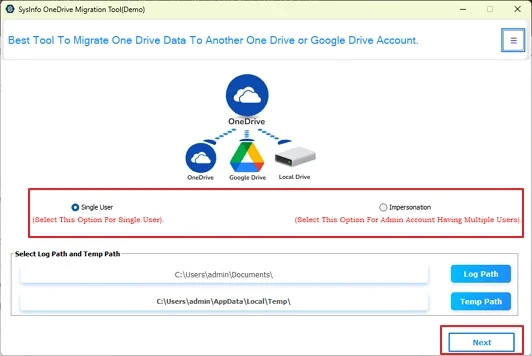
- Then, opt for Business or Personal Account and complete the login via browser.
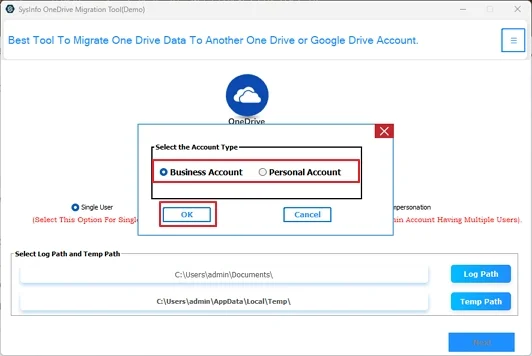
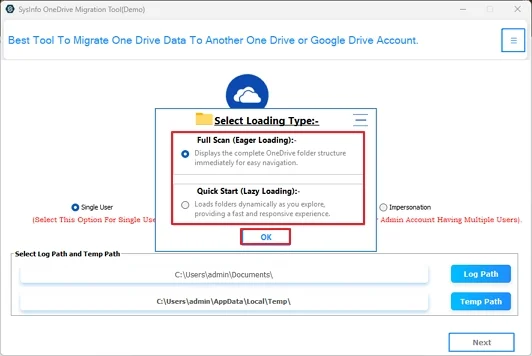
- Further, choose Full Scan or Quick Scan to load your files and click OK.
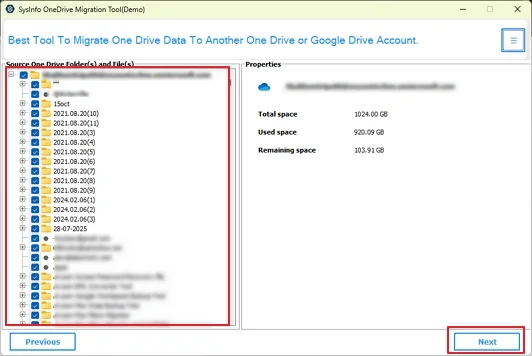
- Afterward, preview folder properties, select them from the tree view, and click Next.
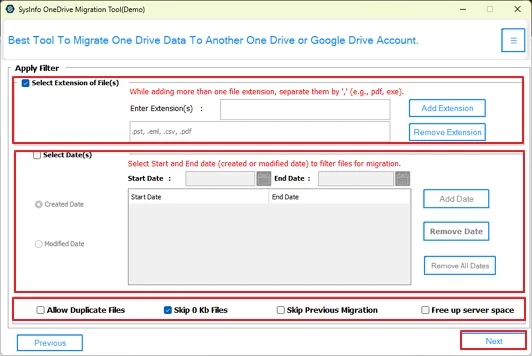
- Choose the filters that are required before you make the migration and hit Next.
- Later, select Backup to Local Drive from the list of saving options and click Next.
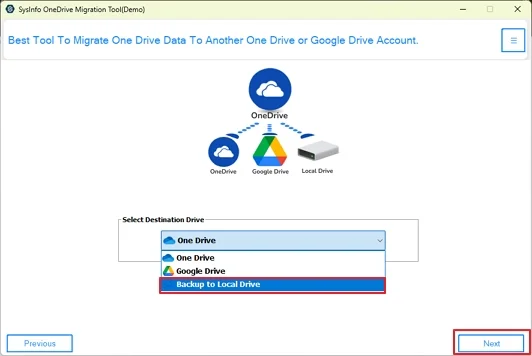
- Finally, choose a desired folder, click Open, select a folder name, and click OK to backup.
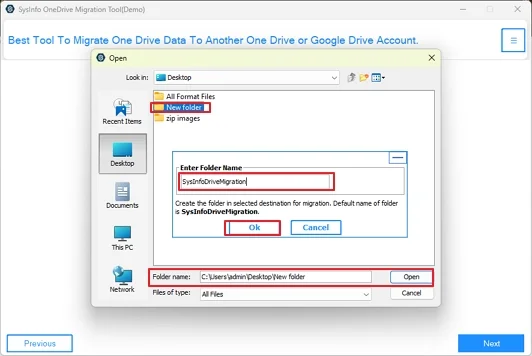
This is the straightforward approach to directly store the data in large bulk on your external drive.
Real Scenario:
A mid-sized company using OneDrive as part of its regular operations used the MailConverterTools OneDrive Backup Wizard to save all data at once to an external hard drive. This allowed them to easily access their data for compliance purposes in case of a temporary account unavailability. The important documentation was secure and visible with no downtime.
Post-Backup Checks You Shouldn’t Miss
After you transfer OneDrive files to External Drive, make sure to verify:
- File count matches at source and destination
- Is the folder structure integrity intact or not
- Random files are accessible
- No transfers are incomplete or result in corruption
- Large file transfers are successful with attachments
|
Note: With the dedicated OneDrive Migration Software, you can rest assured that the data is safe and transferred 100% accurately with no loss or downtime. It has expert support 24*7 and is highly trusted by 20,000+ customers worldwide. |
Summing Up
The task to backup OneDrive to External Drive is beneficial in a number of ways and has become a data resilience strategy in the modern era. While the manual methods work for a few files, they are not considered when it comes to scalability and reliability. Hence, for businesses and enterprises, automated MailConverterTools OneDrive Migration Software ensures consistent, secure, and trusted transfers with continued business operations in the near future.
Frequently Asked Questions
Q.1 How can I backup OneDrive to an external drive easily?
Ans. You can easily backup your data either using the OneDrive Web application, desktop application, or the specialized OneDrive Backup Utility. Copying the files or transferring them directly is your choice based on your data volumes.
Q.2 Is it safe to backup OneDrive to external hard drive?
Ans. Yes, it is safe to export OneDrive files to external drive, if you:
1. Use a secure system, free of malware and viruses
2. Eject your external drive safely from the computer
3. Store backups at a secure location using smart tools
4. Avoid the overwriting of critical files
5. Use dependable solutions like OneDrive Migrator
Q.3 Is it possible to backup OneDrive files to an external hard drive without any software knowledge?
Ans. Yes, you can backup OneDrive files to external drive without technical knowledge by using the proficient OneDrive Backup Software by MailConverterTools.
Q.4 Can I export OneDrive files to external drive for free?
Ans. Yes, you can easily export files for free, both manually and professionally. You can download and copy files from OneDrive. With the software, you can save upto 20 MB files for free.
About The Author:

Vikas Bajpai is a results-driven SEO expert and content strategist with a strong passion for building impactful digital experiences. He specializes in crafting data-backed content plans that boost visibility, engage audiences, and drive measurable growth. With deep expertise in search engine optimization, keyword strategy, and content marketing, Vikas helps brands strengthen their online presence and achieve long-term success.
Related Post