-
Written By Amit Chandel
-
Updated on May 21st, 2026
Convert CDR to PSD in CorelDRAW Without Losing Quality
User Query: Have 300 CDR files from a client that need to be in PSD format for an enterprise print campaign. Every manual attempt through CorelDRAW breaks layer groups and rasterizes critical text elements before finishing. Is there a batch solution that converts CDR to PSD accurately without destroying the layer structure?
Many designers usually move their artwork from CorelDRAW to Adobe Photoshop for editing, printing, or client handoff. If you need to convert CDR to PSD without losing quality, you must get the export steps right from the start. Users jump straight to basic tools and end up with flat, blurry PSDs. A more controlled way is to use CorelDRAW’s export carefully or a focused converter. A practical option like MailConverterTools CDR Converter helps you move CDR files to PSD safely, keeping layers, text, and resolution close to the original design.
Tips to Get Better PSD Output From CDR Files
Conversion quality starts inside CorelDRAW before a single export command runs. Get these right, and the PSD output needs far less cleanup work afterward:
- Outline every font in CorelDRAW before exporting — text that stays live rasterizes during conversion and cannot be edited in PSD.
- Always work in CMYK color mode — switching color spaces after conversion introduces color shifts that affect print production accuracy.
- Set resolution to 300 DPI before the Photoshop import — lower DPI produces blurry output that fails print quality standards entirely.
- Keep vector objects on individual named layers — grouped or merged shapes lose their vector properties and rasterize during the conversion process.
- Manually resolve transparency effects before exporting — CorelDRAW blend modes do not map accurately to Photoshop layer blending options.
- Label every layer group clearly inside CorelDRAW — unnamed layers arrive in PSD as numbered placeholders that slow down Photoshop editing significantly.
Running through this list before any conversion attempt cuts post-conversion cleanup time down considerably on every file.
How Do I Open CDR File to PSD?
Two routes exist to get CDR files to PSD, one is free, and the other uses a professional tool. Before touching either one, make sure CorelDRAW and Adobe Photoshop are both installed and ready on your system. Some vector technical knowledge helps too, especially if going the manual route.
What Is The Hands-On Way to Convert CDR to PSD?
This free process runs through CorelDRAW first and finishes inside Photoshop. Go through every step carefully before moving to the next one:
- Open CorelDRAW on your system and go to File > Open.
- Browse your system and load the .cdr file you want to convert into CorelDRAW.
- Now, separate the design elements into individual layers for better Photoshop control later. (optional but recommended)
- Head back to File and click Save As > PDF to open the settings dialog.
- Moving ahead, make sure Preserve Layers and CMYK Profile options are both enabled in the settings.
- Once saved, open Adobe Photoshop and drag the converted PDF file straight into it.
- After that, set the color space to CMYK and resolution to around 300 DPI when prompted.
- Finally, click OK, then go to File > Save As and pick PSD to complete the conversion.
Where Does the Manual Method Fall Short?
- Layer groups flatten during the PDF import, and individual layer control gets lost completely.
- Transparency effects from CorelDRAW do not replicate accurately inside Photoshop after conversion.
- Text gets rasterized if outlines are not applied before exporting the file from CorelDRAW.
- Batch converting multiple large CDR files manually is simply not possible through this route.
- Without access to CorelDRAW, the entire process stops before the first step even begins.
What Makes The CDR Converter Tool the Right Choice?
Enterprise print workflows and design agencies dealing with hundreds of CDR files cannot afford a manual process that rasterizes text and collapses layer structure. The MailConverterTools CDR Converter Tool reads CorelDRAW files directly without CorelDRAW installed and lets you export CDR to PSD with vector layer integrity preserved throughout. The software also allows you to convert CDR to PDF for easy sharing and gives some benefits over manual approaches. These are:
- Opens and converts CDR files to PSD without CorelDRAW installed on the system.
- Batch conversion processes multiple CDR files simultaneously without any file size cap.
- Preserves format, layout, text layers, and vector objects during the PSD conversion.
- Remove incorrectly added CDR files before conversion starts without restarting the process.
- Compatible with CorelDRAW versions 18 through 24 and all Windows and Mac versions.
- This tool lets you convert CDR file to JPG and other formats as per your needs.
Steps To Convert CorelDRAW to PSD:
- At first, install and launch the CDR Converter Software on your system.
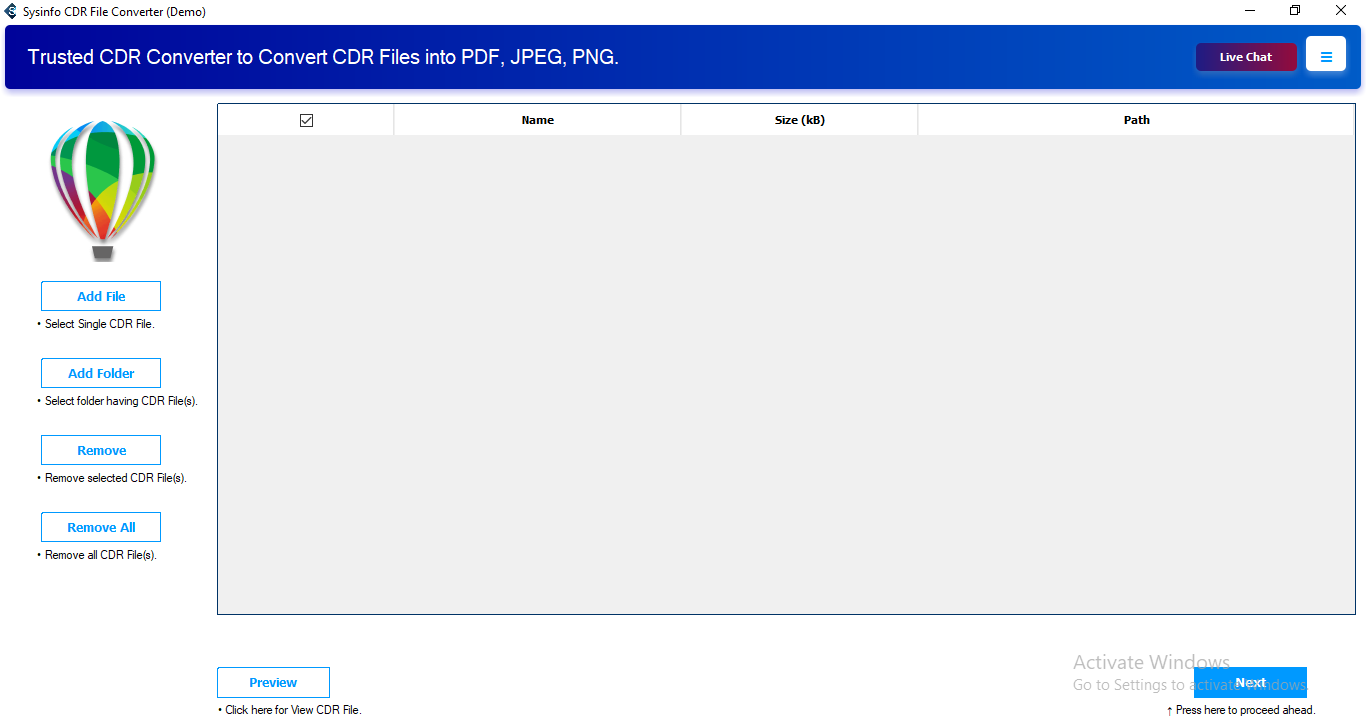
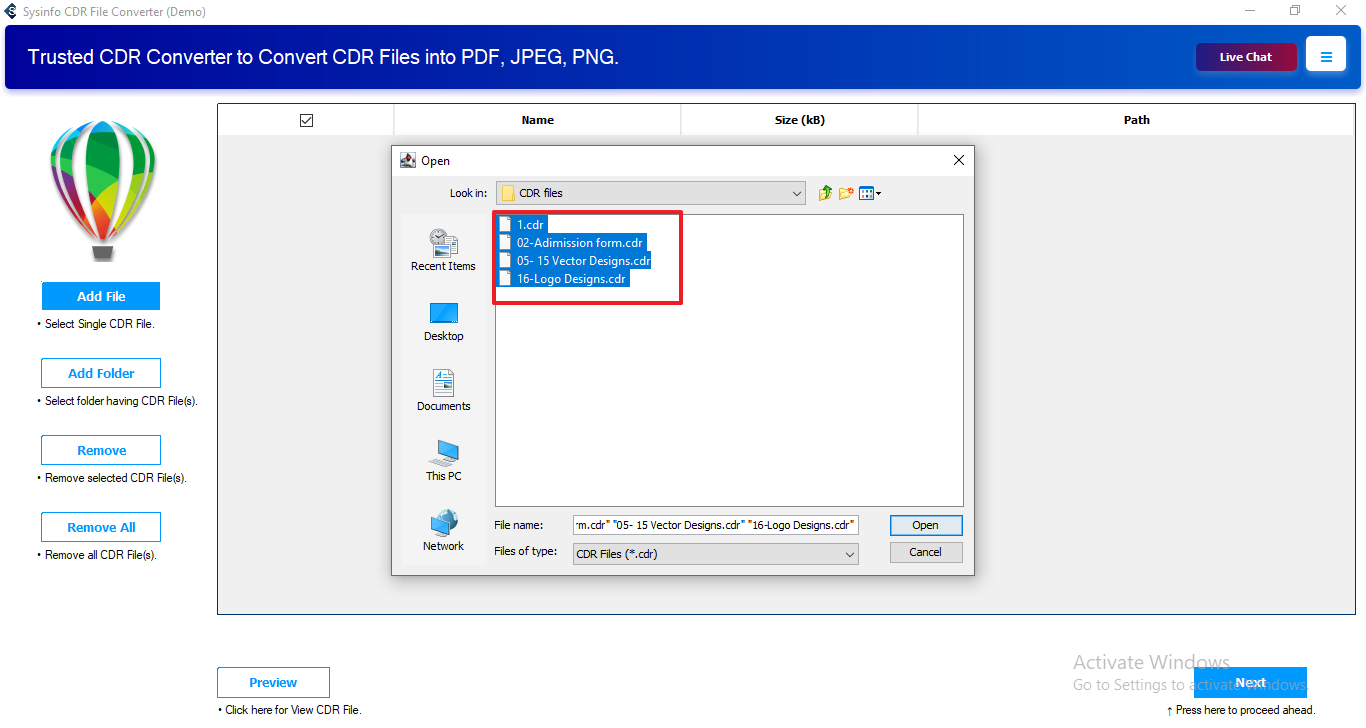
- After that, tap on Select File or Select Folder to add the CDR files to the panel.
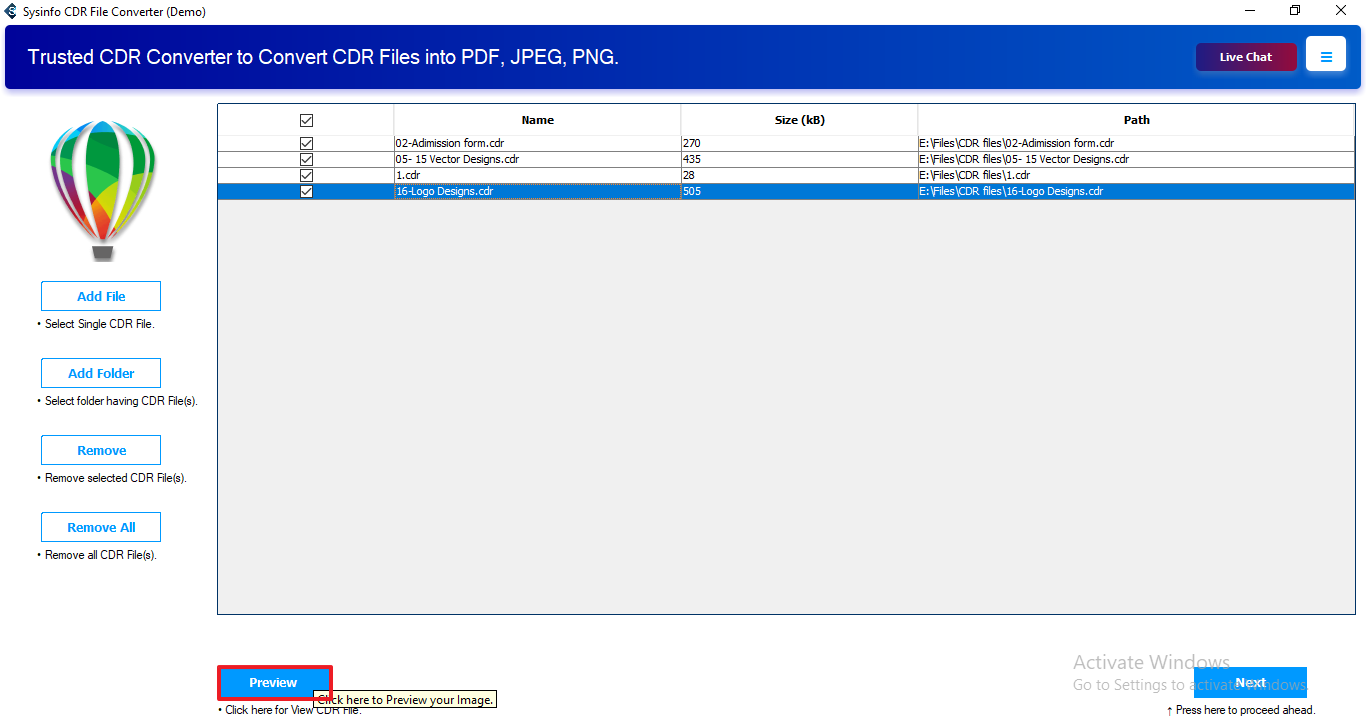
- Moving ahead, click on any added CDR file and then tap on preview to see the content.
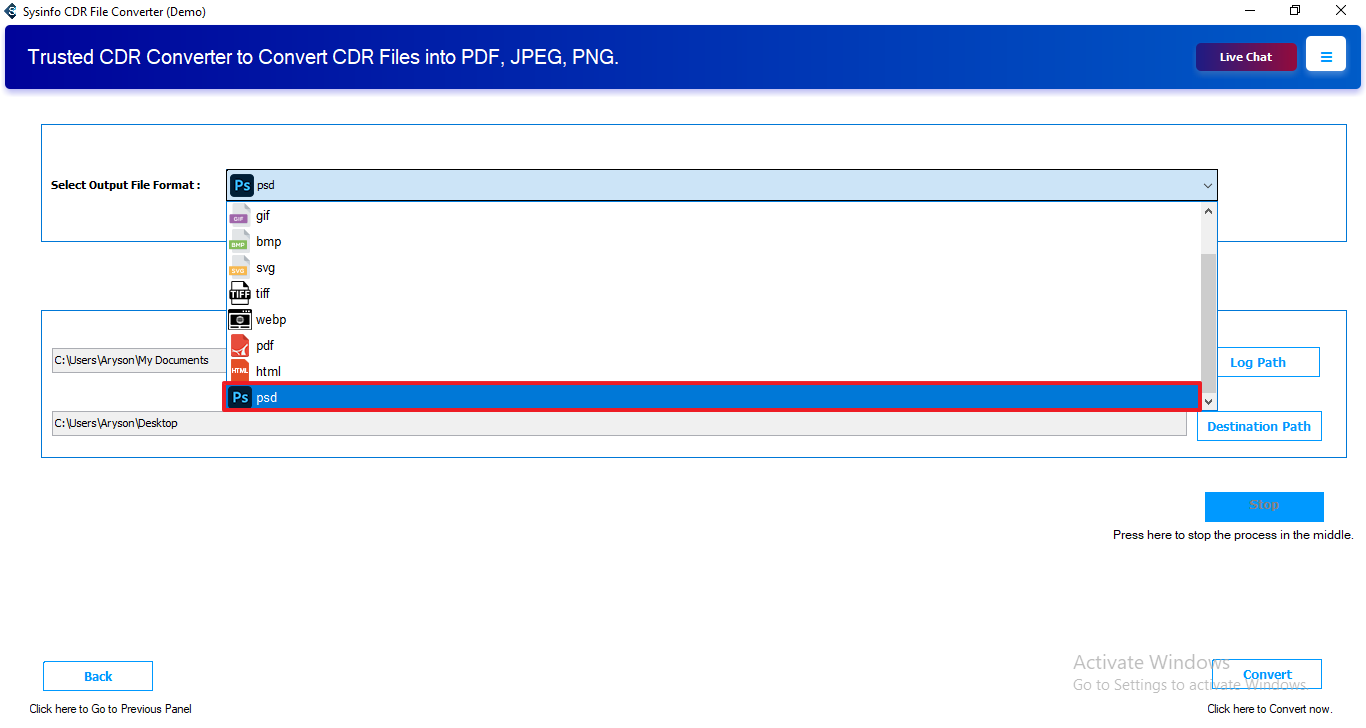
- Now, in the select output file format, choose PSD as the desired format.
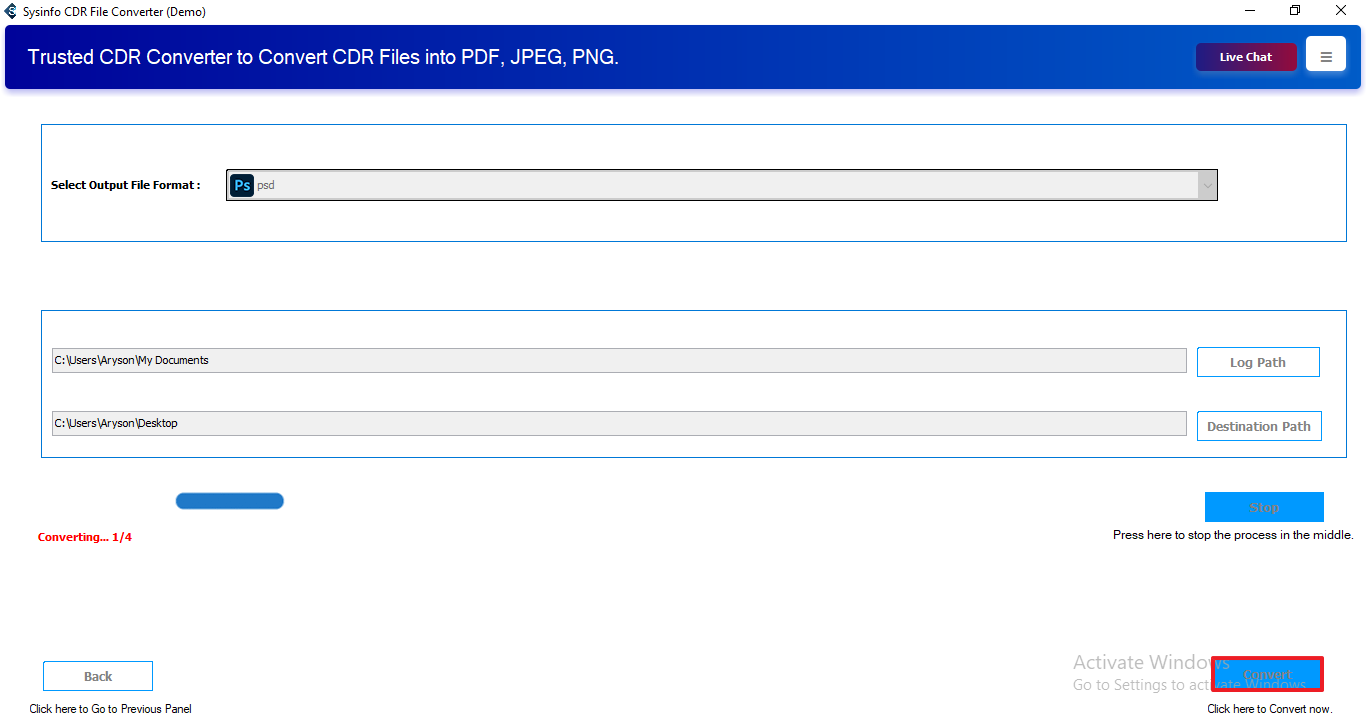
- At last, specify the destination path and click on the Convert button.
Real Case Scenario
“Running an ad agency and received 150 CDR files from a new client. CorelDRAW kept rasterizing text, and transparency effects never came through accurately in PSD output.”
An ad agency in Toronto needed 150 CorelDRAW files converted to PSD for a campaign going into enterprise print production. Manual conversion broke vector layer integrity on complex files, and text rasterized across every single attempt. Three working days spent, and the output quality was still inconsistent and unusable.
MailConverterTools CDR Converter Tool processed all 150 files to convert CorelDRAW file to Photoshop in one uninterrupted batch run. Every text layer and layout structure landed in PSD format exactly as it existed in the original CDR file.
Final Words
Manual CDR to PSD conversion collapses layer groups, rasterizes text, and breaks transparency effects before the job is halfway done. Enterprise print workflows and design agencies cannot afford that kind of output inconsistency on a deadline.
MailConverterTools CDR Converter Tool removes every one of those failure points entirely and helps to convert CDR to PSD without losing quality. It preserves vector layer integrity, keeps text layers intact, and accurately outputs across entire archives in one batch run without CorelDRAW installed.
Frequently Asked Questions
Q.1 Which Is the Best Tool for Converting CDR to PSD?
Ans. Many designers use MailConverterTools CDR Converter to convert CDR files into PSD format without rebuilding graphic elements manually after export.
Q.2 Can I batch convert multiple CDR files to PSD?
Ans. Yes, the MailConverterTools CDR File Converter supports bulk conversion, which helps process multiple CDR design files together in one attempt.
Q.3 How to fix CDR files not opening in Photoshop?
Ans. Adobe Photoshop does not open CDR files directly in many cases. Converting the file into PSD format usually resolves the compatibility issue.
Q.4 Is It Possible to Convert Damaged CDR Files into PSD?
Ans. Some damaged CDR files can still be processed through MailConverterTools CDR Converter, depending on the file condition and corruption level.
About The Author:

Meet Amit, an experienced SEO expert and content planner. He uses his creativity and strategy to create content that grabs attention and helps brands reach their goals. With solid skills in digital marketing and content planning, Amit helps businesses succeed online.
Related Post