-
Written By Amit Chandel
-
Updated on December 22nd, 2025
Best Way to Convert Google Docs to Word Format
Cornor’s Query:I want to convert my Google Doc to Word for easy sharing and offline access. Is there any solution for this conversion process?
There are a lot of users who want to convert Google Docs to Word for better compatibility. Word files provide offline access and easy sharing between different systems. This blog will explain the best ways to convert your Google Doc into Word. It covers the manual solution and a professional method by using the Google Workspace Backup Tool. The tool helps you to make the process simpler and easier with proper security.
Why Convert Google Docs to Microsoft Word?
- Word documents allow full offline access without the need for an internet connection.
- An MS Word file is easy and preferable to share with users who do not use Google Docs.
- Word provides more features and filters to optimize the content against the Doc.
- You can store a Word document locally in your system for backup and future reference.
- Word files are often required for official submissions and professional work.
- Editing and reviewing documents feels more convenient for many users in Microsoft Word.
Manual Method to Convert Google Docs to Word Format
Below are two simple manual methods to convert a Google Docs file to Word. The first method is useful when you want to convert files one at a time. While the second method is suitable for converting multiple documents together.
Method 1: Export Google Docs to MS Word One by One
You can convert a single Google Docs file to Word using either Google Docs itself or Google Drive.
Option 1: Using Google Docs
Follow these steps to convert an individual document:
- To begin with, open Google Docs on your browser.
- Then, open the document you want to convert.
- Afterwards, click on the File menu at the top.
- Select Download from the list.
- Thereafter, choose Microsoft Word (.docx) as the format.
- At last, the document will be saved in Word format on your system.
Option 2: Using Google Drive
You can also convert files directly from Google Drive by following these steps:
- Firstly, open Google Drive in your browser.
- Then, select the Google Docs file you want to convert.
- After that, click on the Download option.
- Finally, Google Drive will automatically convert the file to Word format and download it.
Method 2: Convert Multiple Google Docs to Word at Once
This method allows you to convert several Google Docs files together.
Follow the steps below:
- Firstly, open your Google Drive account.
- Then, locate the Google Docs files you want to convert.
- Hold the Ctrl key and select multiple files.
- Furthermore, right-click on the selected files and choose Download.
- Google Drive will convert all selected files to Word format.
- At last, the files will download as a ZIP folder. Extract the folder to access the Word documents.
Limitations:
- Some complex formatting, such as tables, custom fonts, or page alignment, may change after conversion.
- There is no option to apply filters or choose specific parts of documents during export.
- The process depends fully on internet access, which can slow down work if the connection is unstable.
Advance Tool to Convert Google Docs to Word Format
MailConverterTools Google Workspace Backup Tool is the reliable choice to convert a Doc file to Word. It can handle multiple Doc files and is able to convert them to Word format in a single go. The tool offers specific filters and provide facility to convert into multiple formats. Additionally, the tool offers a free demo version of this tool to allow users to verify its performance.
Steps to Convert Google Documents to Word:
- Firstly, download the tool and click Backup Google Workspace All Services.
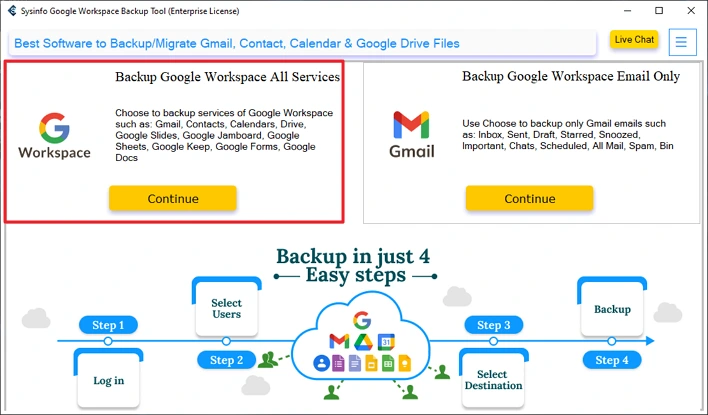
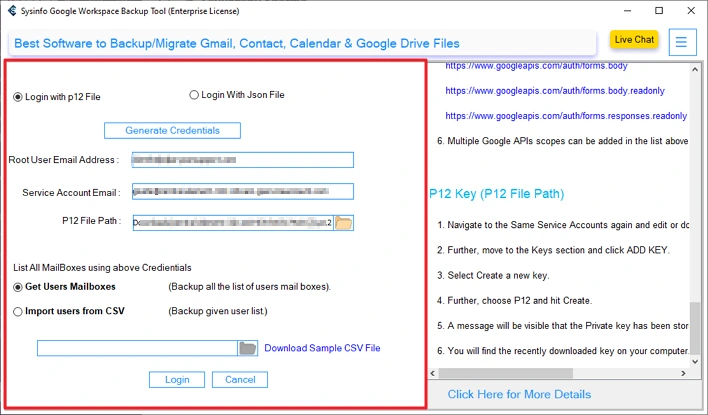
- Then, log in with G Suite credentials.
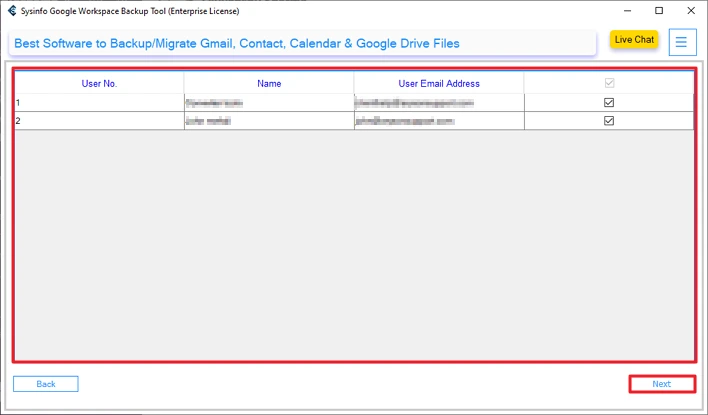
- Select the G Suite users and click Next.
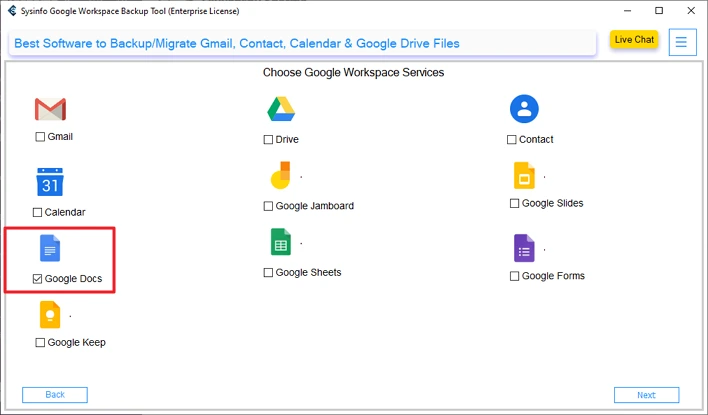
- After that, choose Google Docs.
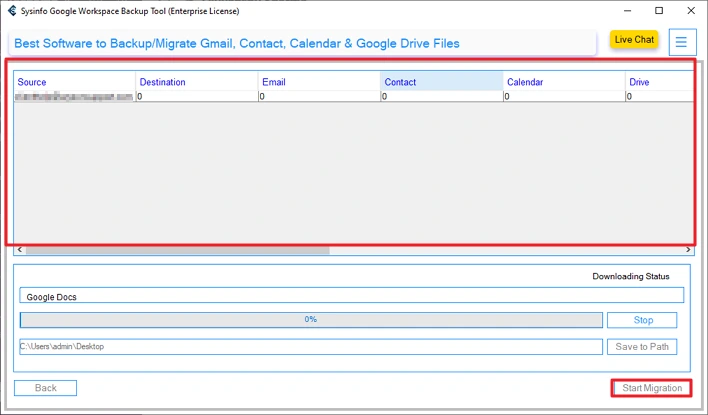
- Finally, click on Start Migration to initiate the process.
Successful User Case:
A documentation team needed to convert hundreds of Google Docs into Microsoft Word files. The team faced difficulty using manual download methods due to time limits. They chose the Google Workspace Backup Tool to simplify the task. The tool allowed them to export all required Google Docs into Word format in one session while keeping the document structure intact.
Conclusion
To conclude, in this blog, we covered various solutions to convert Google Docs to Word. With the help of this blog, we discussed multiple manual solutions and introduced a professional Google Workspace Backup Tool. Manual methods are useful for limited files because it requires the repetition for each file. Here, the professional tool eases the work by handling bulk files in a single go. Also, it provides security and 100% accuracy.
Frequently Asked Questions
Q1. Can I convert Google Docs to Microsoft Word on a mobile device?
Ans: Yes, you can convert Google Docs to Word on a mobile device using the Google Docs app. Open the document, tap on the menu, choose Share & export, and download the file as a Word document. However, bulk conversion is not supported on mobile.
Q2. Can I convert multiple Google Docs to Word at once?
Ans: Yes, multiple Google Docs can be converted to Word format at the same time using Google Drive. Select several files, download them together, and they will be saved as Word files inside a ZIP folder. For large batches, a professional tool works better.
Q3. Can I export Google Docs to MS Word offline?
Ans: No, an internet connection is required to export Google Docs to Word. Since the files are stored online, Google needs active access to complete the conversion.
Q4. Will images and tables stay the same when converting Google Docs to Word?
Ans: Basic images and tables usually remain unchanged. However, complex layouts, custom fonts, or advanced formatting may appear slightly different after conversion, especially with manual methods.
About The Author:

Meet Amit, an experienced SEO expert and content planner. He uses his creativity and strategy to create content that grabs attention and helps brands reach their goals. With solid skills in digital marketing and content planning, Amit helps businesses succeed online.
Related Post