-
Written By Vikas Bajpai
-
Updated on April 24th, 2026
How to Convert PDF to Excel Easily (No Formatting Loss)
User Query: We juggle roughly 150 PDFs every month, each hitting 50 to 70 MB with messy nested tables. Copy-paste workflows cause errors and waste hours. What is the fastest way to convert our PDF files to Excel at scale without losing merged cells or date formats?
Have you ever spent hours typing numbers from a static document into a spreadsheet? This task is boring and often leads to mistakes. Many people struggle when they need to convert PDF to Excel without messing up their data. Maintaining structural integrity is the biggest challenge during this process. Without the right tools, rows and columns often get mixed up. This makes your workspace messy and requires more cleaning. This guide covers the manual and automated PDF File Converter Tool methods to make your data management tasks easier.
Why Accurate Data Extraction is Important?
Clean extraction keeps your data usable for audit or other uses. When you convert PDF file to Excel without precision, headers shift and formatting breaks.
- Minor spreadsheet mistakes quickly distort forecasting models.
- PDF tables with merged cells break during manual copying.
- Purpose-built converters preserve column structure and numeric precision.
- Clean output eliminates post-transfer cleanup and audit delays.
What are the Manual Ways to Handle PDF to Excel Conversion?
Manual extraction is a good choice for simple files. It is free and works well for small documents. Manual conversion looks straightforward yet consistently breaks table formatting. So you can follow the methods mentioned below to handle PDF conversion without any hassle.
Method 1: Using Microsoft Excel Import Feature
- To begin with, launch Microsoft Excel and head over to the File menu, then select Open.
- Change the file type to All Files so your PDF actually shows up in the list.
- Then, pick the file and click Open to proceed.
- A confirmation pop-up will appear, so click Yes to continue.
- After this, the Text Import Wizard will guide you through the process.
- Next, adjust delimiters and column structure as required.
- Continue by selecting the appropriate data format, and then click finish.
- Once imported, take a moment to review and fix any issues.
- In the end, save the file as an Excel workbook (.xlsx).
Method 2: Using Adobe to Save PDF to Excel
- First, install and open Adobe Acrobat Pro on your system.
- Then, upload and open your PDF file to view its content.
- Next, click on Export PDF from the right panel.
- After that, choose Excel Spreadsheet as the output format.
- Adjust settings if needed, then click Export.
- As the last step, choose the location and click Save.
Why Are The Manual Methods Not preferred?
- Complex layouts often lose their original formatting.
- Image-based PDFs are not properly supported.
- It takes considerable time to process large amounts of data manually.
- Human errors are more likely during the manual process.
- Bulk conversion is not supported in most cases.
- There is less flexibility in managing the final result.
- Steps are not easy to execute, so technical knowledge is required.
How Can You Convert PDF to Excel in Bulk Easily?
Manual entry is not the best way for complex financial documents. Professional PDF tools keep data accurate and safe. The MailConverterTools PDF File Converter software makes your work smooth and mistake-free. You can easily convert your PDF files and ensure that every digit remains exactly where it belongs. Users can also explore how to convert PDF to EML for email-based workflows when needed.
How to Transform PDF to Excel Without Data Loss?
- At first, download and launch the MailConverterTools PDF File Converter on your system.
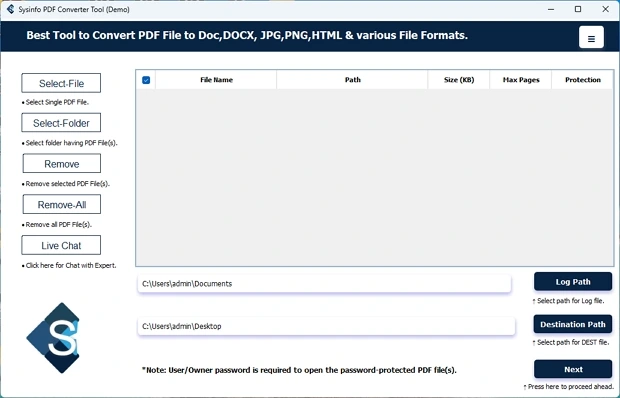
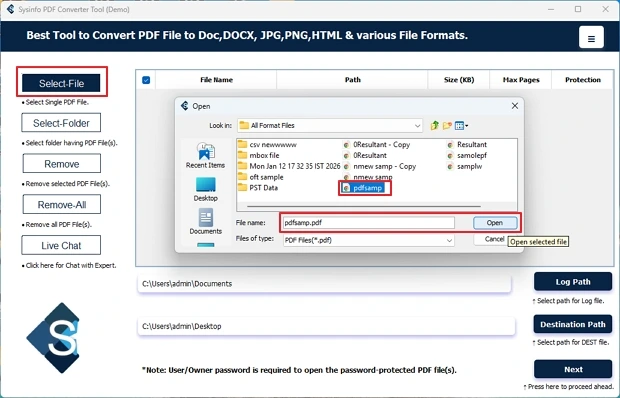
- Further, click on Select File or Select Folder and add the PDF files to convert.
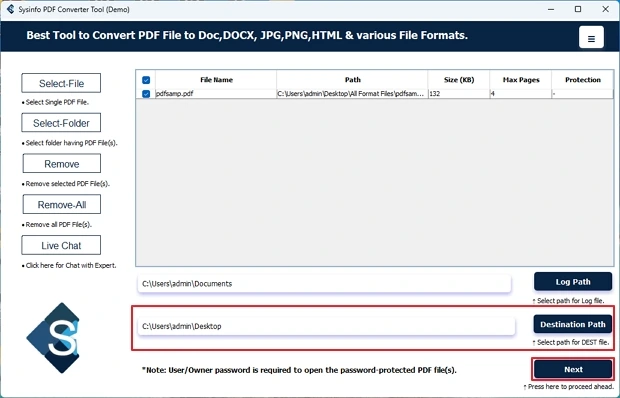
- After that, specify the destination path where you want the resultant file to be saved and click Next.
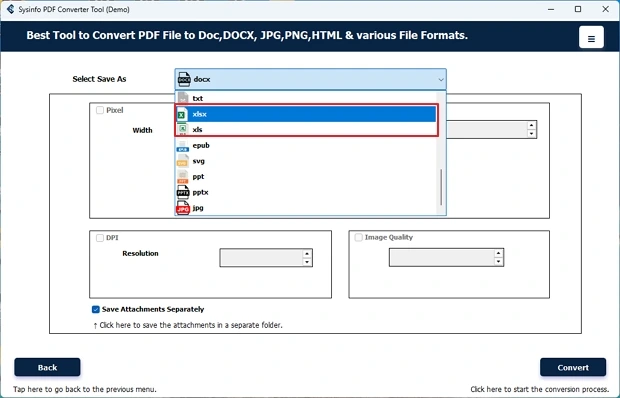
- Choose XLSX or XLS file format from the Select Save As option.
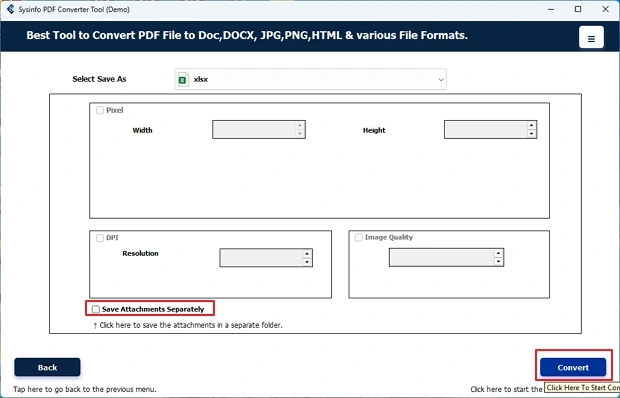
- In the last step, choose how you want to manage attachments and click Convert to convert PDF to Excel.
Why is This Tool The Preferred Choice of Organisations?
- The software makes it easy to process many PDF files at the same time.
- Runs without internet, which helps keep your data secure.
- Preserves formatting so the output looks close to the original.
- Supports secured PDFs by allowing password-based access.
- The utility lets you convert PDF to TXT and other file formats.
- Suitable for large files without major restrictions.
- Allows you to extract and store attachments separately.
- Offers wide compatibility across Windows and Mac OS.
Real World Case: How a Finance Team Cut Audit Prep Time?
An accounting team processed 63 PDF invoices daily. Manual Excel entry took 2 hours 40 minutes on average. Errors popped up in 9 of every 100 rows. They tried MailConverterTools PDF File Converter to transform PDF to Excel. The tool delivered great results for them as processing dropped to 31 minutes. It ensured that the formatting and metadata were intact. The team stopped fixing typos and started spotting budget variances instead.
Final Words
Picking the right extraction method directly impacts data integrity. Manual entry handles a few documents fine, yet it drags on and routinely breaks table alignment. When you need to convert PDF to Excel at scale, MailConverterTools PDF File Converter cuts the manual repetition. It preserves column structures, processes batches in one run, and keeps formatting intact without constant oversight.
Frequently Asked Questions
Q.1 What is the best software to convert PDF to Excel?
Ans: A reliable PDF Converter Software like MailConverterTools PDF File Converter is a good choice, as it ensures accurate results, supports bulk conversion, and keeps formatting intact without complicated steps.
Q.2 Can I convert a PDF file to Excel without losing formatting?
Ans: Yes, it is possible when you use a trusted tool. MailConverterTools PDF File Converter helps preserve table structure, layout, and overall data accuracy during conversion.
Q.3 Is there a file size limit when saving PDF to Excel?
Ans: MailConverterTools PDF File Converter handles large PDF files smoothly without limits, ensuring accurate PDF to Excel conversion with preserved formatting for all file sizes.
Q.4 Can I convert multiple PDF files to Excel at once?
Ans: Yes, MailConverterTools PDF Converter Software supports bulk conversion, allowing you to process multiple PDF files together, which helps save time and reduces manual effort significantly.
About The Author:

Vikas Bajpai is a results-driven SEO expert and content strategist with a strong passion for building impactful digital experiences. He specializes in crafting data-backed content plans that boost visibility, engage audiences, and drive measurable growth. With deep expertise in search engine optimization, keyword strategy, and content marketing, Vikas helps brands strengthen their online presence and achieve long-term success.
Related Post