-
Written By Amit Chandel
-
Updated on December 3rd, 2025
How to Extract Calendar from OST File? Best Way
Brook Query: “I have an old Outlook profile with an OST file. I need to extract only the calendar data from it. How can I easily and quickly export my calendar data?”
Outlook’s calendar makes meeting planning and management simple by keeping everything in one place. The storage location you choose will determine whether your calendar data is subject to being damaged and/or lost. Therefore, extract calendar from OST file is very important if you have any entries that are critical. This blog outlines two ways for you to export your calendar data from an OST file: manually and with the professional MailConverterTools OST to PST Converter Tool.
Why Export Calendar From OST File?
- If your Outlook profile gets corrupted, deleted, or can’t sync, the OST file might be the only place where your calendar is saved. Export helps you recover that data.
- Exporting the calendar lets you access your events even when you don’t have Outlook.
- Save your calendar, create a backup you can keep safe and use anytime.
- When moving to a new computer, Outlook account, or email service, exporting the calendar makes it easier to transfer your important dates.
- Exported calendar data can also be shared with others or kept for future reference and record-keeping.
Manual Method to Extract Calendar from OST File
This manual method works only if your Outlook OST file is accessible and Outlook is connected. If your file is inaccessible or Outlook is offline, consider using the automated method described later.
Extract Calendar from Outlook 2013, 2016, and 2019
- Firstly, open Outlook and go to File.
- Then, select Open & Export, then click Import/Export.
- Choose Export to a file and click Next.
- Select Calendar from the list and ensure Include subfolders is checked. Click Next.
- Finally, choose the destination folder to save the exported calendar and click Finish.
Save Calendar data from OST File from Outlook 2010
- Open Outlook and click File > Options.
- Then, go to the Advanced tab and click Export.
- Select Export to a file and click Next.
- Thereafter, select the Outlook Data File (.pst) and click Next.
- Select Calendar and check Include subfolders. Click Next.
- At last, browse to select the save location, then click Finish.
Extract Calendar data from the OST file from Outlook 2007
- Launch Outlook, click File, and select Import and Export.
- Then, choose Export to a file and click Next.
- Select Personal Folder File (.pst) and click Next.
- Highlight Calendar, check Include subfolders, and click Next.
- Finally, browse to select the destination folder, name the file, and click Finish.
Limitations:
- You need to have Outlook running and the OST file accessible for this to work.
- These methods don’t work with offline or disconnected OST files.
- Exporting a large calendar manually can take a lot of time and might cause errors.
Professional Method to Extract Calendar from OST File
OST to PST Converter is the most Trusted and Reliable tool for your OST file issues. It’s user-friendly and secure, so many IT professionals recommend it. It also includes features such as the ability to easily remove duplicate emails and to reduce the complexity of your email management by introducing a range filter based on the date of all your emails – making your extraction easier! Additionally, it migrates to Office 365 and over 15 other Email Clients, and works on all versions of Windows.
Steps to Recover Calendar From OST File
- To begin with, download the OST to PST Converter Tool.
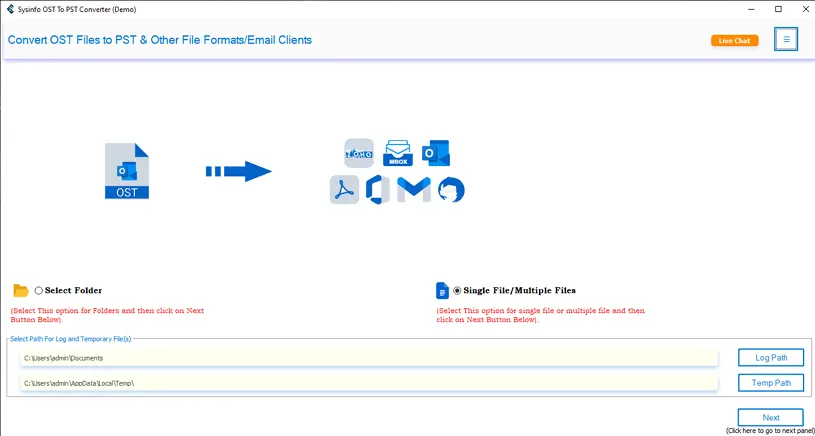
- Then, select the OST file and click Next.
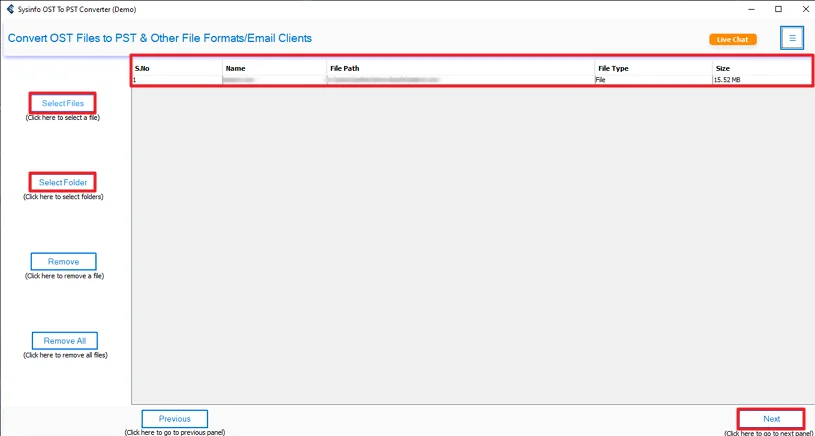
- Preview and select the files, and click Next.
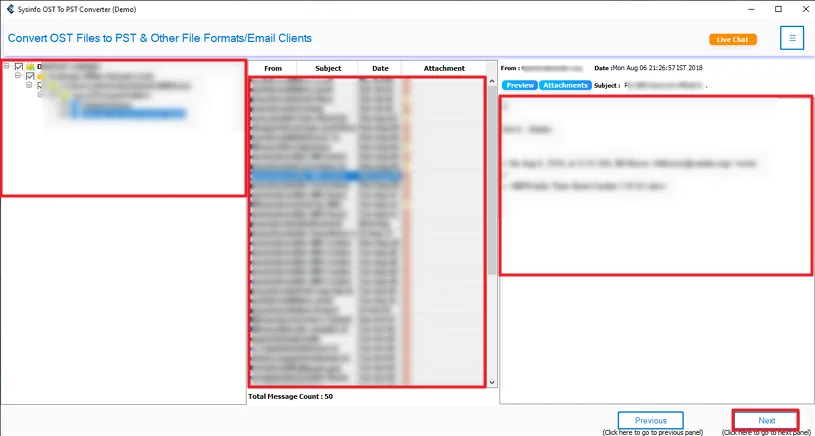
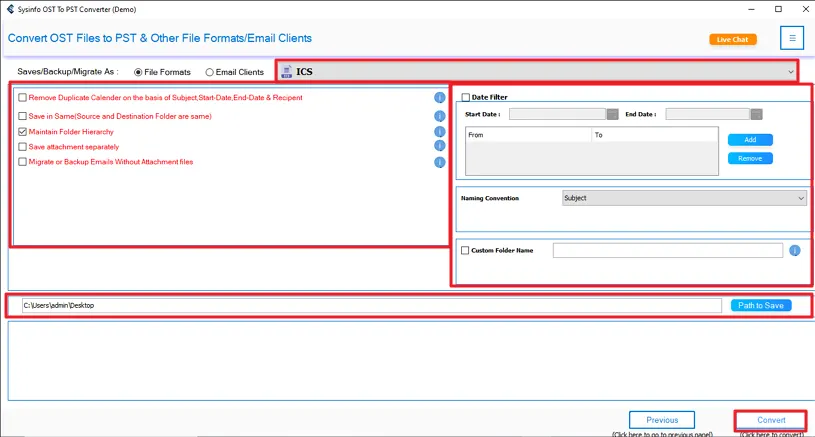
- Finally, choose ICS, apply filters, and set the destination, then click Convert.
Successful User Case:
An IT Administrator was unable to access the Outlook Calendar after having the profile crash and could not use the manual export method due to Outlook’s inability to open. Instead, he utilized the OST to Outlook PST Converter, which allowed him quick access to load the OST file, view his calendar, and convert the data from that calendar to the ICS format. By using this method, he was able to quickly recover all of the meetings that he had in his new Outlook account.
Conclusion
To conclude, extract calendar from OST file becomes important when Outlook stops working or won’t open. The manual export option is helpful, but only when Outlook is accessible. If the file is damaged or Outlook won’t load, a dedicated OST Converter Tool makes the job easier. It lets you quickly recover, save, or move your calendar data without risking any loss.
Frequently Asked Questions
Q1. How can I extract calendar data from an OST file manually?
Ans. You can manually extract your Outlook calendar using the Import/Export feature in Outlook. Go to File > Open & Export > Import/Export, choose Export to a file, select Calendar, and save the data as a PST or ICS file. This method is suitable only when Outlook is working, and the OST file opens without any issues.
Q2. Is it safe to extract calendar data from an OST file?
Ans. Yes, extracting calendar data from an OST file is safe when done correctly. Manual export is secure if Outlook is functioning. However, if the OST file is corrupted or Outlook won’t open, using a professional OST converter tool ensures a safer and more dependable extraction without risking data loss.
Q3. Which is the best tool to extract the Calendar from the OST File?
Ans. The most effective solution is a professional MailConverterTools OST to PST Converter Tool, as it can extract calendar data even from damaged, orphaned, or inaccessible OST files. It offers advanced filters, supports ICS export, and doesn’t require Outlook. Many IT specialists recommend it for its accuracy, speed, and stable performance across Windows versions.
About The Author:

Meet Amit, an experienced SEO expert and content planner. He uses his creativity and strategy to create content that grabs attention and helps brands reach their goals. With solid skills in digital marketing and content planning, Amit helps businesses succeed online.
Related Post