-
Written By Amit Chandel
-
Updated on February 23rd, 2026
How to Batch Convert CDR to PDF Without CorelDRAW
User Query: We mostly handle software-related stuff, so design files aren’t really our thing. But a client just sent us a bunch of CDR files. The problem is, we don’t even have CorelDRAW installed, and honestly, we don’t have the system space to install such a heavy program just for a few files.
The easiest idea that came to mind was converting those CDR files into PDF. PDFs open on pretty much any device and are way easier to share. So now we’re just trying to figure out the simplest way to save CDR files as PDFs without complicating things.
This thing actually happens a lot. Someone sends you a CDR file, and you’ve never even used CorelDRAW before. Installing big software just to open a few files doesn’t always feel worth it. That’s why in this blog, we’ll go through some simple ways to convert CDR to PDF without the headache. We’ll also mention the MailConverterTools CDR Converter Tool if you’re dealing with multiple files and don’t want to do everything one by one. And honestly, once you start using PDFs, it’s easy to see why they’re just more convenient than CDR files in most cases.
Why Do Users Convert CorelDRAW CDR to PDF?
- CDR files only open properly in CorelDRAW, and not everyone has it installed.
- Installing heavy design software just to view one file doesn’t always make sense.
- PDFs open on almost any device — Windows, Mac, or even mobile.
- Easy to share over email or upload without worrying about format issues.
- Layout, fonts, and design stay fixed in PDF.
- PDFs can be password-protected or locked.
- Better for printing and quick client reviews.
- Overall, PDF just feels simpler and more practical to handle.
Simple Manual Methods to Convert CDR to PDF
Let’s check out two straightforward ways to turn a CDR file into a PDF. Both options are tested methods.
Method 1: Convert CDR Files to PDF Using CorelDRAW
- Firstly, open CorelDRAW and load the CDR file.
- Click on File and choose Save As.
- From the file type list, select PDF.
- Further, change the file name or pick a different folder.
- Finally, hit the Save button.
Limitations of Using CorelDRAW
- It’s paid software, so you need a license.
- The installation is heavy and takes up a good amount of system space.
- Not practical if you only need to convert one or two files.
- Batch conversion isn’t very smooth for large numbers of files.
- You must have the same or a compatible version to avoid formatting issues.
Method 2: Change CDR to PDF Using Inkscape
- Install and open Inkscape.
- Open your CDR file inside the program.
- Go to File and click Save As.
- Type a file name, choose the location, and select PDF as the format.
- Click Save, confirm the options if asked, and that’s it.
Limitations of Using Inkscape
- Not all CDR versions are fully supported.
- Complex designs may not open properly.
- Fonts and layout can sometimes shift.
- May struggle with large or detailed files.
- Requires manual conversion of one file at a time.
Professional Method to Convert CDR to PDF Without CorelDRAW
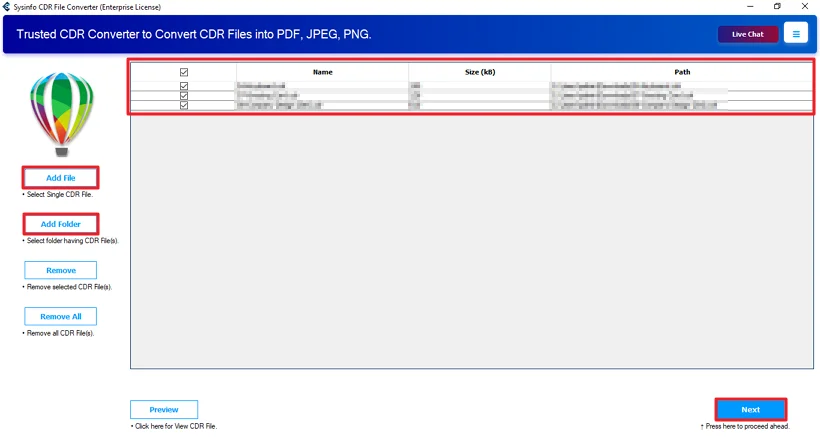
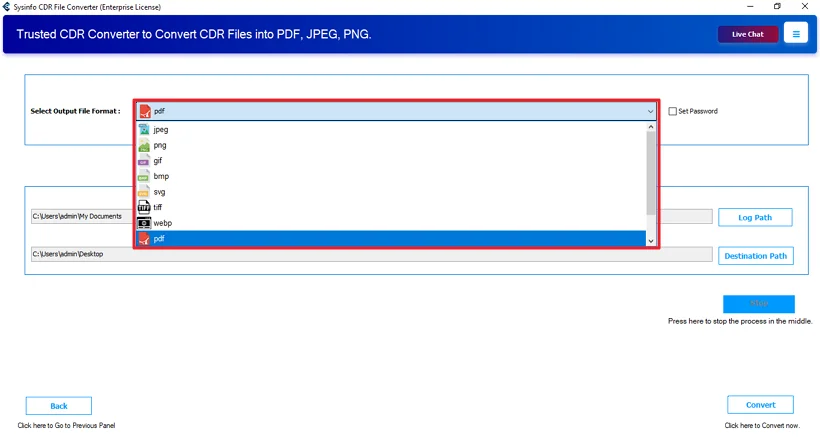
MailConverterTools CDR Converter Tool is a smart tool that converts CDR files to the PDF format. You don’t need CorelDRAW to use it. It runs on its own. You add the CDR file, choose PDF as the output, and start the process. That’s pretty much it. The tool keeps the layout and design the same as the original file in most cases. Also, you can use this tool to convert CDR to PSD, PDF, JPG, and many more formats.
Steps to Export CDR File to PDF
- Firstly, download the CDR Converter Tool.
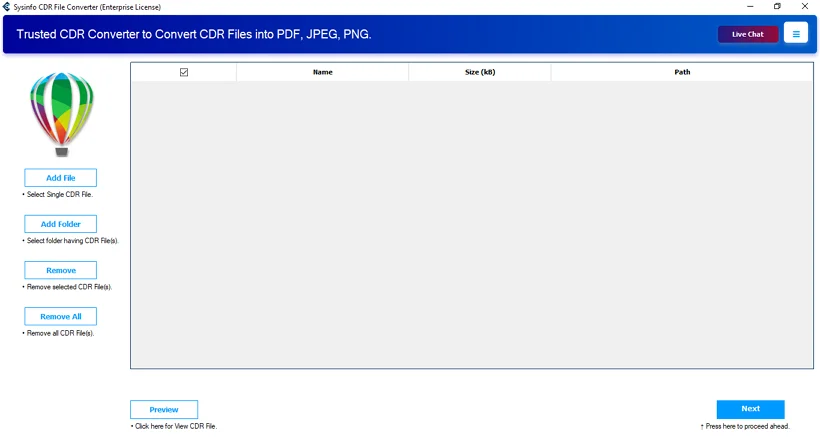
- Then, add the CDR files and hit Next.
- Further, choose the PDF file format.
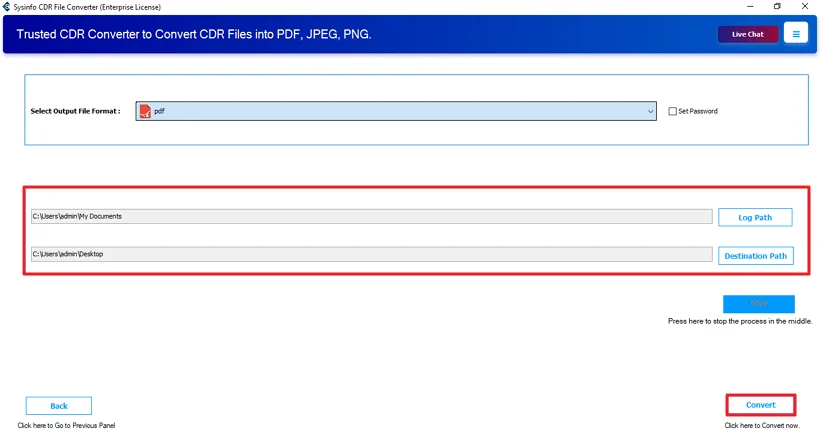
- Lastly, set the path and click the Convert button.
Successful User Case
A small design team got a bunch of old CDR files from a client. They needed to check them and send them back for approval. The problem was that not everyone had CorelDRAW installed.
So they tried the MailConverterTools CDR Converter Tool instead. They added all the files together and converted them to PDF in one go. The layouts and fonts looked the same as the originals. After that, sharing the files with the client was much easier.
Related Post: Convert CDR to SVG
Conclusion
In this blog, we went through everything step by step. First, we talked about why people convert CDR to PDF in the first place. Then we looked at three different ways to do it. The first two were manual methods. The last one was using the CDR Converter Tool, which is a bit quicker, feels simple, and works best for you.
Frequently Asked Questions
Q.1 Which is the best tool to convert CDR to PDF?
Ans: The MailConverterTools CDR Converter Tool is a simple option. It converts CDR files to PDF without needing CorelDRAW.
Q.2 Is it possible to convert CDR to PDF on Windows and Mac?
Ans: Yes, you can convert CDR to PDF on both systems. Manual methods depend on the software you install. The CDR Converter Tool works without CorelDRAW and makes the process straightforward.
Q.3 How can I convert CDR files to PDF without data loss?
Ans: To avoid layout or font changes, it’s better to use a reliable method. The MailConverterTools CDR Converter Tool keeps the original design, formatting, and file details the same in most cases.
Q.4 Can I change CDR to PDF easily without technical knowledge?
Ans: Yes. The steps are simple. You just add the CDR file, select PDF as the output format, choose the location, and click Convert. You don’t need any design or technical background to use it.
About The Author:

Meet Amit, an experienced SEO expert and content planner. He uses his creativity and strategy to create content that grabs attention and helps brands reach their goals. With solid skills in digital marketing and content planning, Amit helps businesses succeed online.
Related Post