-
Written By Amit Chandel
-
Updated on December 19th, 2025
Effortless Way to Convert SQLite to Access Database
Barbe’s Query: How can I convert an SQLite database to an MS Access database to improve reporting, multi-user access, and data analysis? Especially when working with legacy systems, which manual methods or tools can help ensure a safe conversion without data loss?
Data mobility is important in today’s DB environment if you want older software to work smoothly with new technologies. SQLite is not ideal for complex requirements, but MS Access provides better support for organised reports, scalable analysis, and more. In this blog, we will convert SQLite to Access Database using some manual approaches and with the SQLite Database Recovery Tool. Before that, let’s see the reasons for this conversion.
Why Convert SQLite Database to Access MDB?
- This conversion allows you to merge a lightweight database into centralised workflows.
- It is important to create an access table for reporting and integration with tools like Excel and BI.
- It helps you to search data easily from the old SQLite database records.
- For the non-technical operational teams, it’s helpful in GUI-based editing.
- Useful for simplifying reporting without rewriting the whole workflow.
- Moreover, it is important to prevent data corruption and ensure safe backups.
Convert SQLite to Access Database Manually
Since there is no direct way to convert an SQLite database into an MS Access file, you must use indirect methods. The two most common approaches are exporting data to CSV files and using an ODBC connection. Both methods are explained below.
Method 1: Export SQLite Tables as CSV and Import into MS Access
- To begin with, open the SQLite database using a tool such as SQLite Studio or DB Browser for SQLite.
- Then, select the table you want to move and click File -> Export.
- Choose CSV format and save the table to your local system.
- Thereafter, open Microsoft Access and create a new blank database.
- Afterwards, go to External Data -> New Data Source -> From File -> Text File.
- Furthermore, browse to the saved CSV file and choose the option to import it into a new table.
- Finally, match the fields correctly and complete the import wizard.
At last, repeat these steps for each table. After importing, you must manually rebuild relationships, indexes, and primary keys in MS Access.
Method 2: Export SQLite Database to Access Database by ODBC
- Firstly, install the SQLite ODBC driver (32-bit or 64-bit, based on your Access version).
- After that, create a Data Source Name (DSN) for the SQLite database using the driver.
- Then, open Microsoft Access and go to External Data.
- Furthermore, select the ODBC Database and choose to import data into a new table.
- Thereafter, pick the created DSN and select the required SQLite tables.
- Finally, click Import, and Access will pull the data from the SQLite database.
Limitations:
- Indexes, constraints, triggers, and views are not transferred during conversion.
- Relationships, primary keys, and indexes must be recreated manually in MS Access.
- Tables cannot be converted in bulk and must be handled one by one.
- The conversion process is time-consuming and requires technical effort.
- Large databases may take longer to transfer and can slow down the system.
Effortless Method to Convert SQLite to Access Database
Many users want a direct, secure, and simple solution for SQLite to Access Database conversion. Then, MailConverterTools SQLite Database Recovery Software is the best choice for a secure, fast, and direct solution. This tool helps you to repair and restore your tables, indexes, views, and triggers in a single go. Moreover, it offers a smart filter, features, and a user-friendly Graphical User Interface.
Steps to Import SQLite Database into Microsoft Access:
- To begin with, open the SQLite Recovery Tool and click Open from the top-left menu.
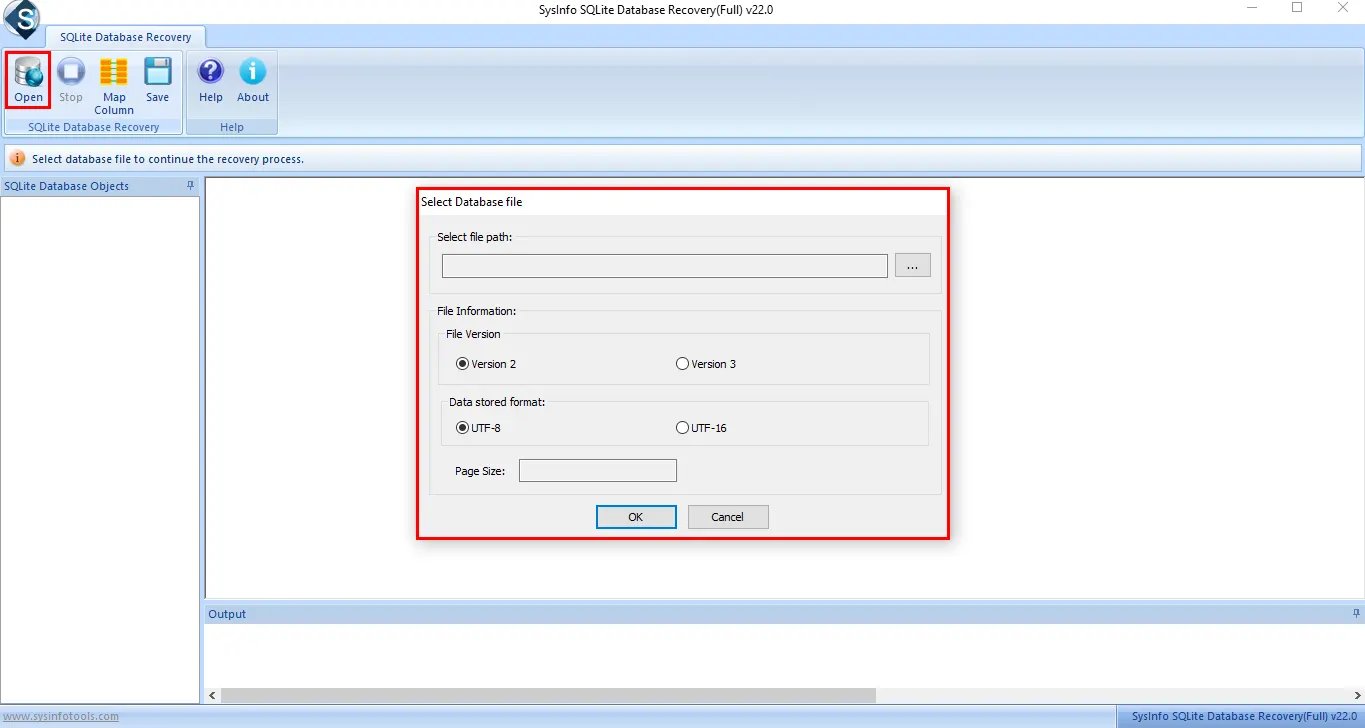
- Then, click Browse (…) to add the SQLite database file; the tool will automatically read the database details.
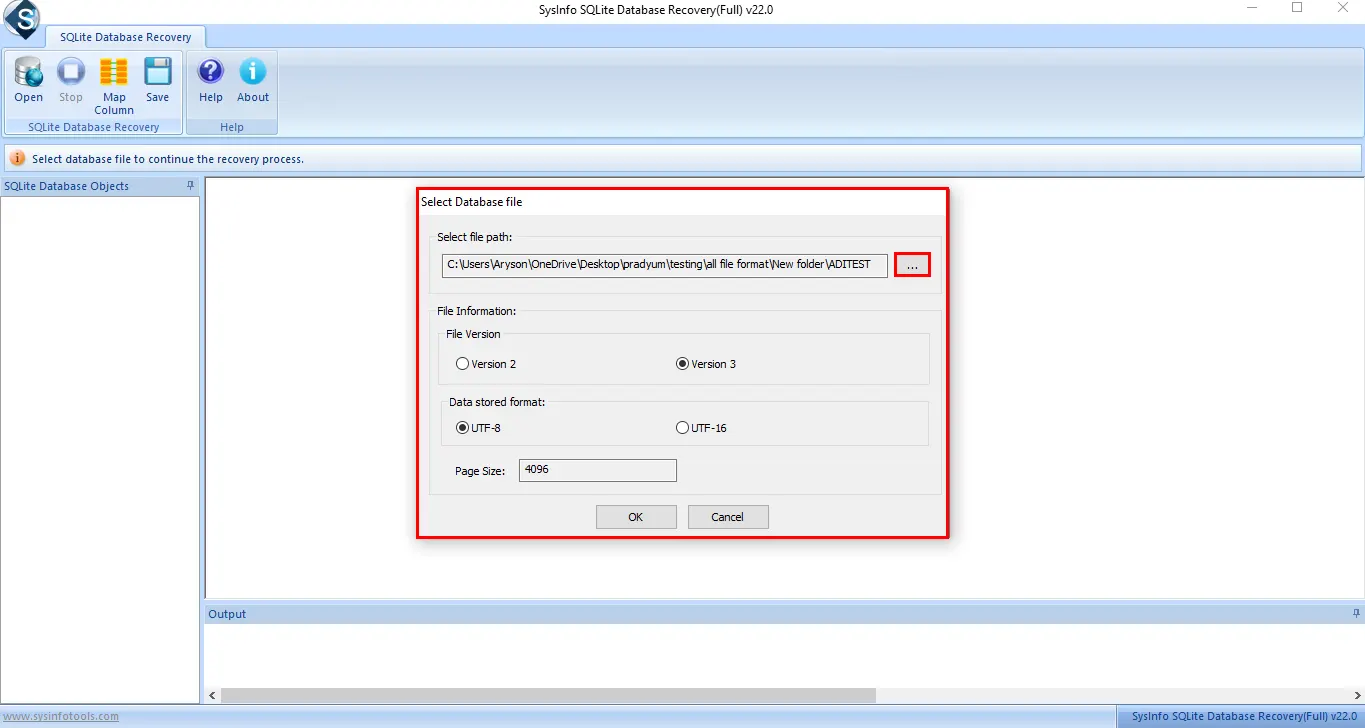
- Afterwards, click OK to start scanning. Once completed, all tables from the database will be displayed.
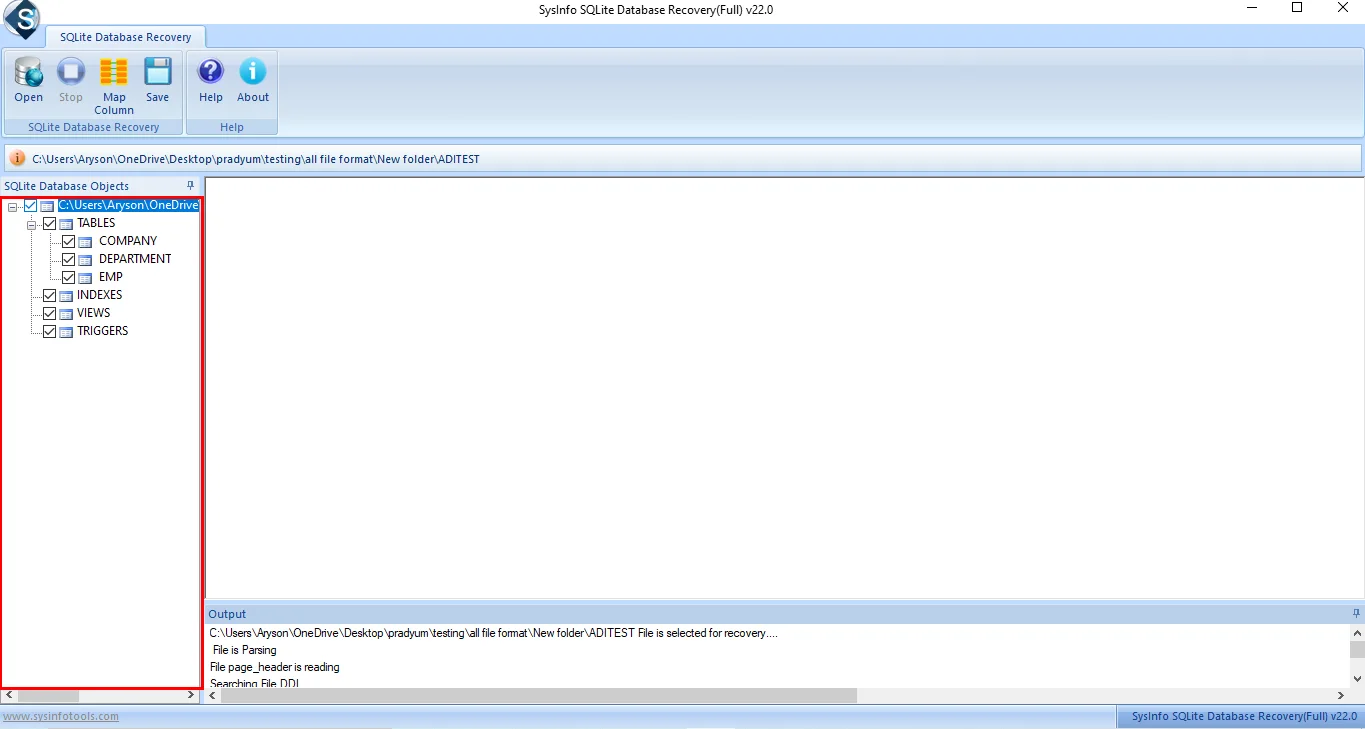
- Thereafter, preview the data and select the required tables from the tree view. Use the Map Column if you need to customise the fields.
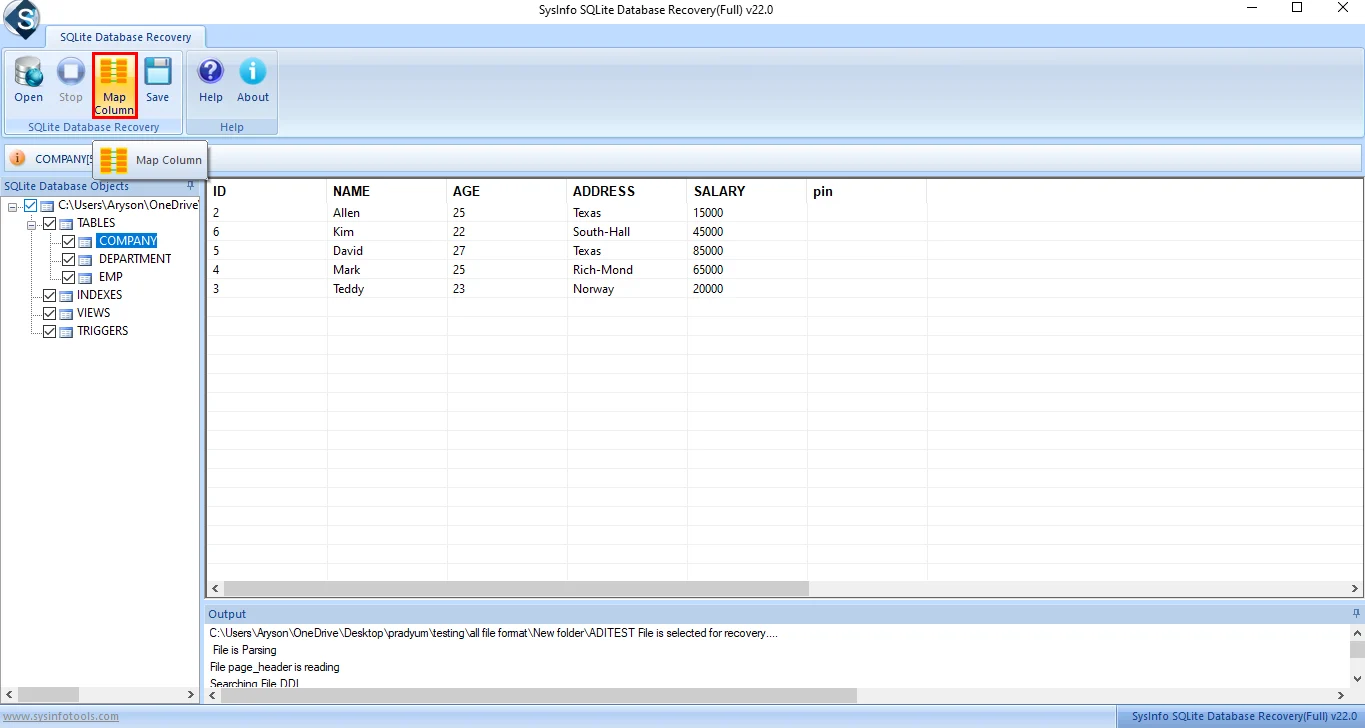
- Furthermore, click Save -> Save in MDB to convert the SQLite database into an Access file.
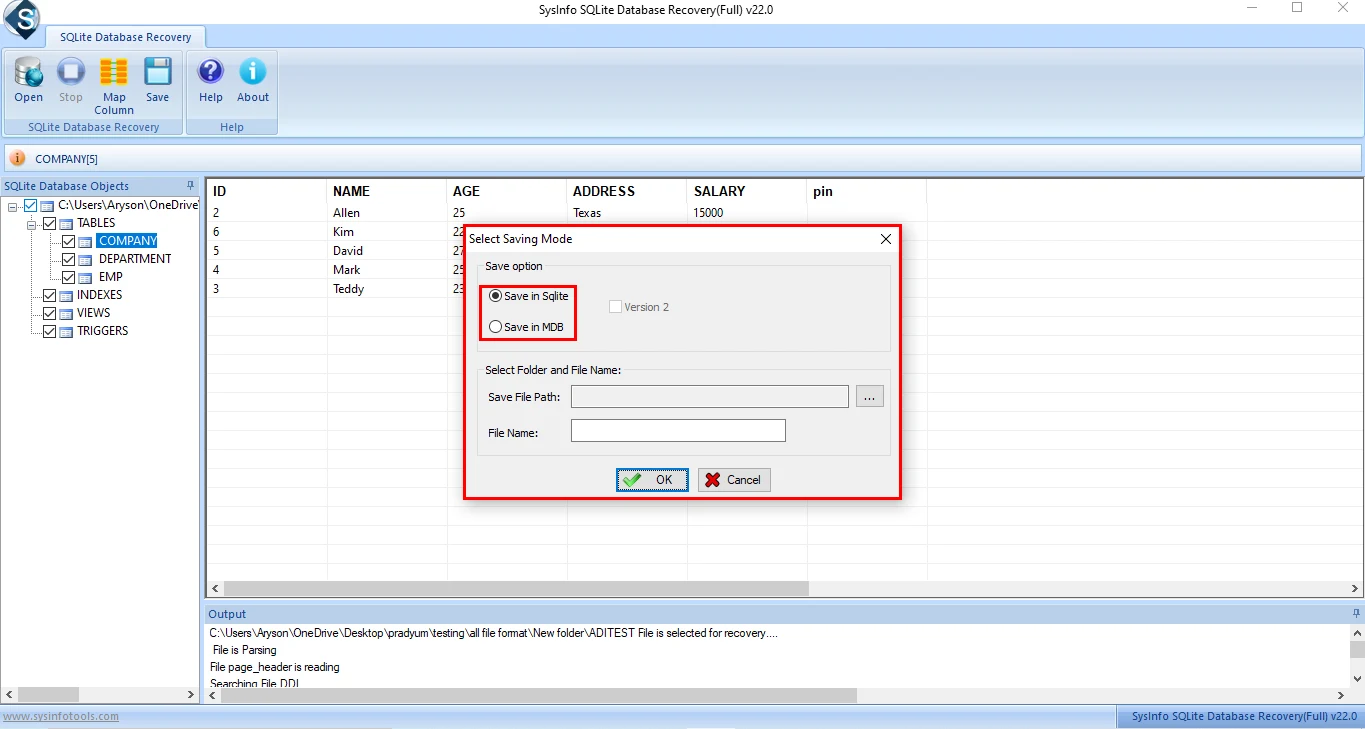
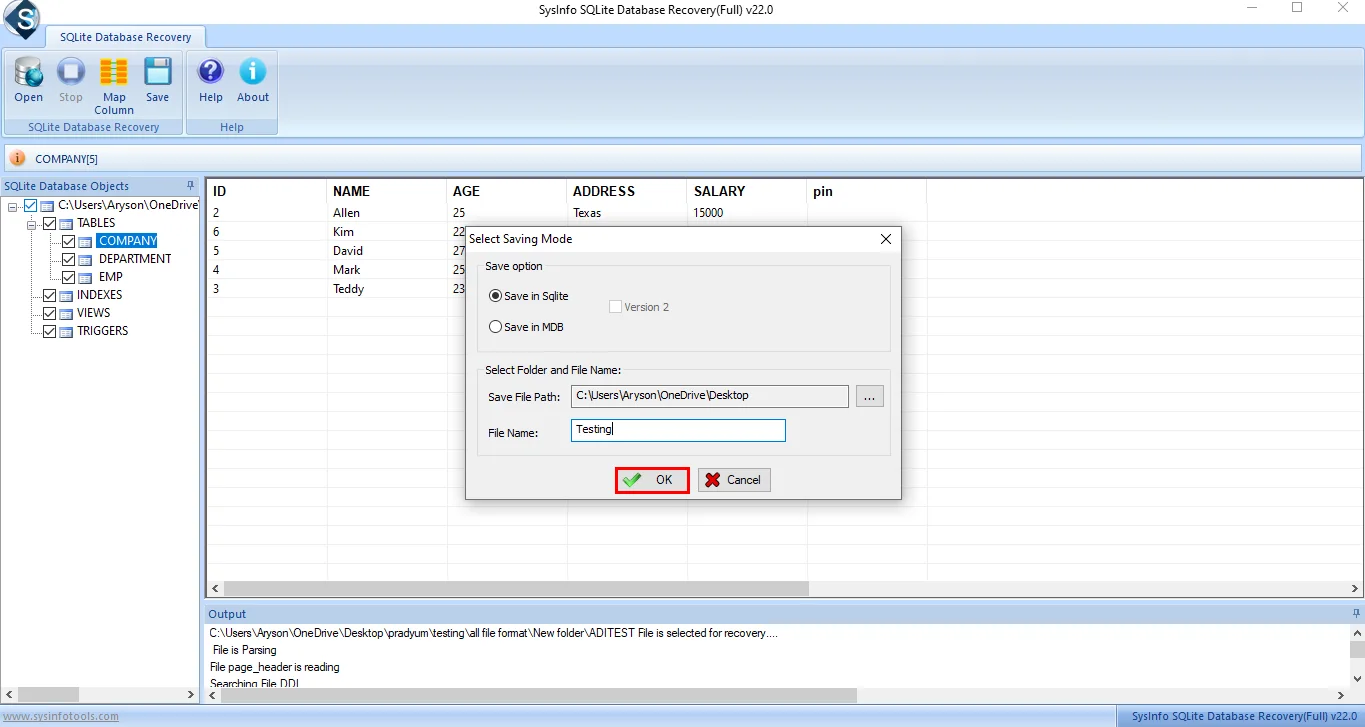
- Finally, choose the destination folder, enter a file name, and click OK to complete the conversion process.
Successful User Case:
An accounting firm was using a SQLite database for daily transactional records. After some time, the firm encountered an issue generating structured reports, so they decided to use our SQLite Recovery Tool. The tool helps them to scan and restore all tables, indexes, and relationships in one go. In very minimal time, the SQLite database was converted into an MS Access MDB file without data loss
Conclusion
It is important to convert SQLite to Access Database for advanced reporting, structured data handling, and multi-user collaboration. Manual methods like CSV export and ODBC can work for small datasets, but they require extra time and technical effort. For a faster, safer, and more reliable solution, using a dedicated tool such as the SQLite Database Recovery Tool is the most practical choice. It makes the entire conversion process simple and efficient.
Frequently Asked Questions
Q1. Is it possible to directly open SQLite files in MS Access?
Ans: No, MS Access does not support SQLite files directly. You need to use indirect methods like CSV export or ODBC, or a dedicated solution such as the SQLite Database Recovery Software to open and convert SQLite data into an Access-compatible format.
Q2. Can I convert an SQLite database to Access MDB manually?
Ans: Yes, manual conversion is possible using CSV export or an ODBC connection. However, these methods require extra effort, manual rebuilding of relationships, and may not preserve all database objects accurately.
Q3. Can I convert a large SQLite database (above 1GB) to Access?
Ans: Converting large SQLite databases manually can be slow and risky. For databases over 1GB, using a professional solution like the SQLite Database Recovery Tool is recommended, as it handles large data volumes more efficiently and reduces the risk of data loss.
Q4. Is there any best tool that converts SQLite to Access Database?
Ans: Yes, the MailConverterTools SQLite Database Recovery Tool is a reliable option for converting SQLite databases to Access MDB files. It supports table recovery, preserves database structure, and offers a simple interface for fast and secure conversion.
About The Author:

Meet Amit, an experienced SEO expert and content planner. He uses his creativity and strategy to create content that grabs attention and helps brands reach their goals. With solid skills in digital marketing and content planning, Amit helps businesses succeed online.
Related Post