-
Written By Amit Chandel
-
Updated on January 13th, 2026
Quick Solution to Export Outlook Contacts to Excel
Contacts in Excel format are easy to share, edit, view, and help organize. Excel format is the most useful format for managing a large amount of contact data. Outlook offers several built-in methods to export Outlook Contacts to Excel, but these methods are only effective for a limited number of contacts. Exporting contacts in bulk using a professional tool like PST Converter Tool is the best and most reliable choice.

Why Users Want to Convert Outlook Contacts to Excel?
- In Excel, you can manage all contacts in a single place.
- It is fast and less complicated to edit comments in XLSX.
- Sharing contact details is easier since an Excel file can be sent directly to colleagues or clients without extra steps.
- Contacts saved in Excel can be used for reports, backups, or future imports.
- Large contact lists are easier to manage and clean up in spreadsheet format.
- Excel works well with other tools, making contact data more flexible to use.
Native Methods to Export Outlook Contacts to Excel
Now, we are going to start with the manual, or you can use native methods to export. Below, we describe the two DIY solutions to convert the contacts in Outlook to Excel format.
1) Export Outlook Contacts into Excel: Import/Export Wizard
- Firstly, open the Outlook application and go to File.
- Afterwards, choose Open&Export > Import/Export.
- Then, click Export to a File > CSV format.
- Thereafter, select the contacts from the folder to export.
- After that, choose any location to save your file.
- You can adjust your contact fields if it’s required.
- Finally, hit the Finish.
2) Export Contacts From Outlook to Excel: Copy&Paste
- To begin with, open your Outlook and switch to the People section.
- Then, change the view to List.
- Thereafter, select and hide unwanted columns.
- After that, select and copy the contacts.
- Finally, open Excel and paste them into a sheet.
Limitations:
- Firstly, field mapping can be confusing for first-time users.
- Large contact lists may take time to export.
- Contact photos and some custom fields may be skipped.
- This method is not practical for large numbers of contacts.
- Formatting often breaks when pasted into Excel.
- Moreover, there is a higher chance of missing or misplaced data.
Read more: Import Outlook Contacts to iPhone
Expert Solution to Export Outlook Contacts to Excel
The MailConverterTools PST Converter Tool helps you to effectively convert your contacts in Outlook to the Excel format without any problem. This tool is 100% safe option for this export, even if you are a beginner. It allows you to convert both small and large contact lists. This tool make sures that your data in Outlook will not change during the process.
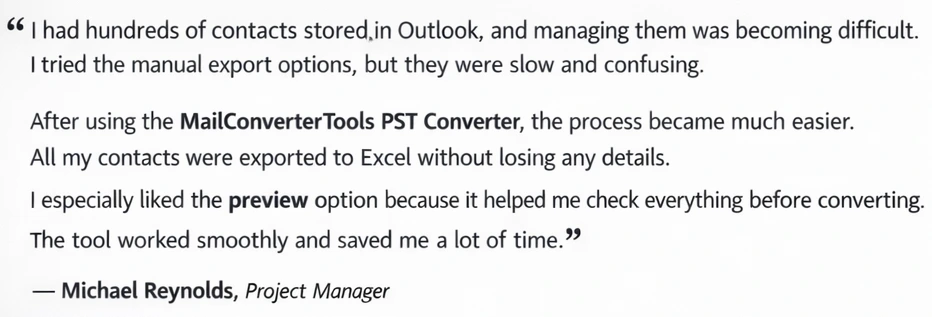
Feedback from Our User
Step-by-Step Guide to Convert Outlook Contacts to Excel
- Firstly, download and start the professional PST Converter Tool.
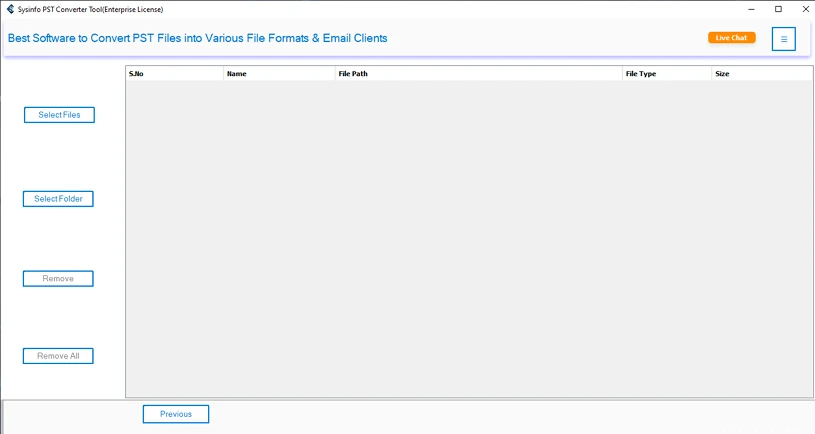
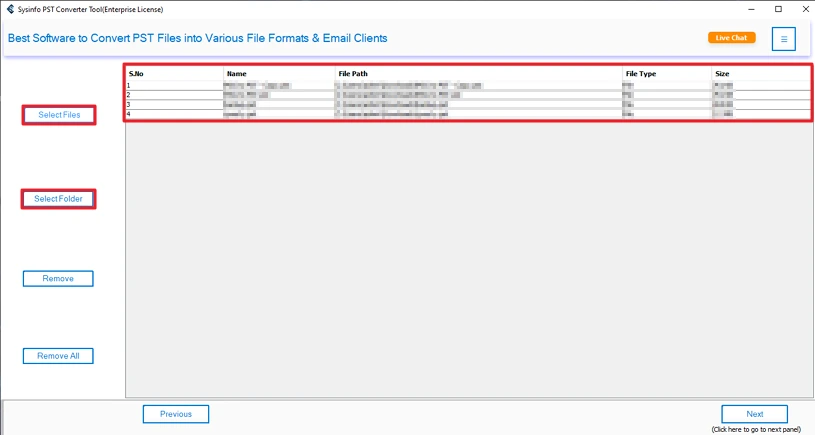
- Then, add your contact PST file or folder and click Next.
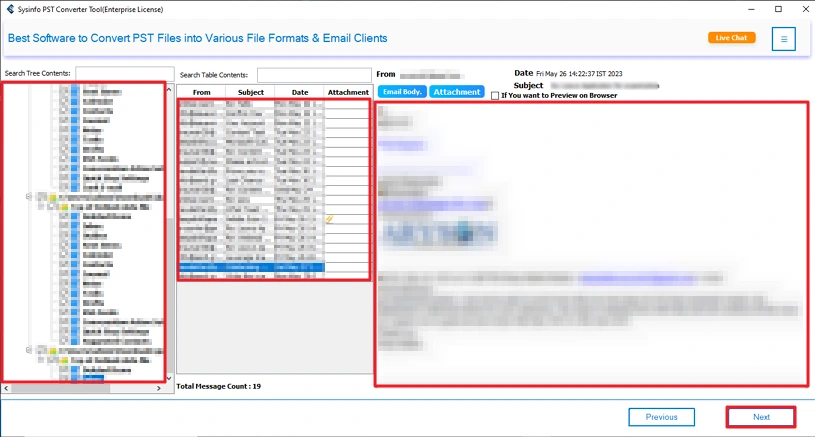
- After that, preview your files on the preview panel and select them to convert.
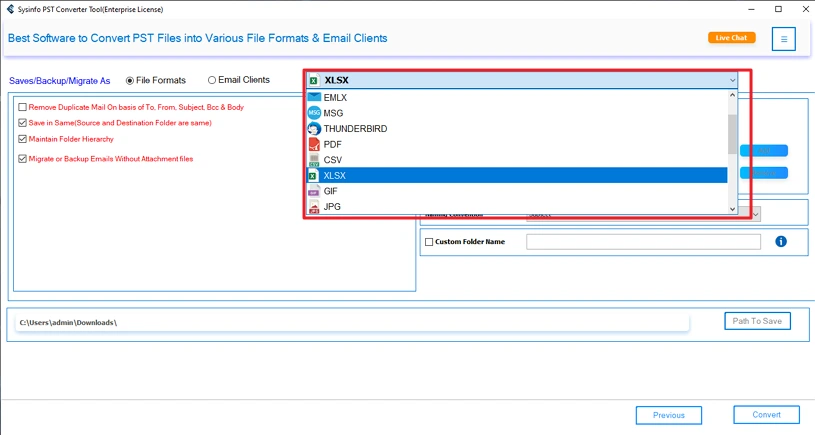
- Next, choose the XLSX format from the file formats option.
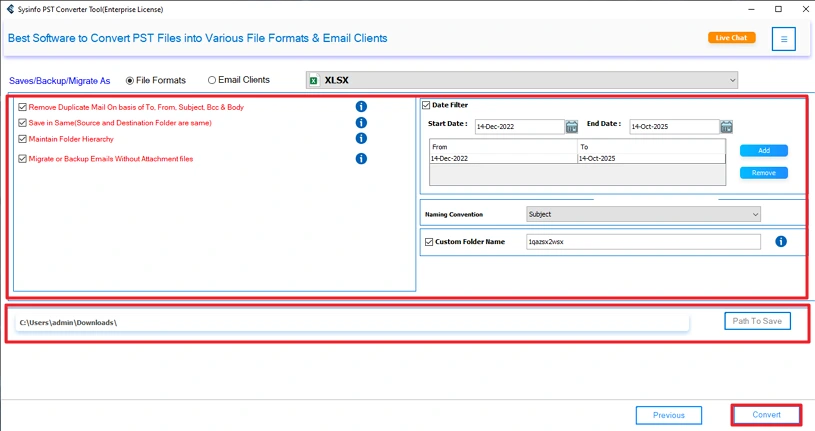
- Finally, apply needed filters and set the path to save and hit the Convert button.
Read more: Import PST Files to Shared Mailboxes
Conclusion
This blog covers the ways to export Outlook Contacts to Excel to ease the management of contacts. The manual methods are not effective for the business-level conversion. Using a professional PST Converter is the only solution for optimized results, even with a large number of contact files. The MailConverterTools advanced tool also offers a free demo version to export a certain number of files.
Frequently Asked Questions
Q1: How do I export Outlook Contacts to Excel without losing any detail?
Ans: To export contacts, you can use the manual copy-paste methods or the import/export wizard. Or for better results, you can use the PST Converter for faster and more accurate results.
Q2: Can I export contacts from Outlook to Excel with custom fields?
Ans: Yes, by using a professional tool like PST Converter, you can export with custom fields. These tool allows you to apply effective features and filters.
Q3: How can I convert Outlook contacts to Excel on Mac?
Ans: There are two ways to convert your Outlook contacts to Excel on Mac. Copy-paste every contact or use the MailConverterTools PST Converter for reliable results with no hassle.
Q4: Which is the best tool to export Outlook contacts into Excel?
Ans: The MailConverterTools PST Converter is the best tool to export contacts from MS Outlook to Excel. It offers various filters and features and provide a fast and secure results.
About The Author:

Meet Amit, an experienced SEO expert and content planner. He uses his creativity and strategy to create content that grabs attention and helps brands reach their goals. With solid skills in digital marketing and content planning, Amit helps businesses succeed online.
Related Post