-
Written By Vikas Bajpai
-
Updated on May 26th, 2026
PST Import Stuck on Analysis in Progress? Fix It Quickly
User Query: While importing my PST file into Outlook, it’s been stuck on “Analysis in Progress” for like two hours now. I’ve tried waiting it out, but nothing moves. Is this a known issue? Like, what’s actually causing this, and is there a way to fix it without losing all my emails?
PST import stuck on Analysis in Progress is more common than people think. It usually leaves users confused, with no clear reason why it happened. This blog breaks down why this actually occurs and what you can do about it. It walks through a manual approach you can try on your own first. If that feels too risky or doesn’t work, there’s also a look at the MailConverterTools PST to Office 365 Migration Tool. This tool will help you to migrate your PST files to Office 365 or other email clients directly.
Why is PST Upload Stuck on Analysis in Progress?
- An oversized PST file slows everything down, and the analysis just gets stuck halfway through.
- If your PST file is corrupted, the import tool gets confused and simply stops working.
- A dropping internet connection mid-upload will pause the analysis, and it won’t recover on its own.
- Using an older version of Outlook can cause conflicts that freeze the import at the analysis stage.
- Antivirus tools sometimes treat PST files as suspicious and block them right during the scan.
Methods to Fix PST Import Stuck on Analysis in Progress?
This issue can be fixed with the simple manual approaches we discussed in this section. Users encounter these issues because of file corruption, large file size, lack of permissions, and other issues. Let’s go through the approaches to fix the PST export stuck on Analysis in Progress problem
Method 1: Assign Necessary Import Permissions
- Log in to the Microsoft 365 Admin Center via a Global Admin account.
- Open the Exchange Admin Center.
- From the left panel, click Roles → Admin roles.
- Open the Organization Management role group.
- Go to the Permissions section.
- Check whether the Mailbox Import Export role is assigned.
- If the role is missing, add it and save the changes.
- Wait a few minutes for Microsoft 365 to update the permissions.
- Restart the PST import process and check whether the issue is resolved.
Method 2: Repair the Corrupted PST File Using ScanPST
- Close Outlook completely.
- Locate the Inbox Repair Tool (ScanPST.exe) on your system.
- Open ScanPST and browse for your PST file.
- Click Start to scan the file.
- If errors are found, click Repair.
- After repair, retry the import process.
Limitations of the Manual Method
- This manual troubleshooting is time-consuming for large files.
- Repairing the corrupt PST files may fail.
- You may lose your partial data during manual repair.
- These steps can be difficult for a non-technical user.
- Continuous failures in import can interrupt the migration tasks.
- Manual methods do not guarantee a successful PST import every time.
Still Encountering PST Import Stuck on Analysis in Progress?
If you are still facing this issue and want to migrate your PST file to Office 365. Then, it is the best time to use the MailConverterTools PST Migrator Tool. This tool will help you to import your PST file into Office 365 directly without the Outlook error PST import stuck. The working of the tool is defined below in just a few simple steps.
Steps to Import PST to Office 365
- Download the PST File Converter Tool.
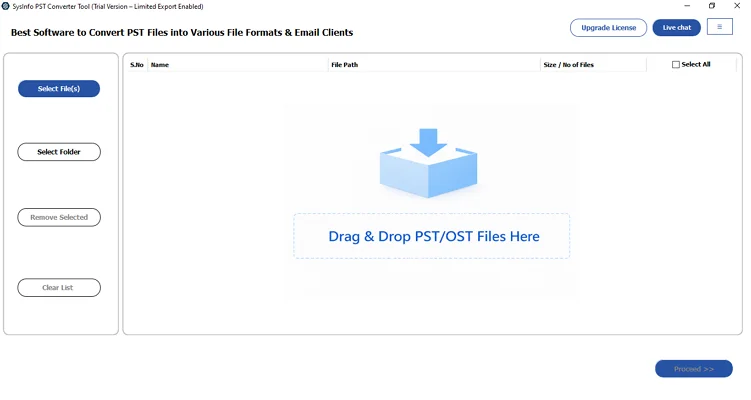
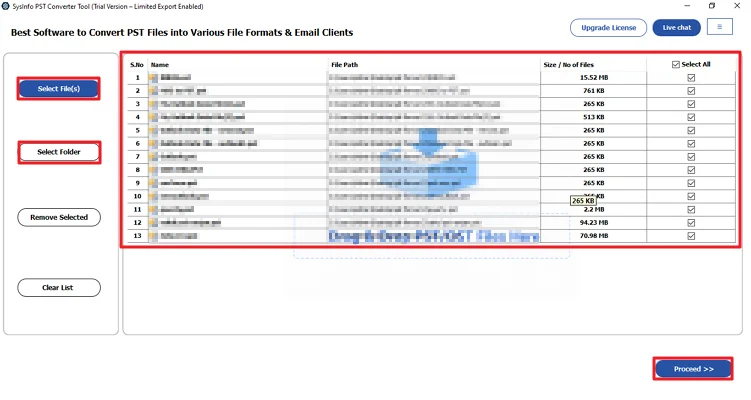
- Then, add your PST files and click Proceed.
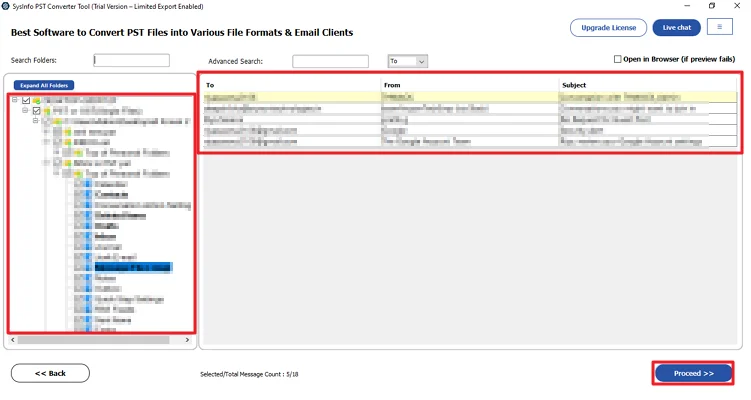
- Further, preview and select files from the folder structure and hit Proceed.
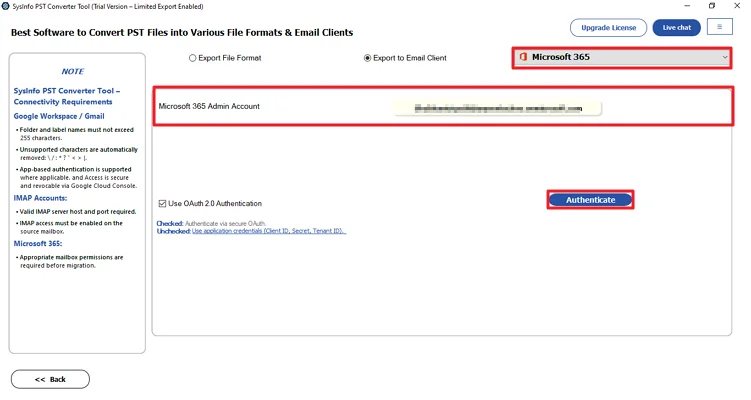
- Thereafter, choose Microsoft 365 as the destination and log in with its credentials.
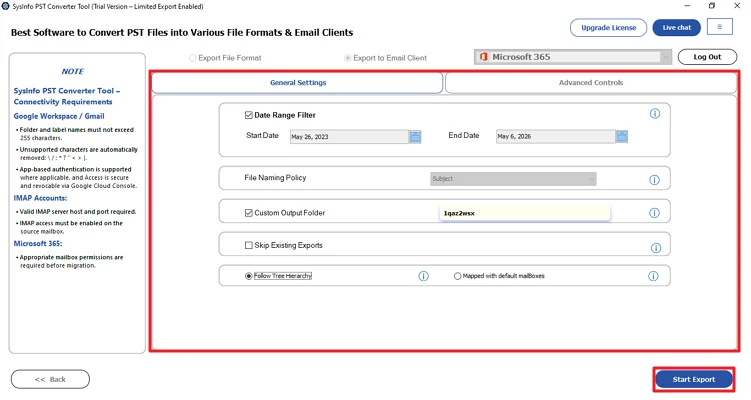
- Lastly, apply the necessary filters and click the Start Process.
Successful User Case
A user was importing a huge PST file of 25 GB and was facing the “Analyses in process” issue continuously. He tries to resolve the issue with the manual methods, but the manual method fails. This method failed because of the huge file of approx 25 GB. Then, he got the MailConverterTools PST to Office 365 Converter Tool that helps him to directly import those large files without any errors.
The advanced tool helped him to migrate the file completely in just a few steps without any errors.
Conclusion
To conclude, the PST import stuck on Analysis in Progress can be caused by several issues. Many times, manual troubleshooting resolves this issue successfully. But the manual method may also fail while handling large PST files. At that time, using the professional tool to directly import the PST file is the best way to import the PST file without any failure.
Frequently Asked Questions
Q.1 Which is the best tool to fix PST export stuck on analysis in progress?
Ans: The MailConverterTools PST Migration Tool is one of the reliable solutions to fix PST import or export issues. It allows users to migrate PST files directly to Office 365 and other email platforms without Outlook-related interruptions.
Q.2 Does PST file size affect the import process errors I am experiencing?
Ans: Yes, very large PST files can slow down the import process and often cause the analysis stage to freeze or stop responding. Splitting large PST files into smaller parts can help improve import performance.
Q.3 What should I do if PST export is stuck on analysis in progress?
Ans: You can first try manual methods, such as assigning the required Mailbox, import export permissions, repairing the PST file using ScanPST, updating Outlook, and disabling antivirus temporarily. If the issue persists, use a professional PST migration tool to complete the import process more smoothly and securely.
Q.4 Can a corrupted PST file cause Outlook import failure?
Ans: Yes, corruption inside the PST file is one of the most common reasons behind Outlook import failures and analysis-related errors.
Q.5 Will I lose my emails while fixing the PST import issue?
Ans: Usually, your original PST file remains safe. Manual repair methods may sometimes cause partial data loss when the PST file is heavily corrupted. Always create a backup before starting the troubleshooting process.
About The Author:

Vikas Bajpai is a results-driven SEO expert and content strategist with a strong passion for building impactful digital experiences. He specializes in crafting data-backed content plans that boost visibility, engage audiences, and drive measurable growth. With deep expertise in search engine optimization, keyword strategy, and content marketing, Vikas helps brands strengthen their online presence and achieve long-term success.
Related Post