-
Written By Amit Chandel
-
Updated on January 20th, 2026
Complete Guide to Convert EML to EMLX on Windows and Mac
User Query: “I have a lot of EML files saved from my old Windows Mail account. But now I use Apple Mail. How can I change EML files into EMLX without any hassle to open my old emails in Apple Mail?”
One of the biggest problems people run into after moving from Windows to Mac is old email files. Windows email apps save messages as EML, but Apple Mail only works with EMLX. Because of that, emails don’t open properly after the switch. In this blog, I’ll share a couple of simple ways to convert EML to EMLX. One method is manual, and the other is quicker and more secure by using the MailConverterTools EML Converter Tool, if you just want things done without losing any data.
Why Do Users Change EML to EMLX?
- Apple Mail doesn’t open EML files properly, so users need EMLX instead.
- Most people switch formats after moving from a Windows PC to a Mac.
- Old EML emails may not show correctly in Apple Mail.
- EMLX files are easier to manage inside Apple Mail folders.
- Importing emails works more smoothly when they’re already in EMLX format.
- Users want all their old emails in one place without missing anything.
- Converting avoids repeated errors while opening EML files.
EML Vs EMLX: Difference Table
|
Feature |
EML |
EMLX |
|
Used by |
Mostly Windows email apps |
Apple Mail on macOS |
|
Platform |
Windows-based systems |
macOS |
|
File structure |
Single email stored as a text file |
Email stored in Apple Mail’s own format |
|
Compatibility |
Works with many Windows clients |
Limited mainly to Apple Mail |
|
Direct support in Apple Mail |
Not supported directly |
Fully supported |
|
Ease of access |
Can be opened with text editors |
Opens only through Apple Mail |
|
Best for |
Saving or sharing individual emails |
Managing emails inside Apple Mail |
|
Conversion need |
Needs conversion for Mac users |
No conversion needed on macOS |
How to Convert EML to EMLX Using the Manual Method?
You could skip third-party apps and do it yourself, but this only works for simple EML messages. It also takes time and isn’t ideal if you have a large number of emails.
Steps to Export EML to EMLX
- First, open Apple Mail on your Mac.
- Next, drag and drop the EML files into any mailbox or folder inside Apple Mail.
- Once the files are added, Apple Mail automatically changes them into EMLX format in the background.
- After that, this EML to EMLX conversion helps you to open and manage those emails normally within Apple Mail.
Limitations
- There’s no option to convert files in bulk properly.
- Folder structure is not always maintained.
- Large EML files may not import correctly.
- If Apple Mail crashes, you may need to start again.
- No clear confirmation that all emails were converted.
- Not practical for users with years of old emails.
Professional Method to Convert EML to EMLX With Attachments
MailConverterTools EML Converter is useful if the manual method feels slow or messy. It helps convert EML files into EMLX format with minimal effort. The tool works on both Windows and Mac. You can convert multiple EML files simultaneously, and attachments remain with the emails. It keeps the original layout, email details, and folder order.
Steps to Convert EML files to EMLX
- Firstly, download the EML Converter Software.
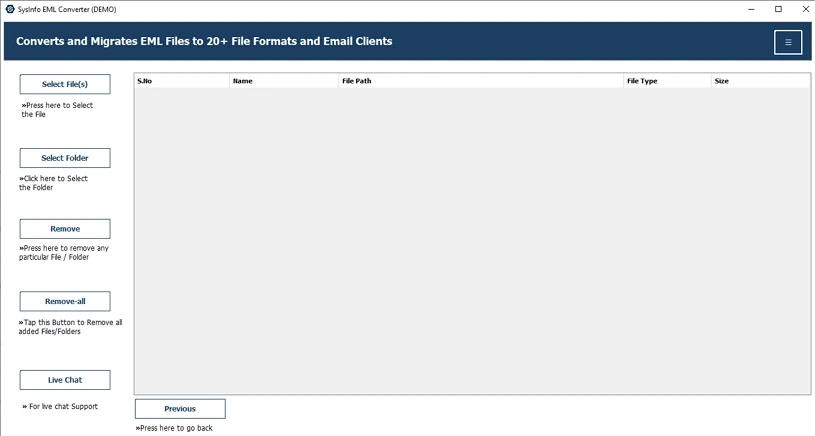
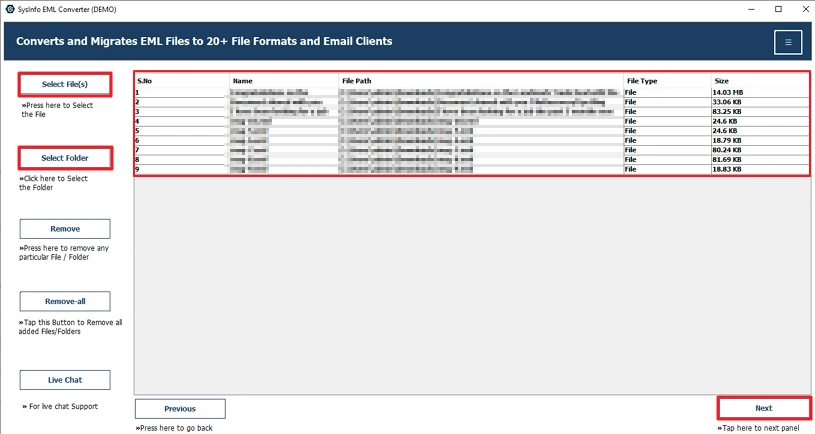
- Then, add your EML files or many folders and click the Next button.
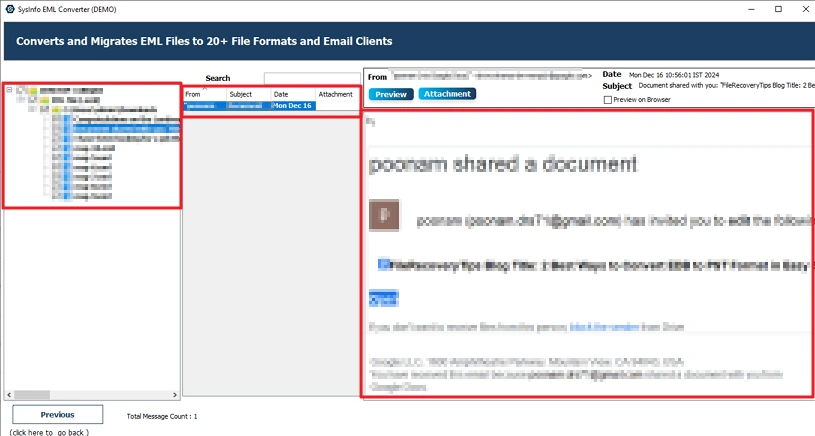
- Further, preview the file and select to convert accordingly.
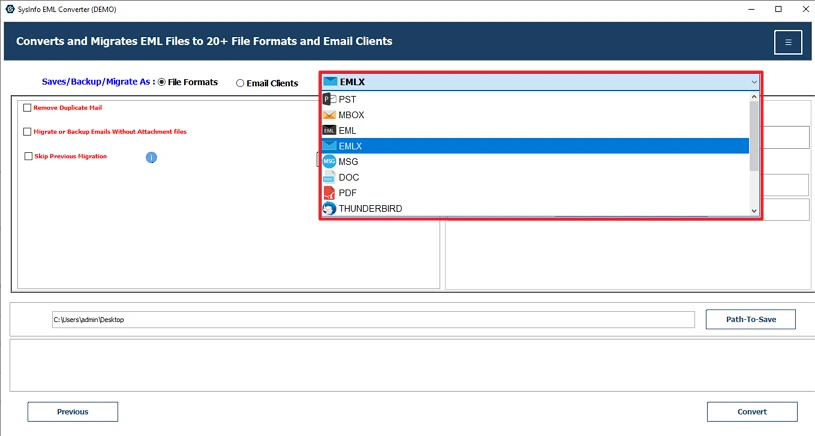
- Thereafter, choose the EMLX file format.
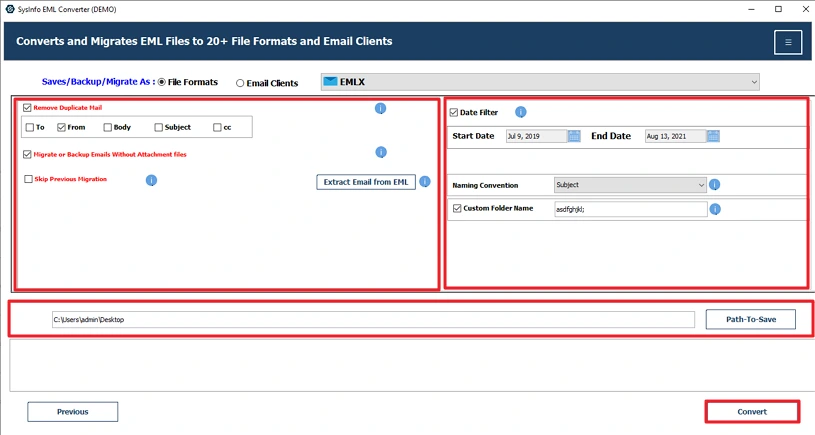
- Lastly, apply the filters, set the path to save, and click Convert.
Successful User Case
Martin, a freelance designer from Germany, switched from a Windows laptop to a MacBook and brought along years of EML email files. When he tried opening them in Apple Mail, many emails didn’t appear correctly.
To make things easier, Martin used the MailConverterTools EML Converter. It allowed him to convert all his EML files into EMLX at once. His emails opened fine afterward, and the attachments and folders stayed the same.
After the conversion, Martin could access all his old emails normally in Apple Mail. The whole move to macOS felt a lot smoother, and he didn’t have to worry about losing any important messages.
Conclusion
To conclude, to work with the manual method, it is important to have a Mac and a small number of emails. It also takes time and patience. For larger mailboxes, it quickly becomes frustrating. In that case, using a proper tool makes more sense. It keeps attachments and email data safe and works on both Windows and Mac. Moreover, you should choose the right method to convert EML to EMLX and save your time.
Frequently Asked Questions
Q1: Can Apple Mail open EML files directly?
Ans: No, because Apple Mail does not support EML files, so you can’t open an EML file in Apple Mail directly. To access an EML file in Mac, you need to convert it to EMLX format.
Q2: Will email attachments be preserved after converting EML to EMLX?
Ans: It depends on the method of conversion of EML to EMLX. If you choose the manual method, then you may loose you attachments. On the other hand, MailConverterTools EML Converter makes sure that your emails and attachment keep preserve and unchanged.
Q3: Can I convert multiple EML files to EMLX at once on Mac?
Ans: The MailConverterTools EML Converter Tool allows you to convert one or more than one file at once. Additionally, it provides many filters and features to the user.
Q4: Will metadata remain intact after EML to EMLX conversion?
Ans: Using a professional tool like the EML Converter Tool by MailConverterTools keeps the metadata intact. Plus, it supports conversion in more than one file format. In addition, it provides a previous preview and a select feature.
About The Author:

Meet Amit, an experienced SEO expert and content planner. He uses his creativity and strategy to create content that grabs attention and helps brands reach their goals. With solid skills in digital marketing and content planning, Amit helps businesses succeed online.
Related Post