-
Written By Vikas Bajpai
-
Updated on May 2nd, 2026
Transfer Gmail to Yahoo Mail: Easy Steps (2026 Guide)
User Query: I met an urgent client deadline, and Gmail data needs to reach Yahoo Mail immediately. Tried POP3 import, but it stalled at 50%, and the folder hierarchy broke entirely. Require a dependable solution to transfer Gmail mailbox to Yahoo Mail with zero data loss.
One terabyte of free storage is hard to argue with, honestly. That alone is pushing thousands of Gmail users toward Yahoo Mail right now. The problem is getting there without leaving half your inbox behind in the process. Manual import options are slow, unreliable, and not built for large mailboxes at all. This blog cuts through the noise and shows you how to transfer Gmail to Yahoo Mail cleanly. MailConverterTools Gmail Backup Tool handles what manual methods simply cannot.
Quick Checks Before You Start
- Confirm the Gmail account is active and fully working.
- Turn on IMAP access inside your Gmail settings.
- Keep your Google App Password generated and noted.
- The Yahoo Mail account must be configured and accessible.
- Check available Yahoo storage before you start the migration process.
- A reliable internet connection is necessary.
How to Migrate Gmail to Yahoo Mail Manually?
Two approaches are covered here, and neither requires any paid tool. Read through both carefully and decide which one fits your current situation best.
Technique 1: Native POP3 Import Inside Yahoo Mail
Yahoo Mail has a lesser-known built-in import feature worth trying before anything else. Here is exactly how to get it working without running into authentication issues:
- Start by opening your browser and logging into Yahoo Mail directly.
- Further, look for the Settings gear icon and click it at the top right.
- Select More Settings from the menu that drops down.
- After that, head over to Mailboxes on the left side of the settings panel.
- Click Add Mailbox and select Gmail from the options shown.
- Now, enter your Gmail address in the field provided and press Next.
- Google will ask you to sign in, so use your regular Gmail credentials here.
- Then, allow Yahoo Mail access to your Gmail account when the prompt appears.
- Press Add, and Yahoo Mail begins fetching your Gmail emails immediately.
This finishes the first technique to move email from Gmail to Yahoo Mail manually. That said, this method has some clear gaps that every user should know about.
Technique 2: Using Auto Forwarding to Move Your Emails
Auto-forwarding is a quick one-time setup that pushes new Gmail emails into Yahoo. Bear in mind, this route only handles fresh incoming mail and leaves all historical data completely untouched:
- First, open your browser and sign in to your Gmail account to get started.
- After that, spot the Settings gear icon at the top right and click it.
- Select See All Settings from the dropdown that appears on screen.
- Further, head over to the Forwarding and POP/IMAP tab from the top menu.
- Click Add a Forwarding Address and drop in your full Yahoo Mail address.
- Gmail shoots a confirmation code straight to your Yahoo Mail inbox immediately.
- Now, jump into Yahoo Mail and find that confirmation email sitting in your inbox.
- After that, grab the confirmation code and paste it back inside your Gmail settings panel.
- Then, choose Forward a Copy of Incoming Mail to your Yahoo Mail address now.
- Hit Save Changes, and the forwarding rule goes live without any further steps.
This covers everything needed to set up auto-forwarding successfully. That said, users planning to import Gmail to Yahoo Mail in bulk should understand both techniques’ clear limitations before committing to either one fully.
What Goes Wrong With Manual Techniques?
- POP3 import is painfully slow and regularly fails before finishing the job.
- Historical Gmail data stays completely stuck when auto-forwarding is the chosen method.
- Folder hierarchy collapses, and emails land in completely wrong places inside Yahoo.
- Attachments from older email threads vanish without any clear reason or warning.
- Authentication errors are common and nearly impossible to troubleshoot without technical help.
- Neither technique offers any way to selectively migrate specific folders or date ranges.
Transfer Gmail to Yahoo Mail the Right Way in 2026
Every failed import attempt costs time that most users simply cannot afford to lose. The MailConverterTools Gmail Backup Tool eliminates that uncertainty from the very first run. It reads your entire Gmail mailbox and delivers it into Yahoo Mail completely intact. The software ensures a smooth process, even for enterprise-level data, with complete data safety. Not just to Yahoo Mail, you can even migrate Gmail to FastMail securely using this tool.
Steps To Migrate The Emails:
- First, download and launch MailConverterTools Gmail Backup Tool on your system and run it as an administrator.
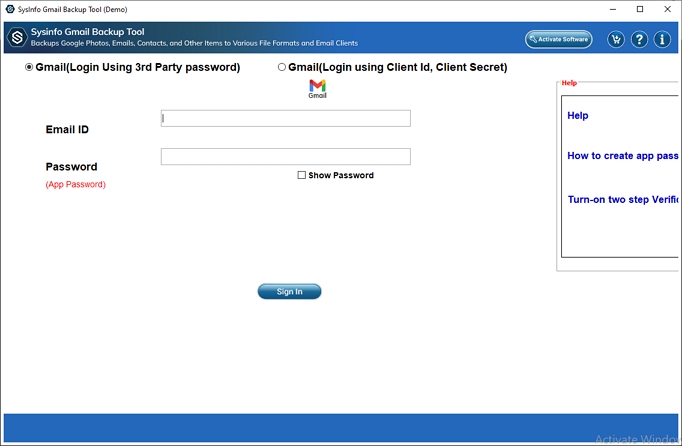
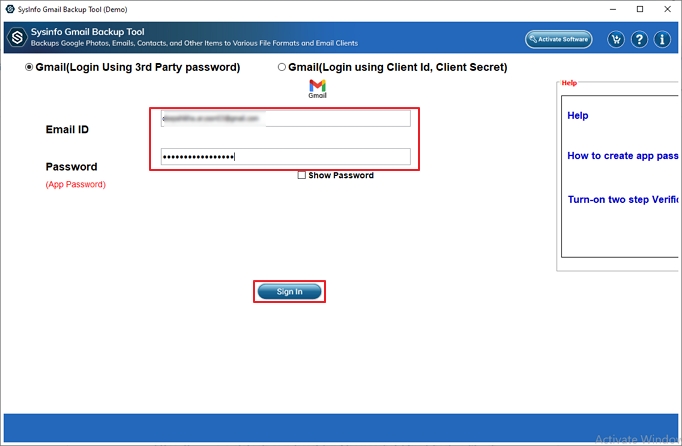
- Next, select Gmail (Backup Mails Only) from the opening wizard and enter your Gmail credentials. Then, hit Sign In.
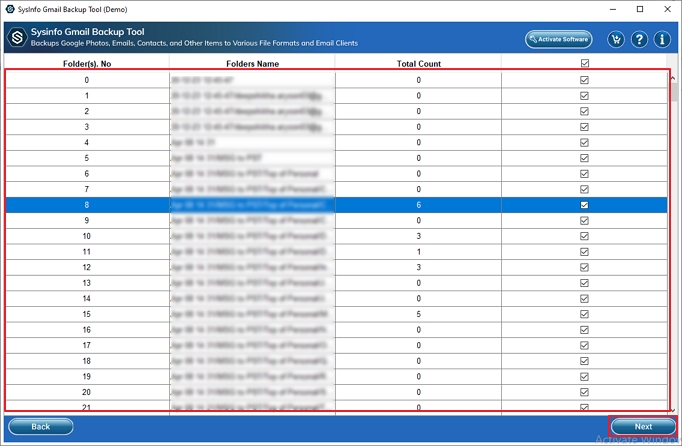
- After that, choose the mailbox folders from your Gmail account preview panel and click Next.
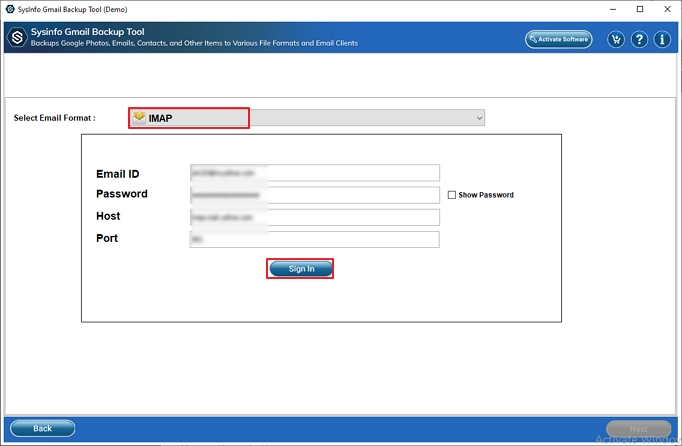
- Then, select IMAP from the drop-down menu available in the Email Clients and sign in with your Yahoo credentials.
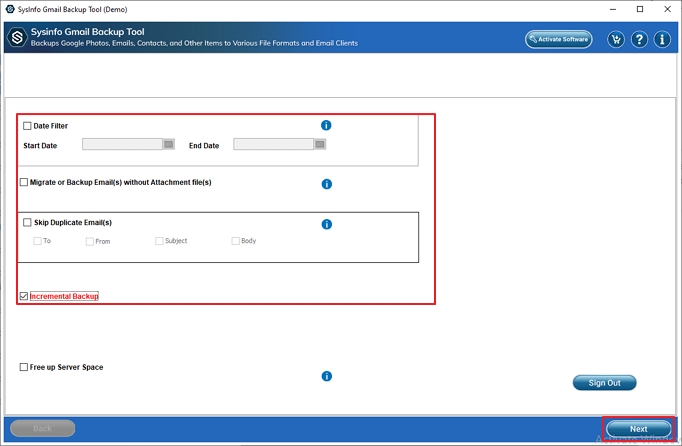
- Now, apply filters like date range or duplicate removal as needed and then hit Next.
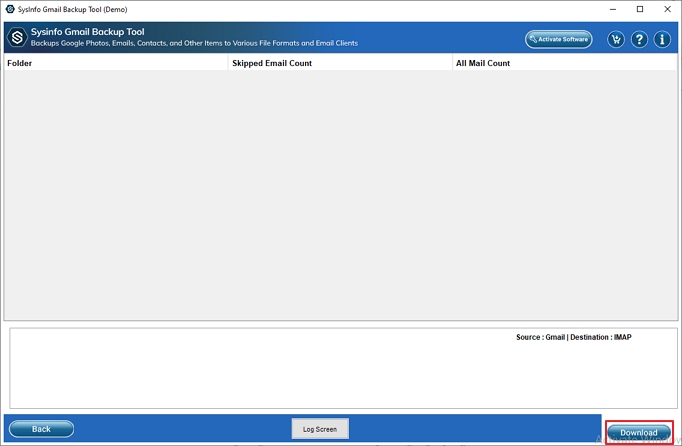
- In the end, click on the Download to start the migration.
Why Users Keep Coming Back to This Tool?
- The software allows you to migrate Gmail to Zoho Mail and other email clients.
- Bulk migrates a complete Gmail mailbox into Yahoo Mail without dropping a single email.
- Selective date range migration saves time and keeps things tightly organized.
- Removes duplicate emails automatically so your Yahoo inbox stays clean from the start.
- Full control over attachment migration based on individual user requirements.
- Gmail server space gets cleared out automatically once the migration wraps up.
- Free demo version available with up to 50 emails per folder at no cost.
A Real Migration Story Worth Reading
A Sydney accountant had seven years of client tax correspondence locked inside Gmail. POP3 failed halfway, and critical attachments vanished completely without warning. A colleague recommended MailConverterTools Gmail Backup Tool, and it delivered immediately. Every folder transferred cleanly into Yahoo Mail with zero data loss. She ensured to transfer email from Gmail to Yahoo Mail smoothly.
The Verdict on Gmail to Yahoo Mail
Both manual techniques had real gaps that cost time and risk data permanently. Forwarding skips history, and POP3 collapses before finishing the job completely. To transfer Gmail to Yahoo Mail without losing anything, one tool stands out clearly. MailConverterTools Gmail Backup Tool handles bulk migration cleanly in a single session. The software offers complete data safety and keeps the folder structure and attachments intact.
Frequently Asked Questions
Q1. How do I transfer emails from Gmail to Yahoo Mail?
Ans. MailConverterTools Gmail Backup Tool connects directly to Gmail and pushes everything into Yahoo Mail securely. Every folder, attachment, and email transfers cleanly without any data loss guaranteed.
Q2. Which is better: manual or automatic transfer from Gmail to Yahoo Mail?
Ans. Manual techniques fail under real pressure every time. MailConverterTools Gmail Backup Tool handles bulk migration with zero timeouts and zero data loss. The automated route wins without question.
Q3. Is it safe to transfer Gmail to Yahoo Mail?
Ans. Absolutely. MailConverterTools Gmail Backup Tool uses secure authentication throughout the entire process. No third party touches your data, and the folder structure stays completely intact, always.
Q4. Can I transfer Gmail to Yahoo Mail in bulk?
Ans. Yes. MailConverterTools Gmail Backup Tool handles bulk migration without any size restrictions whatsoever. Multiple folders are moved into Yahoo Mail in one clean, single run.
About The Author:

Vikas Bajpai is a results-driven SEO expert and content strategist with a strong passion for building impactful digital experiences. He specializes in crafting data-backed content plans that boost visibility, engage audiences, and drive measurable growth. With deep expertise in search engine optimization, keyword strategy, and content marketing, Vikas helps brands strengthen their online presence and achieve long-term success.
Related Post