-
Written By Vikas Bajpai
-
Updated on May 1st, 2026
Transfer BigPond Email to Gmail: Fast & Secure Method
User Query: Been using BigPond for years and finally switching to Gmail. Auto-forwarding only grabbed new emails, and Gmail import failed midway. Folders are all over the place, and attachments went missing. Need something that actually moves everything across properly.
Thousands of BigPond users are facing the same issue right now. Auto-forwarding skips old emails, and Gmail import keeps timing out midway. Attachments go missing, and folders land completely out of place. To transfer BigPond email to Gmail, you need something more reliable than guesswork. This blog breaks down two manual methods and the MailConverterTools IMAP Migration Tool for seamless migration. Read till the end and move every email safely across without losing any data.
What to Check Before You Migrate BigPond to Gmail?
Get these basic checks done before you start the migration:
- The BigPond account must be active and working fine.
- Turn on IMAP from your BigPond account settings.
- Write down your BigPond credentials and IMAP details somewhere safe.
- Your Gmail inbox needs enough space for all incoming emails.
- Generate an App Password from your Google account settings.
- A reliable internet connection.
What is the Hands-on Way to Move BigPond Emails to Gmail?
There are two manual ways to move BigPond emails over to Gmail. Go through both methods and pick the one that suits your situation best.
Method 1: Using Built-In Feature To Migrate BigPond Emails
Gmail has a built-in import option that pulls emails directly from BigPond. Follow every step carefully to avoid running into authentication errors midway:
- First, log in to your Gmail account and click on the Settings gear icon.
- After that, select See All Settings from the dropdown menu.
- Then, head over to the Accounts and Import tab from the top.
- Further, click on Import Mail and Contacts to begin the process.
- Next, enter your full BigPond email address and click Continue.
- Moving ahead, sign in to your BigPond account using your login details.
- Once authentication is successful, read and accept the terms carefully.
- After that, enable both the email and contacts options from the panel.
- In the end, hit Start Import, and you will start pulling BigPond data into Gmail.
Note: This process can take up to 48 hours, depending on your mailbox size.
This completes the first manual method to import BigPond emails into Gmail. However, it comes with its own set of limitations that are worth knowing about.
Method 2: Import BigPond Emails to Gmail via Auto-Forwarding
Auto-forwarding is a quick way to redirect new BigPond emails straight to Gmail. Keep in mind, this only works for incoming emails and not your historical data:
- First of all, open your browser and log in to your BigPond webmail account.
- Next, click the Settings cog icon sitting at the top of the page.
- From there, select Mail and then look for the Auto-Forward option.
- After that, turn on Auto-Forward by clicking the Toggle icon to enable it.
- Then, type your full Gmail address into the forwarding destination field.
- Meanwhile, make sure you check the box that says Keep a Copy in My Inbox.
- As the last step, click on the Save icon to activate forwarding from BigPond to Gmail.
This wraps up the second manual method to move BigPond mailbox to Gmail account. That said, both methods carry some clear limitations that every user should know.
Why Do Manual Methods Fall Short Every Time?
- Gmail import is painfully slow and frequently times out halfway.
- Old emails stay stuck in BigPond when auto-forwarding is used.
- Folders come over broken and completely lose their original structure.
- Attachments above certain size limits simply never make it across.
- Wrong credentials or server details will shut the whole process down.
- Users get zero control over which folders or dates get migrated.
Zero-Risk Way to Transfer BigPond Email to Gmail in Bulk
Stop wasting days on methods that fail halfway through migration. The MailConverterTools IMAP Migration Tool handles bulk BigPond mailbox migration with ease. Folders land perfectly, attachments survive, and no data gets lost in the process. Runs smoothly on any Windows or Mac system without compatibility issues.
Steps To Operate The Software:
- At first, download and run the IMAP Email Backup Tool on your system.
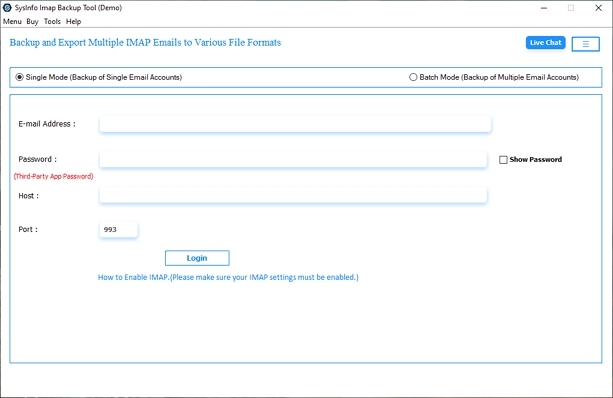
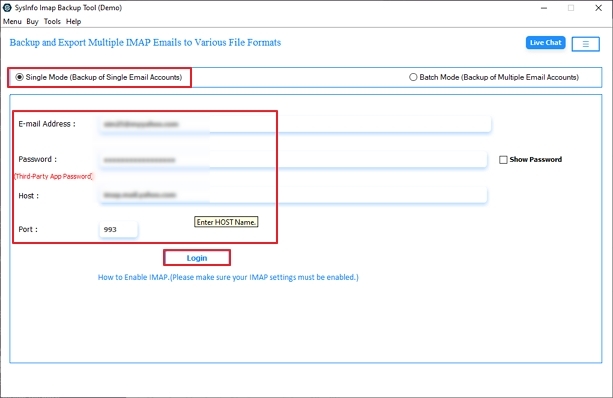
- Now, select the Mode from single or Batch mode and log in with BigPond account details.
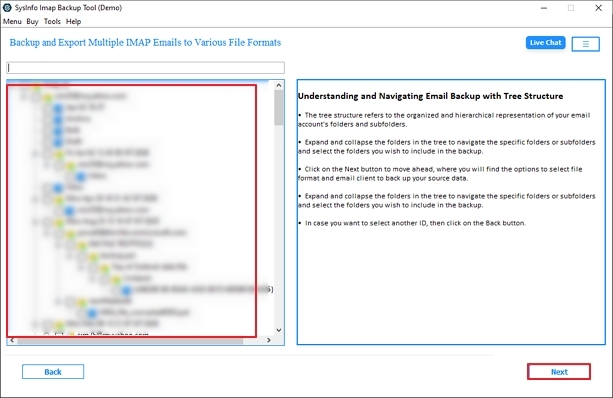
- After that, you can expand the mailbox in the left panel and select the folders to migrate. Hit Next.
- Further, in the Email clients option, choose Gmail and press Next.

- Then, fill in your Gmail address and click on the login to authenticate.

- In the end, apply the filters as needed and click on Start Process to start the migration.

What Makes the IMAP Migration Tool Worth Using?
- Moves BigPond emails into Gmail with every attachment and folder intact.
- Filter emails by date range and move only what actually matters to you.
- Built-in duplicate remover keeps your Gmail inbox clean from day one.
- The option to skip already migrated emails saves time during repeat migrations.
- Try it free with 50 emails per folder before committing to a purchase.
Real Case Scenario
A small Sydney-based firm needed its entire BigPond mailbox inside Gmail urgently. Manual import methods kept failing halfway, and the folder structure was also disrupted. Three days of trying, and barely half the data had moved to Gmail. MailConverterTools IMAP Migration Tool completed the whole process in one go while ensuring complete data safety. Not a single email, folder, or attachment was left behind.
Final Words
Both methods covered here can technically transfer BigPond email to Gmail successfully. But manual approaches come with too many failure points to rely on fully. One timeout, one wrong setting, and hours of work to transfer BigPond to Gmail can go straight down. MailConverterTools IMAP Migration Tool skips all of that and delivers clean results every time. Everything moves across intact, including folders, threads, and attachments.
Frequently Asked Questions
Q.1 How can I transfer BigPond email to Gmail account?
Ans. For a smooth and secure migration, the MailConverterTools IMAP Mail Backup Tool is the right pick. The software moves every BigPond email into Gmail without breaking folder structure or losing attachments. It is fast, reliable, and works without needing any technical expertise at all.
Q2. Can I securely move BigPond emails to Gmail without risk?
Ans. Yes, absolutely. MailConverterTools IMAP Migration Tool uses a direct IMAP connection between both accounts. No third party touches your data at any point during the migration. Folder structure, attachments, and email metadata stay completely intact throughout the entire process.
Q3. Can I transfer BigPond email to Gmail on Windows and Mac?
Ans. MailConverterTools IMAP Mail Backup Tool runs smoothly on all Windows OS versions without compatibility issues. A Mac version is also available for users working on macOS systems. Both versions deliver the same clean and complete migration experience without any compromise.
Q4. Can I transfer BigPond emails to Gmail in bulk?
Ans. Yes, the tool handles bulk migration without any restrictions on mailbox size or email count. Multiple BigPond folders can be selected and moved into Gmail in a single run. The free demo version allows up to 50 emails per folder before upgrading to the full version.
About The Author:

Vikas Bajpai is a results-driven SEO expert and content strategist with a strong passion for building impactful digital experiences. He specializes in crafting data-backed content plans that boost visibility, engage audiences, and drive measurable growth. With deep expertise in search engine optimization, keyword strategy, and content marketing, Vikas helps brands strengthen their online presence and achieve long-term success.
Related Post