-
Written By Amit Chandel
-
Updated on January 31st, 2026
Convert CDR to WEBP for Faster Loading Website Images
“I am a project manager at a Design firm, and we have more than 50 CDR files. We tried opening them on the web, but we constantly face some errors and cannot check out our project. We are high on time and need immediate approval, so we are thinking to convert CorelDRAW to WEBP for faster loading and simplified access. How can we convert without hampering original quality?”
-Amelia Campbell
The performance of the website no longer fails due to servers or codes but often because of images larger in size. Designers and web teams working with CorelDRAW have generally faced this difficulty due to the large vector CDR images, designs, and logos, which slow down the speed. This is why they find it essential to convert CDR to WEBP for modern compression, small file sizes, and browser-friendly performance without visual clarity degradation. In this technical guide, we will find out the freeway and the best MailConverterTools CDR Converter Tool for the desired outcomes.
Prominent Reasons to Convert CDR File to WEBP
CDR files are like a blueprint of the design, whose every line or block can be edited. Whereas WEBP is the finished design, which directly loads on your phone or system. The significant reasons for CDR to WEBP conversion are mentioned here:
- WEBP provides a smaller file size with maintained visual quality.
- Helps target performance metrics like Core Web Vitals.
- Faster image loads help website rank, impact bounce rates, and SEO.
- User-friendly image experience on both mobile and computer devices.
- Offers high-quality transparency like PNG and animation like GIF.
- Unlike infinitely scalable CDR, WEBP is a fixed-resolution raster image.
- It even reduces developers’ bandwidth usage, preserves designers’ intent, and improves speed for businesses.
So, if you save CDR files as a WEBP, you can skip the CorelDRAW dependency and access images on all modern browsers rapidly. Whether it is a high-end graphic design, print layouts, or logos, you can easily access them across websites and mobile applications.
Top 2 Ways to Convert CDR to WEBP for Faster Loading Images
Well, even though CDR files are inaccessible out of the CorelDRAW application, you can convert them to WEBP. For free conversions, you need to use the application itself, and for smart conversions without limitations, a professional tool is available. Both methods are specified below for a clear understanding.
Few Convert CorelDRAW File to WEBP
If you have CorelDRAW installed on your system, then you can use these steps for the conversion:
- First, open the CDR file to convert in CorelDRAW.
- Next, go to the File tab and choose Export.
- Further, select WEBP as the output format from the list.
- Afterward, set the image resolution, dimensions, and other formatting.
- Finally, click Export and save your CDR as a WEBP file.
Note: The WEBP format is only available in the new CorelDRAW versions. Furthermore, you can use these same steps to even convert CDR to GIF, JPG, PNG, BMP, and many other formats.
Loopholes of the Method:
- Not an ideal solution for batch converting CorelDRAW files.
- Manual control increases conversion time and required effort.
- There are not many advanced formatting options.
- You may miss some formatting of the original CDR.
Bulk Convert CDR to WEBP Image Format
If CorelDRAW is unavailable, then MailConverterTools CDR Converter Tool is the most preferred conversion solution. It keeps the CDR files confidential without storage and converts multiple large files in bulk. Additionally, it retains the original image quality and accurately renders the complex designs. Moreover, suitable for all new and expert users across Windows and macOS, it provides 100% reliable image outputs. One can even use its Demo version for free conversions with a watermark.
05 Easy Steps to Export CDR File in WEBP
- Launch the CDR to WEBP Converter as an admin on the PC.
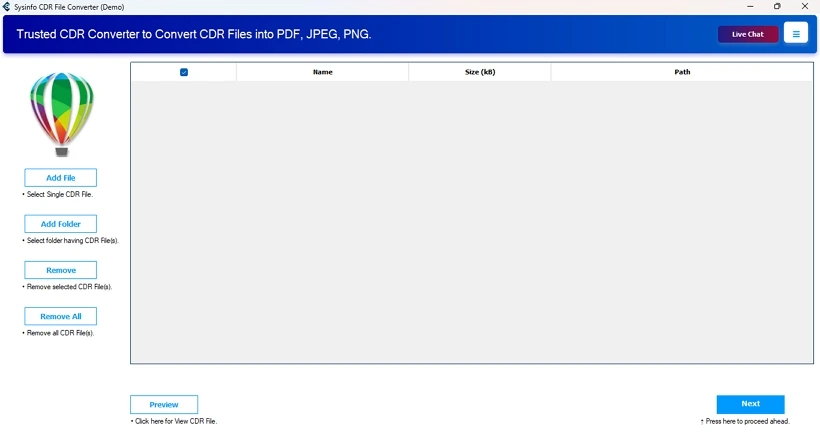
- Then, click Add File/Folder and load the CorelDRAW CDR to the tool.
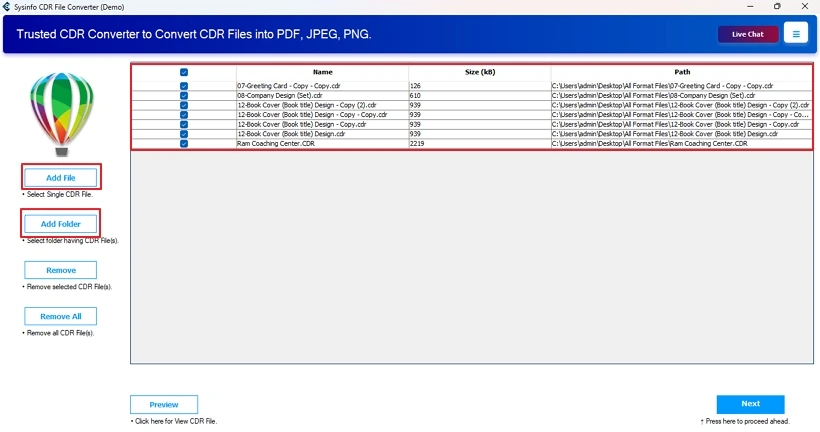
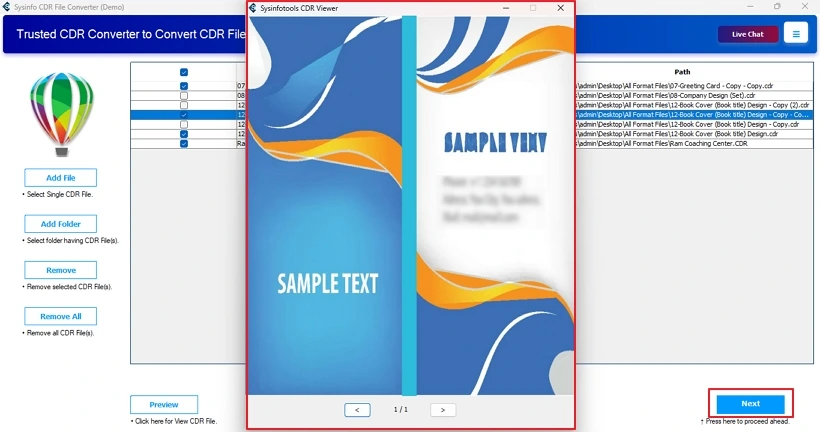
- Further, click Preview to check files and tap Next after their selection.
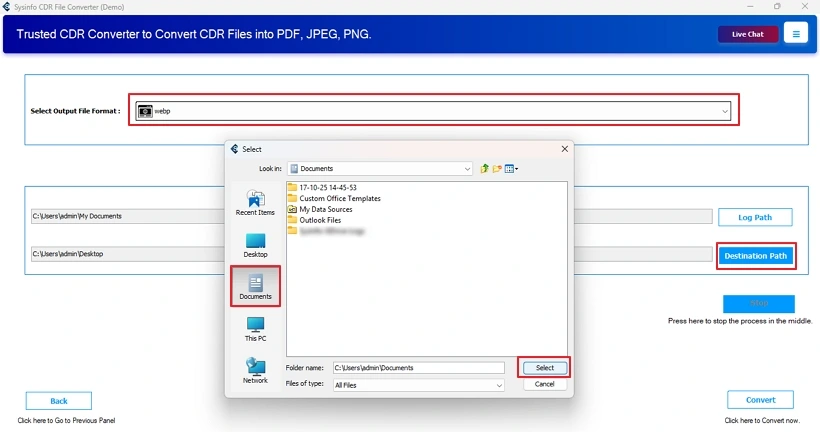
- Afterward, select the WEBP format to save and pick a Destination Path.
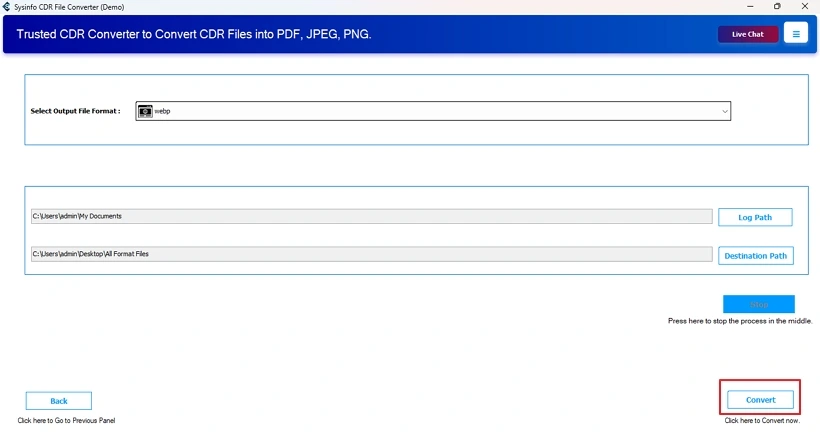
- Finally, tap Convert to change CDR to WEBP format successfully.
Why CDR Converter?
It is a trustworthy solution performing conversion with proper security considerations. CDR design files contain proprietary branding, layouts, and client-sensitive material. The software ensures that when you convert CDR to WEBP:
- Files remain accessible during local processing
- No data uploads happen to third-party servers
- Output dimensions match exactly after the conversion
- No quality is degraded, and no storage is maintained
- Convert CDR to PNG and other formats apart from WEBP
Moreover, the platform compatibility ensures that users have no troubles for CDR conversion.
Real World Scenario:
An e-commerce firm in the US rebranded its homepage with CorelDRAW, but the page load time suffered due to heavy images and logos. By ensuring a hassle-free CDR to WEBP image conversion with the CDR Conversion Tool, they improved the loading speed. Also, the size images was reduced at a great scale without any visual loss. Moreover, the search visibility increased, and the team didn’t have to rework the original designs.
Conclusion
Convert CDR to WEBP to access images on the modern web with ease. It ensures your website images load faster, pages feel user-friendly, and its intuitive design and interface connect directly with the users. You can achieve all of this without performance or quality degradation with the MailConverterTools CDR Converter. Whether you are a solo designer, a web team, or a digital agency, WEBP is a future-ready image format for your designs.
Frequently Asked Questions
Q1. How to convert CorelDRAW CDR files to WEBP without CorelDRAW installed?
Ans. To convert CDR files without CorelDRAW, use the MailConverterTools CDR File Converter Tool.
Q2. Is CDR to WEBP conversion safe for confidential designs?
Ans. Convert CDR file to WEBP with the CDR to WEBP Converter by MailConverterTools. It ensures your confidential designs remain highly secure and no loss prevails.
Q3. Can I convert CDR to WEBP on both Windows and Mac?
Ans. Yes. You can perform the conversion with the manual or professional method on both Windows and Mac OS.
Q4. Will CDR to WEBP conversion affect image dimensions?
Ans. If you export CDR file in WEBP with MailConverterTools CDR Converter, then the image dimensions remain unaffected.
About The Author:

Meet Amit, an experienced SEO expert and content planner. He uses his creativity and strategy to create content that grabs attention and helps brands reach their goals. With solid skills in digital marketing and content planning, Amit helps businesses succeed online.
Related Post