-
Written By Amit Chandel
-
Updated on February 9th, 2026
Convert ICS to JPG Safely: Fast & Easy Step-by-Step Guide
Kavin Gabriel:- “I am an operations manager, and I need to attach recurring meeting schedules to compliance reports. Since the schedules are in ICS format, they aren’t suited for legal tasks, and also, the recipients don’t use the calendar application. Hence, I want to save them as a JPG file for easy sharing without risk or compatibility issues. Is there any way I can ensure a smooth and secure ICS to JPG conversion?”
Calendar data is no longer only about scheduling; it is now often used for documentation, sharing, and record-keeping purposes. ICS is the basic standard for storing and managing Google, Apple, Outlook, and other calendar data online or offline. Yet, the major issue is that these files are application-dependent for all tasks. This is where the need to convert ICS to JPG arises. In this blog, find out how you can freely convert or use the ideal MailConverterTools ICS Converter Tool for a flawless, error-free conversion.
Why Is It Convenient to Change ICS to JPG Format?
ICS files are structured files containing all event details, time zones, information about the organizers, reminders, and more. Though they are definitely suitable for scheduling, they aren’t ideal for static sharing or long-term archival of the calendar data. Some prominent reasons for the conversion are:
- To share calendar events as images for presentations
- Preserve crucial events and meeting details in a non-editable form
- View calendar data without depending on a particular application
- Attach event snapshots in tickets, records, and documents
- Avoid issues related to compatibility and access across platforms
- Achieve easy portability and scalability with fixed layouts
- Unlike text-based ICS, view the data in a visual and printable format
Understanding these reasons helps better identify that the data is important and we need it for legal, archival, and many other uses. So, the solutions for conversion must be appropriate and ensure that the data is changed without any major loss. Proceed ahead to know all about the available methods.
No Tool Method to Convert ICS to JPG
If you want the conversion without any third-party software installation, or need a free manual conversion. Then, you can easily convert ICS files using the respective calendar applications. The steps to follow are:
- Open any Calendar application on Mac or Windows.
- Then, load the ICS file into it to view the data.
- Further, navigate to its event or calendar view and select to export.
- Afterward, from File, choose Print, and opt for Save as PDF.
- Later, set the PDF settings and click Print. Pick a destination and tap Save.
- Then, open the PDF file on your device and take a screenshot.
- Finally, save it as JPG or on a Mac, choose to Export As >> JPG.
That’s how you convert ICS file to JPG for free, but there are some limitations.
Cons of the Manual Method:
- The method isn’t suitable for large-scale ICS conversions.
- Bulk processing isn’t possible, and it is time-consuming.
- Lengthy process that requires repetition and manual efforts.
- Resolution will depend on screen settings and can be affected.
- No control is available on metadata and layout, and is altered.
So, what can a user or our client, Kavin, do to ensure a smooth and secure conversion? Go through the next alternative for the smart solution.
Tool-Based Method to Convert ICS to JPG
To overcome manual limitations and perform an enterprise-level data conversion of multiple large ICS files. Then, the MailConverterTools ICS Converter is a dependable solution. This software allows all kinds of users to streamline ICS conversions in one go without altering the original integrity and structure of the calendar files. Additionally, it preserves metadata and works across all major Windows, Mac, and Linux OS. Moreover, its user-friendly interface makes things simple, and the Demo Version enables free conversion of upto 50 files per folder.
Note: If you have very bulky and large ICS files for the conversion into JPG or any other image format. Say, you want to convert ICS to Excel, then this software is an excellent choice.
Quick Steps to Convert iCalendar File to JPG
- Launch ICS to JPG Converter and select Add File or Add Folder.

- Then, choose the iCalendar files and Open them. Click Next.
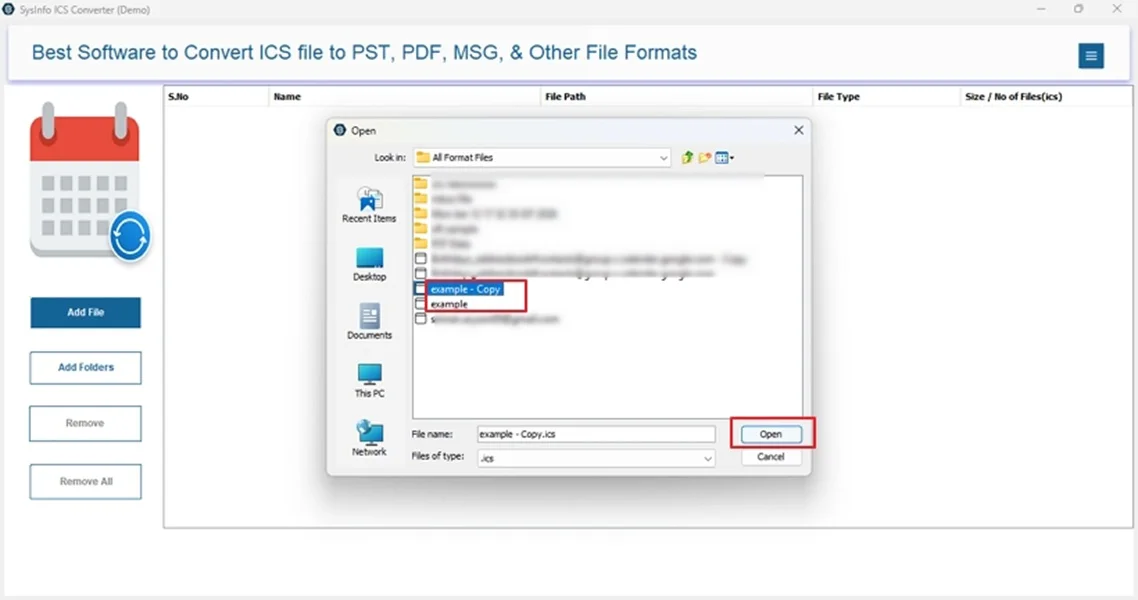
- Further, from the preview pane, check data and select folders. Tap Next.

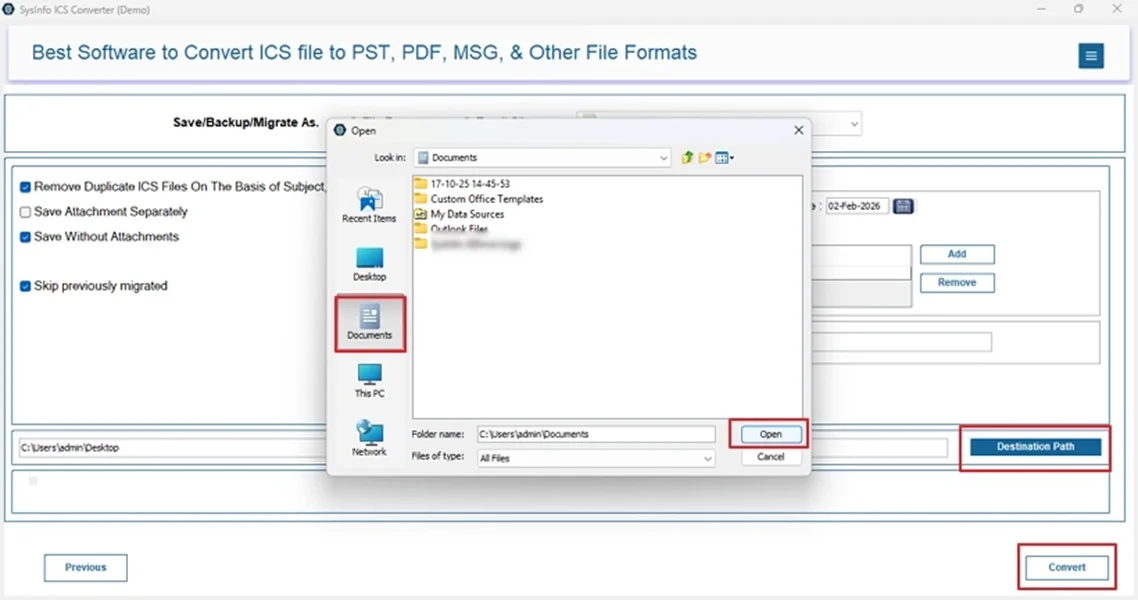
- Later, choose the JPG file format from the list and apply custom filters.
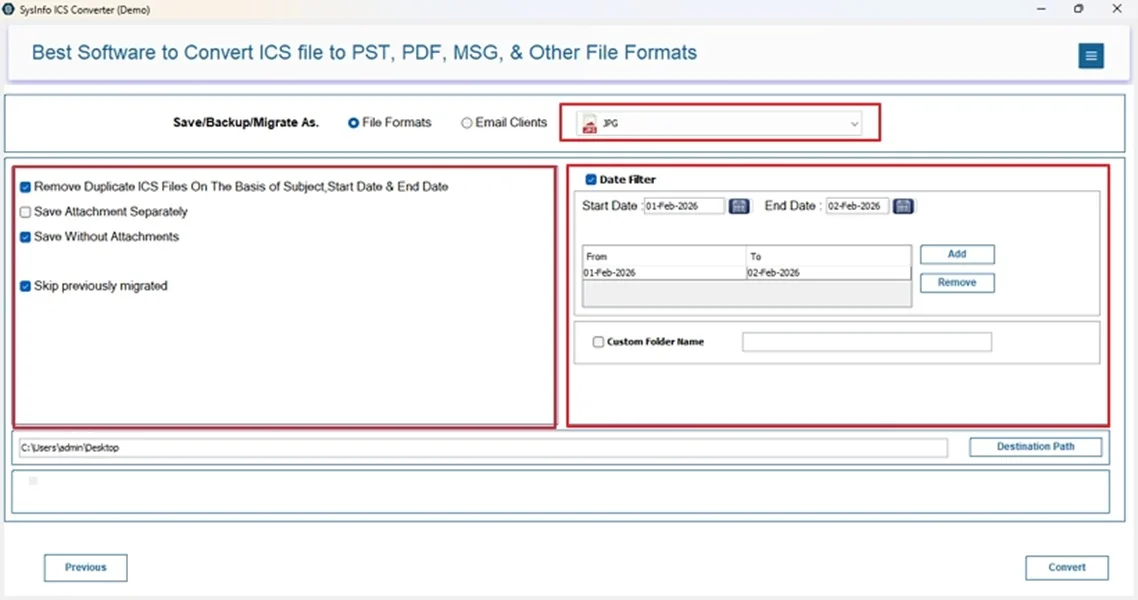
- Finally, select a Destination Path to save it and click Convert.
Real-Time Scenario:-
A project management firm needed to convert more than 300 ICS files for audit documentation immediately. They wanted to convert ICS to MSG or to JPG format, whichever was possible at the earliest. Manually, of course, it was not possible, and thus they downloaded the MailConverterTools ICS File Converter. Using it, they were able to securely save all their calendar data in both formats within minimal time without any loss or formatting and layout issues. The audit happened without any delays, and the firm was in absolute relief.
Conclusion
When you convert ICS to JPG format, you take a step to make calendar data more universally accessible, non-editable, and easy to share across platforms. Though the manual method is fine for limited use, it doesn’t offer much help for bulk conversions and data preservation. Whereas the automated MailConverterTools ICS Converter ensures consistent formatting, scalability, accuracy, and operational efficiency in the conversions with zero loss.
Frequently Asked Questions
Q1: Is batch conversion of multiple ICS files to JPG possible?
Ans: Yes, you can use the ICS File Conversion Tool to batch convert ICS file to JPG without any risks. There are no limitations on the size and count, and the conversion goes hassle-free.
Q2: Do I need a calendar application installed to convert ICS to JPG?
Ans: No, you do not need any calendar application installed for the conversion if using professional software. But with the manual method, you may need one.
Q3: Can I convert ICS to JPG on both Windows and macOS?
Ans: Yes, of course. Both the manual method and the dedicated ICS Exporter Tool work on both Windows and Mac OS for all versions.
Q4: Are attachments included when converting ICS to JPG?
Ans: The attachments aren’t included with the manual method. But with the MailConverterTools ICS Converter Software, they are included until you explicitly choose to remove them or save at a separate location.
About The Author:

Meet Amit, an experienced SEO expert and content planner. He uses his creativity and strategy to create content that grabs attention and helps brands reach their goals. With solid skills in digital marketing and content planning, Amit helps businesses succeed online.
Related Post