-
Written By Amit Chandel
-
Updated on February 24th, 2026
Import EML to Zoho Mail in Bulk: Secure & Fast Tutorial
User Query: I got a bunch of emails saved as .eml files and am now trying to move them into your Zoho Mail account. Yeah, it sounds simple… but it’s not that straightforward. Is there any solution for the import?
EML files are pretty common when you export or save emails from different email apps. The problem is, Zoho Mail doesn’t really offer a direct way to import EML to Zoho Mail. In this blog, we’ll go through two ways you can handle this. One is a manual method that takes a bit of time. The other is using the MailConverterTools EML Converter Tool, which speeds things up. You can choose whatever feels easier for you..
Why Do We Need to Transfer EML files to Zoho Mail?
- You’ve moved to Zoho Mail and still need those old emails.
- You don’t want important conversations in random folders on your computer.
- It’s easier to search and manage emails when everything is inside one account.
- Switched email services for work or business, and need old emails for records or proof.
- You simply want a proper backup without losing any important messages.
Manual Methods to Import EML to Zoho Mail with Zero Cost
There are three methods that we use to import the EML files into the Zoho Mail account. These methods have some requirements and limitations as well that you need to keep in mind.
1) Import EML File to Zoho Mail’s built-in import option
- Firstly, log in to your Zoho Mail account.
- Then, open Settings > Import/Export.;
- Choose the folder/account where you want the emails to be added.
- After that, click Choose File and select your EML file.
- Finally, click Import and wait for the emails upload.
2) Migrate EML to Zoho Mail Via Microsoft Outlook with IMAP
- Firstly, add your Zoho Mail account to Outlook using IMAP settings.
- Thereafter, locate your saved EML files.
- Then, drag and drop the EML files into the Zoho folder inside Outlook.
- Lastly, wait for the sync process to complete.
3) Upload EML into Zoho Mail by Using Mozilla Thunderbird
- Firstly, install Thunderbird and configure your Zoho Mail.
- After that, install the ImportExportTools NG add-on.
- Afterwards, right-click the Zoho folder > choose Import Messages > select your EML files.
- At last, after the sync finishes, your emails will show up in Zoho Mail.
Limitations
- Zoho Mail doesn’t always support direct bulk EML upload.
- IMAP syncing in Microsoft Outlook can be slow.
- Drag and drop may fail for large or multiple files.
- Mozilla Thunderbird needs an extra add-on.
- Possible missing attachments or formatting issues.
- Sync may stop if the internet is unstable.
- Not ideal for thousands of EML files.
Professional Method to Import EML to Zoho Mail in Bulk
The MailConverterTools EML Converter Tool can proficiently upload many EML files at the same time. This helps if you have a large folder of emails. The tool keeps the email details like subject, date, sender, and attachments as they are. Files don’t get mixed up during the process. There is also an option to choose specific emails instead of uploading everything. The tool can also import EML files to Hotmail and is useful to convert files in other format like to convert EML to DOC and other formats.
Steps to Convert EML to Zoho Mail
- Firstly, download the EML Converter Tool.
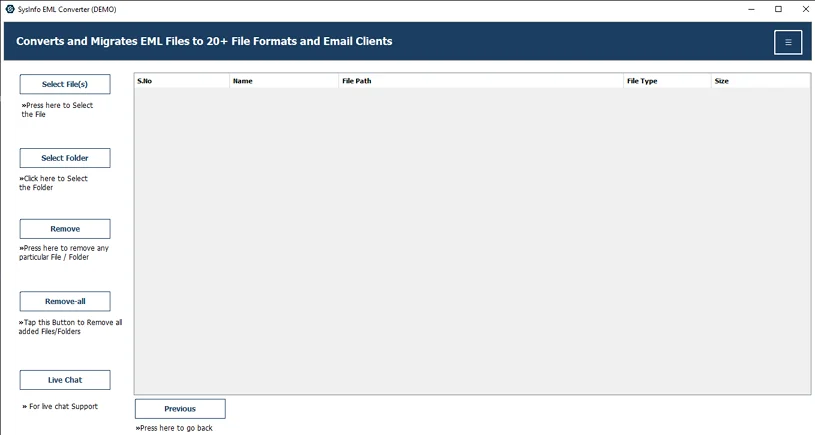
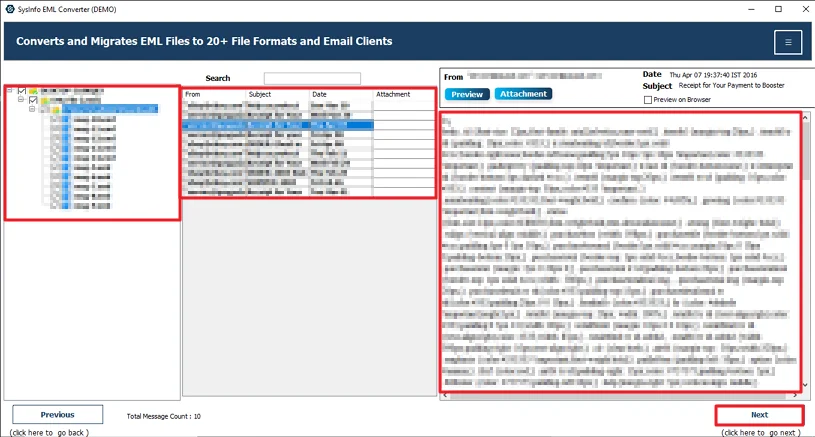
- Then, add the EML files and hit Next.
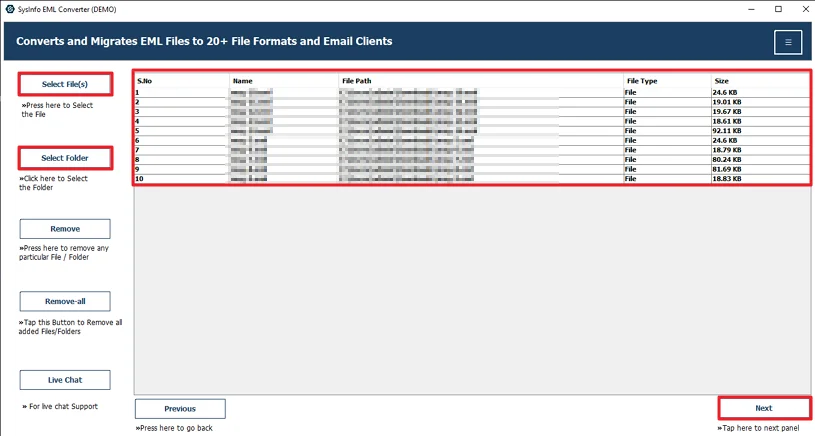
- Preview and then select files and click Next.
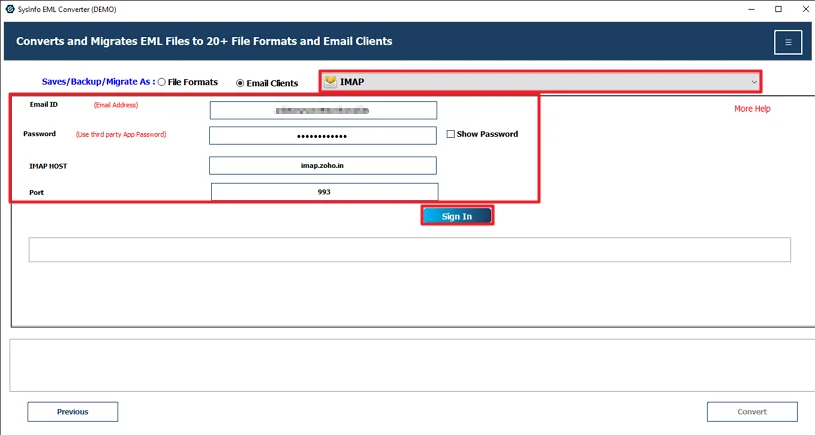
- Further, choose IMAP and use Zoho credentials to log in.
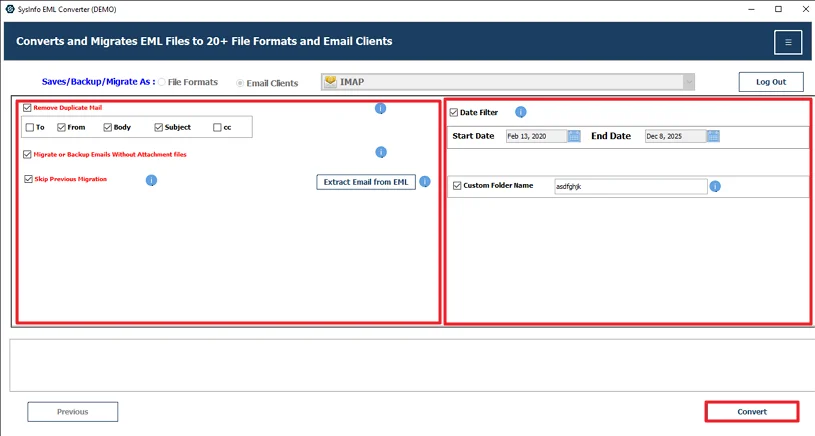
- Lastly, apply filters and hit the Convert button.
Successful User Case
A small business owner had years of old emails saved as .eml files on his computer. He had switched to Zoho Mail for daily work. But all his past client conversations were still sitting in folders on his desktop. At first, he tried the manual way. He connected his account in Microsoft Outlook and started dragging files. It worked for a few emails, but once he tried moving hundreds of them, the sync became slow, and a few messages didn’t show up properly.
After that, he decided to try the MailConverterTools EML Converter Tool. He added his EML folder, logged in with his Zoho IMAP details, and started the process. The tool uploaded everything in one go. The email dates, attachments, and folder structure stayed the same.
Conclusion
To conclude, the process to import EML to Zoho Mail just makes the management easy. The manual method is good for a few files only, not for a large number of files. Things can slow down for heavy files through the manual way. At that point, using a converter tool just feels more practical. It handles large batches better and saves you from doing everything one by one.
Frequently Asked Questions
Q.1 How can I import EML to Zoho Mail?
Ans: You can try the manual ways, or you can use the MailConverterTools EML Converter Tool and connect your Zoho account using IMAP login details.
Q.2 Can I import EML files to Zoho Mail without data loss?
Ans: Manual methods may sometimes cause missing attachments, but the MailConverterTools EML Converter Tool is designed to keep email details and attachments the same during the upload process.
Q.3 Can I bulk upload EML into Zoho Mail?
Ans: The MailConverterTools EML Converter Tool allows you to upload multiple EML files at once without doing it one by one.
Q.4 How to migrate EML to Zoho Mail without technical skills?
Ans: With the MailConverterTools EML Converter Tool, you just add your EML files, log in with your Zoho IMAP details, and start the process. It’s more straightforward for non-technical users.
About The Author:

Meet Amit, an experienced SEO expert and content planner. He uses his creativity and strategy to create content that grabs attention and helps brands reach their goals. With solid skills in digital marketing and content planning, Amit helps businesses succeed online.
Related Post