-
Written By Amit Chandel
-
Updated on March 16th, 2026
Convert PocoMail to Outlook PST – Manual & Automated Methods
User Query: I’m trying to migrate some old PocoMail mailboxes to Outlook. For that, I need them in PST format, but I’m not really sure which method works best or keeps the emails safe during the process.
A lot of people still have old PocoMail data saved on their systems, but the problem is that PocoMail hasn’t really kept up with modern operating systems. One practical way to deal with this is to convert PocoMail to Outlook PST file. PST works smoothly with Outlook and is easier to manage on current systems. In this blog, we’ll go through a few ways to convert PocoMail emails to PST while keeping the data safe and intact. Also, includes the MailConverterTools MBOX Converter Tool.
Why Convert PocoMail Emails to Outlook PST?
- PST makes PocoMail emails easier to open in Microsoft Outlook.
- PST files help keep emails, folders, and attachments together in one place.
- Outlook PST format works better for everyday email management.
- This conversion helps to keep old PocoMail data accessible for future use.
- The Outlook PST files make it simpler to store, move, and back up email data.
- Users can read old emails without needing PocoMail installed.
- It also helps keep older email records usable when PocoMail is no longer supported.
Manual Method to Convert PocoMail to Outlook PST
One simple way to move PocoMail emails to Outlook is by first saving the emails in EML format. Another simple option is to forward important emails from PocoMail to your Outlook account.
Method 1: Migrate PocoMail Emails to Outlook
- Open PocoMail and log in to your email account.
- Go to the mailbox and select the emails you want to export.
- Click on the Export option and choose EML as the file format.
- Save the exported EML files to a folder on your computer.
- Now open Microsoft Outlook and create a new folder where you want the emails.
- Finally, drag the saved EML files and drop them into that Outlook folder.
Method 02: Move Data From Pocomail To Outlook by Forwarding
- Start PocoMail and open the mailbox that contains the emails you need.
- Select the messages you want to send to Outlook.
- Click the Forward option.
- Enter your Outlook email address in the recipient field.
- Click Send to forward the email.
- After that, check your Outlook inbox to confirm the messages arrived.
Limitations
- Users must export or forward emails manually, which can take a lot of effort.
- The original folder hierarchy may not remain the same after importing into Outlook.
- There is no bulk conversion option, so handling multiple mailboxes becomes difficult.
- Attachments or email formatting may not always appear the same after the transfer.
Automated Method to Convert PocoMail to Outlook PST
The MailConverterTools MBOX Converter is a tool that can help convert your PocoMail emails into Outlook PST files. It also supports other file formats and email platforms, so the data can be moved to different email clients. Moreover, some users also use the same tool when they need to convert MBOX to EML. The interface is fairly simple, so the steps are not too complicated. This can make the process easier for people who need to convert a lot of email data. Additionally, read this to convert MBOX to CSV.
Steps to Convert PocoMail Emails to Outlook PST
- Firstly, download the MBOX Converter Tool.
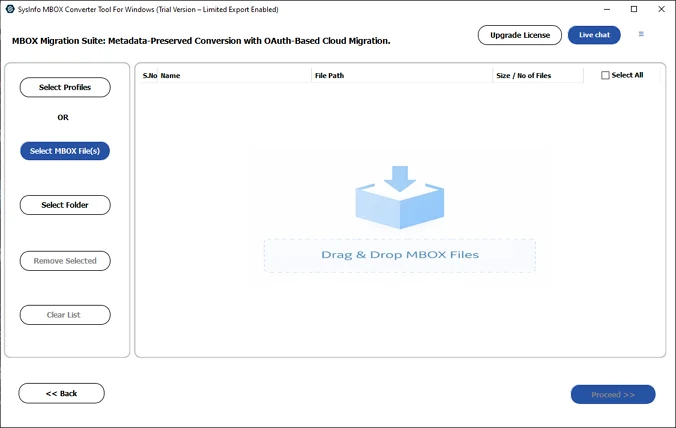
- Then, add your MBOX files and press Next.
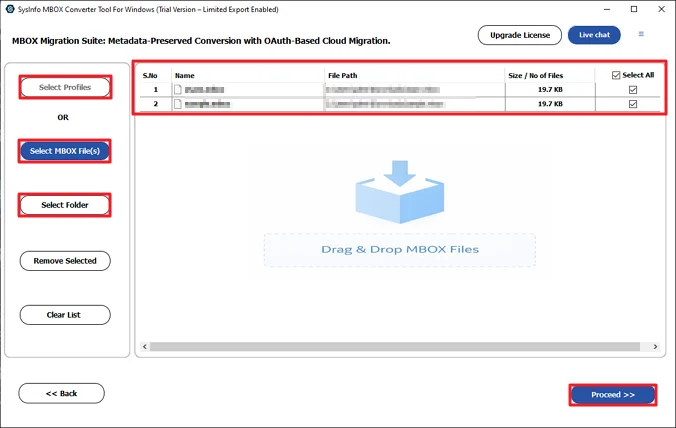
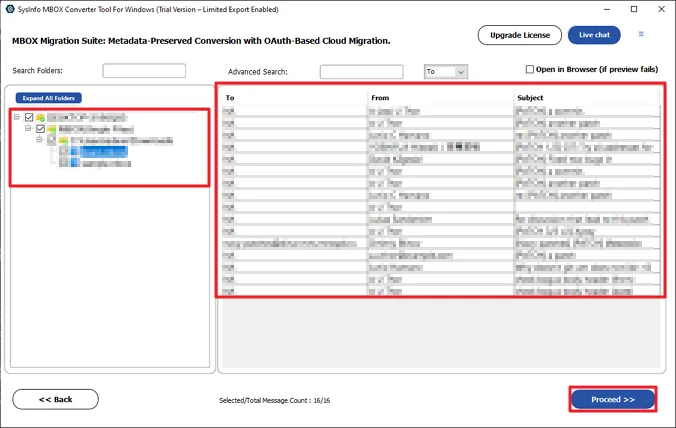
- Select and preview the files and click Next.
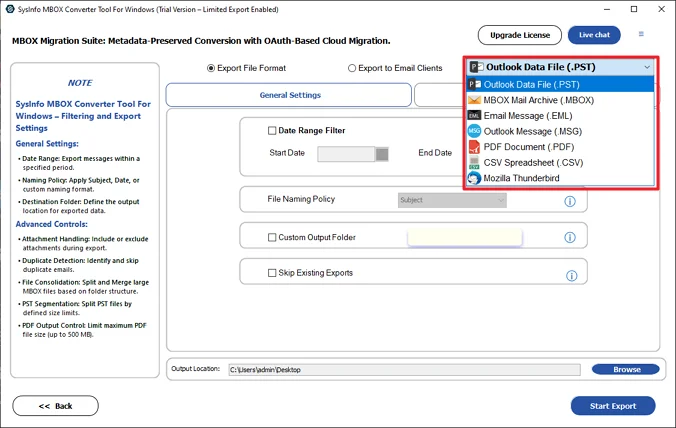
- After that, choose the Outlook PST file format from the list.
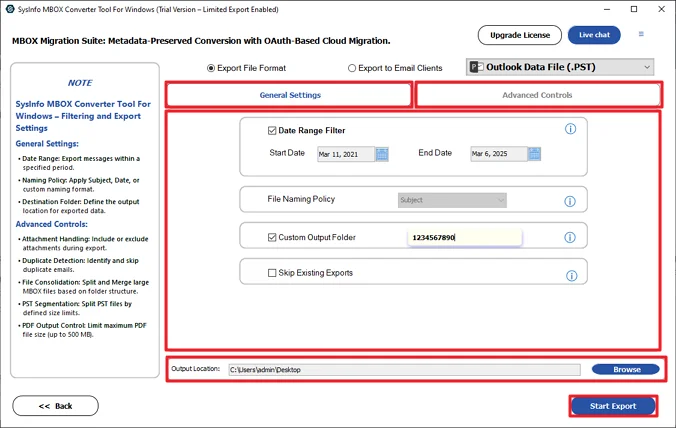
- Lastly, apply filters, set the path, and click Start Export.
Successful User Case
A small accounting firm had many old email records in PocoMail. When the company switched to Microsoft Outlook, those emails did not open in the new system.
Later, they used the MailConverterTools MBOX Converter to change PocoMail files into Outlook PST. After the process, all emails appeared in Outlook with folders and attachments. The team could read old messages again without PocoMail.
Conclusion
Moving PocoMail emails to Outlook PST helps keep old messages accessible and easier to manage in Outlook. In this blog, we looked at manual ways, but they can take a lot of time and effort, especially if there are many emails. Because of that, many users prefer using an MBOX Converter to convert PocoMail to Outlook PST. It can convert the files more quickly and in bulk.
Frequently Asked Questions
Q.1 How can I convert PocoMail emails to Outlook PST?
Ans: You can do this in two ways. One option is to export PocoMail emails as EML files and then drag those files into Microsoft Outlook. Another option is to use the MailConverterTools MBOX Converter.
Q.2 Can I import PocoMail emails into Microsoft Outlook PST without data loss?
Ans: Yes, it is possible when the conversion is done carefully. The MBOX Converter Tool is designed to keep emails, attachments, and folder structure during the conversion process.
Q.3 Is it possible to convert multiple PocoMail emails to Outlook PST at once?
Ans: Yes. The MailConverterTools MBOX Converter supports bulk conversion, which means you can convert multiple PocoMail MBOX files to PST in a single process.
Q.4 Can I convert PocoMail emails to Outlook PST without technical skills?
Ans: Yes. The tool has a simple interface and step-by-step process, so users can add MBOX files, choose PST as the output format, and start the conversion without needing technical knowledge.
About The Author:

Meet Amit, an experienced SEO expert and content planner. He uses his creativity and strategy to create content that grabs attention and helps brands reach their goals. With solid skills in digital marketing and content planning, Amit helps businesses succeed online.
Related Post