-
Written By Amit Chandel
-
Updated on July 24th, 2026
Import AOL Emails to Thunderbird: Manual & Auto Methods
“Hi, I am a non-tech user, and recently my friend upgraded to Thunderbird. No, she has migrated a few emails from her previous AOL account, but still, a lot of data remains untransferred. I guess Thunderbird default doesn’t support them, that’s why they aren’t moved, or maybe the size of the data is too large. The server setting is set to POP3 if it helps anyway. Can you suggest an effective solution to import the entire mailbox data without any missing or lost files and structure?”
-Ben Maverick, North America
Email migration isn’t limited to data transfers anymore. Now, it’s more about how the mailbox data is stored, managed, and accessible across platforms. When enterprises and individuals import AOL emails to Thunderbird, they make a switch from web-dependent mailboxes to open-source clients. One that is flexible, free, and resides in an offline environment. This technical guide states practical and trusted solutions to make the import for free or with an AOL Mail Converter Tool in a hassle-free manner.
Major Factors to Export AOL Email to Thunderbird
AOL (America Online) is a popular webmail, but there are numerous instances where users are facing problems with it in modern day. Therefore, many of them are transitioning to Mozilla Thunderbird for the following benefits:
- Controlled, customized, and offline ecosystem on the local OS.
- Uninterrupted data access across all Windows, Mac, and Linux OS.
- No dependency on browser access and works flawlessly with regular updates.
- Advanced filtering and folder management to organize and access data as desired.
- Easy local storage, archival options, and robust data security backups for future use.
Note: Also, AOL doesn’t support POP3 due to several security concerns, and it goes well with the IMAP server. As we saw above, Ben’s friend was using POP3, which is also a reason they are unable to transfer data between clients. As POP requires you to save data locally, it only takes the inbox emails.
Manual Solution to Import AOL Emails to Thunderbird
Thunderbird allows users to directly configure their AOL mailboxes via Thunderbird for the import of mailbox data manually. The steps to follow are:
- Launch the Mozilla Thunderbird desktop application.
- Then, head to Account Settings and from Account Actions, choose Add Mail Account.
- Or, from the More Menu, click Add Account and choose Email.
- Further, enter your AOL email address, username, and password details in it.
- Click Next and choose IMAP. Wait and Thunderbird will automatically detect settings.
- Again, click Next, verify the details, and click Done to configure the account.
- Once configured, Thunderbird will automatically sync and fetch all the mailbox data.
- Drag and drop to move all emails and data from AOL folders to the Thunderbird Local folder to save.
The process to free import AOL Mail to Thunderbird is complete. Now, you can export AOL email folders to hard drive and access them offline in the near future.
Loopholes of the Method
- Slow sync time for large mailboxes and needs constant internet connectivity.
- No scope for selective or filtered email migration.
- Cannot transfer data from multiple AOL accounts together.
- Is difficult and tricky for non-technical users to configure accounts.
Therefore, for business and folder-level migrations, smart software solutions are needed.
Automated Solution to Import AOL Emails to Thunderbird
MailConverterTools AOL Mail Backup Tool is a powerful software solution to instantly transfer AOL’s complete mailbox data in one go. It offers migration from multiple accounts and ensures 100% data integrity and folder structure retention. Additionally, no technical expertise is required to use it because it has a simple, user-friendly interface and is available for all Windows and Mac systems. Moreover, with its Demo Version, one can export upto 50 emails per folder at zero cost.
Note: Since Thunderbird supports the MBOX format, it can be directly imported with ImportExportTools NG. We will save the AOL mailbox data in MBOX format directly with this software.
Steps to Transfer Emails from AOL to Thunderbird
- Launch the AOL Backup Tool and choose AOL and Single/Batch Mode.
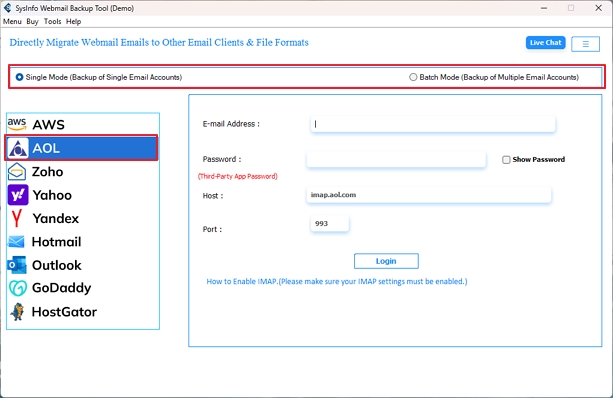
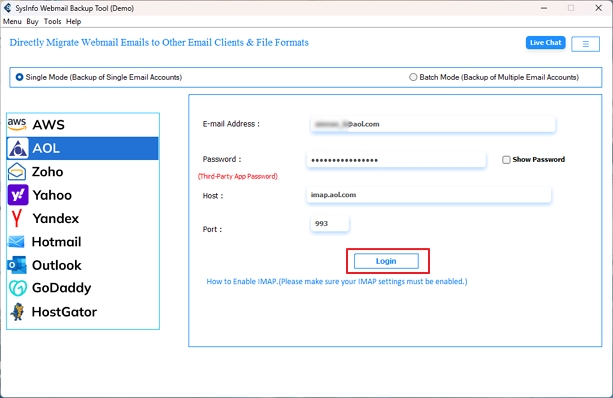
- Then, accordingly, enter credentials or add a CSV, and click Login.
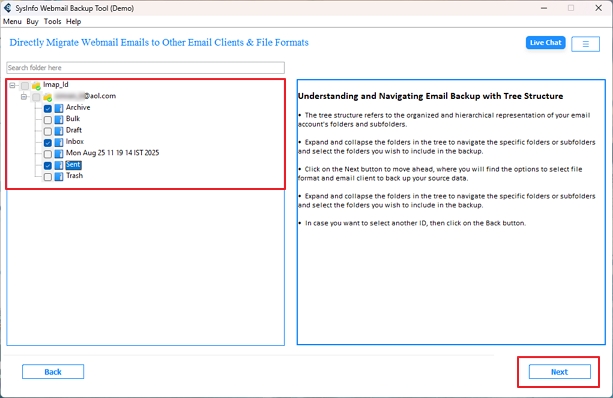
- Further, select the AOL folders to migrate to Thunderbird and click Next.
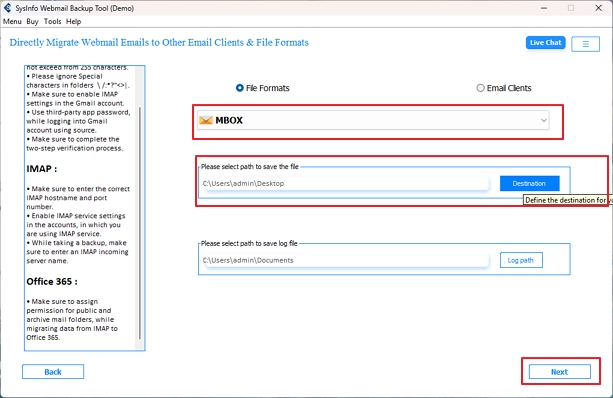
- Afterward, choose MBOX from file formats and a destination to save. Tap Next.
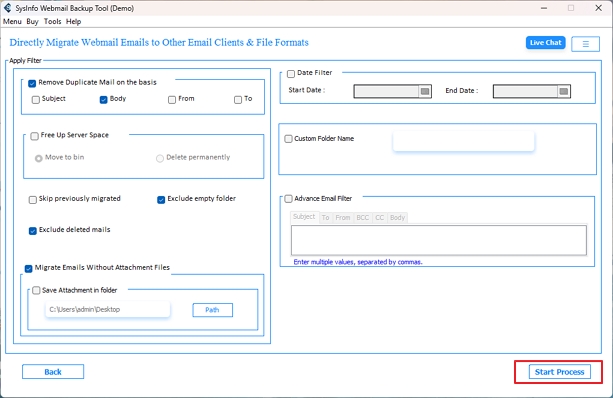
- Finally, select all the custom filters you want to apply and tap Start Process to migrate AOL.
Pro Tip: This software can also be used to migrate AOL to Office 365, Gmail, IMAP, and other email clients directly with zero loss with same few simple steps.
Import AOL Emails to Thunderbird: Real World Scenario
The Case and Issue:
- A UK-based consulting firm had been using AOL Mail for many years but was looking for a more organized way to hold its clients’ email communications.
- Their mailbox was over 12 GB, which caused issues with reliability and speed when trying to sync via IMAP.
To solve this issue,
- The consulting company used MailConverterTools AOL Mail Backup Software to export all emails from their AOL mailbox to MBOX files.
- They were then able to import these newly created MBOX files into Thunderbird.
- This gave the consulting firm an organized, offline-accessible mailbox where they had zero data loss, and the performance of their emails was drastically improved.
Pro Tips to Import AOL Mail to Thunderbird
Always ensure the following factors for a smooth AOL to Thunderbird email migration:
- Do not forget to back up your AOL mailbox prior to migration.
- Avoid syncing your AOL mailbox during peak network times.
- Use filters to exclude emails that are junk or duplicates from your migrated mailbox.
- After successfully importing your emails into Thunderbird, create new index files. This will provide the highest level of performance while using Thunderbird.
- When you have migrated your data, place your MBOX files in the Local Folders section. It helps to access them for all of your long-term storage needs.
Relevant post: Convert AOL Emails to HTML
Conclusion
Import AOL emails to Thunderbird to receive more flexibility, scalability, granular control, and long-term accessibility of your critical email communication data. It ensures that the data is always available with no loss and downtime. Using the manual approach works if you have a few files to transfer, good technical skills, and a stable internet. But it may fail for large-scale migrations where efficiency and data accuracy matter. So, for such AOL to Thunderbird migrations, use the dedicated MailConverterTools AOL Mail Backup Software. It will save you time, cost, and effort while offering precision.
Frequently Asked Questions
Q.1 What is the most effective tool to import AOL emails into Thunderbird?
Ans: The most effective software to export AOL email to Thunderbird is the AOL Mail Migration Tool. It works offline, and you can quickly access the mailboxes and save them with accuracy.
Q.2 Are there any risks in migrating AOL emails to Thunderbird?
Ans: Risks depend on the method you opt for in the migration. With the manual method, inconsistencies and complexities may arise. With the professional tool, risks are minimized, and data transfer takes place without difficulties.
Q.3 Can a non-technical user import AOL emails into Thunderbird?
Ans: Yes. Any non-technical user can transfer emails from AOL to Thunderbird with the smart AOL Migration Software by MailConverterTools. It keeps the folder structure preserved, data fidelity maintained, and completes the migration in minimal time.
Q.4 Is it possible to transfer multiple AOL emails to Thunderbird at once?
Ans: Yes. Transfer multiple AOL emails with the Batch Mode of AOL Mail Backup Tool. Upload the CSV file containing credential details for AOL user mailboxes and transfer data from them simultaneously into Thunderbird MBOX in one go with no size limits.
About The Author:

Meet Amit, an experienced SEO expert and content planner. He uses his creativity and strategy to create content that grabs attention and helps brands reach their goals. With solid skills in digital marketing and content planning, Amit helps businesses succeed online.
Related Post