-
Written By Amit Chandel
-
Updated on October 15th, 2025
Quick Solution to Export G Suite to PDF Format
User Query: I have many important emails on G Suite that I want to save as PDFs for record-keeping purposes and share as needed. Is there a quick and safe way to export G Suite emails to PDF while preserving email attachments?
G Suite is a very popular cloud-based platform to manage emails, calendars, and documents. Every day, many professionals and businesses use it for their communication needs. However, there are times when G Suite users want to save or print their emails to PDF format. In this blog post, we’ll illustrate both a manual approach and an automated approach to export G Suite to PDF format. The Google Workspace Backup Tool helps users securely backup emails into PDF while maintaining all information safe.
Simple Steps to Export Google Workspace to PDF
- First, launch the Google Workspace Backup Tool on your system.
- Then, enter your admin credentials and click Login.
- After that, select the account from which the mailboxes need to be exported and click Next.
- Then, tick Gmail from the available G Suite Backup Options and click Next.
- Further, click the Continue button under File Formats.
- After that, choose PDF as the saving File Format, apply advanced filters, and click Next.
- Finally, choose your destinated Save to Path and click Start Migration.
Why Export G Suite Emails to PDF?
- PDF is a standard format that can be opened on any device.
- Best for printing or sharing, it does a good job preserving the original format of the email.
- Offline viewing allows the user to read emails without an internet connection.
- Great for record keeping, it keeps your valuable conversations safe and readable.
- Protects you legally and enhances business compliance by storing emails as a record.
Method 01: Manual Method to Backup Google Workspace to PDF
Google provides a very basic method of saving your email as a PDF manually. Follow these steps.
- First, open Gmail on your web browser and log in to your G Suite account.
- Second, please open the email you want to save as a PDF.
- Then, click the three-dot menu (More) on the top-right corner of the email.
- Further, click Print from the dropdown options.
- After that, select Save as PDF from the Destination settings.
- Lastly, click Save to choose a location to save your PDF document.
Limitations of the Manual Method
- Users are allowed to export one email at a time.
- This process can be tedious and time-consuming, particularly when users have multiple emails to save.
- It does not include your attachments automatically in the PDF file.
- There is no bulk export option, which makes it not very useful for large mailboxes.
- The practical shortcut is to lose formatting each time you convert.
So if you have just a few emails, you can follow the manual for exporting G Suite emails to PDF. However, if you are dealing with large volumes of emails or multiple email accounts, then use the professional tool. The tool is best when it comes to consistently getting the job done reliably, speed for many emails.
Method 02: Professional Tool to Export G Suite to PDF
The MailConverterTools G Suite Backup Tool provides users with a complete and secure approach to exporting their G Suite emails. It enables users to download all emails from their mailboxes efficiently, including emails, attachments, and metadata. Furthermore, it provides multiple advanced capabilities for selective backup and avoiding duplicate emails. Additionally, the user can backup their emails in several formats, such as PST, MBOX, EML formats, and others. The backup tool is compatible with both Windows and Mac.
How to Export G Suite Emails to PDF Professionally?
Here’s how you can use the MailConverterTools Google Workspace Backup Software to complete the task:
- To start, download and open the backup tool on your computer.
- Then, fill in your administrator credentials and click on the Login button.
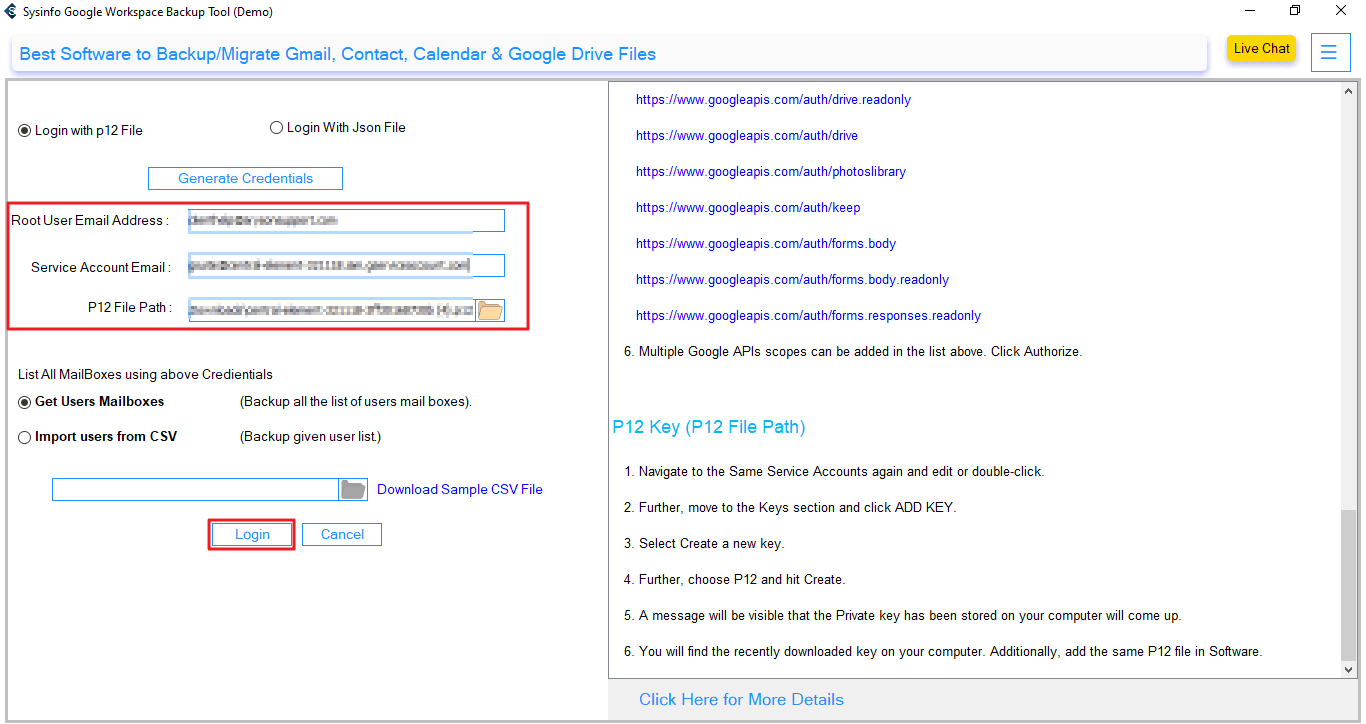
- Further, select your desired account to export emails, and click Next.
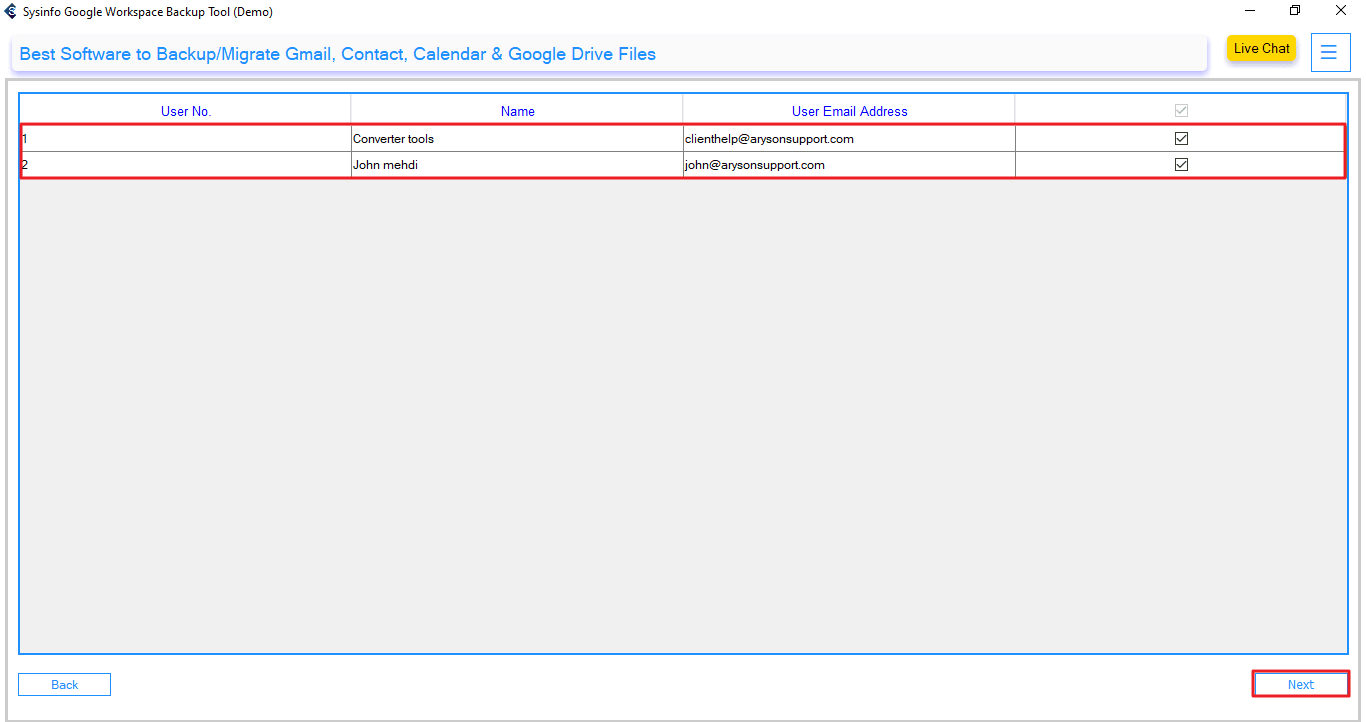
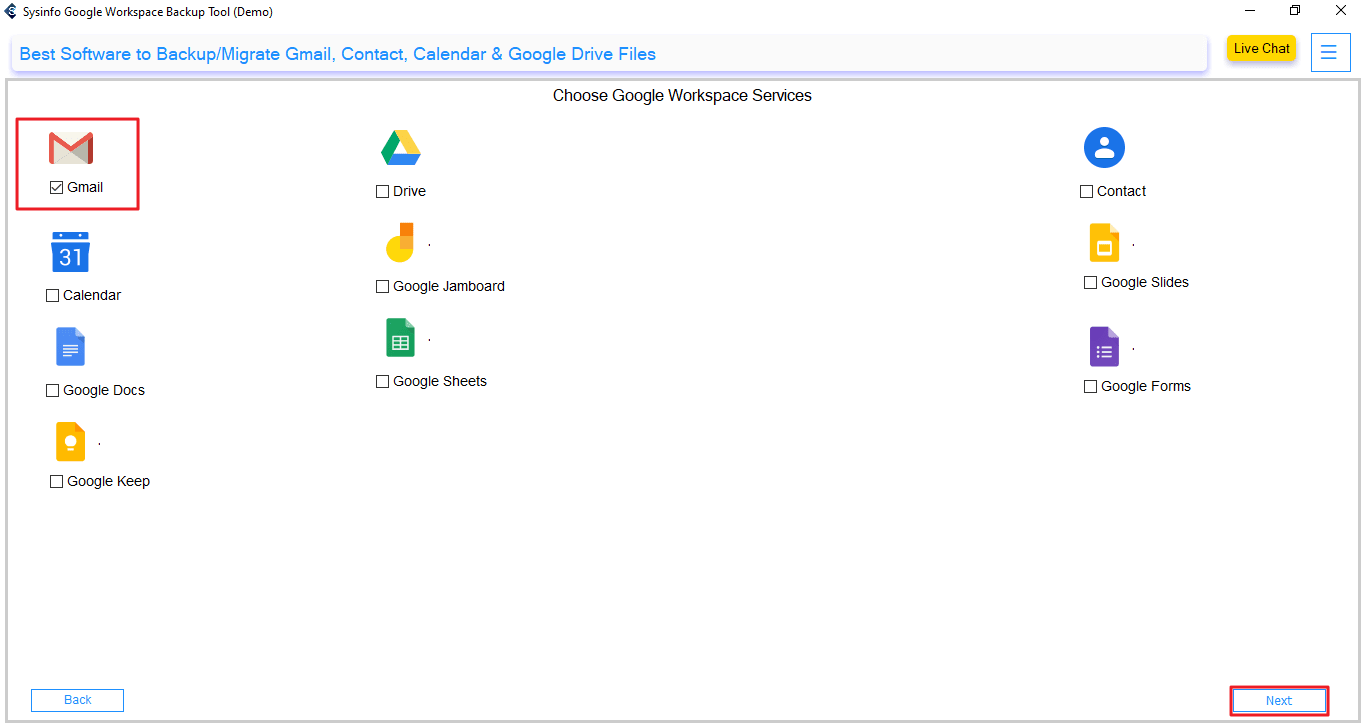
- Moving on, from the G Suite Backup Options, check the Gmail option, and select Next.
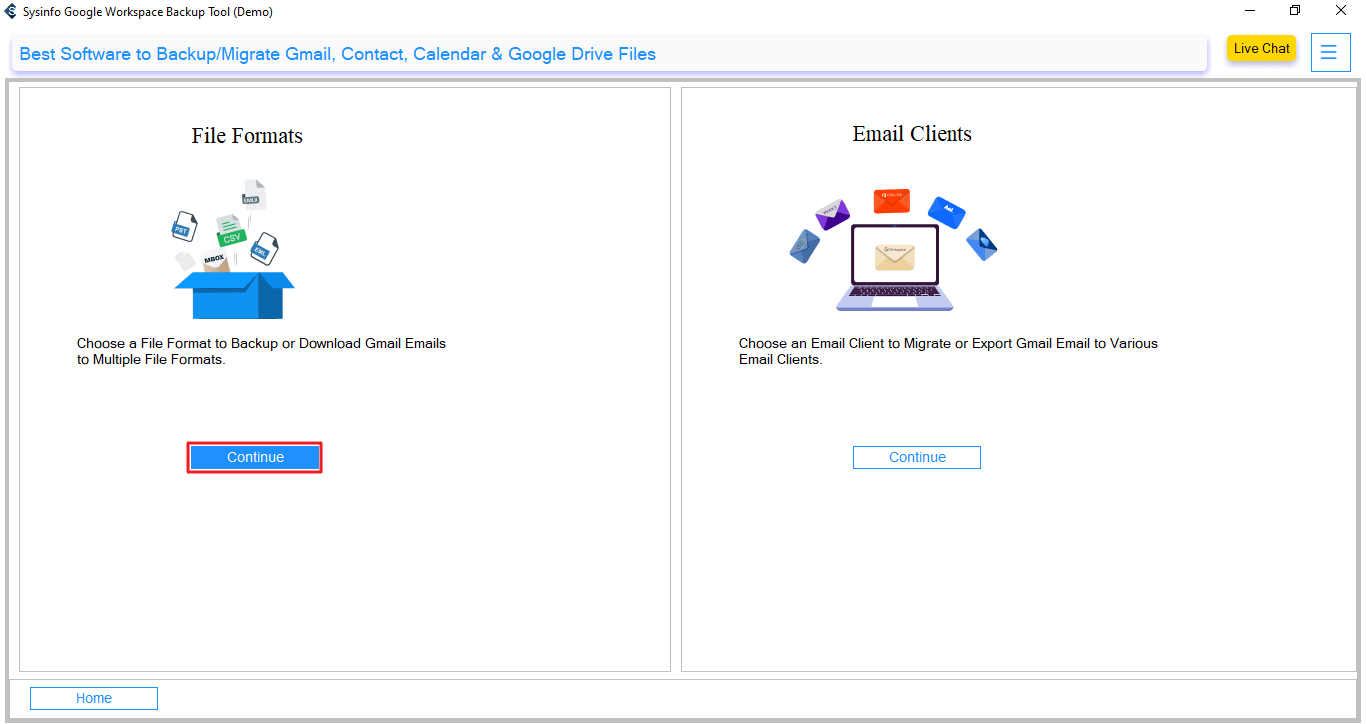
- After that, you will click the Continue button under File Formats.
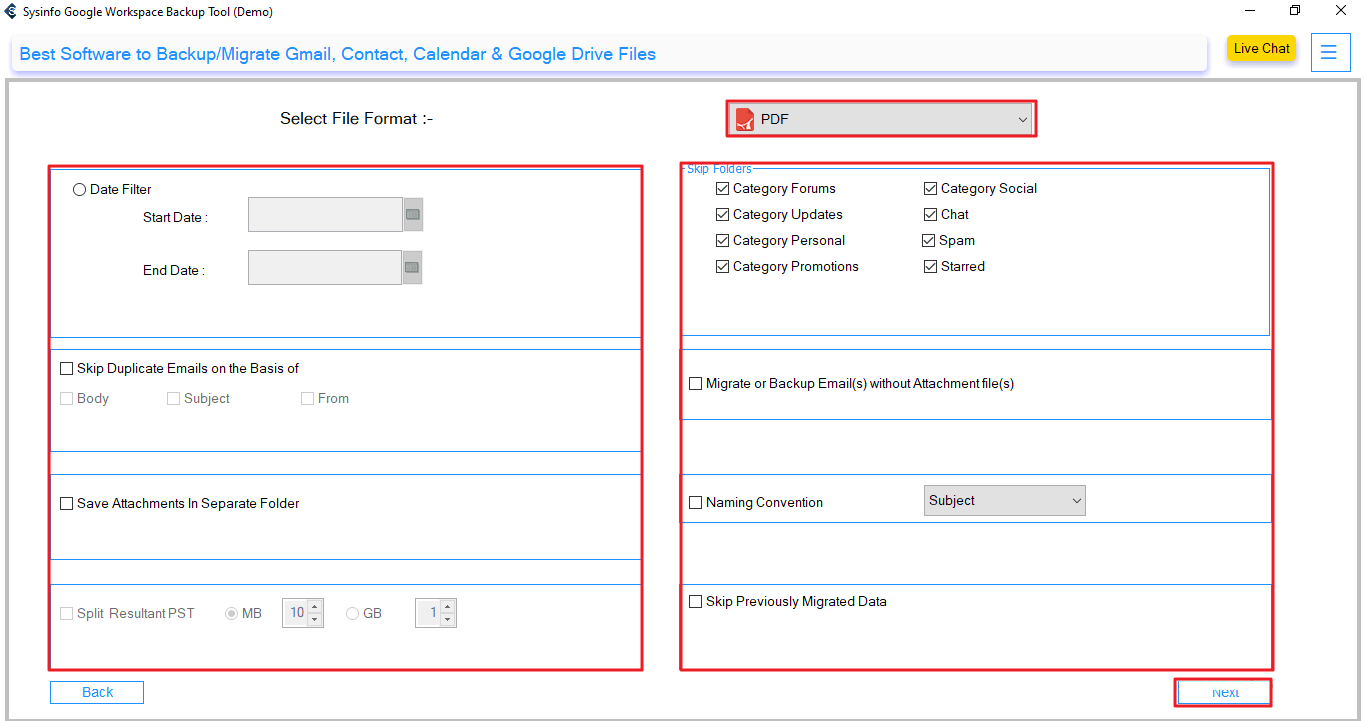
- Next, select PDF as your saving File Format, apply advanced filters, and select Next.
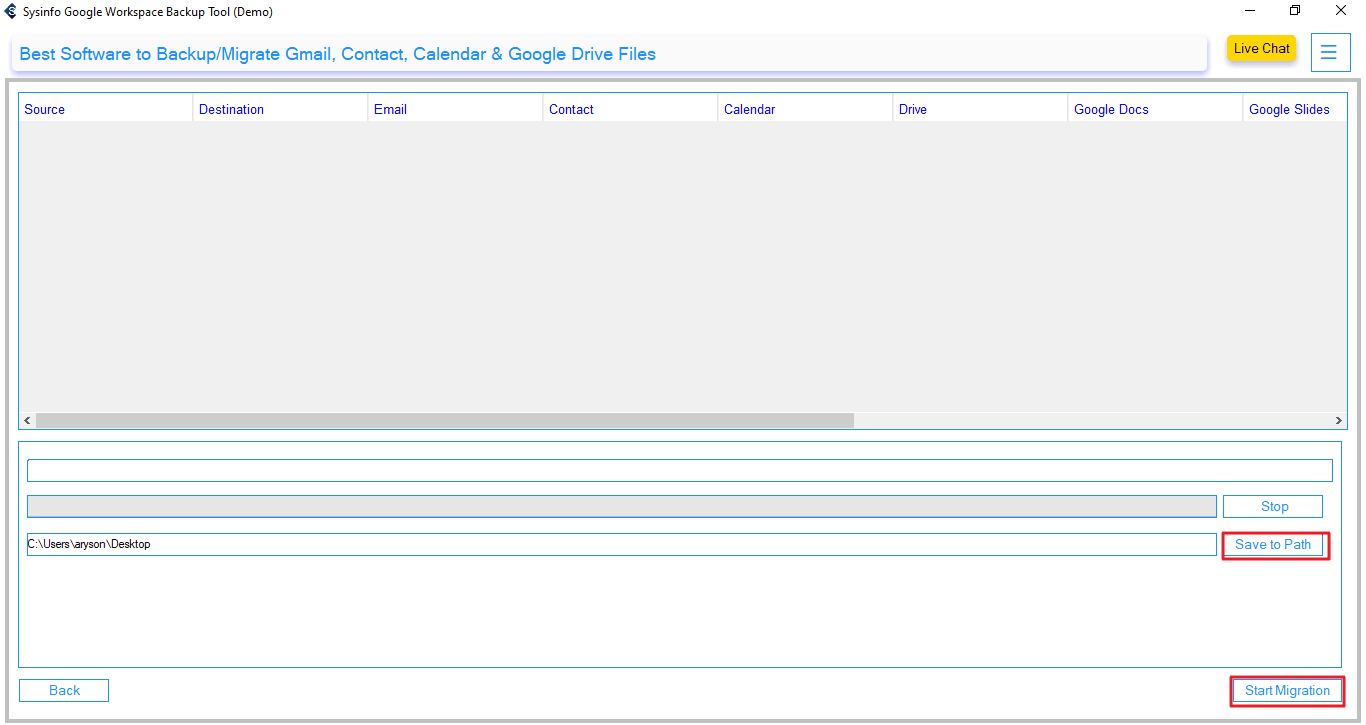
- Finally, select your Save to Path to locate and click Start Migration.
Real-Life Example
Sophia has spent many years working in a marketing agency and is quite familiar with G Suite. Before transitioning to her new company, she wanted to preserve all of her emails and contracts in an accessible format. She first attempted to do this manually, but it was simply too time-consuming.
Next, she made use of the Google Workspace Backup Tool and was easily able to export all of her emails into PDFs in a matter of minutes. Subsequently, each email, with all attachments, was neatly preserved in its own separate PDF file. Sophia now has a complete offline record of everything she has communicated.
Explore More: Export Google Workspace to MSG
Conclusion
In this blog, we have discussed several ways to export G Suite to PDF. The manual method is simple, but it becomes repetitive with many emails and attachments. Therefore, exporting files in bulk using a professional backup tool is highly recommended. Backup tools will offer complete data protection, keep the original formatting, and allow for flexible backup options with advanced filters. Like most tools, there is a full demo version of the backup program available as a trial, so you can test all features and functionality to see if it meets your needs.
Frequently Asked Questions
Q1. How can I export G Suite emails to PDF format?
Ans. You can simply access the email you want to export, click the three-dot menu, and select Print. You can then choose Save as PDF as a destination. You can only export one email at a time using this approach. However, a professional tool can take care of exporting multiple G Suite emails to PDF documents simultaneously.
Q2. Which is the best tool to export Google Workspace to PDF?
Ans. The MailConverterTools Google Workspace Backup Tool is one of the most efficient solutions for saving G Suite emails to PDF format. It permits its users to backup an entire mailbox, including emails, attachments, and labels. It offers advanced filters besides a simple functionality and supports operation in Windows and Mac systems.
Q3. What is the Date Range Filter in G Suite to PDF export?
Ans. The Date Range Filter allows you to export only specific emails from your G Suite account within a chosen time period. Instead of converting your entire mailbox, you can select a start and end date to include only relevant emails. This feature helps save time, reduces file size, and ensures that only necessary data is exported to PDF.
Q4. Does exporting G Suite emails to PDF also save attachments?
Ans. Yes, the professional backup tool will download all email attachments and embed them into the PDFs during the export process. This means that your emails and attachments will be preserved in the additional saved PDF file format.
About The Author:

Meet Amit, an experienced SEO expert and content planner. He uses his creativity and strategy to create content that grabs attention and helps brands reach their goals. With solid skills in digital marketing and content planning, Amit helps businesses succeed online.
Related Post